Members & Applications
Create member records, review applications, manage membership status, and open linked client wallets.
Overview
Use Members for accepted member records and Applications for candidates still being reviewed.
Members
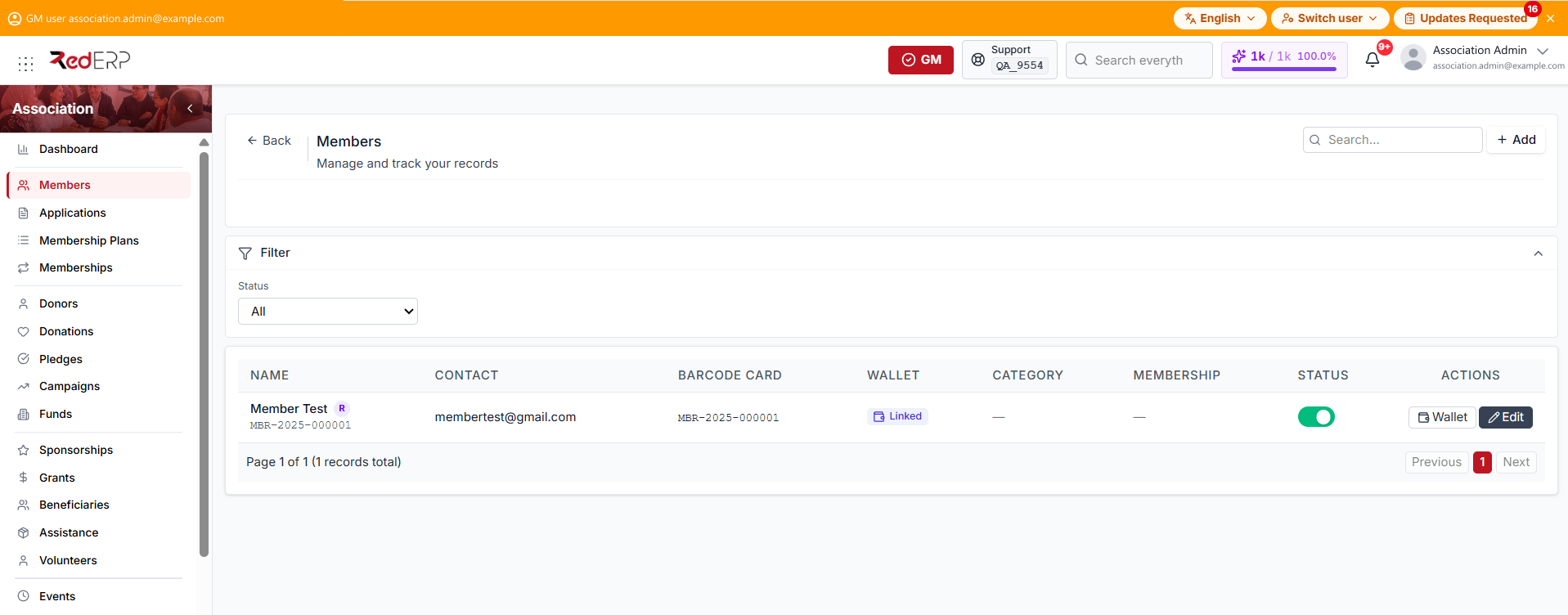
The list shows each member's reference, contact details, barcode, wallet link, category, membership period, and active status.
Create a member
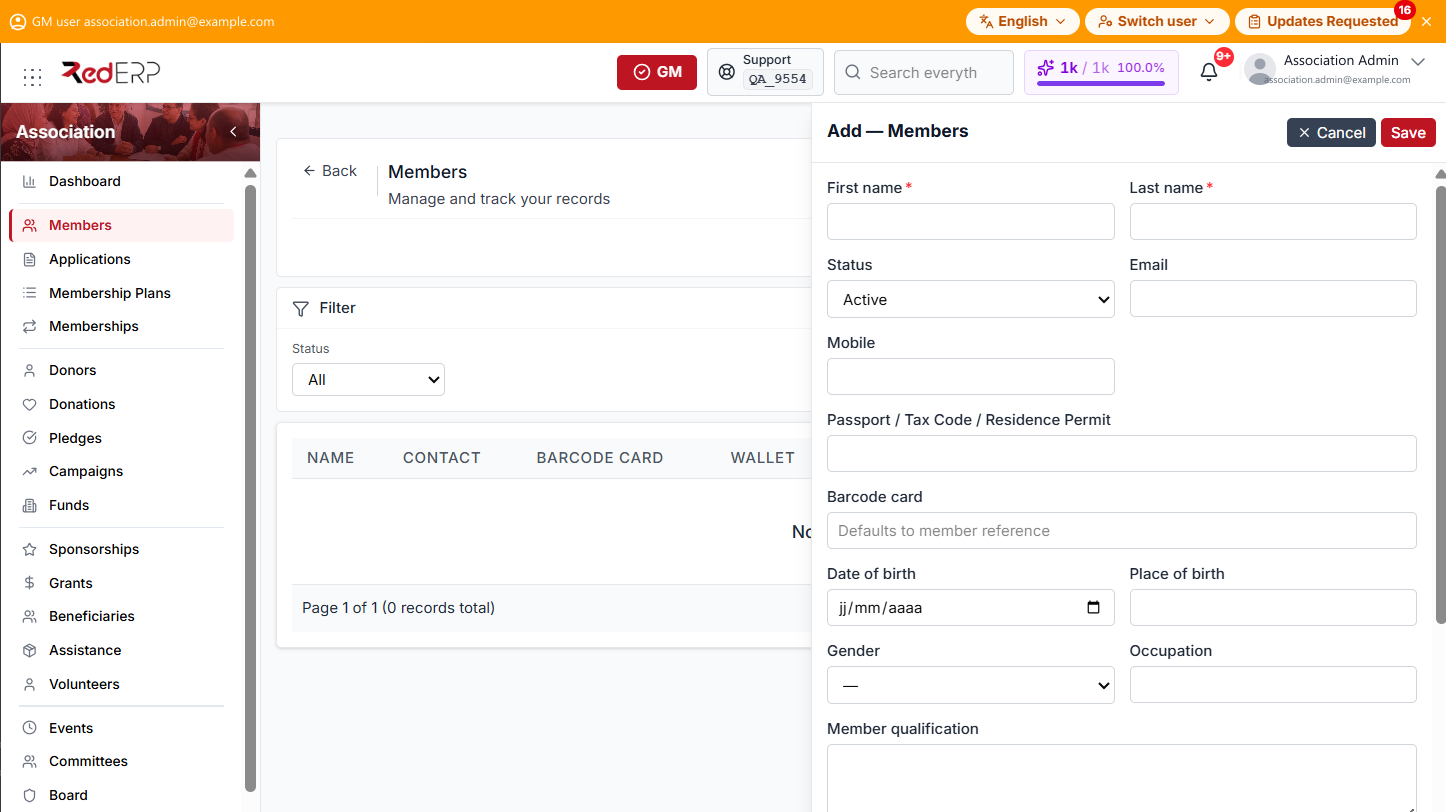
- Open Association → Members.
- Select Add.
- Enter the required first and last names.
- Add contact, identity, personal, qualification, and emergency-contact information as needed.
- Choose a branch or unit and set the membership dates.
- Set the status, then save.
If no barcode is entered, the member reference is used by default. Use the status switch in the list to move a member between Active and Suspended.
Member statuses
- Applicant — not yet accepted as an active member
- Active — current membership
- Grace — renewal grace period
- Expired — membership period has ended
- Suspended — temporarily inactive
- Resigned — membership ended by resignation
- Honorary — honorary membership
Client wallet
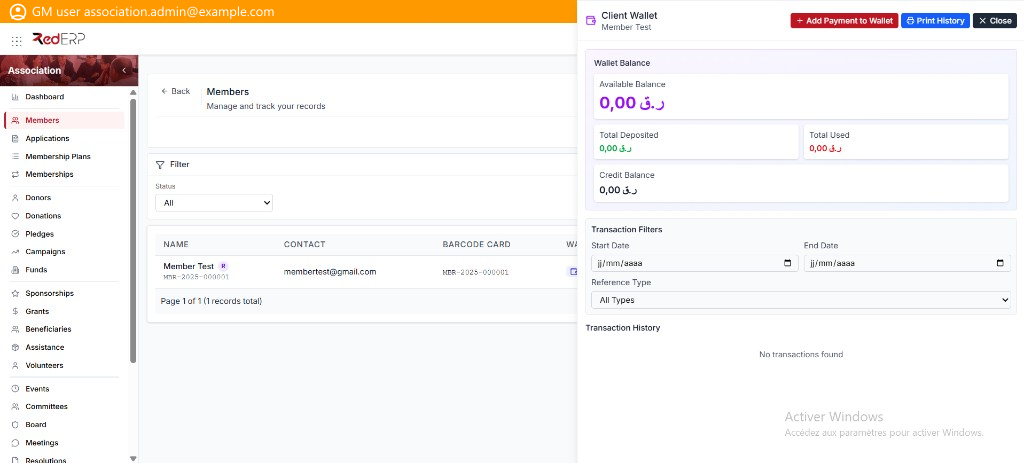
Select Wallet on a member row to open the linked client wallet. If no CRM client is linked, RedERP creates or connects one first. The wallet link lets the member use shared client-wallet functions.
The drawer opens on the member name and shows three sections:
- Wallet Balance — Available Balance, Total Deposited, Total Used, and Credit Balance, in the account currency.
- Transaction Filters — a Start Date and End Date range, plus a Reference Type filter offering All Types, Direct Wallet Deposit, or Credit Note Application.
- Transaction History — the movements matching the filters. A wallet that has never been used displays "No transactions found".
Three actions sit in the drawer header: Add Payment to Wallet credits the wallet, Print History produces a printable statement, and Close returns to the member list.
The wallet is the shared CRM client wallet, not an Association-specific balance. Amounts credited here are available to the linked client across the modules that use the client wallet.
Applications
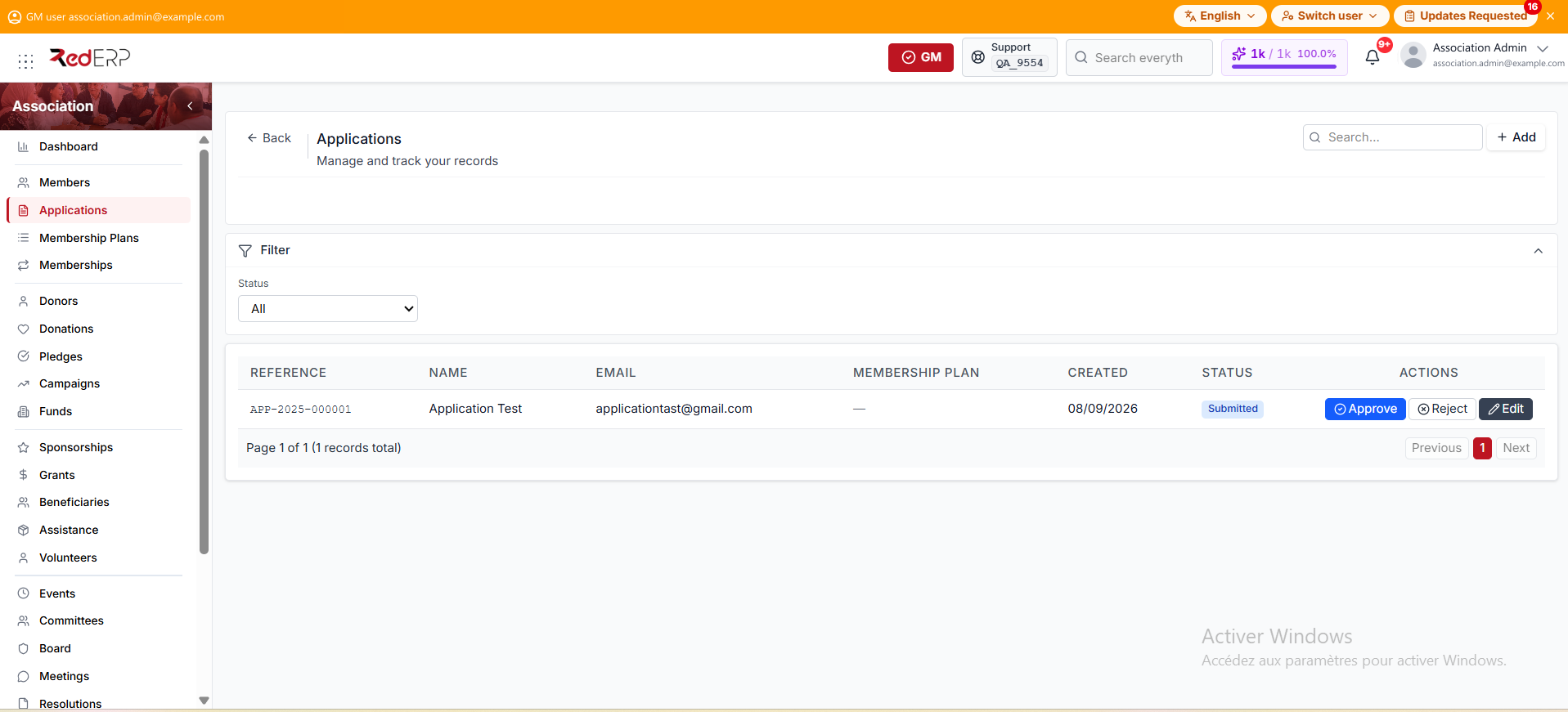
Applications contain the candidate's contact and identity details, requested membership plan, branch or unit, review notes, and status.
Create an application
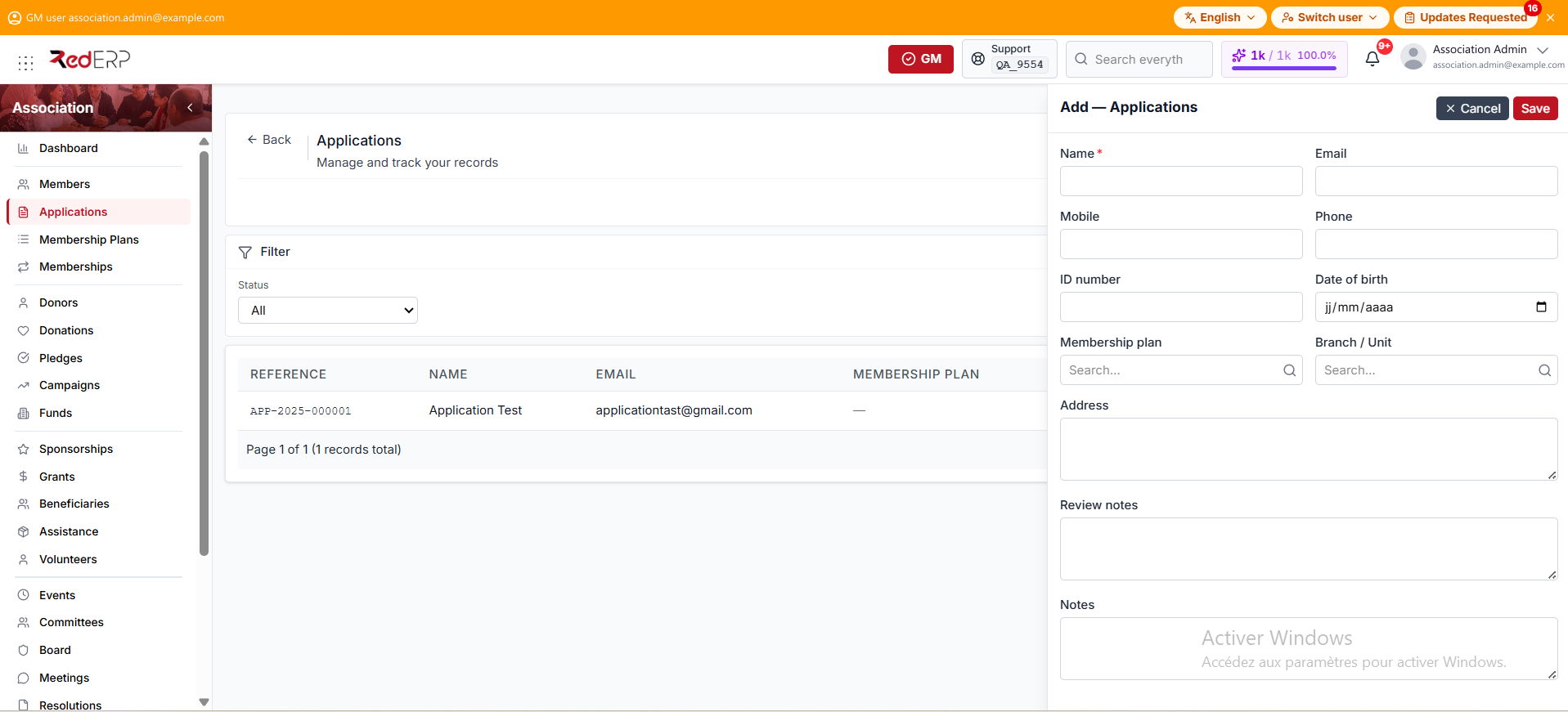
- Open Association → Applications.
- Select Add.
- Enter the required full name.
- Add the email, mobile, phone, ID number, and date of birth as needed.
- Choose the requested membership plan and the branch or unit.
- Add the address, review notes, and notes, then save.
A new application receives an application reference and starts with the Submitted status. The form has no status field; the status changes through the Approve and Reject actions.
Review an application
- Open Association → Applications.
- Filter by Submitted, Under review, or Info requested.
- Open the application to verify the candidate, plan, unit, and notes.
- Select Approve or Reject in the row actions.
- For rejection, enter a reason and confirm.
Applications can be filtered as Submitted, Under review, Info requested, Approved, or Rejected. After approval, the current workflow stores the application as Converted.
Approval creates an active member with a reference and barcode. When a plan is selected, RedERP also creates the membership period and the plan's initial registration and recurring fees.
Approve and Reject are available only while an application is submitted, under review, or waiting for information.
Good practice
- Search for the candidate before creating a second record.
- Keep identity numbers and member references unique.
- Use applications for review and approval; use Members for current membership administration.
- Record a rejection reason so future reviewers understand the decision.
- Treat Membership fee paid on the Member form as an informational flag; collect and account for fees from Memberships → Pay.