Store Products
Enable ERP products for the RedERP storefront, manage ecommerce flags, images, and stock behaviour.
E-commerce → Products uses the same catalog as Data Management. You decide which items appear on the public shop. The page title is Products — Manage product catalog and inventory items.
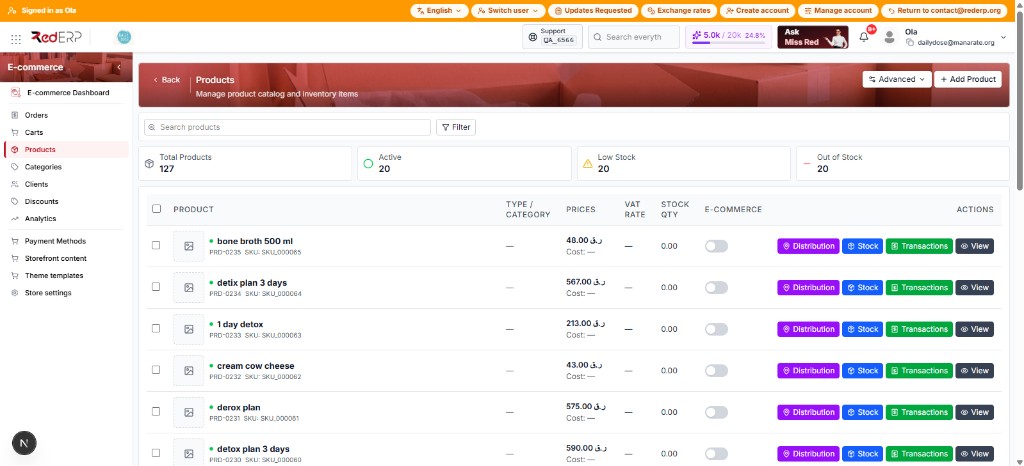
Top of the page
Search, Filter, summary cards, and + Add Product.
Per row
Turn a product on for the storefront. Off means it will not sell online.
Inventory
Qty and allow-negative decide whether shoppers can buy.
The products list
Open E-commerce → Products from the sidebar.
| Control | What it does |
|---|---|
| + Add Product | Create a new catalog item (same product as Data Management) |
| Advanced | Extra list actions |
| Search products | Find by name, PRD code, or SKU |
| Filter | Narrow the list (filters are remembered) |
Four summary cards sit above the table:
| Card | Meaning |
|---|---|
| Total Products | Items in the catalog |
| Active (green) | Products currently active |
| Low Stock (yellow) | Below the low-stock threshold |
| Out of Stock (red) | Quantity at or below zero |
Table columns
| Column | What you see |
|---|---|
| Product | Image, name, PRD code (e.g. PRD-0235), SKU |
| Type / Category | Category when assigned; — if none |
| Prices | Selling price in store currency (e.g. QAR) and cost |
| VAT rate | Product tax; — if none |
| Stock qty | Current inventory |
| E-commerce | Switch to show the product on the shop |
| Actions | Distribution, Stock, Transactions, View |
Grey switches are off — those products stay in ERP only.
Enable a product for the storefront
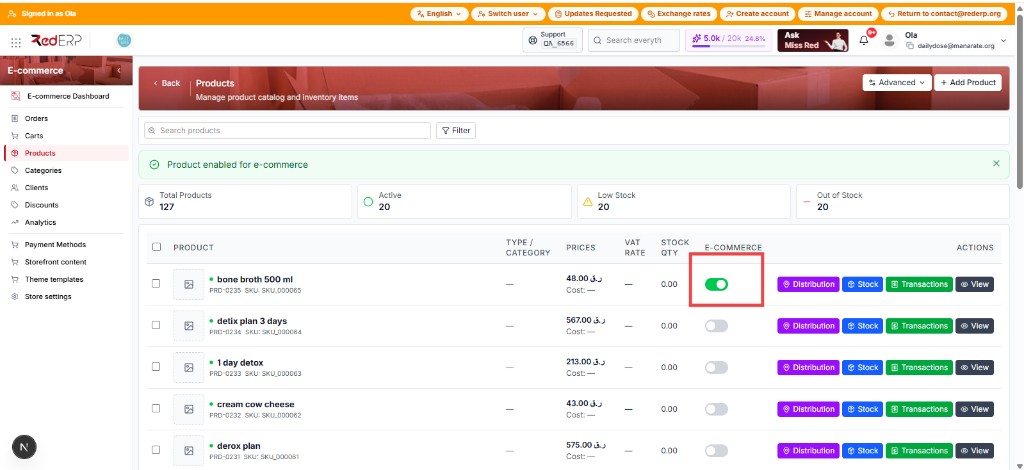
Find the product
Search by name or SKU on E-commerce → Products.
Turn on the E-commerce switch
Flip E-commerce on that row (or use bulk). The switch goes from grey to green. A green banner reads Product enabled for e-commerce. Example: bone broth 500 ml. Without this flag the product must not sell on the public shop, even if it exists in ERP.
Optional: Modules tab
Open the product (View). The header shows stock (here Out of Stock), sale price, and active module tags (Stock, Sales, E-commerce). Click Modules.
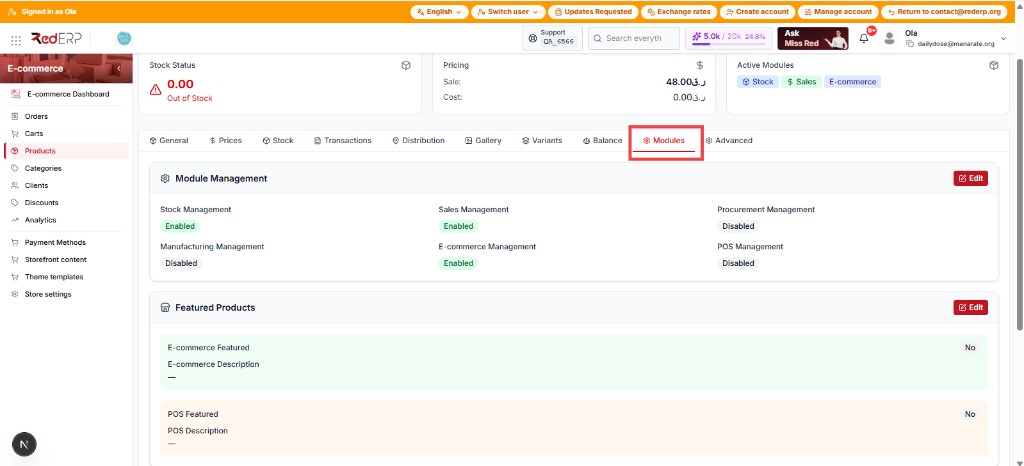
Module Management lists which modules are on for this product. E-commerce Management must be Enabled (green). Click Edit to change flags.
Featured Products (second card, Edit):
| Field | Role |
|---|---|
| E-commerce Featured | Yes puts the product in home “picks” when the theme supports it |
| E-commerce Description | Shop-only text (can differ from the ERP description) |
| POS Featured / POS Description | Point of Sale only — not the public shop |
Add a storefront image
Prefer a real photo over a placeholder. Dropping an image on the product can also enable ecommerce.
Stock
Stock is controlled by inventory, not by the ecommerce switch alone. A product can be switched on and still show Out of stock if quantity is 0.
| Setting | Effect |
|---|---|
| Stock managed + allow negative off | Qty must be > 0 to sell |
| Qty ≤ 0 | Storefront shows Out of stock; add-to-cart and checkout are blocked |
| Allow negative on | Sales can continue below zero (use carefully) |
Fix bad negatives with a stock adjustment from the Stock action. Checkout also enforces stock and may return Insufficient stock.
Variants (pack size / flavor)
Products with active variants must be sold as a specific option on the storefront (for example 250ml vs 500ml). The shopper picks the option on the product page; cart, checkout, order emails, and My account keep that label on the line.
Admin: E-commerce → Orders and Carts show the variant under the product name. Shop payments (Store settings → Payments) is what enables Place order — not Accounting types.
Without a selected variant, add-to-cart stays blocked (“choose option”). Stock and price come from the variant when has_variants is on.
Common tasks
- Keep SKU, sale price, and VAT correct
- Prefer real product photos
- Use featured for home picks
- Assign a category so Type / Category is not —