Dashboard Overview
A guided tour of the RedERP dashboard — top bar, quick setup, module KPI cards, the widget board, and every button in the header.
The Dashboard is the first screen you see after signing in and the home of your workspace. It gathers a snapshot of every active module, lets you launch any module in one click, and can be customised per user with widgets, a workspace layout, and personal shortcuts.
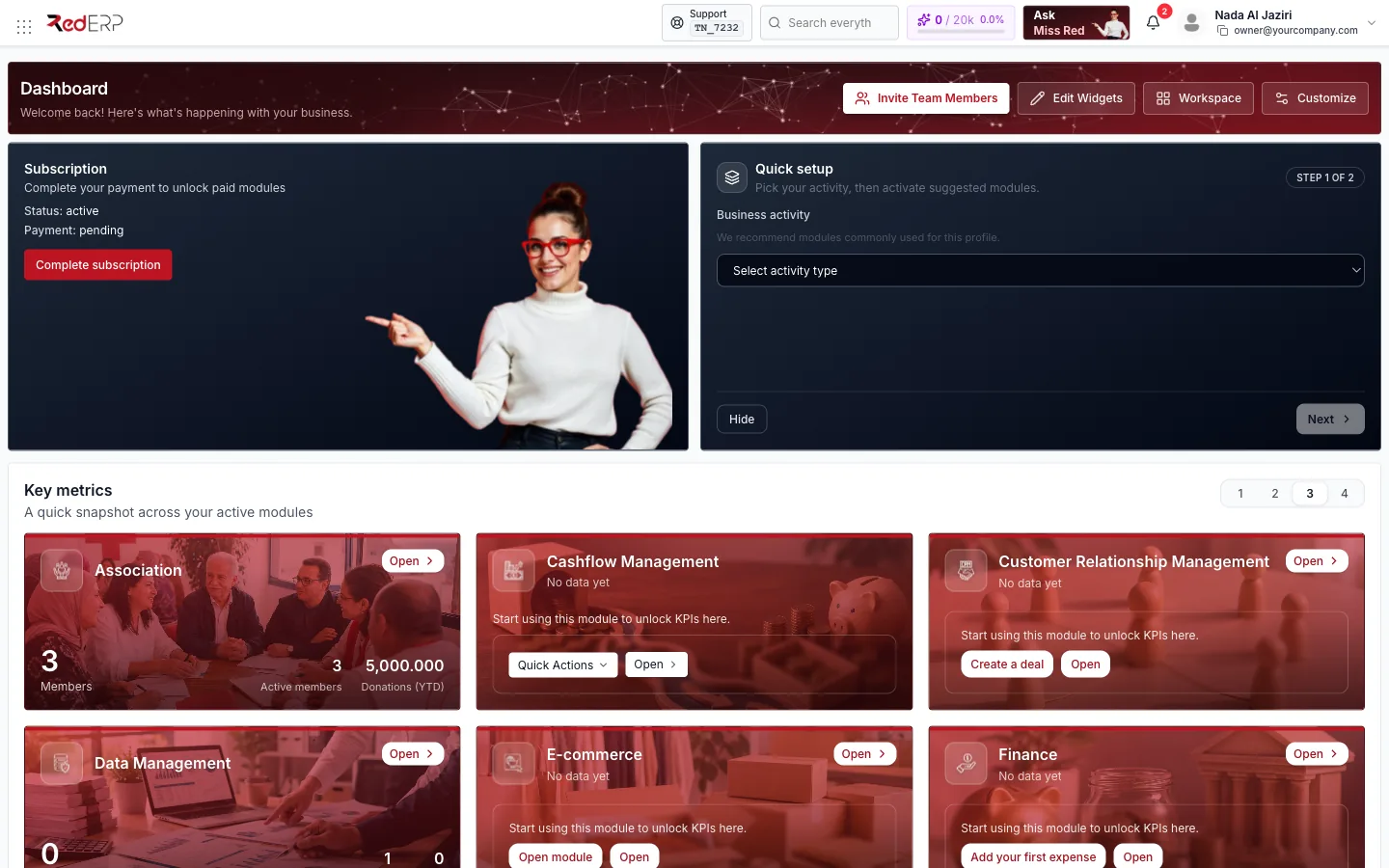
Always visible
Module launcher, search, AI tokens, Ask Miss Red, notifications and your profile menu.
Live numbers
One KPI card per active module, with a quick action to create your first record.
Your layout
Pick from 68 widgets, choose a size, drag to reorder — saved per user.
The dashboard lives at rederp.ai/modules/dashboard. Click the RedERP logo from any module to come back to it.
The top bar

The top bar stays visible in every module.
| Element | What it does |
|---|---|
| Module launcher (grid icon, far left) | Opens the list of all modules active on your account, starting with the Dashboard. |
| RedERP logo | Returns to the dashboard from anywhere. |
| Support + account code | Your account reference (for example TN_7232). Quote it when you contact support so we find your company immediately. |
| Search everything | Global search across records in your modules. |
| AI tokens meter | used / quota and a percentage — how much of your plan's AI token quota Miss Red and the agents have consumed. |
| Ask Miss Red | Opens the Red AI assistant. See Agentic ERP by RedERP. |
| Bell | Notifications, with the unread count in a red badge. |
| Profile | Your name and login email. Opens the profile menu. |
Module launcher
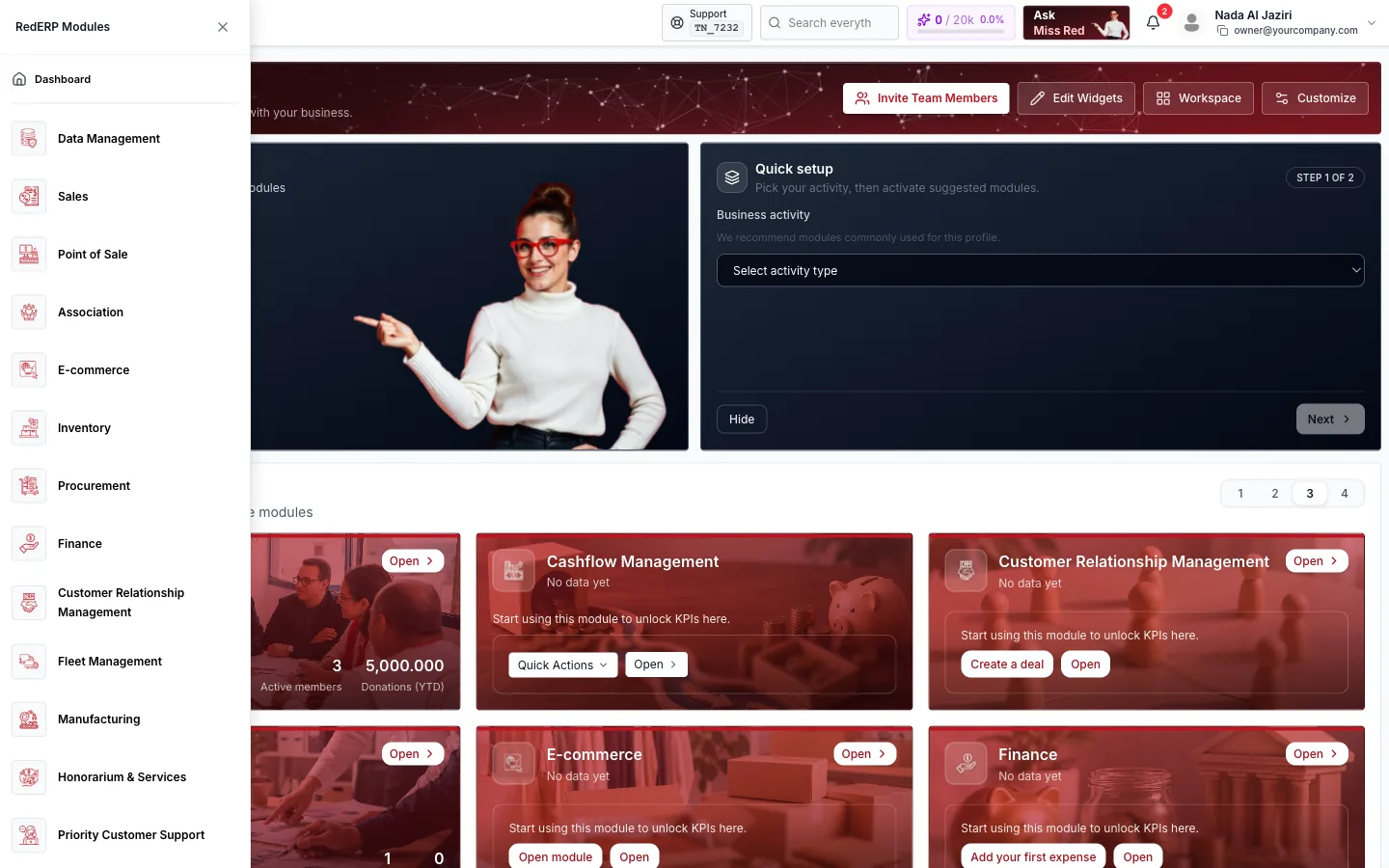
Click the grid icon to slide out the module list. It contains Dashboard followed by every module enabled for your company — for example Data Management, Sales, Point of Sale, E-commerce, Inventory, Procurement, Finance, CRM, Fleet Management, Manufacturing, Honorarium & Services, Priority Customer Support, Human Resources, Project Management, Cashflow Management, Tourism and Third-Party Integration. Modules you have not activated, or that your role cannot access, do not appear.
Notifications
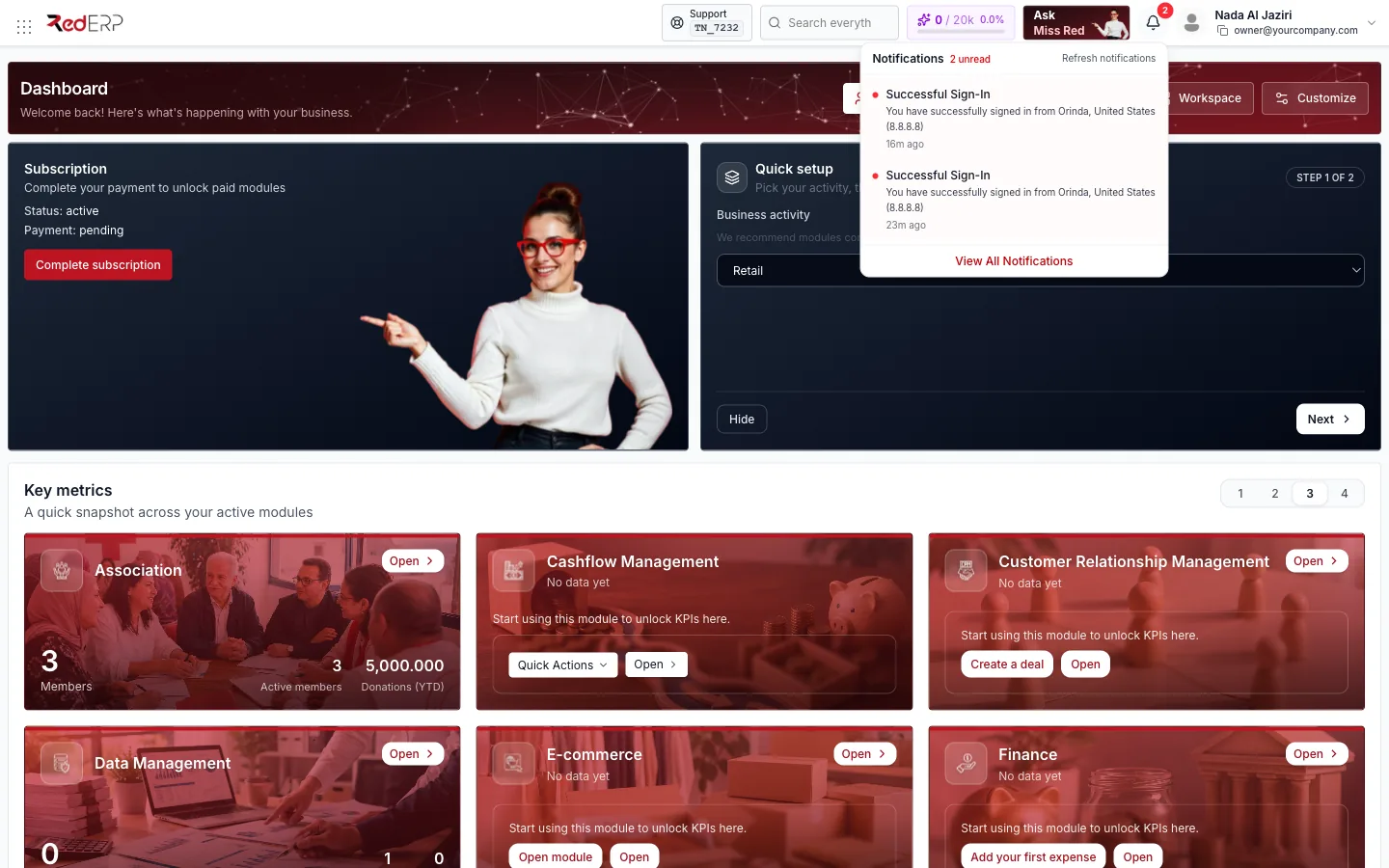
The bell shows the number of unread notifications. The dropdown lists the latest ones — including security events such as Successful Sign-In with the location and IP address — with a Refresh action and View All Notifications to open the full list.
Profile menu
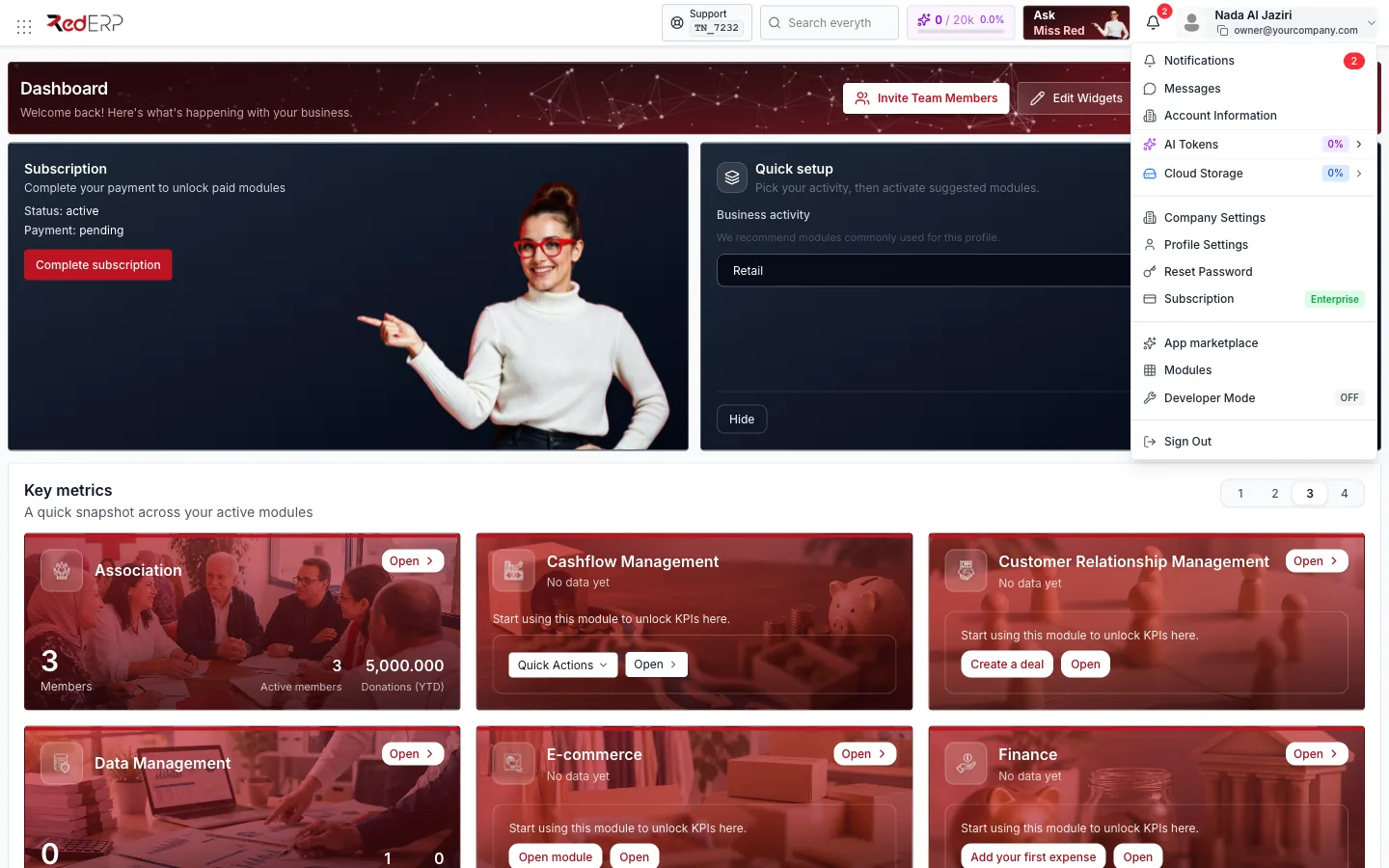
| Entry | Purpose |
|---|---|
| Notifications / Messages | Shortcuts to your notification centre and internal messages. |
| Account Information | Company name, account reference and IDs you may need for support or integrations. |
| AI Tokens / Cloud Storage | Usage bars for the two quotas of your plan. |
| Company Settings | Legal details, branches, taxes, currencies and company-wide preferences. |
| Profile Settings | Your name, language, avatar and personal preferences. |
| Reset Password | Change your password (current password required). |
| Subscription | Your current plan is shown as a badge. Opens Subscription Management — see Subscription Overview. |
| App marketplace / Modules | Discover and activate modules. |
| Developer Mode | Advanced per-user shortcuts and interface permissions (administrators). |
| Sign Out | Ends your session on this browser. |
Header actions
The dashboard header greets you by name and offers up to four actions. Which ones you see depends on your role and permissions.
Invite Team Members
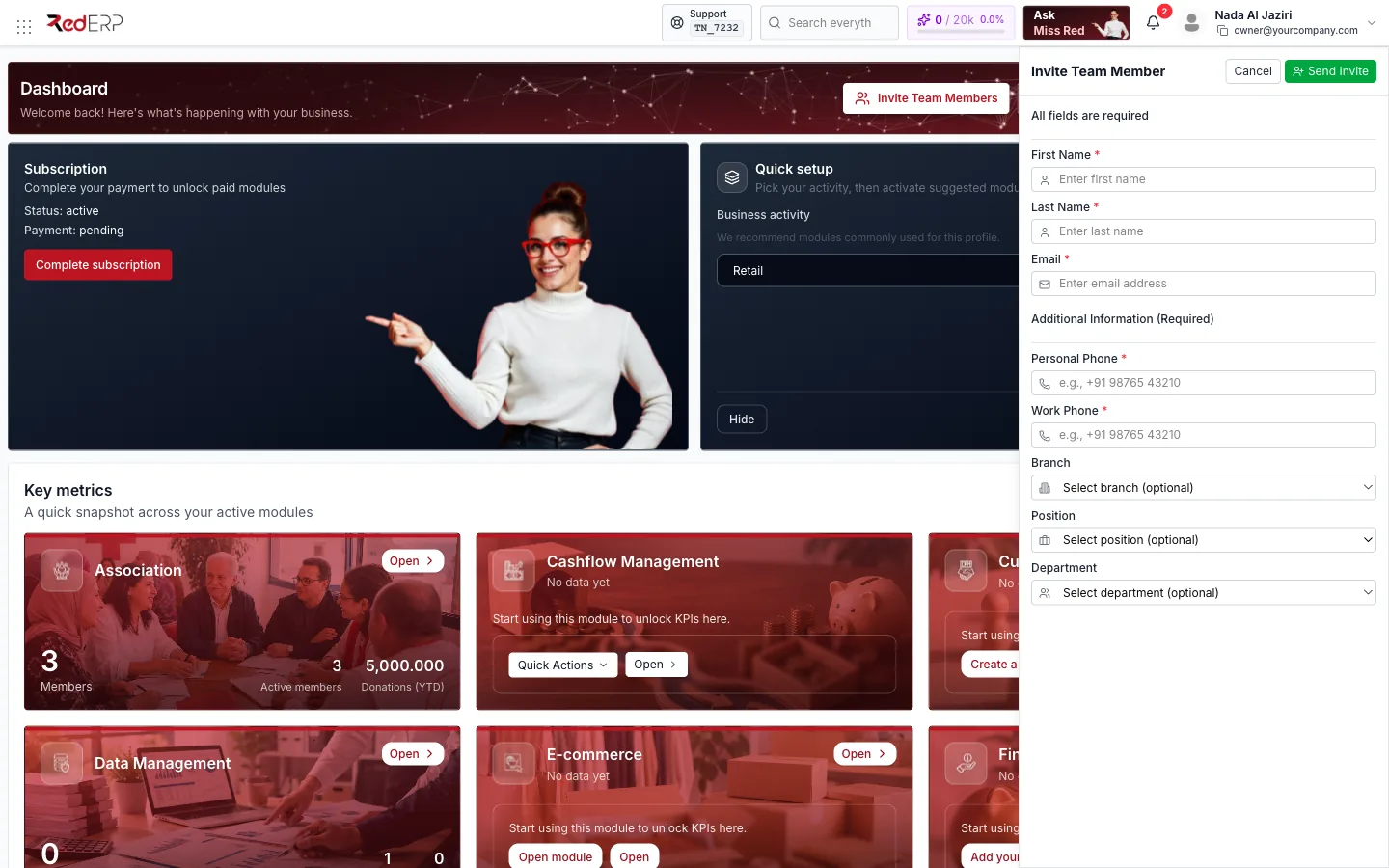
Opens a drawer to add a colleague to your company. Fill in First name, Last name, Email, Personal phone and Work phone, optionally pick a Branch, Position and Department, then click Send Invite. The new user receives a welcome email with a temporary password (see Sign In & Sign Up).
Edit Widgets
Switches the widget board into edit mode so you can add, resize, reorder and remove widgets.
Workspace
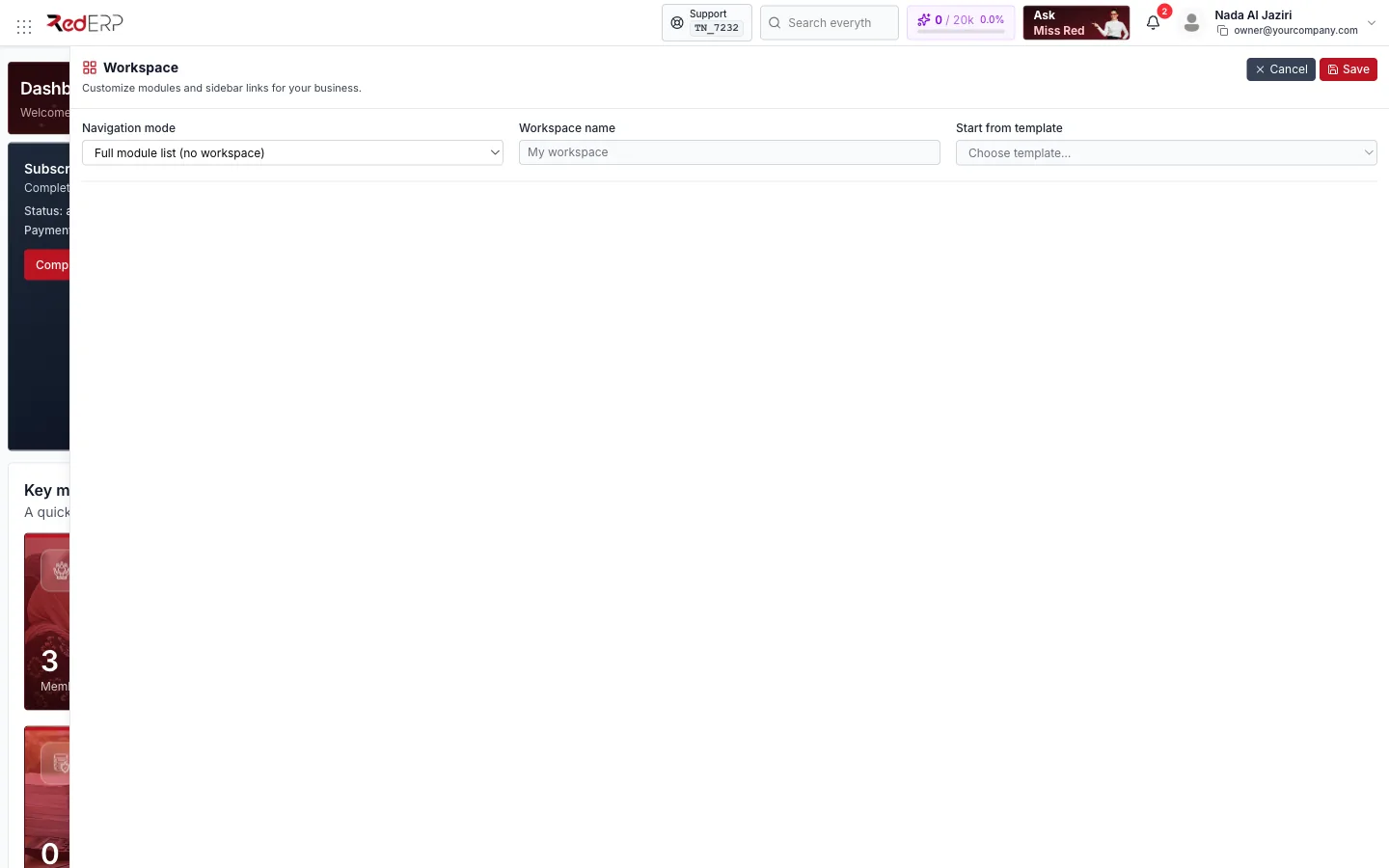
A workspace filters the module launcher and sidebar links to the ones your business really uses.
- Navigation mode — Full module list (no workspace), Use account workspace (shared by everyone in the company) or My personal workspace (only you).
- Workspace name — a label for your layout.
- Start from template — ready-made sets for Small Shops, Hypermarket, Restaurant, Coffee Shop, Travel Agency, Honorarium, Accountant and Small Manufacturer.
Click Save to apply or Cancel to leave everything unchanged.
Customize
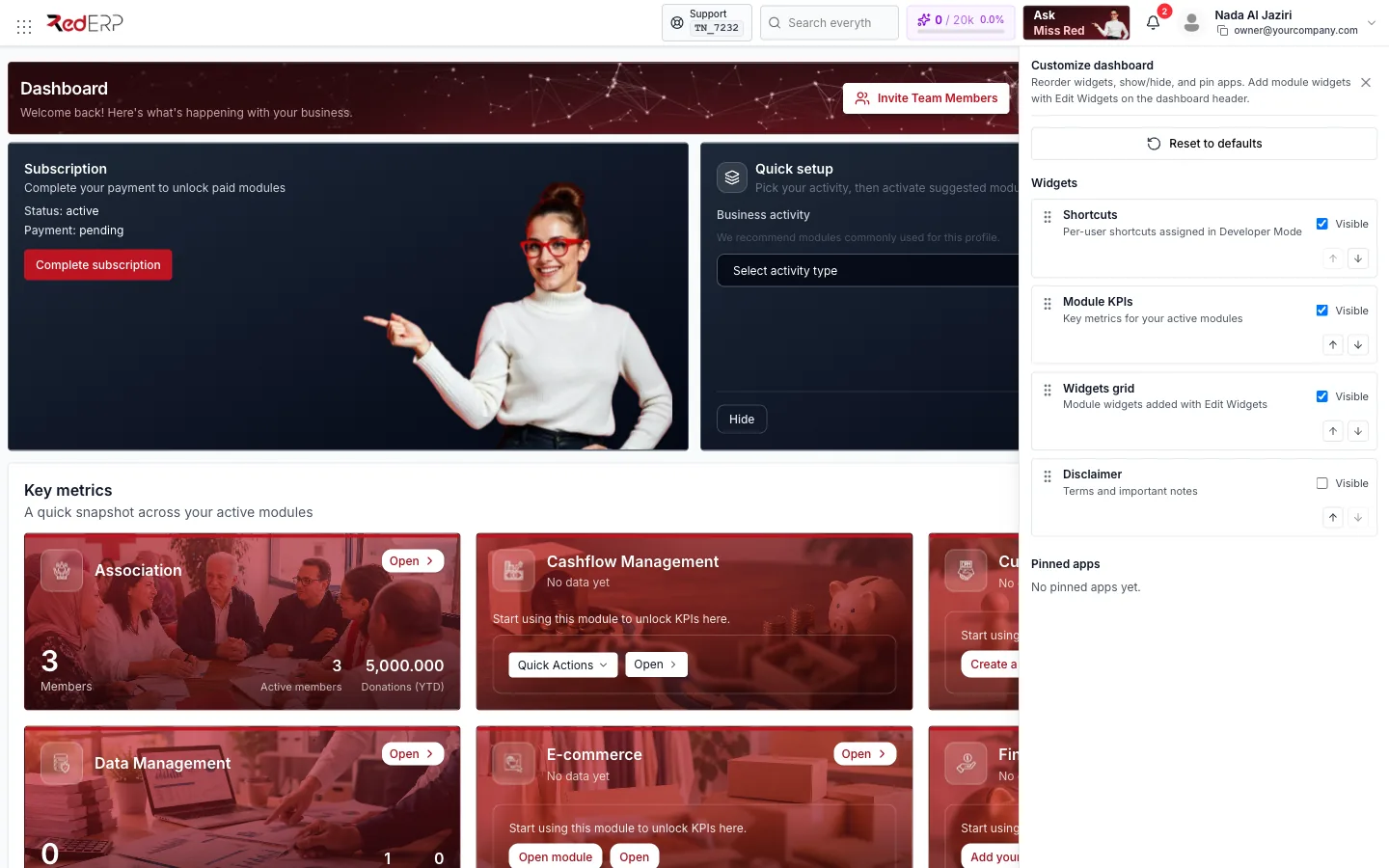
Controls which sections the dashboard shows and in which order. Each section has a Visible switch and Move up / Move down arrows:
| Section | Content |
|---|---|
| Shortcuts | Per-user shortcuts assigned in Developer Mode. |
| Module KPIs | The Key metrics cards. |
| Widgets grid | The widget board. |
| Disclaimer | Terms and important notes (hidden by default). |
Reset to defaults restores the original layout. Pinned apps lists modules you have pinned for one-click access.
Subscription banner
When your subscription needs attention the dashboard shows a banner with the Status (for example active) and Payment state (for example pending). Click Complete subscription to open Subscription Management and finish checkout — paid modules unlock as soon as payment is confirmed. Details in Subscription Overview.
Quick setup
New companies see a two-step wizard next to the banner.
Pick your business activity
Choose one of E-commerce, Manufacturing, Restaurant and Coffee Shop, Retail, Service provider, Startup or Travel Agency, then click Next.
Activate suggested modules
RedERP proposes up to six starter modules suited to that activity — for Retail: Point of Sale, Sales, E-Commerce, Finance, Customer Relationship Management and Partnerships. Use the switches to keep or drop each one, then click Confirm selection.
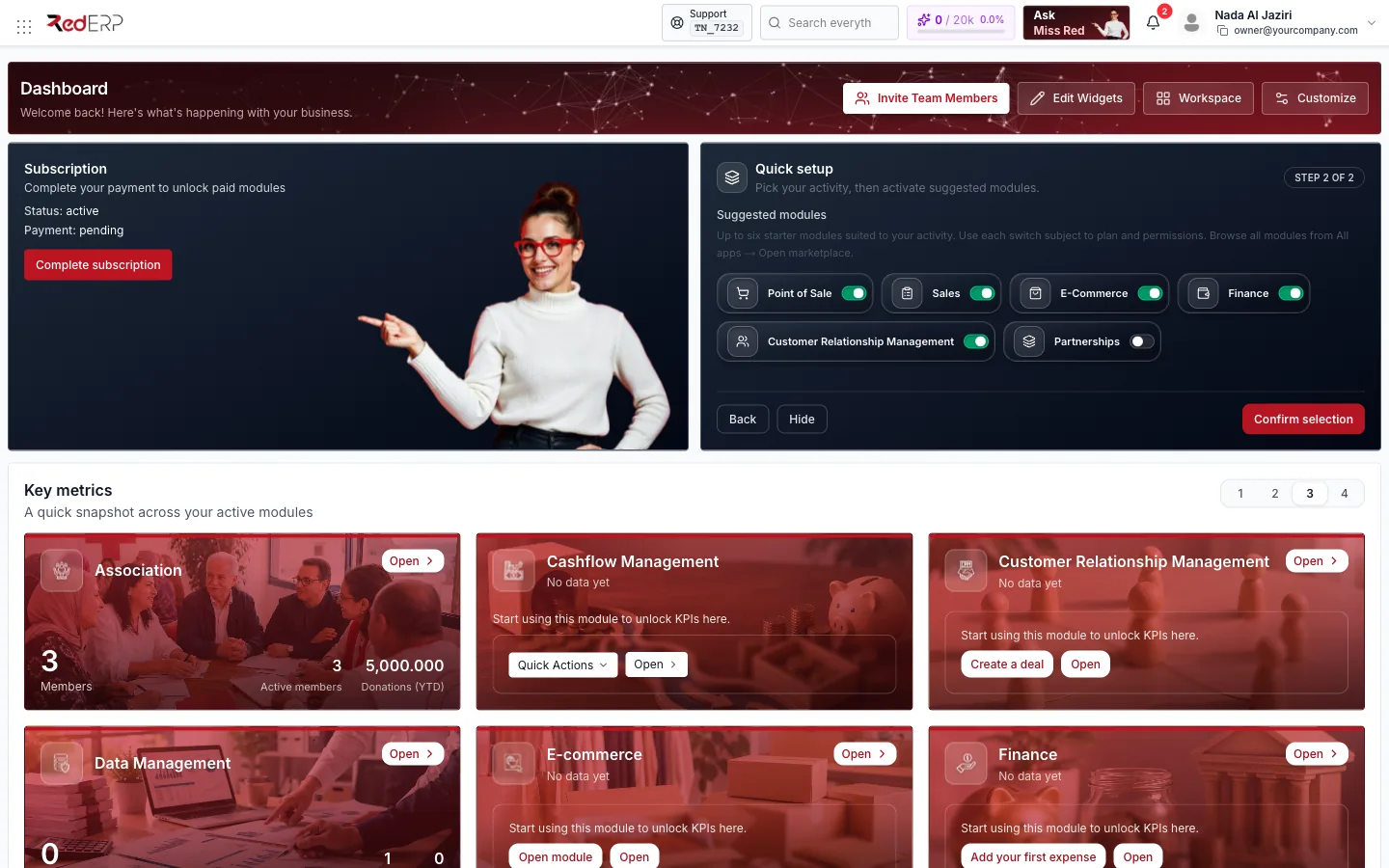
Switches are subject to your plan and permissions. Back returns to step 1, Hide dismisses the wizard — you can still browse every module from All apps → Open marketplace.
Key metrics
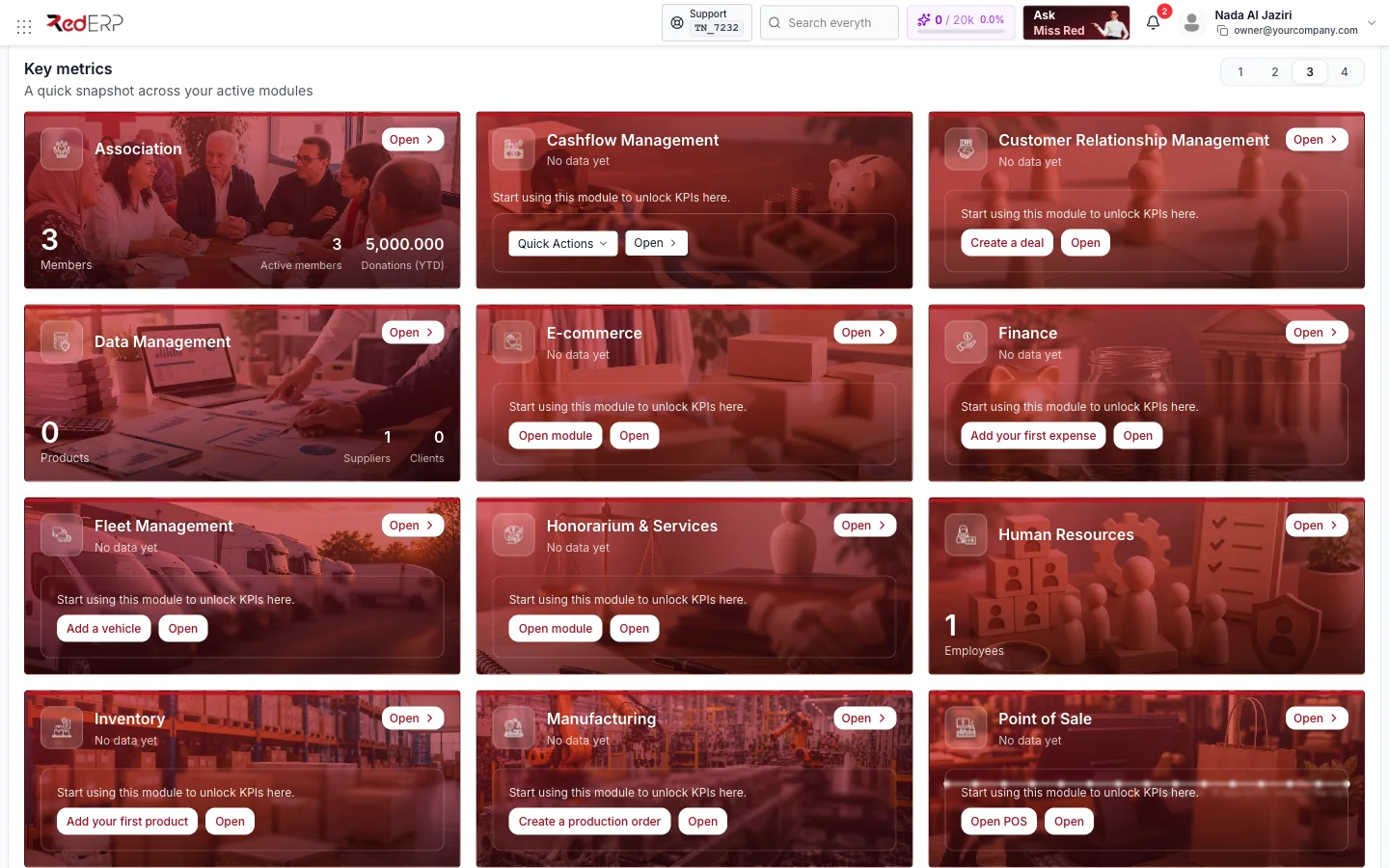
Key metrics shows one card per active module, in alphabetical order, so you can read the health of the whole business without opening anything.
- Cards with data display the headline number and two secondary figures — for example Data Management: 0 Products, 1 Supplier, 0 Clients, Human Resources: 1 Employee, or Association: 3 members, 3 active, donations year-to-date.
- Cards without data say No data yet — start using this module to unlock KPIs here and offer the most useful first action: Create your first invoice, Add your first product, Create your first purchase order, Create a deal, Add your first expense, Add a vehicle, Create a production order, Open POS, and so on.
- Open on every card takes you into the module.
- Point of Sale draws a 15-day daily gross sparkline; Cashflow Management has a Quick Actions menu; Tourism has its own settings gear.
- The 1 · 2 · 3 · 4 selector on the right sets how many cards fit per row. The choice is remembered.
If a card reports Some metrics could not be loaded, the module answered late or you lack permission for part of it — reload the page or ask an administrator.
Widgets board
Below the KPI cards sits your personal widget board. It starts empty.
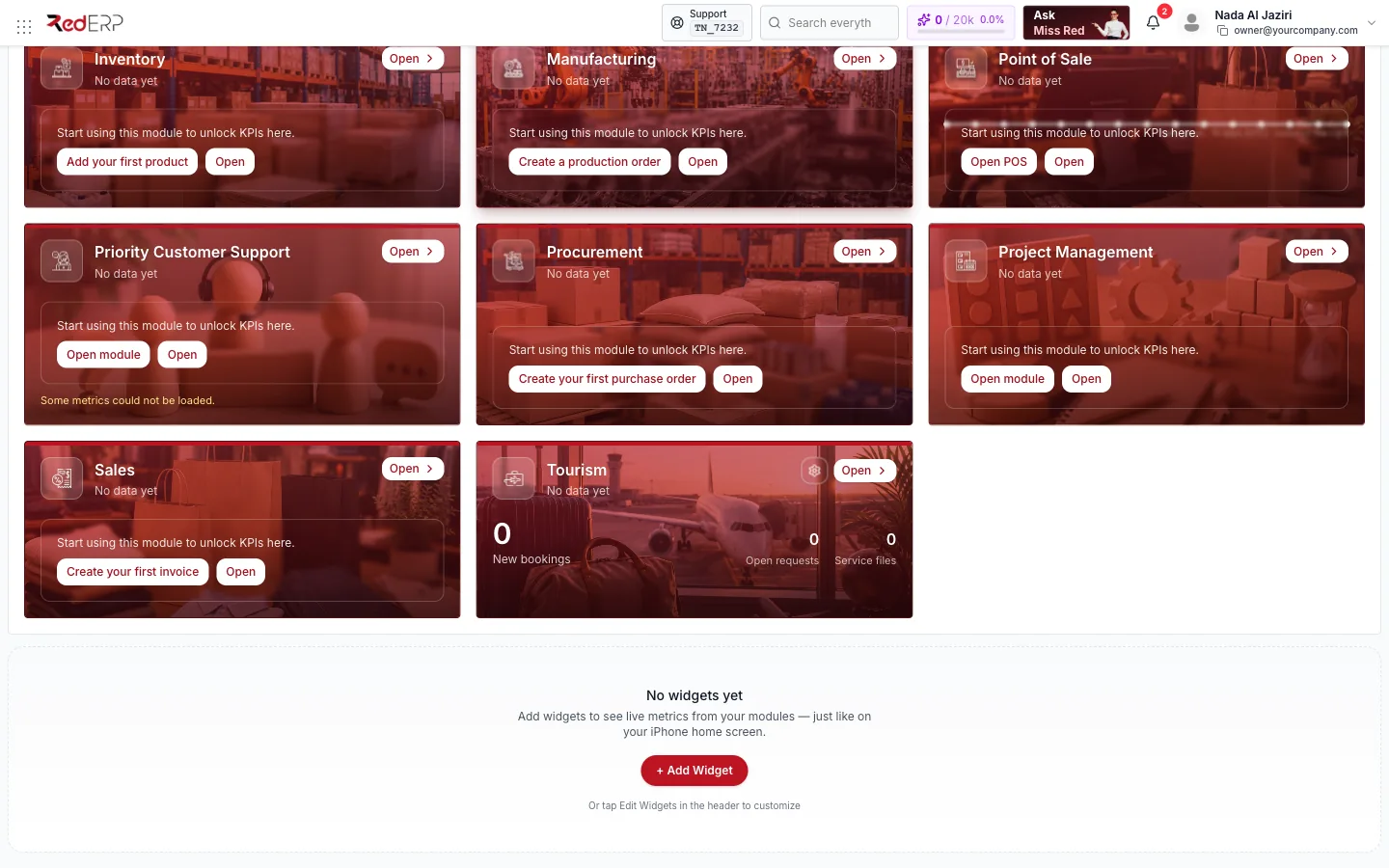
Add a widget
Open the gallery
Click + Add Widget on the board, or Edit Widgets in the header and then Add Widget in the bottom bar.
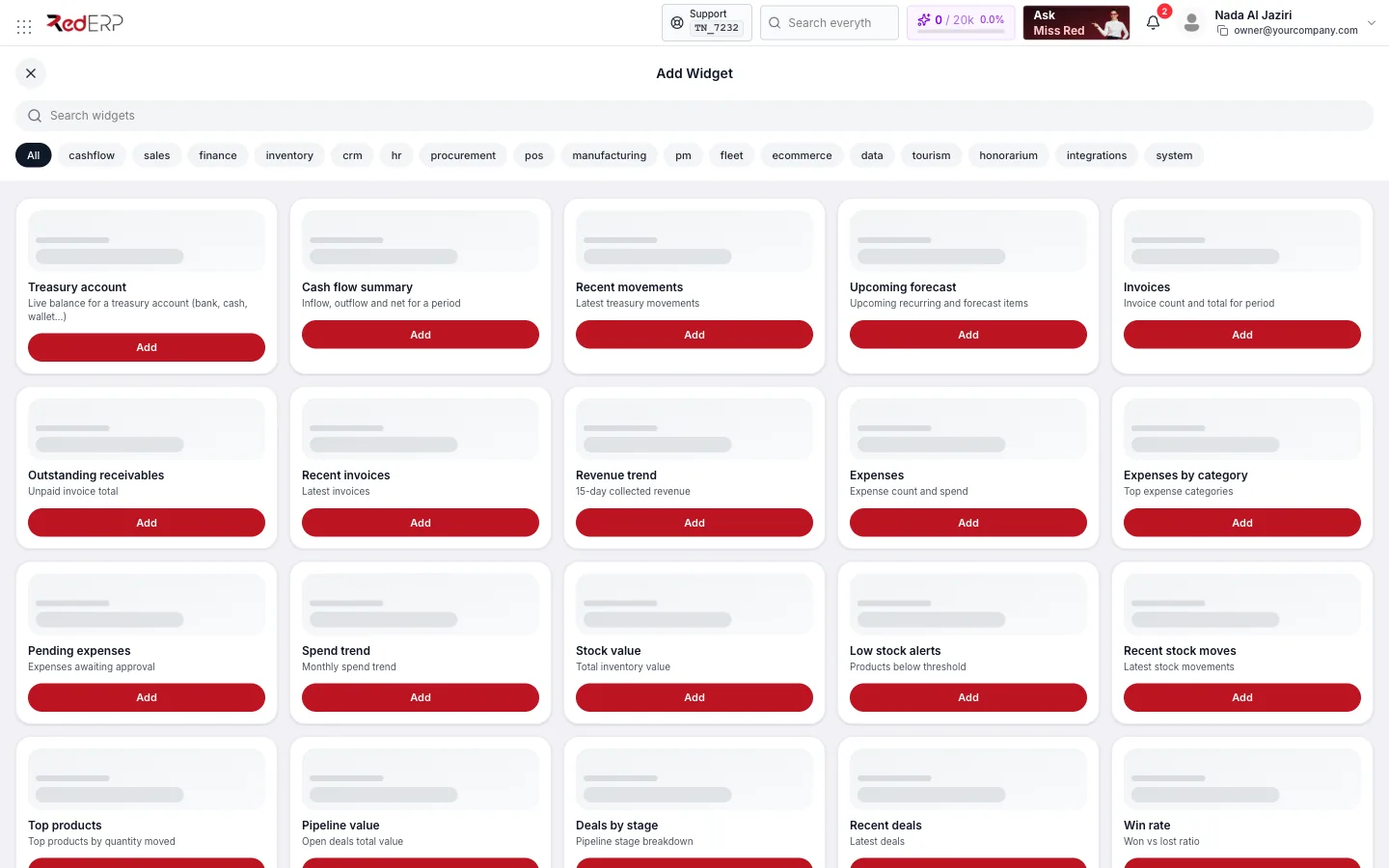
Find the widget
Use Search widgets or the category chips — All, cashflow, sales, finance, inventory, crm, hr, procurement, pos, manufacturing, pm, fleet, ecommerce, data, tourism, honorarium, integrations, system.
Add and choose a size
Click Add, then Small, Medium or Large. The widget appears on the board immediately.
Arrange the board
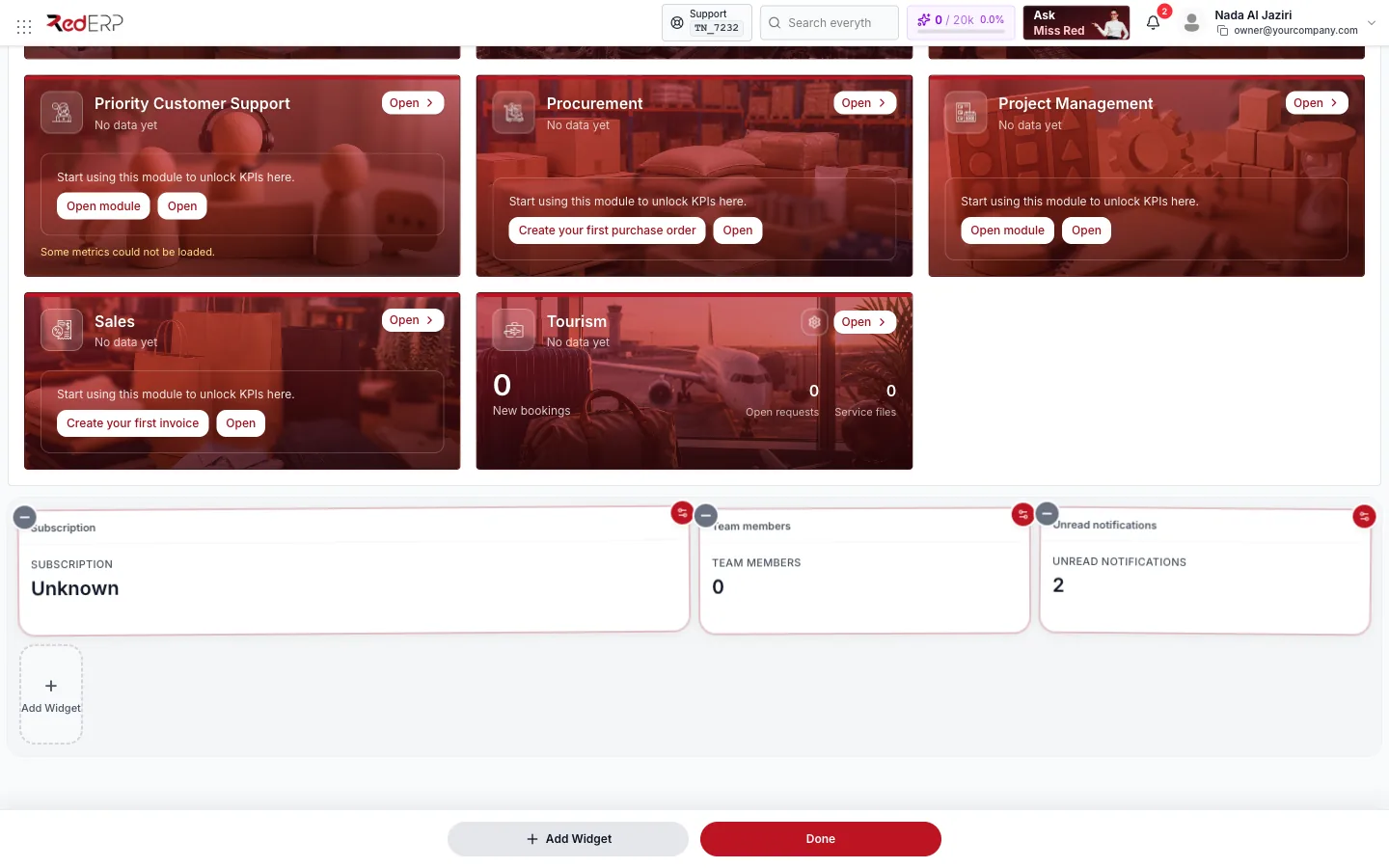
In edit mode every widget gets a − badge to remove it and a gear to open its settings (period, account, thresholds…). Drag a widget to reorder. The bottom bar offers Add Widget and Done. Changes are saved to your user profile automatically, so the layout follows you on any device.
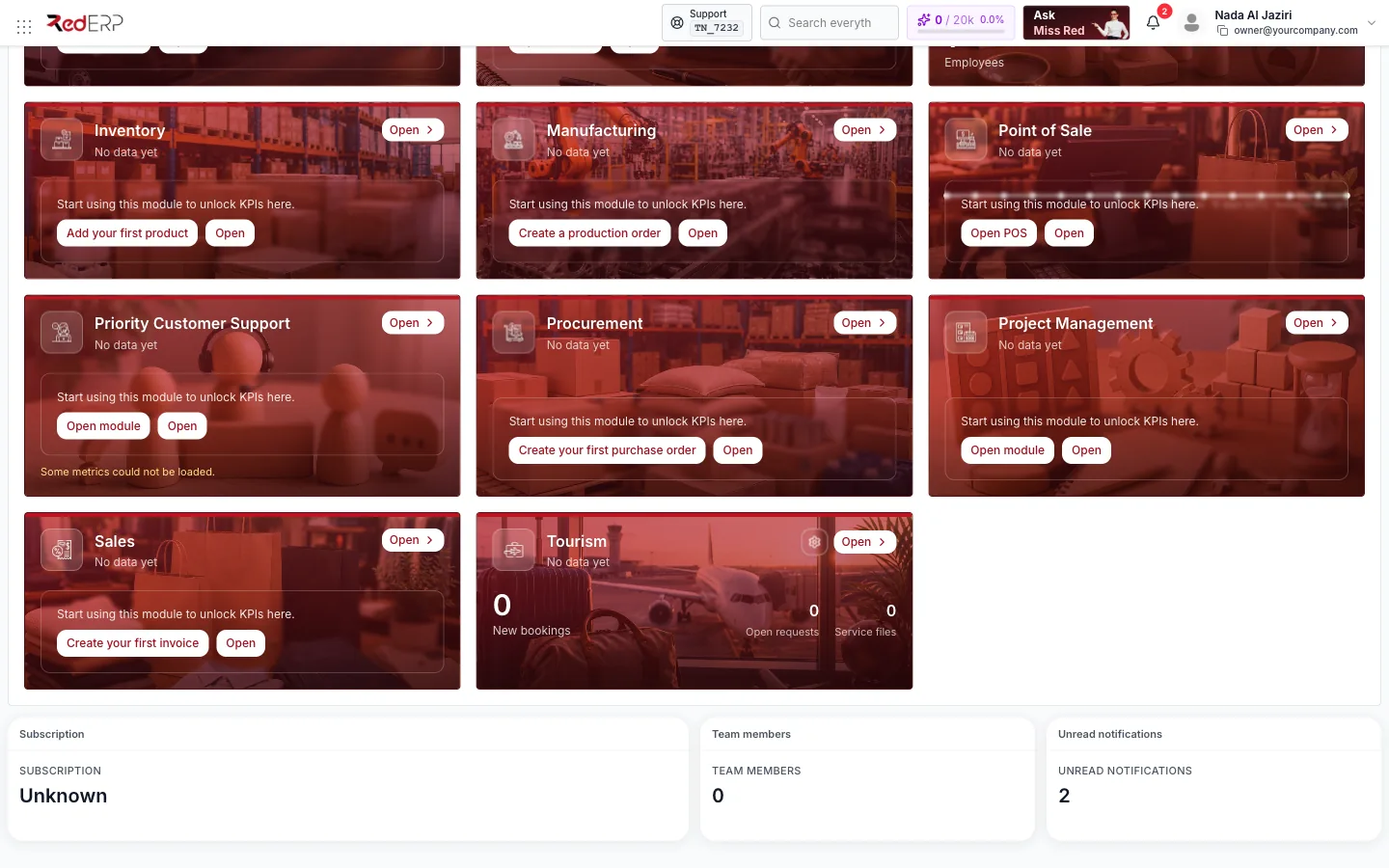
Each widget is a live link: click Subscription to open Subscription Management, Team members to open User Management, Unread notifications to open the notification centre.
Widget catalogue
| Category | Widgets |
|---|---|
| Cashflow | Treasury account, Cash flow summary, Recent movements, Upcoming forecast |
| Sales | Invoices, Outstanding receivables, Recent invoices, Revenue trend |
| Finance | Expenses, Expenses by category, Pending expenses, Spend trend |
| Inventory | Stock value, Low stock alerts, Recent stock moves, Top products |
| CRM | Pipeline value, Deals by stage, Recent deals, Win rate |
| HR | Headcount, Attendance today, Pending leave, New hires |
| Procurement | Open purchase orders, Pending deliveries, PO spend, Top suppliers |
| POS | Daily gross, Receipts today, Top products, Hourly sales |
| Manufacturing | Active production orders, Work center load, Material shortages, Output |
| Project management | Active projects, Tasks due, Upcoming milestones, Team utilization |
| Fleet | Active vehicles, Trips today, Maintenance due, Fuel costs |
| E-commerce | Orders today, Abandoned carts, Top sellers, Revenue trend |
| Data | Clients, Suppliers, Products, Incomplete records |
| Tourism | Bookings, Upcoming arrivals, Occupancy rate, Active service files |
| Honorarium | Open cases, Billing, Pending invoices, Services delivered |
| Integrations | Connected apps, Sync status, Failed jobs, API usage |
| System | Unread notifications, Subscription, Team members, Quick links |
Widgets only show data for modules you can access; a widget for an inactive module stays empty.
Good to know
- The dashboard follows your language setting. Change it from Profile Settings; Arabic switches the whole layout to right-to-left.
- Accountant roles land on their reconciliation workspace instead of this dashboard. Referral (consultancy) accounts get a dedicated read-only dashboard.
- If your subscription is expired, cancelled or suspended, RedERP sends you to Subscription Management until it is renewed.
- Hidden buttons are not a bug: Invite Team Members, Edit Widgets, Workspace and Customize only appear for roles that are allowed to use them.