Donors & Donations
Maintain donor profiles, record monetary contributions, issue receipts, and process refunds.
Overview
Use Donors for contributor profiles and Donations for money already received. Donation records can be assigned to a campaign or fund and generate an official receipt.
Donors
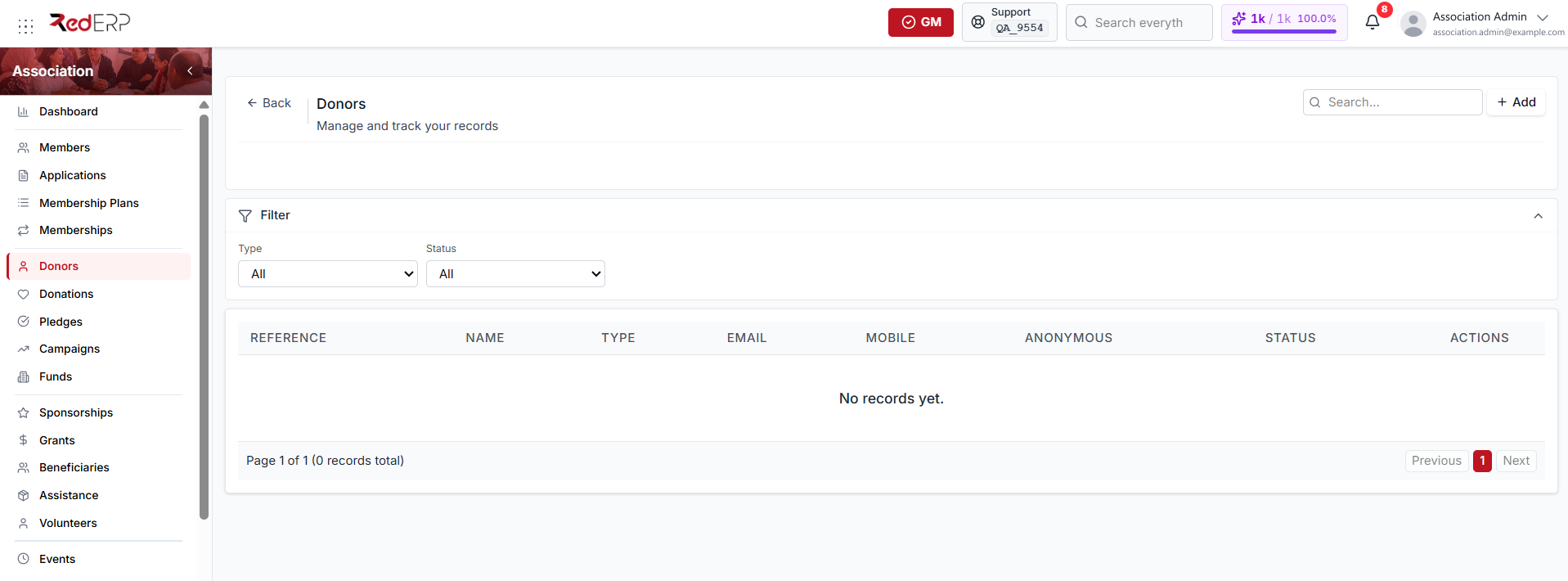
Donors can be individuals or organizations. Keep contact, identity, address, tax, communication, and notes information in one profile.
Create a donor
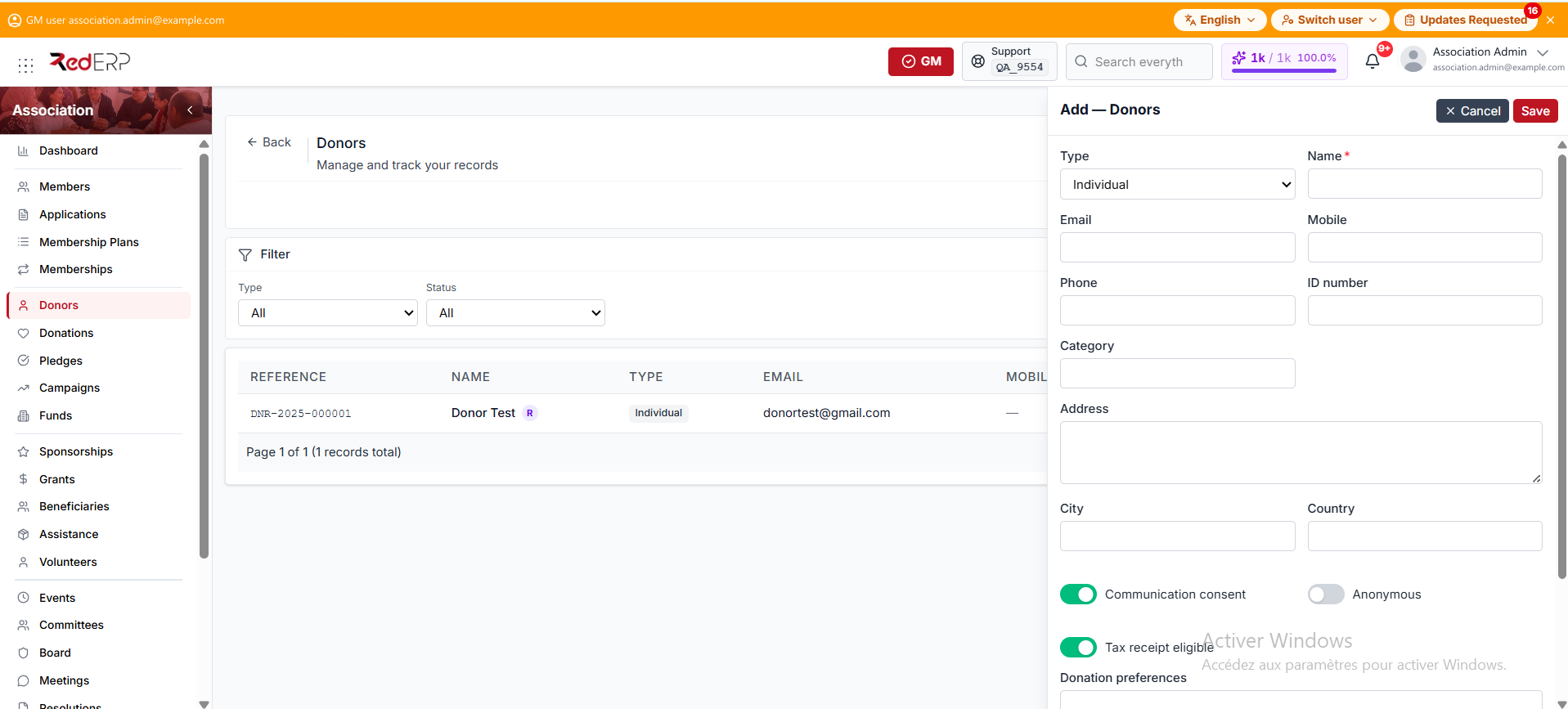
- Open Association → Donors.
- Select Add.
- Choose Individual or Organization. Choosing Organization adds the Organization name and Contact person fields.
- Enter the required name, then the email, mobile, phone, ID / tax number, and category.
- Add the address, city, and country.
- Review the switches: Communication consent and Tax receipt eligible are on by default, and Anonymous is off.
- Add donation preferences or notes, then save.
Donor rows show their reference, name, type, contact information, anonymity flag, and active status.
Donations
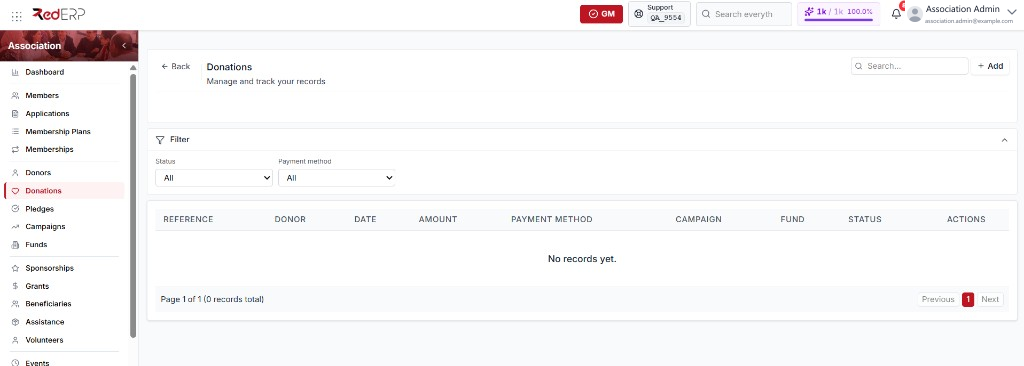
Open Association → Donations to see each donation's reference, donor, date, amount, and payment method. The Status and Payment method filters narrow the list.
A donation has two statuses:
- Recorded — the payment has been received and the receipt issued
- Refunded — the payment has been reversed by the Refund action
The donation form has no status field. A saved donation is always Recorded, and only the Refund action changes it to Refunded.
Record a donation
-
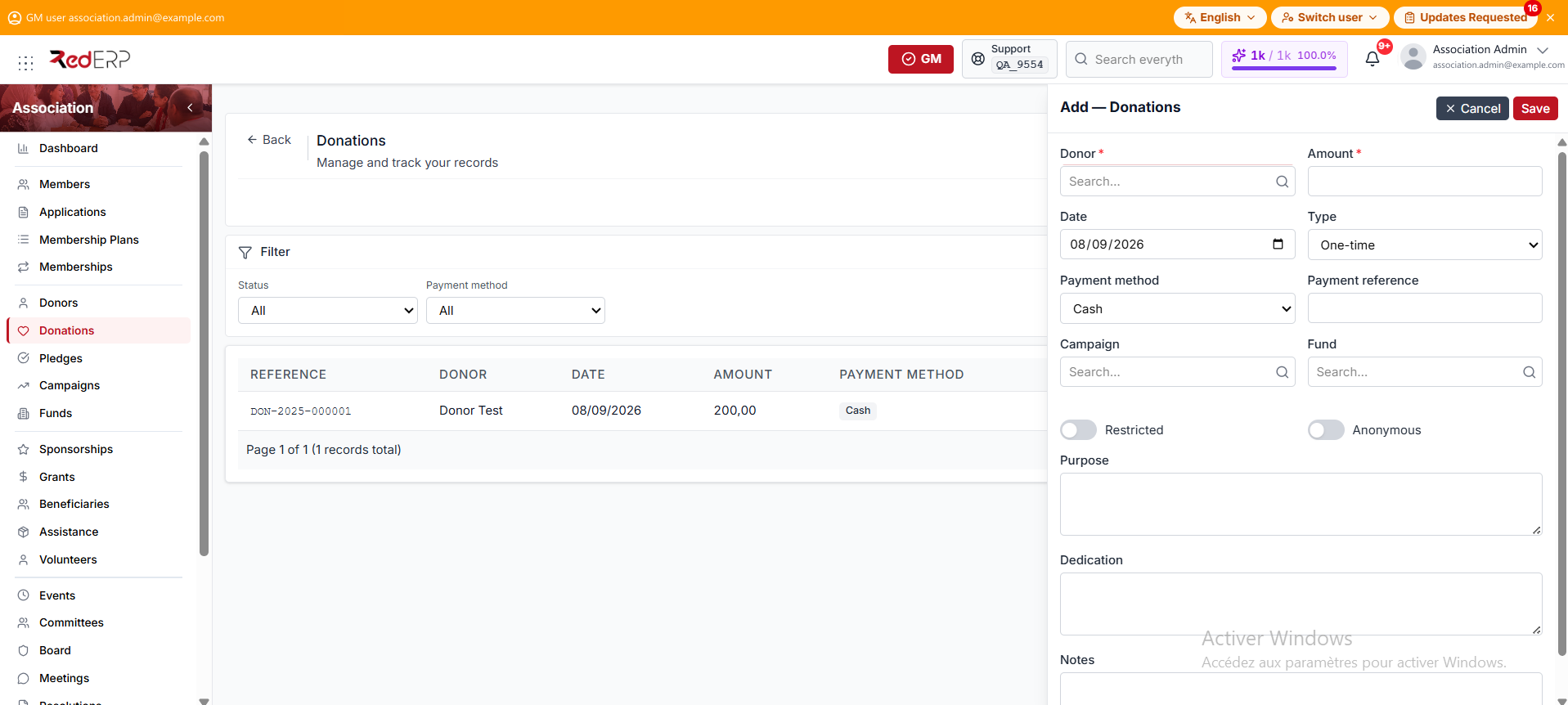
Open Association → Donations and select Add.
-
Choose the donor.
-
Enter the amount and donation date.
-
Choose the donation type: One-time, Recurring, Pledge installment, Zakat, or Sadaqah.
-
Select the payment method and add its transaction reference.
-
When the payment method is Cheque, the Cheque No. field appears; enter the cheque number.
-
Optionally assign a campaign and fund.
-
Mark the donation as restricted or anonymous when required.
-
Add its purpose, dedication, or notes.
-
Save.
Supported payment methods are:
- Cash
- Cheque
- Bank transfer
- Card
- Online
- Other
Selecting Recurring identifies the donation type only. The current Association sidebar has no recurring-donation schedule screen.
Print the receipt
Saving opens the receipt preview. It carries the receipt and donation references, the donor name, the payment method, the purpose, the amount in figures and in words, and a barcode. The preview shows the donor copy and the association copy side by side, so Print produces both at once.
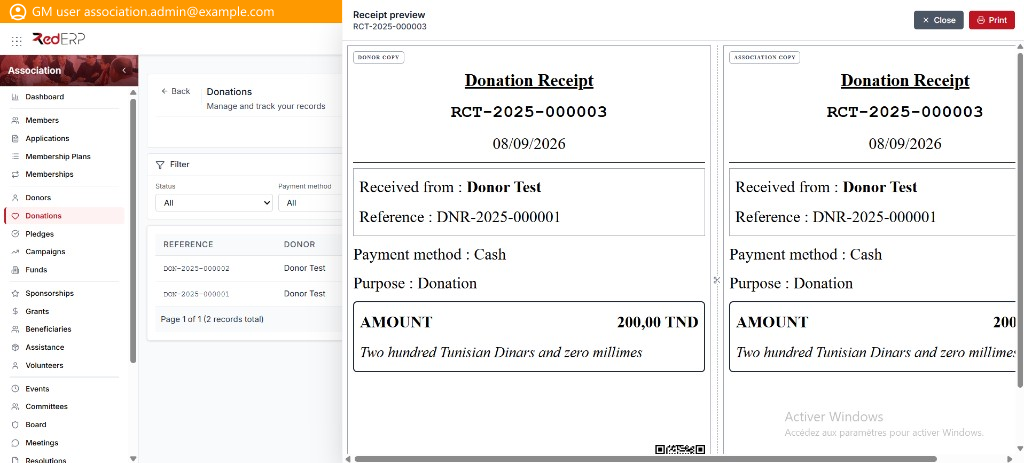
Select Print for a paper or PDF copy, or Close to return to the list. See Receipts & Reports for reprints and cancellations.
Refund a donation
Refund is a row action on the Donations list, available only while the donation is Recorded. Select it and RedERP reverses the accounting movement, updates linked campaign and fund totals, changes the donation to Refunded, and cancels its linked receipt while retaining the audit history.
Donation records cannot be edited from the list after recording. Correct allocation and payment details before saving; use the refund action when the received payment must be reversed.