Customer Groups
Create CRM customer groups with an optional discount and a default group.
Overview
Use Customer Groups to define named groups with an optional discount and one default group.
Customer Groups
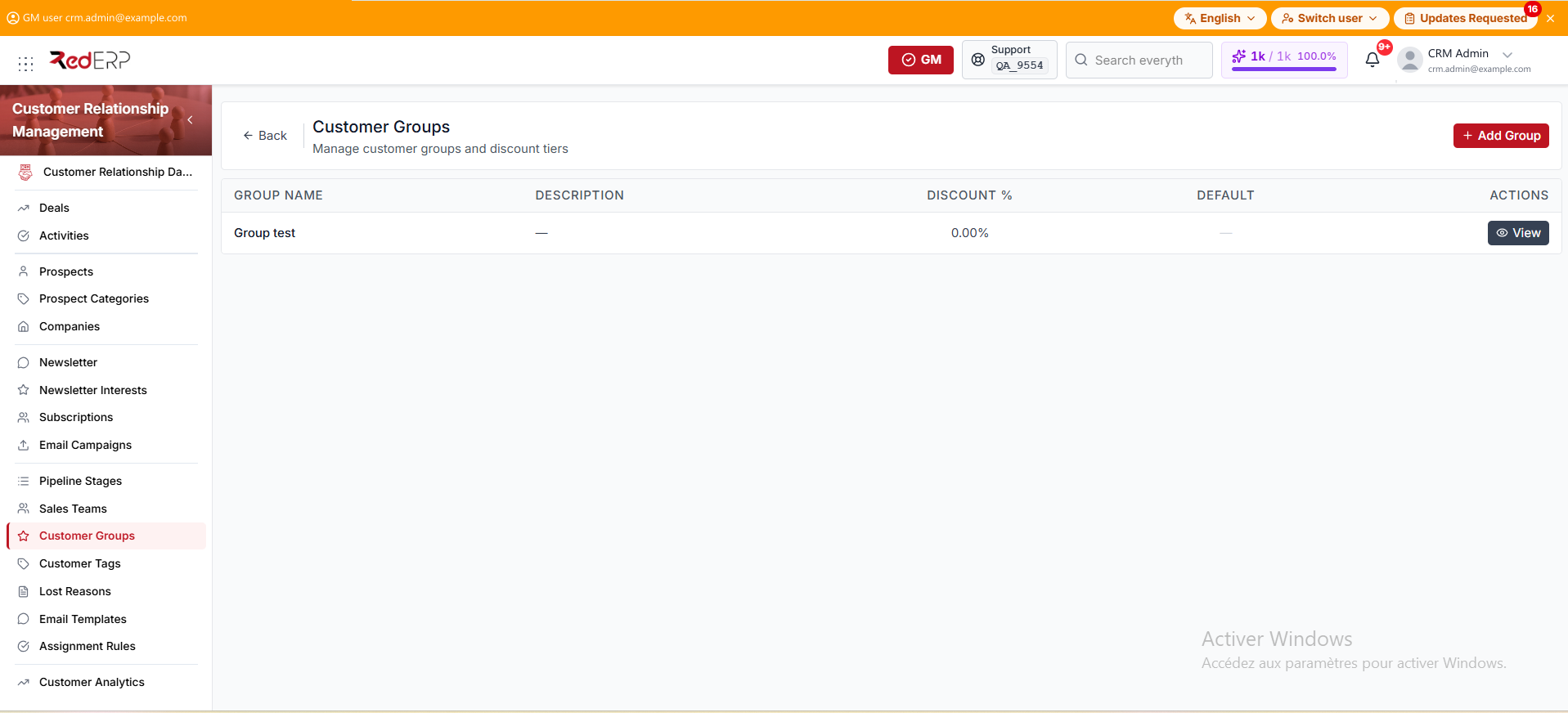
The columns are Group Name, Description, Discount %, Default, and Actions. An empty description shows an em dash. A Discount % of 0 shows as 0.00%. An empty Default cell shows an em dash. A default group shows a check.
The row action is View. You can also select the group name.
Create a group
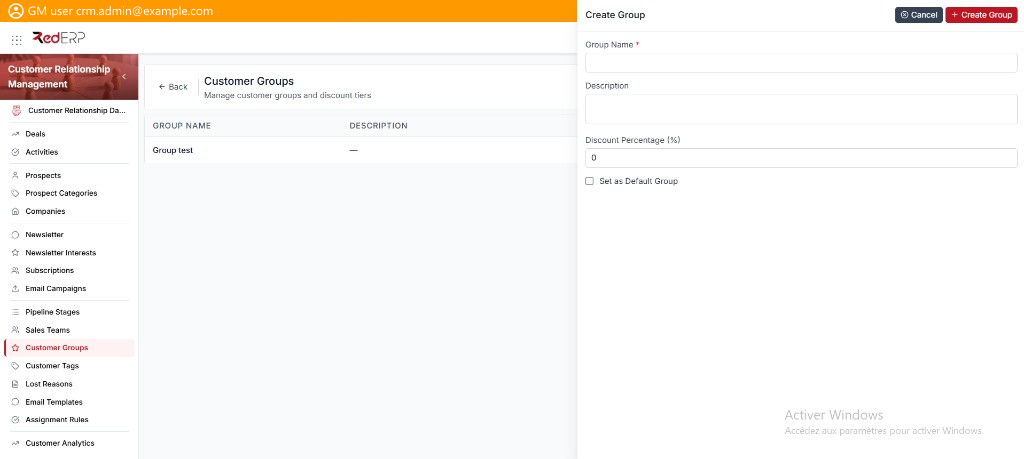
- Open CRM → Customer Groups.
- Select Add Group. The drawer title is Create Group.
- Enter the required Group Name.
- Add a Description if needed.
- Set Discount Percentage (%). The default is 0.
- Select Set as Default Group only for the group used when no group is chosen.
- Select Create Group.
View, edit, or delete a group
- Open CRM → Customer Groups.
- Select View. The drawer title is Group Details.
- Review Group Name, Description, Discount Percentage (%), and Set as Default Group.
- Select Edit. The drawer title is Edit Group. Change the fields, then select Save Changes.
- Use Delete Group in the Danger Zone only when the group must be removed. Confirm in the Delete Group dialog.
Good practice
- Keep a single default group.
- Do not treat the CRM Discount Percentage (%) as a posted invoice discount.