Prospects
Create and qualify CRM prospects: import, scan a business card, convert to a deal, or mark lost.
Overview
Use Prospects for people you are qualifying. After conversion, work the opportunity on Deals.
Prospects list
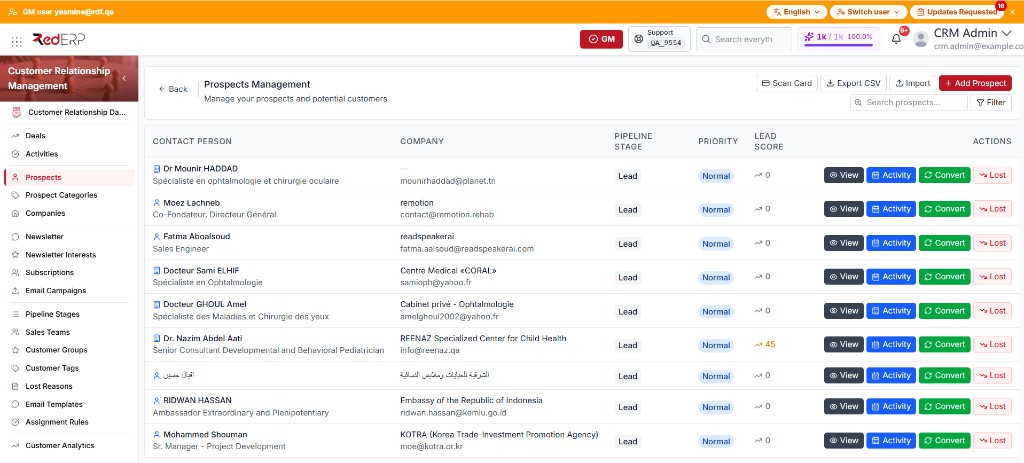
The columns are Contact Person, Company, Pipeline Stage, Priority, Lead Score, and Actions. The company cell can also show the email.
Row actions are View, Activity, Convert (hidden after the prospect is converted), and Lost (hidden after Lost or Converted).
Create a prospect
- Open CRM → Prospects.
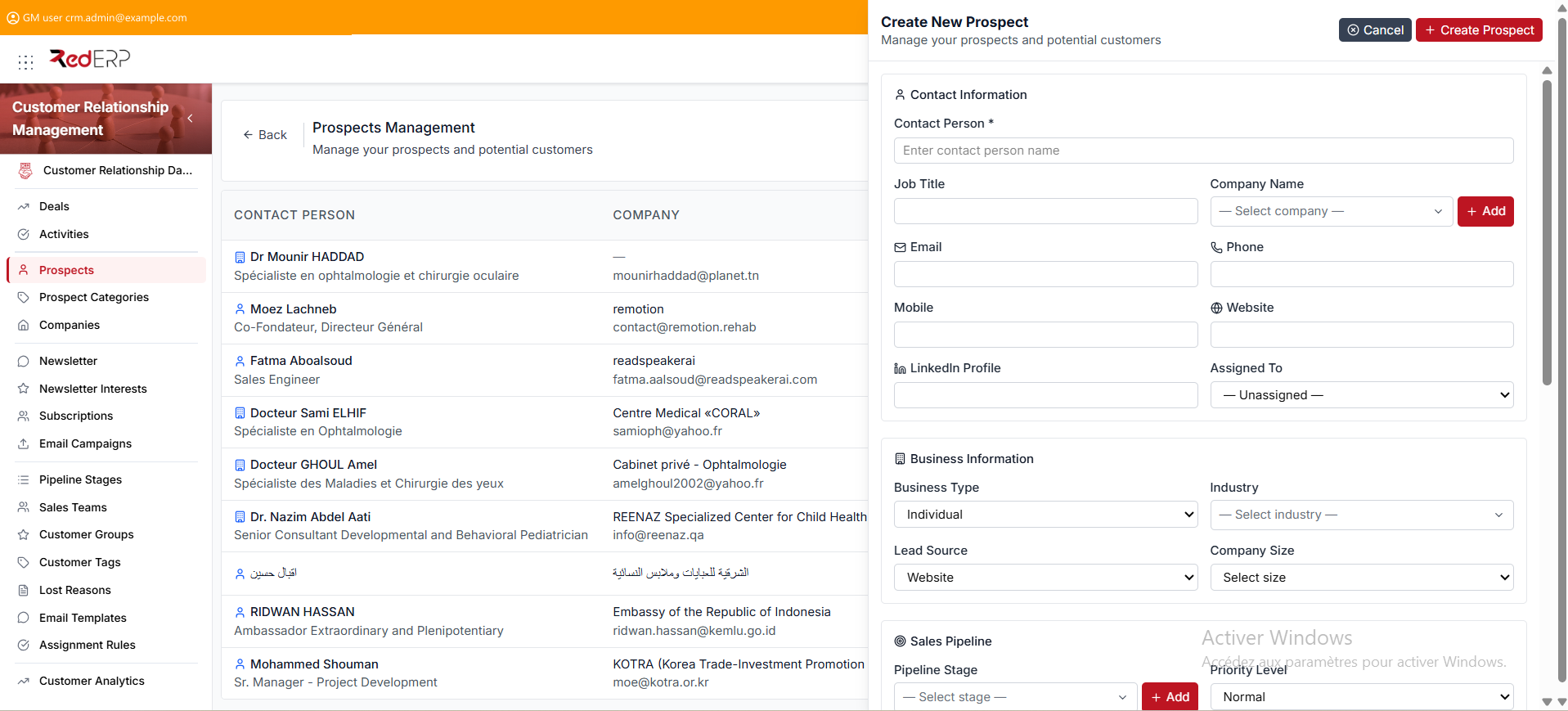
- Select Add Prospect. The drawer title is Create New Prospect.
- Enter the required Contact Person.
- Add Company Name, Pipeline Stage, Priority Level, Lead Source, and Engagement Level as needed.
- Select Create Prospect.
Assignment Rules can set the owner when the record is created. If a similar prospect already exists, the drawer can show a duplicate warning.
You can open the create drawer with ?create=true.
Find a prospect
- Open CRM → Prospects.
- Use Search for contact person, company, email, phone, or reference.
- Select Filter to narrow by Status, Pipeline Stage, Priority, Lead Source, Engagement Level, and Per Page.
- Select rows and Delete Selected only when those records must be removed.
- Select Export CSV when you need a file.
Import prospects
- Open CRM → Prospects.
- Select Import. The drawer title is Import Prospects.
- Choose a
.csvor.xlsxfile. The required column iscontact_person. - Under Duplicate Handling, choose Skip duplicates (keep existing record) or Update duplicates (overwrite fields).
- Select Import.
Prospect statuses
- Active — currently being worked
- Inactive — not in active follow-up
- Converted — turned into a deal
- Lost — closed with a lost reason
Priorities: Low, Normal, High, Hot. Lead sources include Website, Referral, Social Media, Email Marketing, Cold Call, Trade Show, Advertisement, Partner, and Other. Engagement: Cold, Warm, Hot, Engaged.
Scan Business Card
- Open CRM → Prospects and select Scan Card, or select Scan Business Card on the CRM dashboard (
?scan=true). - Set Lead Source and Priority.
- Upload photos (up to 100) or select Scan from Camera.
- In camera mode, Auto Scan captures when the card is stable; otherwise select Scan now.
- Check remaining scans. Each scan uses AI tokens (default 50).
- Review the result. A successful scan creates or updates a prospect, and a company when the card includes one.
Extracted fields include Name, Title, Company, Email, Phone, Mobile, Fax, Website, LinkedIn, and Address. Queue statuses: Waiting, Processing, Created, Updated, Unchanged, Failed.
Public sales-team pages can open the same scanner. See Sales Teams.
Convert or mark Lost
Convert to an opportunity
- Open CRM → Prospects.
- Select Convert on the row. The drawer title is Convert to Opportunity.
- Enter Deal Title, Pipeline Stage, and Expected Revenue.
- Select Convert. RedERP creates a deal (not a client).
Mark Lost
- Select Lost on the row. The drawer title is Mark as Lost.
- Choose a Lost Reason (required) and add Notes if needed.
- Select Mark Lost.
Select Activity to open the activities drawer for that prospect.
Prospect detail
- Open CRM → Prospects.
- Select View. The path is
/modules/crm/prospects/[id]. - Use the tabs: Contact Information, Business Information, Sales Pipeline, Deal Information, Activities, Decisions, Notes & Details.
- On Sales Pipeline, use the refresh control next to Lead Score (Recalculate lead score) to refresh the score.
- Use Delete Prospect in the Danger Zone only when the record must be removed.
Good practice
- Search before you create a second record for the same person.
- Choose skip or update before you import.
- Use Assignment Rules so new creates, scans, and imports get an owner.
- Convert when the person is ready for the pipeline. The result is a deal on Deals.