Payments
How to add COD, Stripe, and redirect payment gateways and turn them Active.
E-commerce → Store settings → Payments creates the gateways checkout can use (credentials + Active).
Open Store settings, then Payments (/modules/ecommerce/settings#payments). The tab label is Payments; the card title is Payment Gateways.

This is not Payment Methods. That other page only ticks which ERP payment types are allowed online (active_ecommerce). You usually need both: an active gateway here, and matching methods there.
Do not use the top-right Save for gateways. + Add Gateway has its own Save / Cancel.
How to use this tab
The table columns are Gateway, Display name, Currencies, and Active. Pencil / trash edit or delete a row. The Active checkbox turns a gateway off without deleting it.
Checkout rejects a missing or inactive code with Invalid or inactive payment gateway.
| Code | When to use it |
|---|---|
| cod | Cash on delivery / pay later. No secrets. |
| stripe | Card. Needs keys + webhook. See Stripe Go-Live. |
| clicktopay | Click to Pay |
| redirect | Send the shopper to an external Payment link URL |
Add Cash on Delivery
+ Add Gateway → code cod → Display name (e.g. Cash on Delivery) → tick Active → Save on the form. COD does not ask for credentials. Shoppers see pay-on-delivery; the order stays unpaid until staff mark it paid after cash is collected.
Add Stripe
Code stripe. Paste Credentials (JSON) (publishable / secret). Leave the box blank when editing to keep the existing secret. Paste Stripe webhook secret (whsec_…). Tick Supported currencies. Tick Active → Save.
Add a redirect link
Code redirect. Paste Payment link URL. After place order, the shopper is sent there. Placeholders: {order_id}, {order_number}, {amount}, {currency}, {email}.
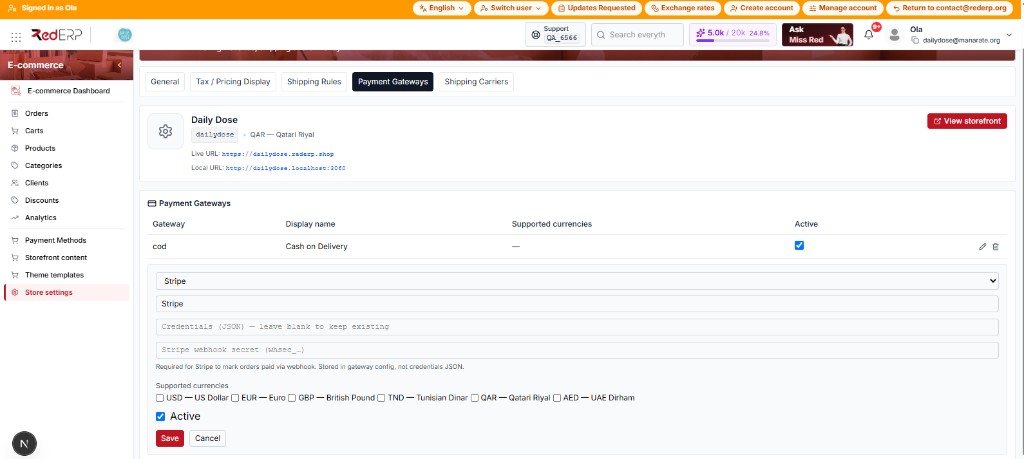
At least one Active gateway is required or Place Order stays blocked.