Vehicles
Create and maintain fleet vehicles, categories, parcs, brands, models, stages, and tags.
Overview
Use Vehicles for each unit in the fleet. Path: /modules/fleet/vehicles. Categories, parcs, brands, models, stages, and tags live on their own lists under the same sidebar group.
Vehicles list
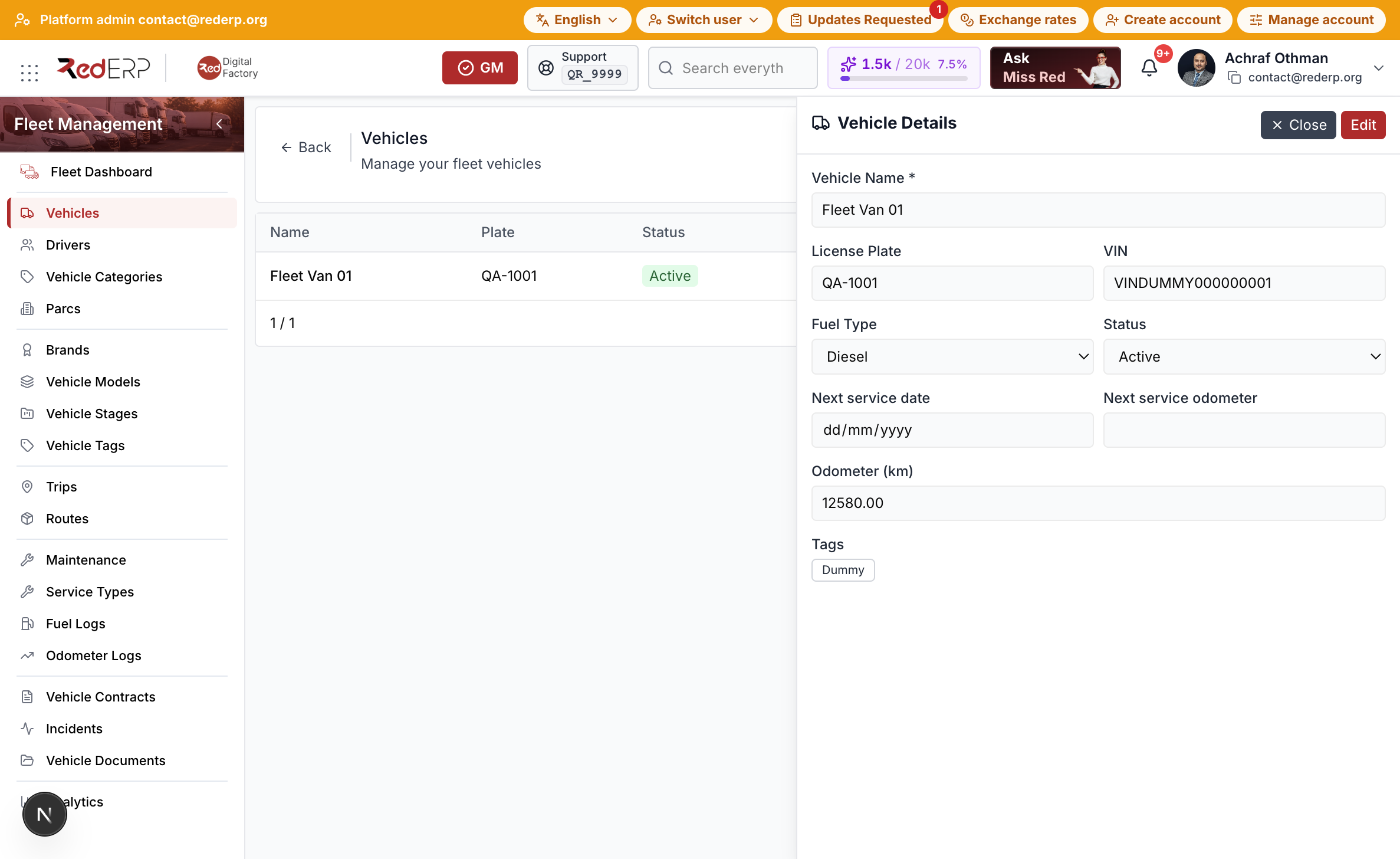
Columns include name, plate, status, and next service date. Row actions are View and Edit. Delete lives in the vehicle drawer footer, not in the table.
Add a vehicle
- Open Fleet Management → Vehicles.
- Select Add Vehicle.
- Enter the name (for training use
Fleet Van 01). - Enter plate
QA-1001and a dummy VIN. - Search and select a catalog model, category, parc, and assigned driver.
- Optionally set next service date and odometer.
- Select Save.
View opens the drawer with Close and Edit. Completing a maintenance record with a service-type interval fills Next service date and Next service odometer.
If a next driver is scheduled, Apply Next Driver appears as a labeled row action (not a delete).
Catalog lists
| List | Path | Use it for |
|---|---|---|
| Vehicle Categories | /modules/fleet/vehicle-categories | Types such as van or truck |
| Parcs | /modules/fleet/parcs | Depots and vehicle pools |
| Brands | /modules/fleet/brands | Manufacturer names |
| Vehicle Models | /modules/fleet/vehicle-models | Catalog models linked to a brand |
| Vehicle Stages | /modules/fleet/vehicle-stages | Lifecycle stages |
| Vehicle Tags | /modules/fleet/vehicle-tags | Labels you apply on the vehicle |
- Open the list from the Fleet sidebar.
- Select Add.
- Enter the name (and brand on a model).
- Select Save.
- To remove a record, open Edit and use the footer danger zone.
Searchable pickers load the full catalog for the account and filter as you type.