Cases & Settings
Track cross-cutting cases and configure the association profile, exercice, PoS sync, branches and units, and reference numbering.
Overview
Cases provide a flexible follow-up record for issues that span members, donors, beneficiaries, programs, or governance. Settings establishes the association's legal and operational identity.
Cases
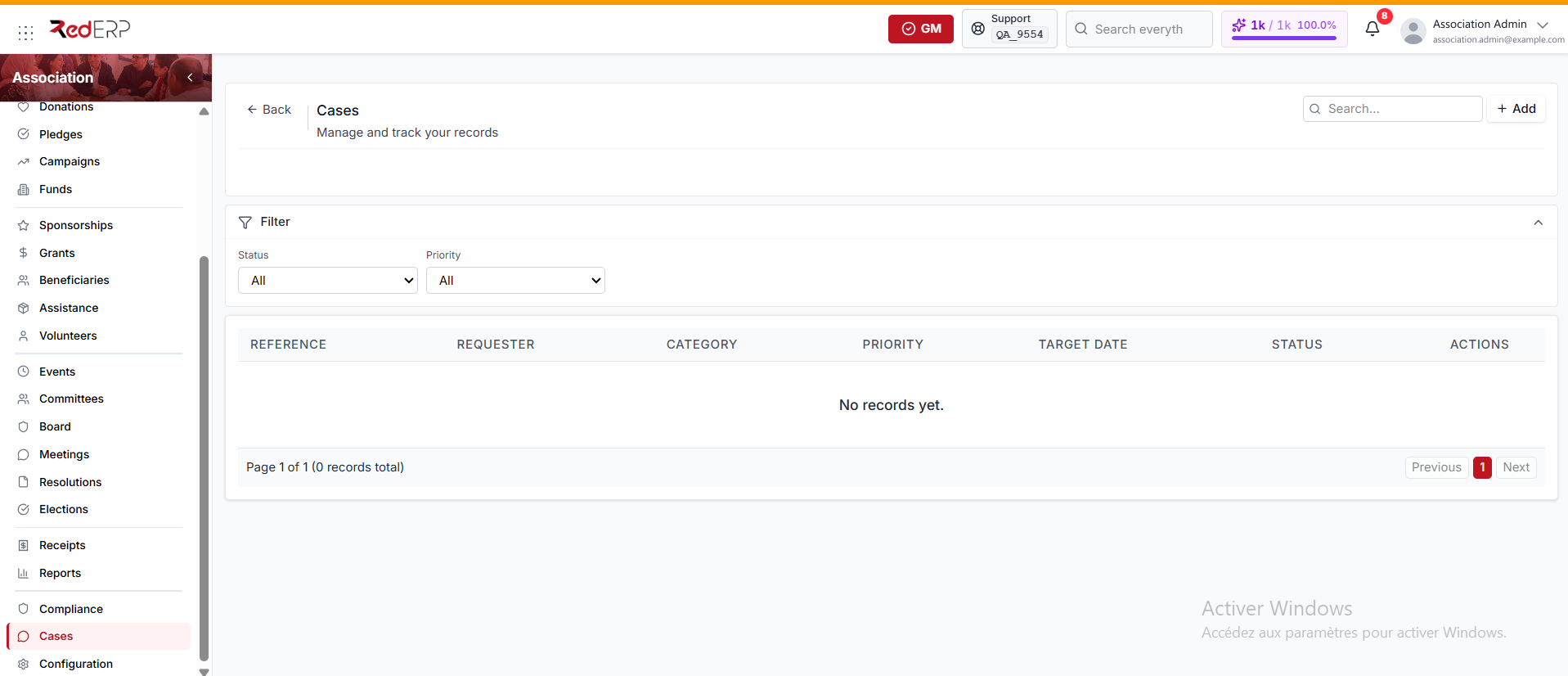
Use Cases for complaints, requests, suggestions, and disputes raised by members, donors, beneficiaries, or other requesters.
The list shows each case's Reference, Requester, Category, Priority, Target date, and Status. Filter it by Status or Priority.
- Open Association → Cases and select Add.
- Enter the required Requester name.
- Choose the Requester type: Member (the default), Donor, Beneficiary, or Other.
- Choose the Category: Complaint, Request (the default), Suggestion, or Dispute.
- Set the Priority (it defaults to Medium), the Status (it defaults to Open), and the Target date.
- Select the Linked member when applicable.
- Enter the Description, Resolution, and Notes, then save.
- Move the case through Open, In progress, Resolved, and Closed as work progresses.
Priorities are Low, Medium, High, and Urgent.
Association settings
Open Association → Settings. The inner sidebar has five tabs:
| Tab | Purpose |
|---|---|
| Profile & identity | Legal identity, contacts, and rules |
| Exercice | Fiscal calendar and Finance accounting years |
| Members & PoS | PoS client sync, wallet, and health fund fee |
| Branches & units | Branches, chapters, and sections |
| Numbering | References and exercice (Finance numbering) |
The Save button in the header appears on the Profile & identity, Exercice, and Members & PoS tabs. It saves the values of all three tabs at once. Branches & units and Numbering save each record from their own forms.
The former Association → Configuration screen now opens Settings on the Profile & identity tab.
Association profile
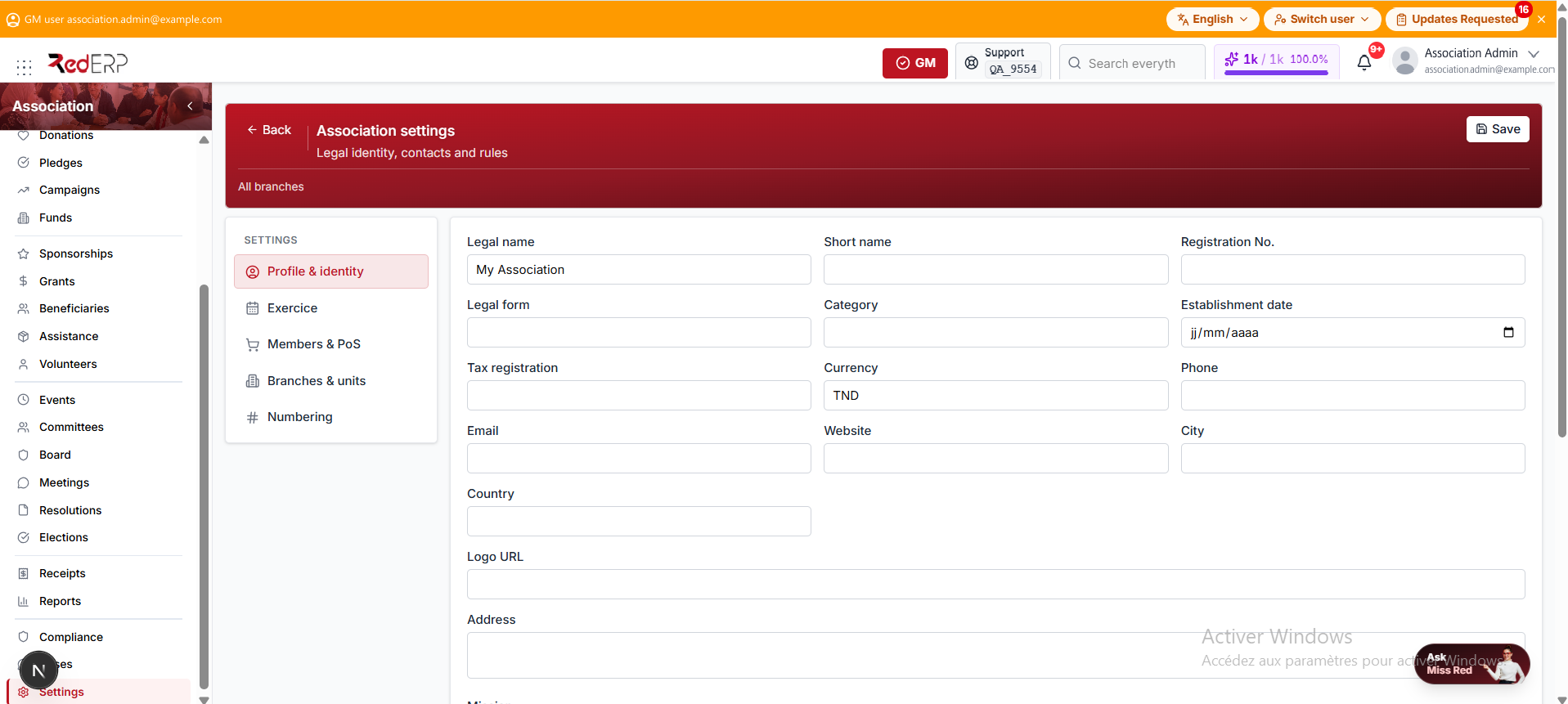
Select Profile & identity and complete:
- Legal name and Short name
- Registration No., Legal form, Category, and Establishment date
- Tax registration and Currency (the default currency)
- Phone, Email, Website, City, and Country
- Logo URL and Address
- Mission and Objectives
- Membership rules and Donation rules
Select Save in the header.
Profile data may appear in Association records and printed receipts, so verify it before collecting payments.
Exercice
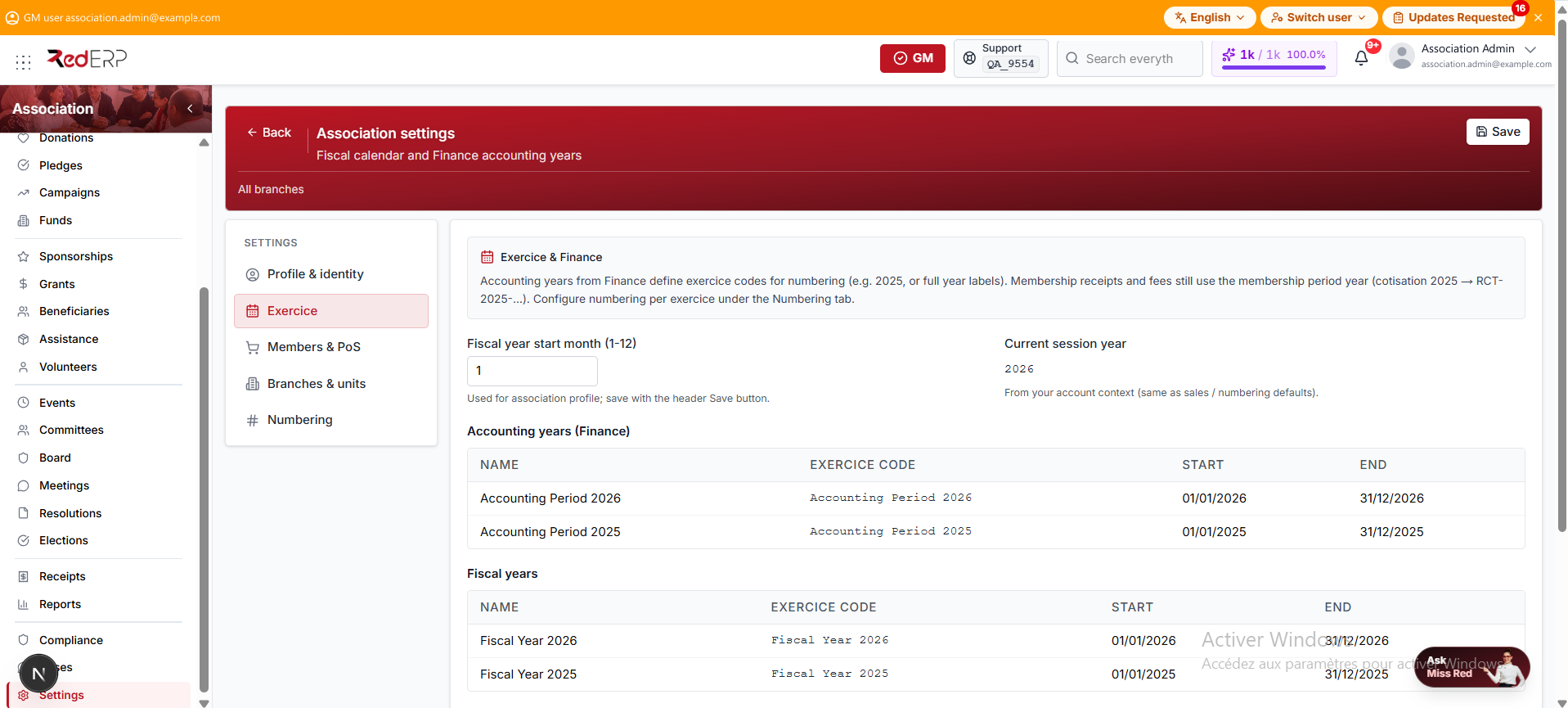
Select Exercice to align the association with the Finance calendar.
- Set Fiscal year start month (1-12).
- Check Current session year. It is read-only and comes from your account context, the same as the sales and numbering defaults.
- Review the year tables: Accounting years (Finance), Fiscal years, and Financial years. Each shows the Name, Exercice code, Start, and End.
- Select Save in the header.
Accounting years from Finance define the exercice codes used by numbering. Membership receipts and fees still use the membership period year: a 2025 membership fee gives a receipt such as RCT-2025-….
If no year is listed, create the accounting years in Finance → Accounting years so their exercice codes appear in numbering.
Members & Point of Sale
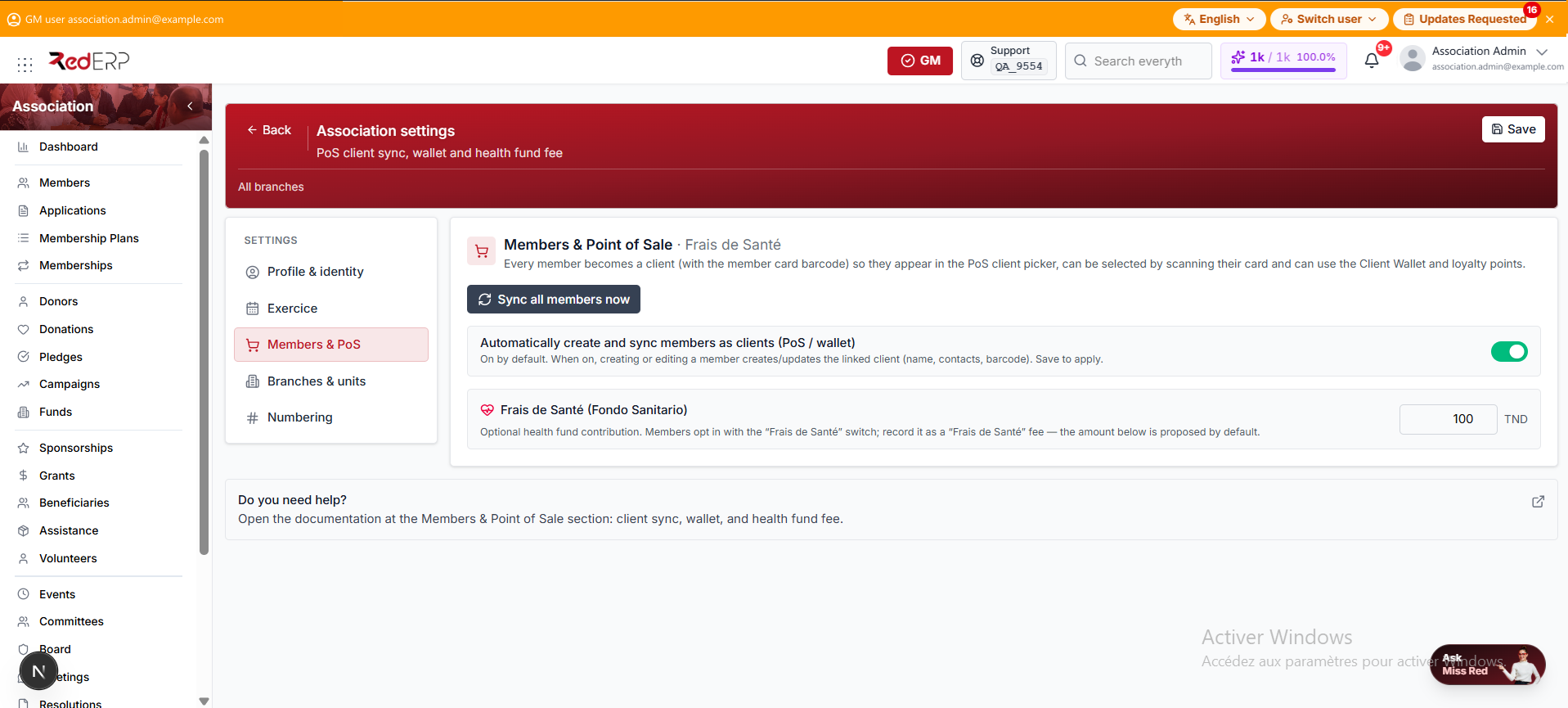
Select Members & PoS. Every member can become a client, with the member card barcode, so they appear in the PoS client picker, can be selected by scanning their card, and can use the Client Wallet and loyalty points.
- Automatically create and sync members as clients (PoS / wallet) is on by default. When it is on, creating or editing a member creates or updates the linked client: name, contacts, and barcode.
- Sync all members now links existing members immediately. When it finishes, it shows how many clients were created, linked or updated, and failed.
- Frais de Santé (Fondo Sanitario) is the optional health fund contribution. Members opt in with the Frais de Santé switch, and the fee is recorded as a Frais de Santé fee. The amount entered here, 100 by default in the association currency, is proposed by default.
Select Save in the header to apply the switch and the amount. Sync all members now runs at once and does not need Save.
Branches and units
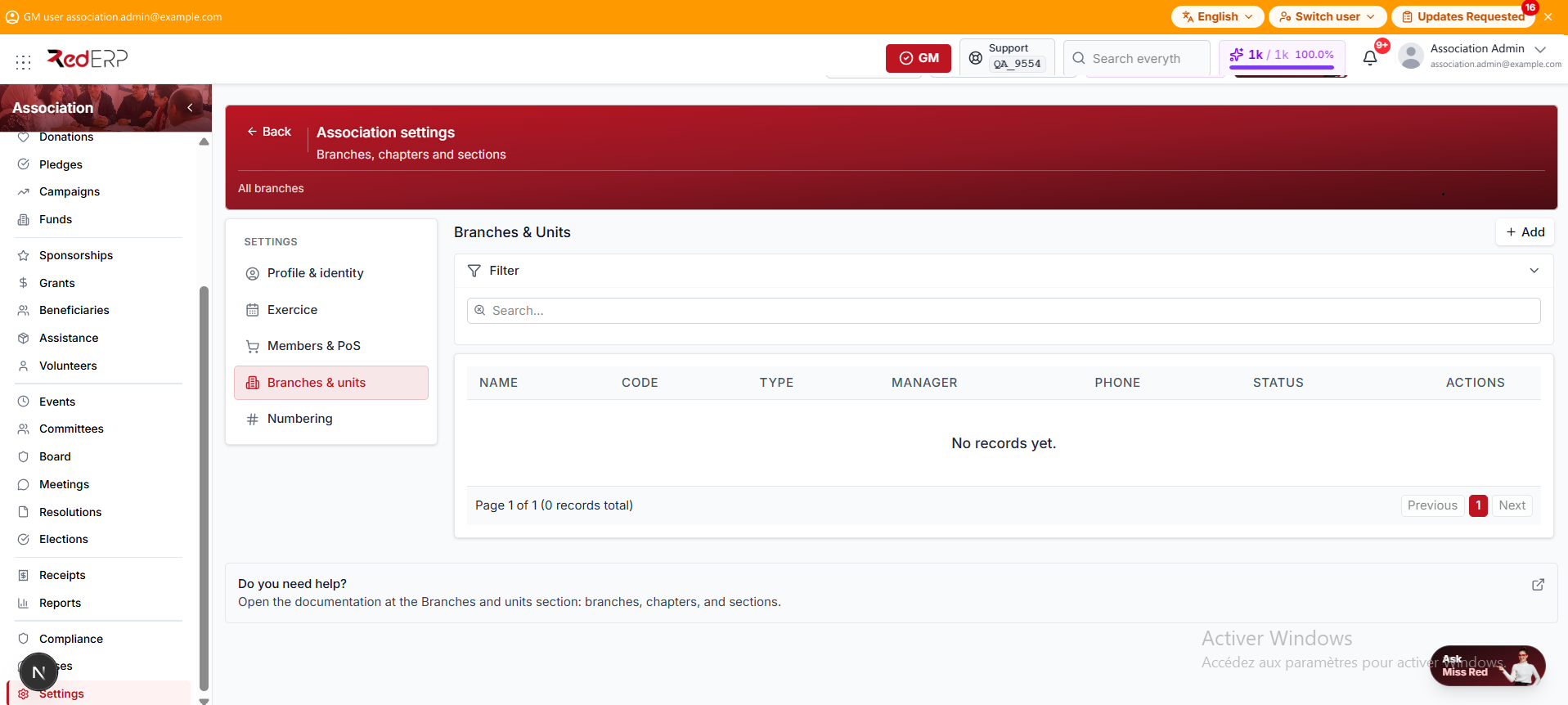
Select Branches & units. The list shows each unit's Name, Code, Type, Manager, Phone, and Status.
Units can be Branch, Chapter, or Section.
- Select Add.
- Enter the required Name and the optional Code.
- Choose the Type. It defaults to Branch.
- Add the Manager, Phone, Email, and Budget.
- Set the Status to Active (the default) or Inactive.
- Add the Address and Notes, then save.
Units can then be selected on members and membership applications.
Numbering
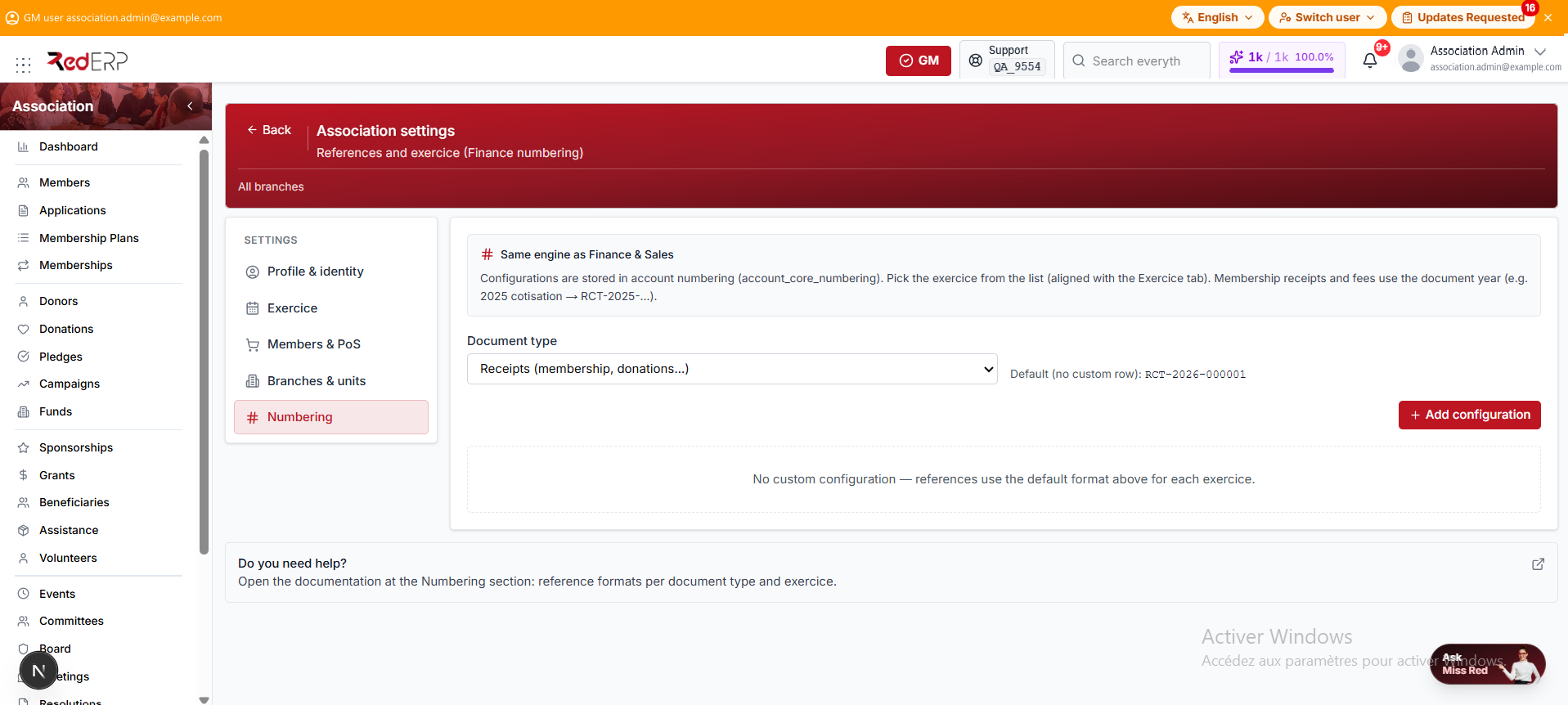
Select Numbering to control how Association references are generated. It uses the same numbering engine as Finance and Sales.
Choose the Document type:
| Document type | Default format |
|---|---|
| Receipts (membership, donations…) | RCT-YYYY-000001 |
| Membership fees | MFE-YYYY-000001 |
| Members | MBR-YYYY-000001 |
| Donations | DON-YYYY-000001 |
| Donors | DNR-YYYY-000001 |
| Pledges | PLG-YYYY-000001 |
| Membership applications | APP-YYYY-000001 |
| Campaigns | CMP-YYYY-000001 |
| Funds | FND-YYYY-000001 |
| Events | EVT-YYYY-000001 |
Without a custom configuration, the system uses the default PREFIX-YYYY-NNNNNN format for each exercice.
Add a numbering configuration
- Choose the Document type.
- Select Add configuration.
- Choose the Exercice. The Prefix is suggested with the year, for example
RCT-2025-. - Adjust the Prefix, and optionally add a Suffix.
- Set the Number of digits, from 1 to 10. It defaults to 6.
- Choose the Branch, or keep Account level (all branches).
- Review the Label and the Preview, then select Save.
Prefix and Number of digits are required. Include the year in the prefix so each exercice keeps its own sequence.
The configurations table shows the Exercice, Prefix, Digits, Counter, and Preview. Use Edit to change the prefix, suffix, digits, or label. The exercice and branch cannot be changed after creation. Delete removes a configuration, and new documents of that type go back to the default format.