Sponsorships & Grants
Manage sponsorship agreements and grant opportunities, awards, tranches, payments, and program funding.
Overview
Use Sponsorships for sponsor agreements and received sponsor payments. Use Grants to follow funding opportunities from submission through award, tranches, and completion.
Sponsorships
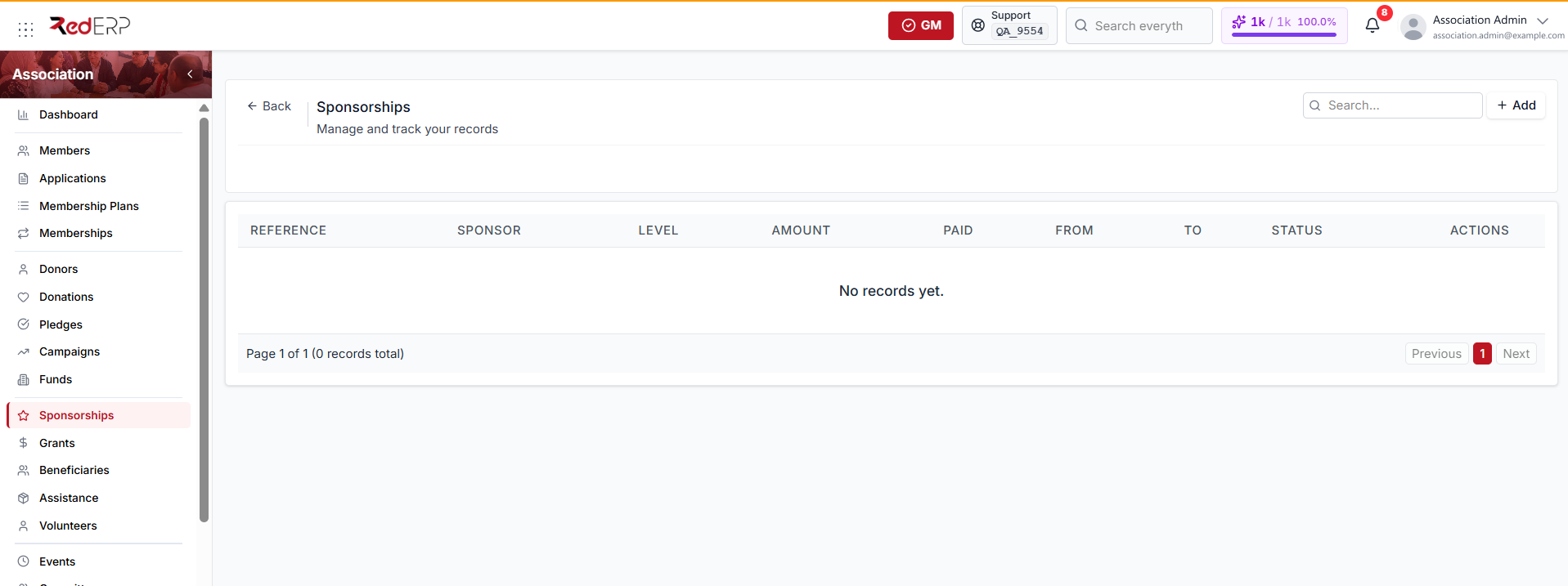
Open Association → Sponsorships to see each sponsorship's reference, sponsor, level, amount, amount paid, and From date.
Use Amount for the planned sponsorship value and Paid for money actually received.
A sponsorship status can be:
- Draft — the default when you create a record
- Active
- Completed
- Cancelled
A sponsorship level can be:
- Platinum
- Gold
- Silver
- Bronze — the default
Create a sponsorship
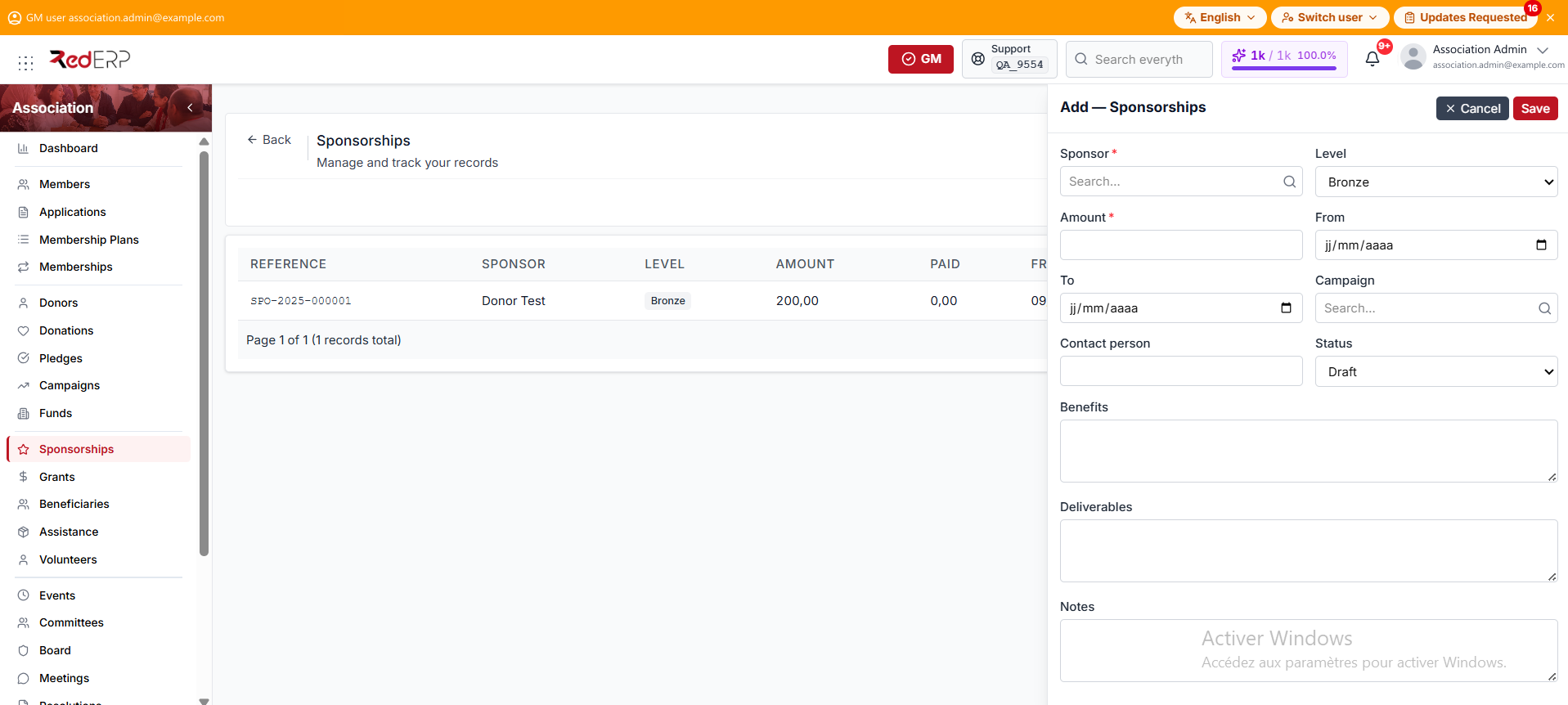
- Open Association → Sponsorships.
- Select Add.
- Choose the sponsor from the donor list.
- Set the Level. It defaults to Bronze.
- Enter the required Amount.
- Set the From and To dates.
- Optionally assign a campaign and add the contact person.
- Set the Status. It defaults to Draft.
- Add benefits, deliverables, or notes, then save.
Collect a payment
Pay is a row action on the Sponsorships list. It stays available while Paid is less than Amount.
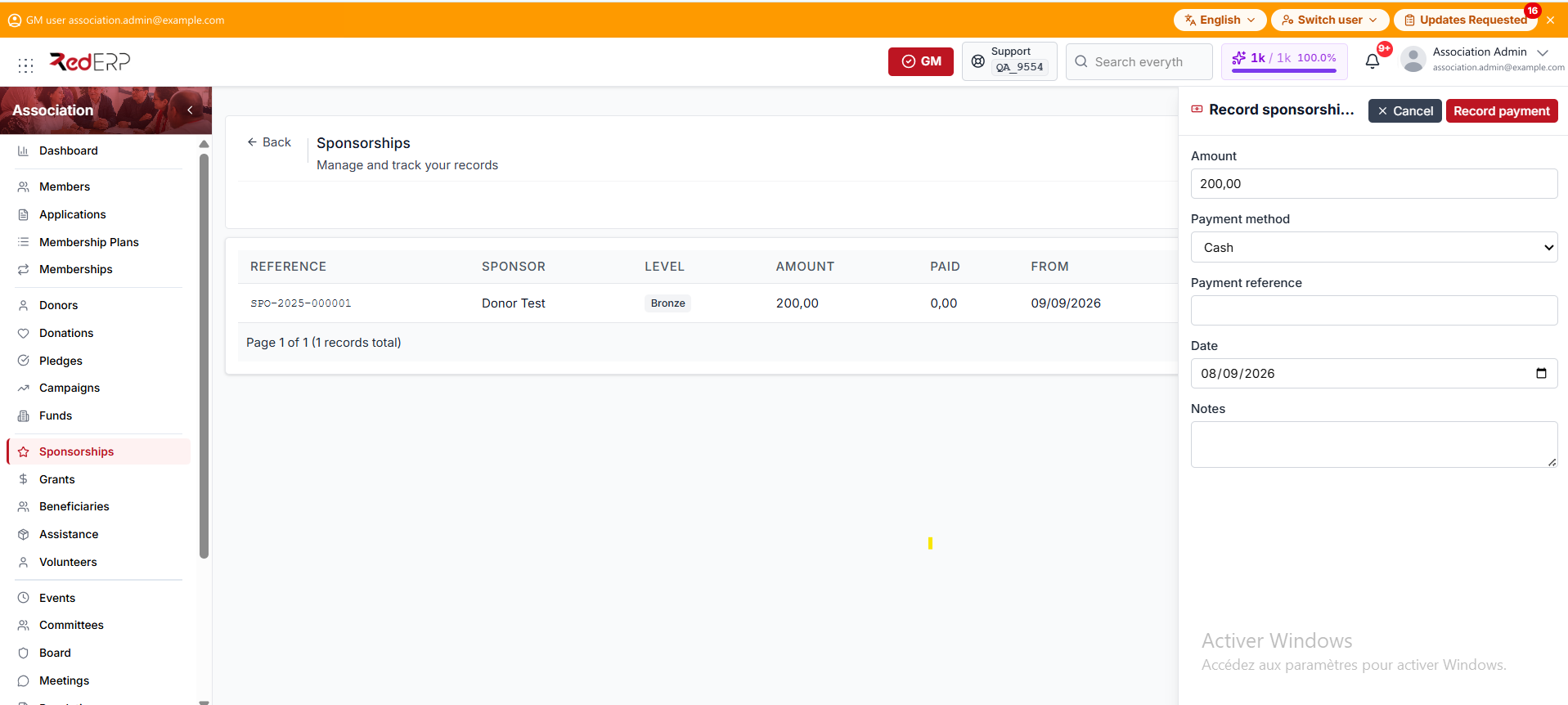
- Select Pay on the sponsorship row.
- Check the amount. The drawer opens with the outstanding balance already filled in.
- Choose the payment method, then add the payment reference, date, and notes.
- Select Record payment.
Print the receipt
Recording a payment opens the receipt preview. It is titled Sponsorship Receipt, shows the sponsor copy and the association copy side by side, and Print produces both at once.
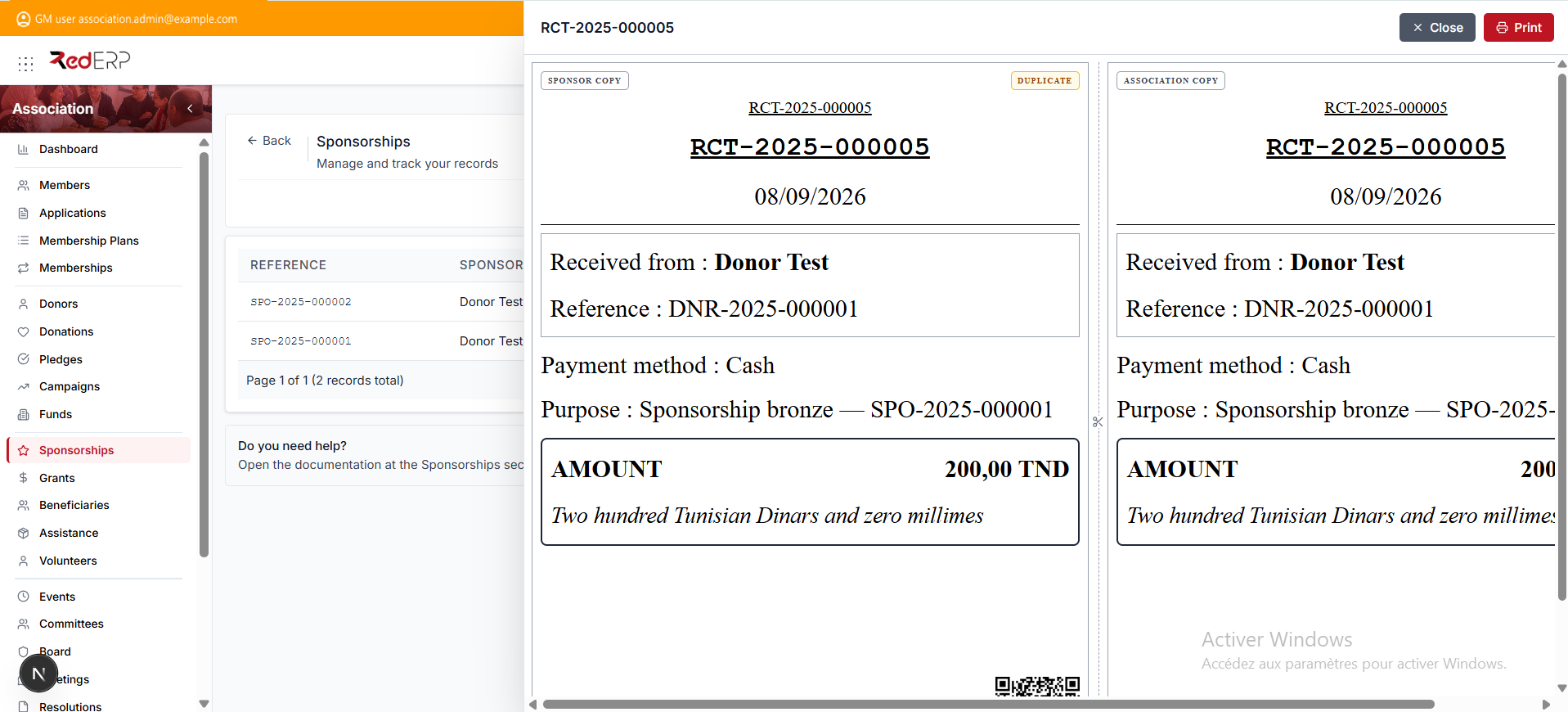
Select Print for a paper or PDF copy, or Close to return to the list. See Receipts & Reports for reprints and cancellations.
Grants
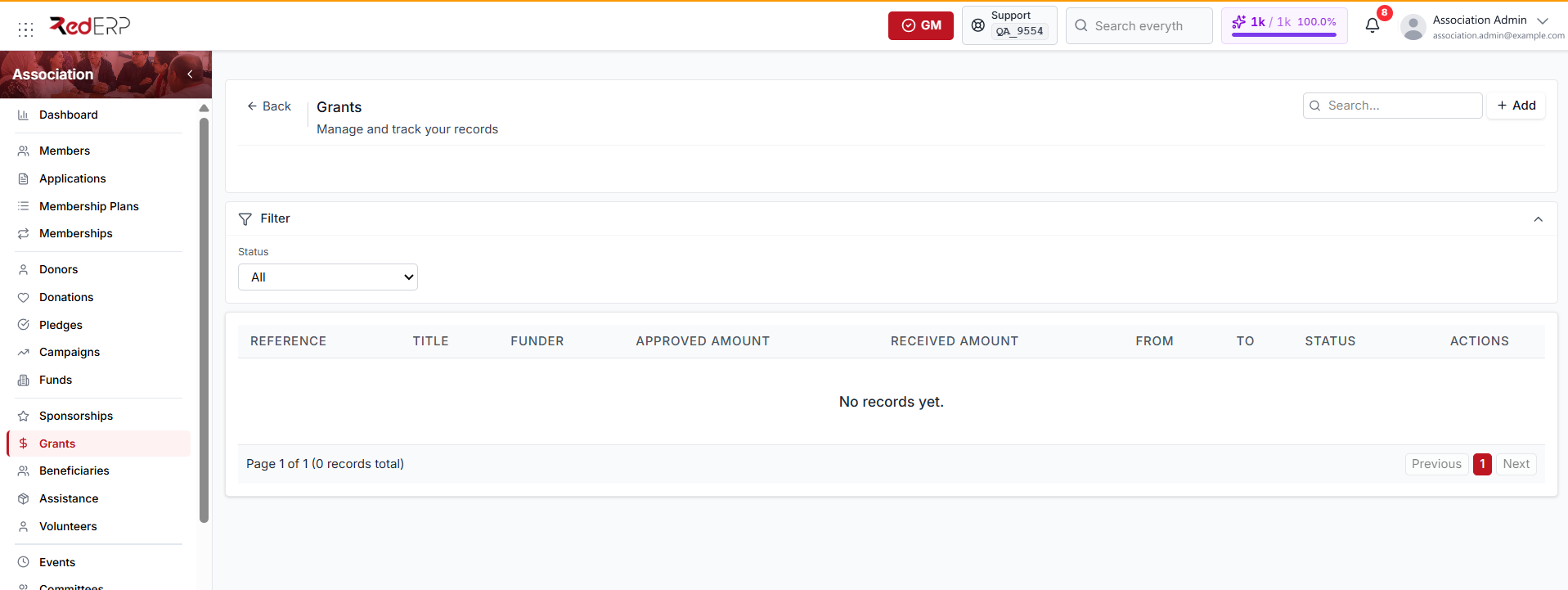
Open Association → Grants to see each grant's reference, title, funder, approved amount, and received amount. The Status filter narrows the list.
Use Approved amount for the decision and Received amount for money actually collected through Receive tranche.
A grant status can be:
- Opportunity — the default when you create a record
- Submitted
- Approved
- Active
- Completed
- Rejected
- Closed
Create a grant
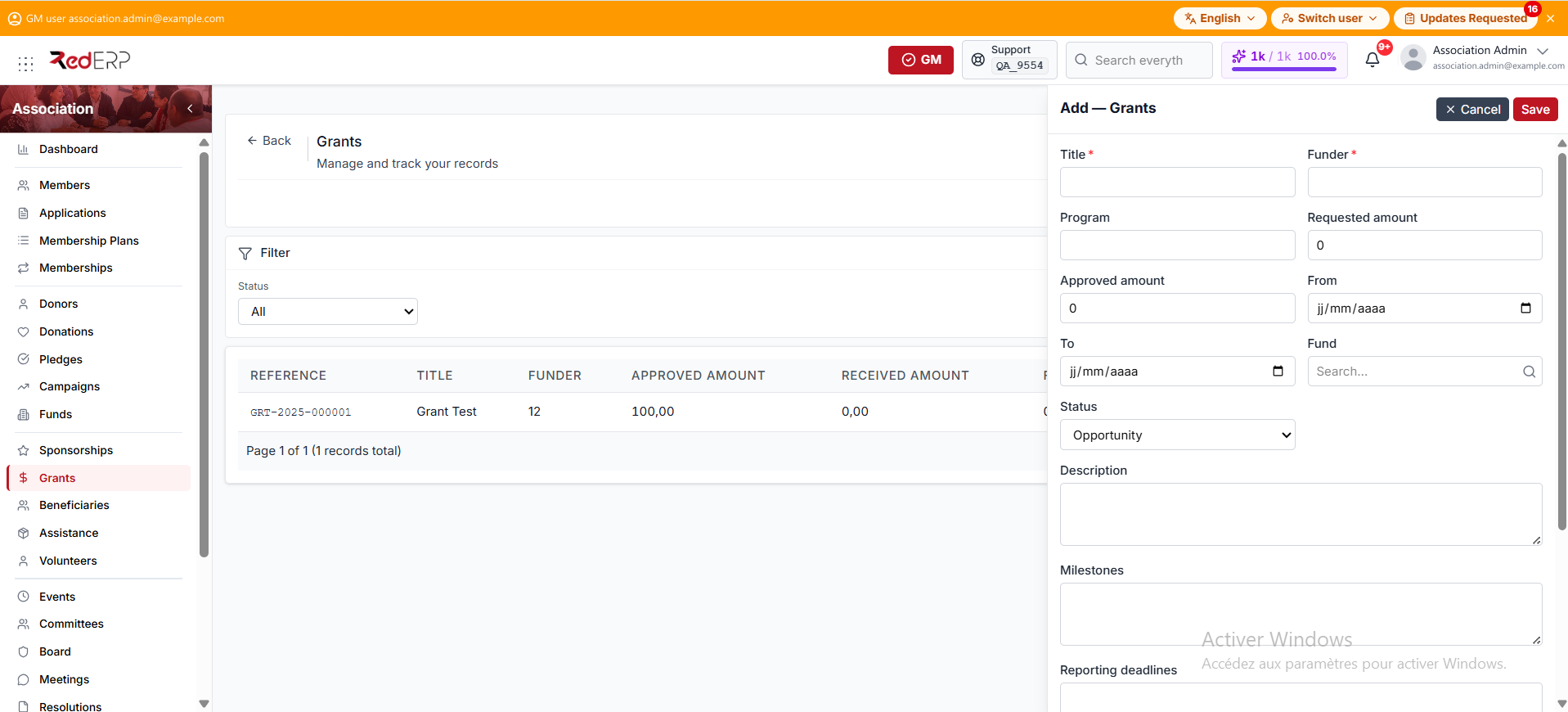
- Open Association → Grants.
- Select Add.
- Enter the required Title and Funder.
- Add the program, requested amount, and approved amount.
- Set the From and To dates and optionally link a fund.
- Set the Status. It defaults to Opportunity.
- Add the description, milestones, reporting deadlines, restrictions, and notes, then save.
Receive a tranche
Receive tranche is a row action on the Grants list. It is hidden when the grant is Closed or Rejected.
- Select Receive tranche on the grant row.
- Enter the tranche amount, date, payment method, and reference.
- Save the tranche. The received amount increases and a receipt is issued.
Do not treat a grant as received only because its status is Approved. Record each tranche on its actual receipt date.
Control points
- Do not mark a grant as received only because it was approved.
- Record each tranche on its actual receipt date.
- Link sponsorships and grants to the relevant campaign, fund, event, or program when available.
- Keep award conditions and reporting deadlines in the record or in linked compliance items.
- Reconcile total received against the approved sponsorship or grant amount.