Tax & Pricing
How to set the store tax rate, VAT-inclusive prices, and the flat shipping fallback.
E-commerce → Store settings → Tax & pricing controls how money is shown and the default shipping amount.
Open Store settings, then click Tax & pricing (/modules/ecommerce/settings#tax). The UI label can also read Tax / Pricing Display.
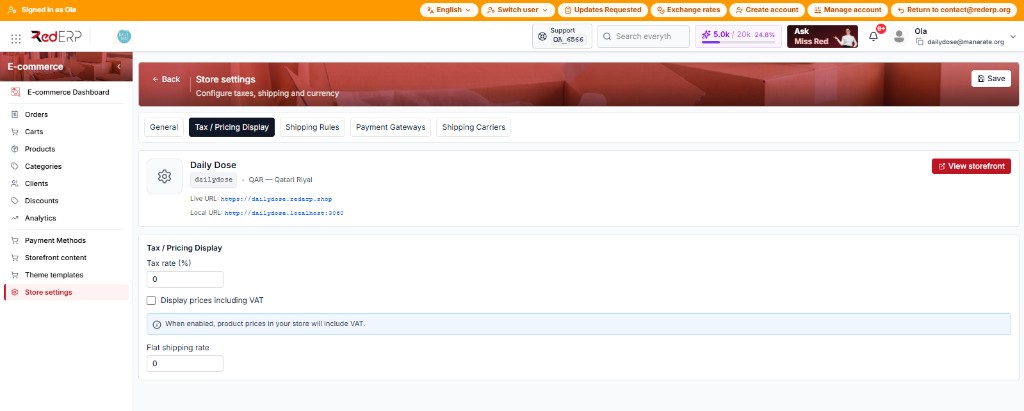
The preview card (name, handle, View storefront) stays above this form. Click the red Save at the top of the page after you edit — same Save as General.
How to use this tab
Set the tax rate
Tax rate (%) is the fallback VAT when a product has no rate of its own. 0 = no store-level tax. Use 5 or 19 if you charge VAT. Product-level tax (on the catalog item) wins when it is set.
Choose how prices display
Tick Display prices including VAT if the number on the product card should already include tax. The blue note: When enabled, product prices in your store will include VAT. Leave it off if listed prices are exclusive and tax is added at checkout.
Set a flat shipping rate
Flat shipping rate is the default delivery amount (store currency) when no shipping rule applies. This is not a checkout option by itself when you have named rules (Standard / Express).
Save
Save top right. Tax and the flat rate are stored with store settings, not as a row in Shipping rules.
| Field | How to use it |
|---|---|
| Tax rate (%) | Fallback VAT for products without their own rate |
| Display prices including VAT | Tax already inside the listed price |
| Flat shipping rate | Fallback fee if no rule matches |
Do not set shipping to zero if you have no rules
Checkout needs a real delivery price. If Shipping rules is empty and Flat shipping rate is 0.00, Place Order stays disabled / checkout fails. Restore a rate (for example 15) or add rules on the next tab. Do not “test” by zeroing this field on a live shop.