Storefront Shopper Guide
Step-by-step guide to browsing, cart, checkout, promo codes, COD confirmation, account, contact, and cart recovery on the RedERP public storefront.
Overview
This guide is for shoppers (and trainers walking the public shop). Admin setup lives under the other Ecommerce docs.
Typical URLs:
- Production:
https://{handle}.rederp.shop - Local:
http://{handle}.localhost:3060
See Store URL & Handle for how the handle works. Daily Dose live: dailydose.rederp.shop.

The top bar is a promo (example: free delivery / member club). The header has Home, Shop, Meals, Our story, language (EN), search, account, and bag. On a phone, open the hamburger for those CMS links (Daily Dose and Minimal). The hero is the theme slideshow plus store copy and SHOP THE MENU.
Browse the shop
Open home
Open https://{handle}.rederp.shop (or the local URL). Use SHOP THE MENU or Shop in the header.
Browse the grid
Shop is /shop — breadcrumbs HOME / SHOP / ALL PRODUCTS. The left CATEGORIES list (All Products, Detox, …) is on when Store settings → shop filters has Category sidebar ticked. Sort (e.g. NEWEST ARRIVALS) is on when Sort dropdown is ticked.

Cards show name, price (QAR), and a yellow Out of stock badge plus a grey OUT OF STOCK button when qty is 0. Those cannot be added to the cart.
Open a product
Product pages are /product/{id}. Breadcrumb example: SHOP / REFRESHER 250 ML. You see the photo, title, and price (e.g. QAR 24.00).

When qty is 0, a yellow OUT OF STOCK bar replaces Add to cart. You cannot buy that item. In-stock products show quantity and Add to cart instead. For a trainer demo, pick a product with stock > 0 (or restock it in ERP first).
Out of stock products show as unavailable and cannot be added. Demo catalogs often have qty ≤ 0.
Switch language (EN / FR / AR) from the header when the theme shows a language switcher. Arabic uses RTL.
Other shop pages (theme)
These routes exist on typical Daily Dose / Nourish themes. Treat gift cards as demo content, not a live wallet product.
| Page | Path |
|---|---|
| Sale | /sale |
| New arrivals | /new-arrivals |
| Best sellers | /best-sellers |
| Journal | /journal and /journal/{slug} |
| Help center | /help-center |
| Shipping & returns | /shipping-returns |
| About | /about |
| Policies | /policies, /privacy, /terms, /refunds |
| Gift cards | /gift-cards (demo) |
Cart
After Add to cart (home featured grid, /shop, or the product page), the bag icon in the header shows a quantity chip (total units, not just lines). Same chip on Daily Dose, Nourish, and Minimal. If the chip does not appear, hard-refresh — an older build painted white text with no background.
Open Cart (/cart) from the bag icon. Title: Shopping Cart. Promo codes are not on the cart — they are on checkout.

Review lines
Each line has the name, option (pack/flavor when the product has variants), price (e.g. Organish QAR 25.00), quantity, and Remove. Two sizes of the same kefir are two lines.
Read the summary
Order summary shows Subtotal, Tax (here QAR 0.00), and Shipping as Calculated at checkout.
Go to checkout
Click Proceed to Checkout. Sticky actions may appear on mobile.
Checkout (step by step)
Checkout is one page (/checkout). ← BACK TO CART returns to the bag. The title is CHECKOUT.
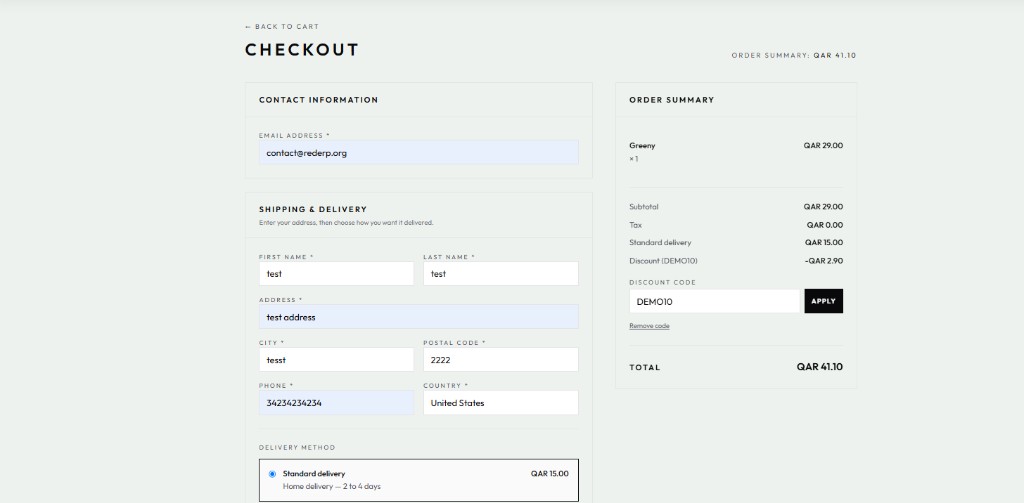
1. Contact information
- Email * (required)
2. Shipping & delivery
Required:
- First name *, last name *
- Address *, city *, postal code *, country *
- Phone *
- A delivery method (from shipping rules / flat rate)
Logged-in shoppers may see saved addresses and get fields prefilled.
3. Promo code
On checkout (not on the cart):
- Enter the code (example: DEMO10).
- Apply.
- The discount shows in the order summary.
- Invalid / expired / max-uses codes are rejected.
Admins create codes under Discounts.
4. Payment method
Choose an active gateway:
- COD (cash on delivery) — place the order, stay unpaid, pay the courier. Confirmation says pay on delivery.
- Stripe — card panel on the page, then confirm. Only if that gateway is Active.
- Redirect / Click to Pay — leave the site to pay. Only if configured.
If no gateways are Active, the shop shows that no payment methods are configured.
5. Place order
Guest checkout is allowed. Logged-in checkout sends client_id when available.
Validation: Please fill in all required fields. Also select delivery and payment.
Order confirmation
After a COD place you land on /order/confirmation?payment=cod with the order number and email.
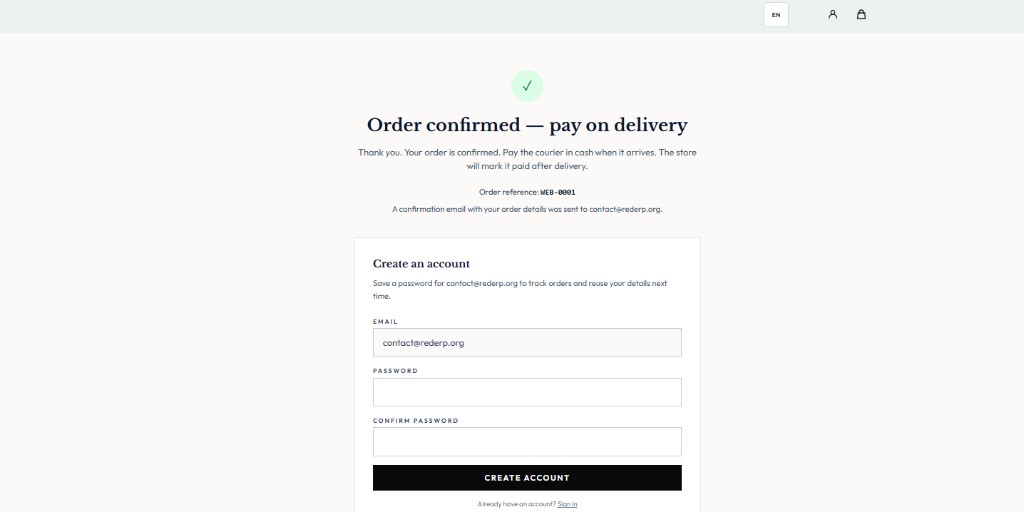
- Title: Order confirmed — pay on delivery
- Body: pay the courier in cash; the store marks the order Paid after delivery
- If email notifications are on, a confirmation email can send now
- Guests may be offered create account from this order
Stripe / card success uses payment=success. Failed card uses payment=failed. Pending redirect uses payment=pending.
View past orders after login: /account and /account/orders/{id}.
Account
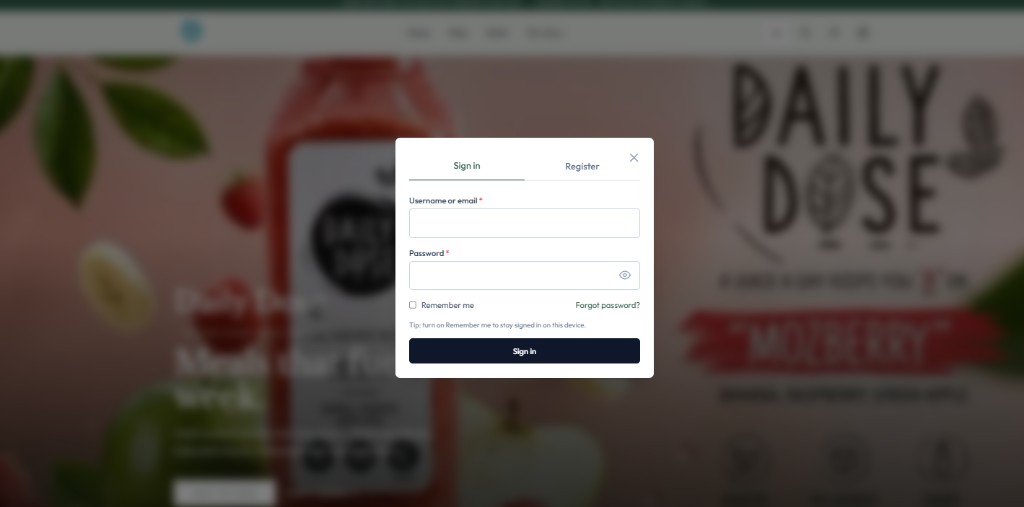
On Daily Dose / Nourish, the header account icon opens a Sign in / Register modal (not a full-page form). /login still works as a fallback.
| Page | Path |
|---|---|
| Login | /login or header modal |
| Register | /register |
| Forgot password | /forgot-password |
| Reset password | /reset-password?token=… (may include shop_handle) |
| Account home | /account |
| Order detail | /account/orders/{id} |
Password-reset emails are sent even if the store “email notifications” toggle is off.
Contact
- Open
/contact(/contact-usredirects here). - Fill name, email, message.
- Submit.
Success: Thanks — your message was sent.
Messages go to the store reply-to inbox (or account email). Contact is not blocked by the email-notifications toggle — but reply-to must be configured or you get Store contact inbox is not configured.
Recover a cart from email
Abandoned-cart emails open:
/cart?recover={token}- or
/checkout?recover={token}
| Result | What you see |
|---|---|
| Restoring | Restoring your saved cart… |
| Success | Welcome back — your cart was restored from your email link. |
| Fail | We couldn’t restore that cart link. It may have expired — please add items again. |
Backend reason for bad links: Recovery link invalid or expired.
Admins: configure auto recovery under Store Settings and Carts.