Newsletter Interests
Define newsletter topics with color, icon, status, and a default interest.
Overview
Use Newsletter Interests for the topics subscribers pick. Campaigns and signup forms reuse this list.
Newsletter Interests
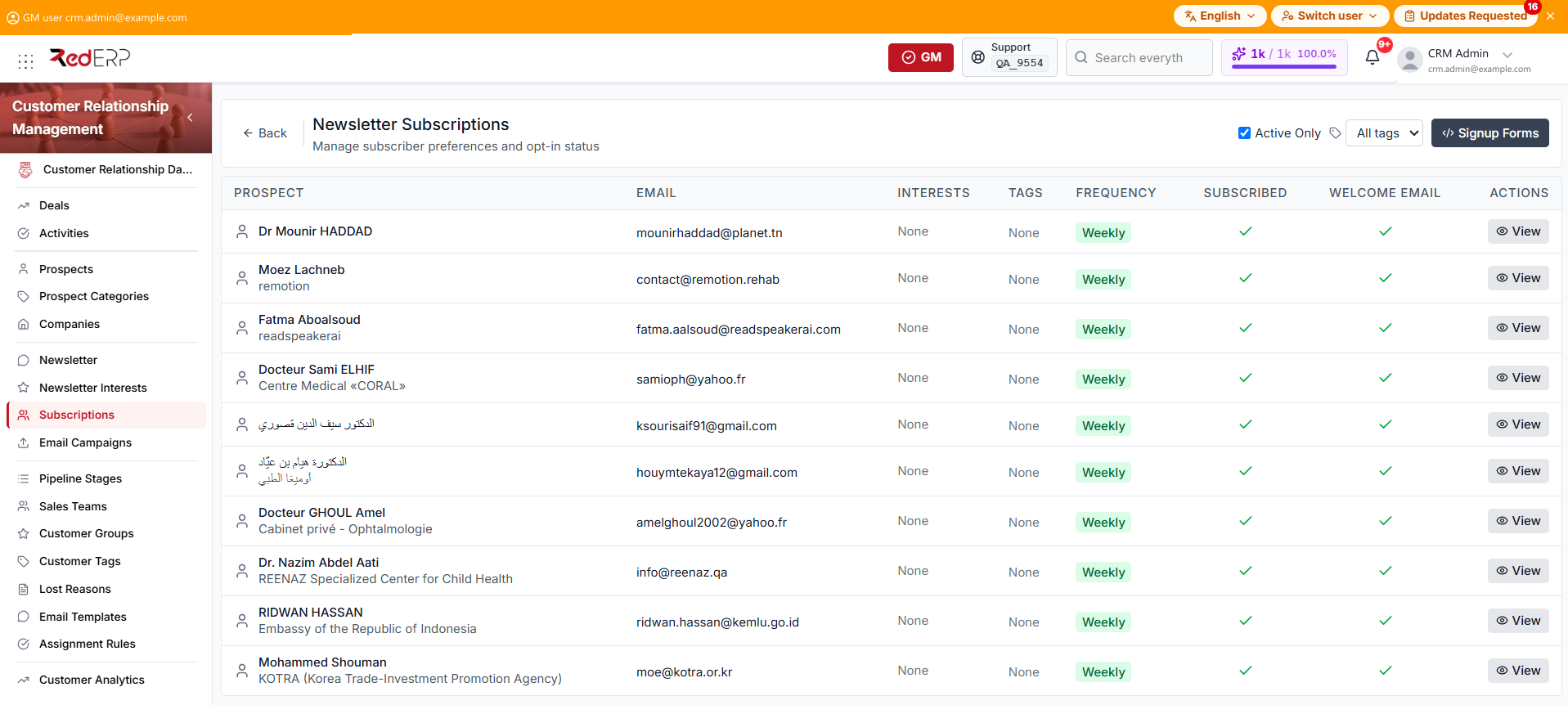
The columns are Interest Name, Description, Color, Status, Default, Sort Order, and Actions. The default cell shows Yes, or an em dash.
The row action is View. You can also select the interest name. If the list is empty, the page shows No interests found and Create your first interest.
Create an interest
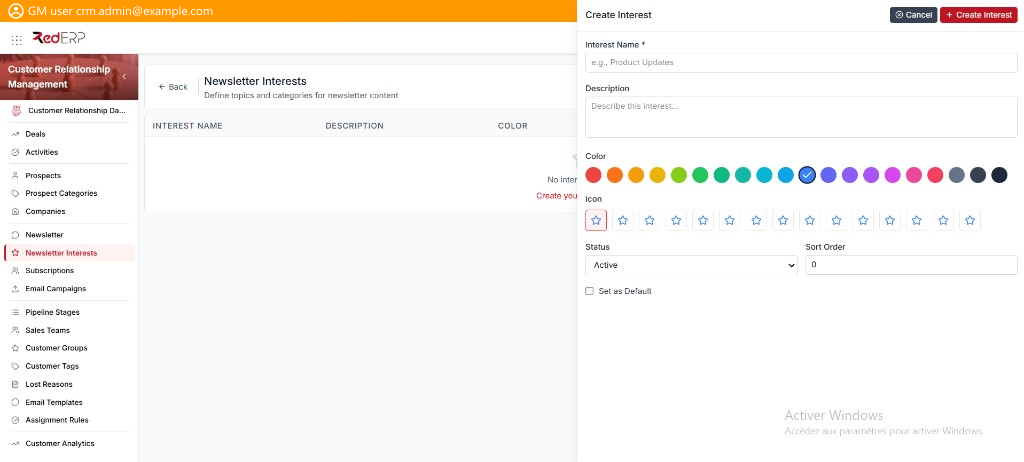
- Open CRM → Newsletter Interests.
- Select Add Interest. The drawer title is Create Interest.
- Enter the required Interest Name.
- Add a Description if needed.
- Choose a Color and an Icon. The defaults are the blue swatch and the first star.
- Set Status (Active or Inactive) and Sort Order. On an empty list, sort order starts at 0.
- Select Set as Default if this topic should apply when a subscriber has no preference.
- Select Create Interest.
View, edit, or delete an interest
- Open CRM → Newsletter Interests.
- Select View. The drawer title is Interest Details.
- Review Interest Name, Description, Color, Icon, Status, Set as Default, and Sort Order.
- Select Edit. The drawer title is Edit Interest. Change the fields, then select Save Changes.
- Use Delete Interest in the Danger Zone only when the interest must be removed. Confirm in the Delete Interest dialog.
Good practice
- Keep inactive topics instead of deleting them if past campaigns still reference them.
- Use one default interest only.