Theme Templates
Assign the live storefront layout, import or export theme ZIP bundles, reset presets, and use the AI designer.
E-commerce → Theme templates chooses which layout is live on the public shop. Open it from the ecommerce sidebar (management group) or after you pick a theme card.
Page title: Theme templates. Only one theme is live per store. Logo, currency, and shop handle still come from Store Settings. Homepage copy, policies, and journal posts come from Storefront Content.
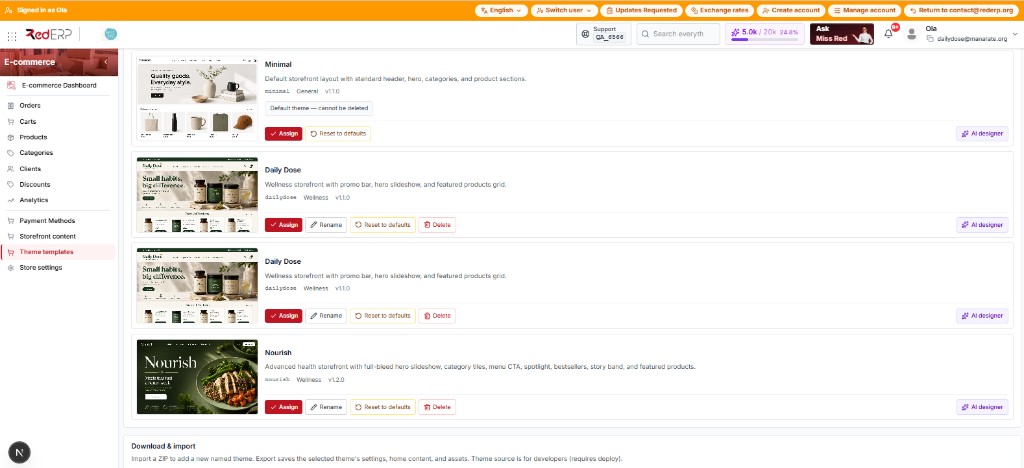
The Live badge shows the current theme name (for example Daily Dose). Click a card to select it for export; that is not the same as making it live.
Your themes
The Your themes block lists every theme on this store.
| On the card | Meaning |
|---|---|
| Preview | Still image, or a live thumbnail when this theme is the live one and a shop handle exists |
| Name + description | Display name and short blurb |
base_template_id | Layout id (minimal, dailydose, nourish, or a custom import) |
| Category / version | Tags such as wellness and v1.1.0 |
| Live | This theme is on the public shop |
| Selected | You clicked the card (for download / import actions) |
| Default theme — cannot be deleted | System Minimal |
Empty store: No themes yet. Import a theme bundle to get started.
Minimal is always available and cannot be deleted. Daily Dose and Nourish are wellness layouts (promo bar, slideshow, featured grid).
Card actions
| Button | What it does |
|---|---|
| Assign | Makes this theme live. Hidden on the theme that is already live. |
| Rename | Change the display name (custom / imported themes, not system Minimal) |
| Reset to defaults | Restore factory colors, fonts, and home content for that theme. Cannot be undone. |
| Delete | Remove a deletable (non-system) theme |
| AI designer | Open the prompt drawer for that theme |
Activate a theme
Open Theme templates
Go to E-commerce → Theme templates.
Pick a card
Read the description and version (for example Daily Dose v1.1.0).
Assign
Click Assign. Refresh the public shop to confirm the layout.
Download & import
The block at the bottom of the page is Download & import.
Import a ZIP to add a new named theme. Export saves the selected theme's settings, home content, and assets. Theme source is for developers (requires deploy).
The line Selected: shows which card will be exported.
| Button | Result |
|---|---|
| Download theme bundle | {slug}-theme-bundle.zip — settings, home content, assets |
| Download layout source | {baseId}-theme-source.zip — React package under ecommerce/src/themes/{id}/ (developers) |
| Import theme bundle | Choose a ZIP, type a name, confirm Import theme |
Import activates the new theme by default. Max about 50 MB zip / 120 MB uncompressed.
What a bundle contains
manifest.json— schema version, theme name, store name, template id,theme_tokens,pages.homecontent,assets[]assets/asset-NNN.ext— files pulled from remote URLs in tokens/home
AI designer
Open the drawer
On a theme card, click AI designer.
Describe the look
Prompt for colors, layout, and copy tone. You can attach media or pick components.
Run and review
Run the design, then refresh the public shop. Publish homepage text separately in Homepage if that page is still a draft.
AI changes design tokens / layout suggestions. It does not replace Store settings (logo, handle) or published CMS pages.