Fuel & Odometer
Record fuel fill-ups and odometer readings for fleet vehicles.
Overview
Use Fuel Logs for fill-ups and Odometer Logs for mileage. Paths: /modules/fleet/fuel-logs and /modules/fleet/odometer-logs.
Fuel logs
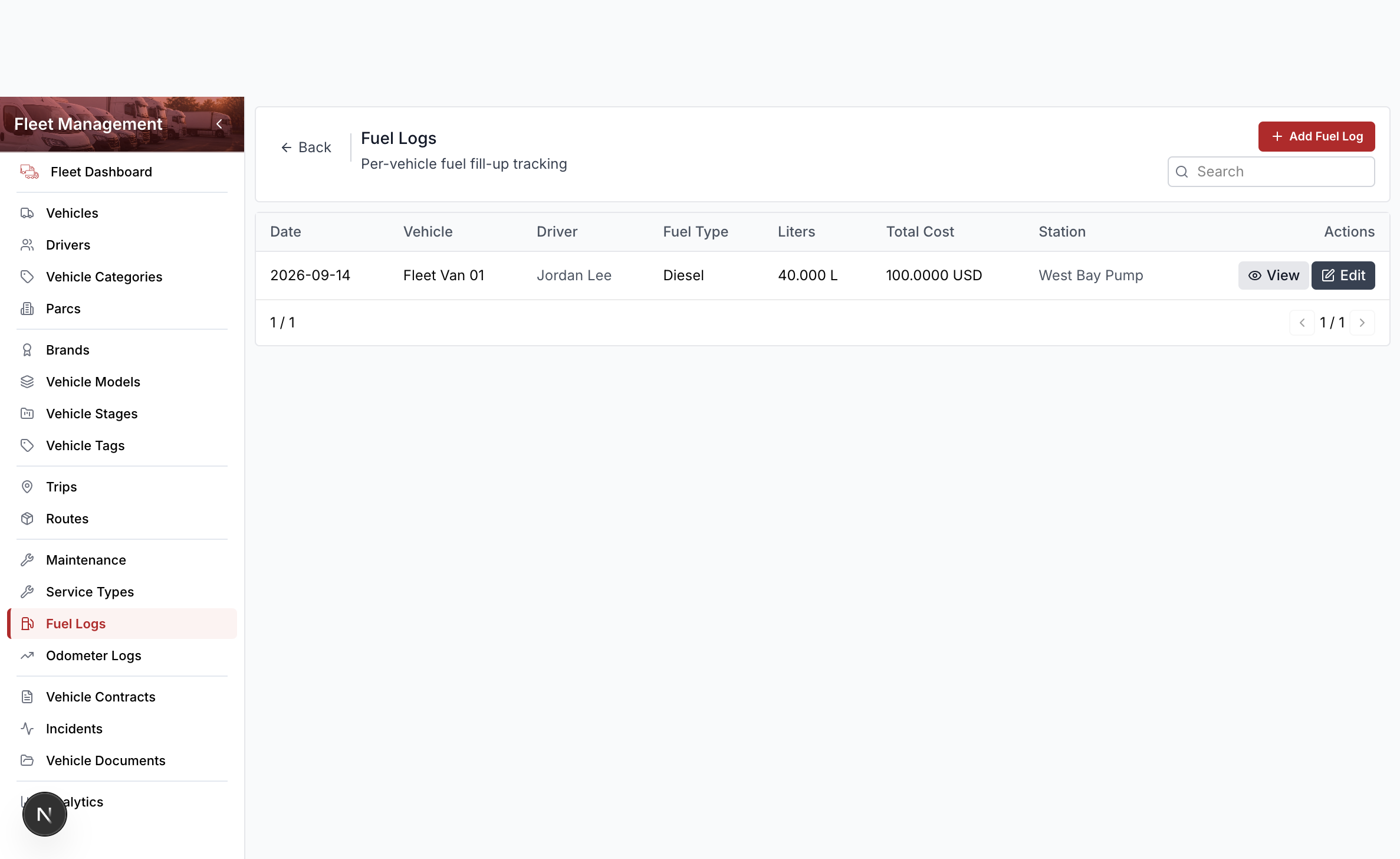
Columns include date, vehicle, driver, liters, and cost. Row actions are View and Edit. Delete lives in the drawer footer.
Add a fuel log
- Open Fleet Management → Fuel Logs.
- Select Add Fuel Log.
- Search and select the vehicle (and driver if needed).
- Enter the date and a positive liter quantity. Zero or negative liters are rejected.
- Enter cost per liter or total cost.
- Select Save.
Completed fuel with a cost can post a cashflow outflow when a treasury account is already set up.
Odometer logs
- Open Fleet Management → Odometer Logs.
- Select Add.
- Search and select the vehicle.
- Enter the date and reading in km.
- Select Save.
- Use View or Edit to change a reading. Delete lives in the edit drawer footer.
A higher reading updates the vehicle’s current odometer.