Trips & Routes
Plan routes, schedule trips, start and complete journeys, and record delivery proof.
Overview
Use Routes for reused paths and Trips for a specific journey. Paths: /modules/fleet/routes and /modules/fleet/trips.
Routes
- Open Fleet Management → Routes.
- Select Add Route.
- Enter a name such as
Doha Depot → West Bay, plus origin and destination. - Select Save.
Row actions are View and Edit. Delete lives in the drawer footer.
Trips list
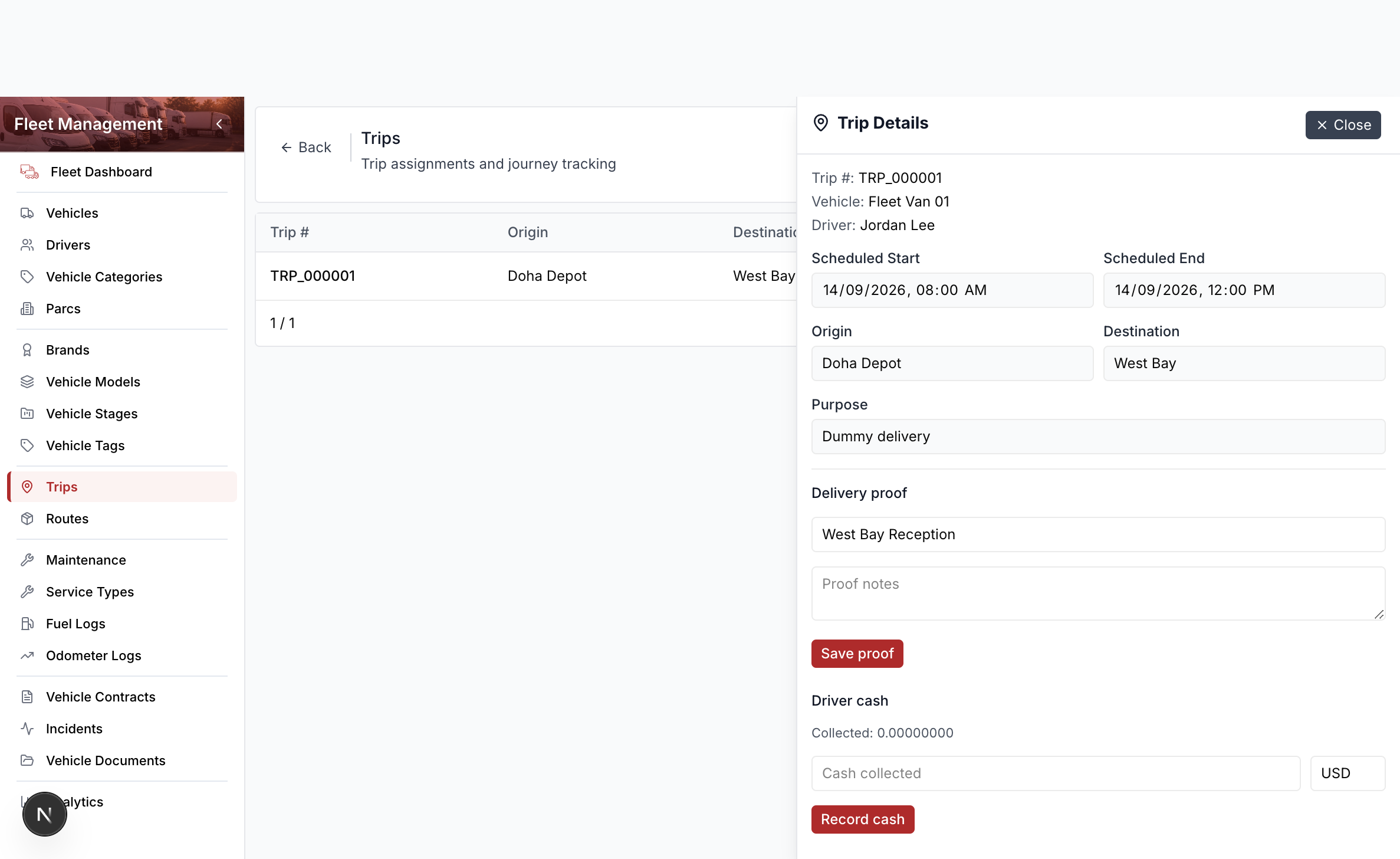
Columns include trip number, origin, destination, and status. For a scheduled trip the row shows View, Edit, Start, and Cancel Trip. An in progress trip shows Complete. Delete lives in the edit drawer footer.
Schedule a trip
- Open Fleet Management → Trips.
- Select New Trip.
- Search and select the vehicle and driver.
- Optionally select a route.
- Set scheduled start and end, origin, and destination.
- Select Save.
The same vehicle or driver cannot have two overlapping scheduled or in progress trips. A vehicle in maintenance (or with overlapping non-inspection maintenance) cannot take a trip.
Start and complete
- On a scheduled row, select Start.
- Select Complete.
- Enter distance if you have it.
- Select Complete in the header.
Delivery proof and driver cash
On View for an in-progress or completed trip:
- Enter the recipient name (for training use a dummy name).
- Select Save proof.
- Enter a positive cash amount if the driver collected cash.
- Select Record cash, then Settle cash when you reconcile.