Credit Notes
Manage the credit you owe a client — credit notes generated from return notes or created directly, statuses, and the three ways to settle them: apply to an invoice, credit the client wallet or record a refund.
A credit note is an amount your company owes a client — because goods were returned, an invoice was too high, or a discount is granted after the fact. It is usually generated from a return note, but it can also be created directly. Once issued, the credit is settled in one of three ways: applied to an unpaid invoice, added to the client wallet, or refunded through a payment method.
Screen tour
| Control | What it does |
|---|---|
| Create Credit Note | Create drawer: customer, location, ledger, date; lines are added in the editor |
| Advanced Features | Numbering, Exercice, Statistics, Export PDF, Print List |
| Print Report / Filters | Print the list; filter by search, status (Issued, Pending, Cancelled), year, branch, location, customer, dates |
| Column | Content |
|---|---|
| Ref # / Date | Reference (CN-0001) and date |
| Customer, Total | Client and credit amount, taxes included |
| Branch / Location, Status, Signed, Actions | Origin, status badge, signed mark, View / Print / Edit |
Create a credit note
| Method | When |
|---|---|
| From a return note: Credit note button | Goods were returned — the amounts and lines are copied and both documents are linked |
| Create Credit Note on the list | Commercial gesture or correction without physical return: pick the customer, then add the lines (product or free line) and taxes in the editor |
The editor
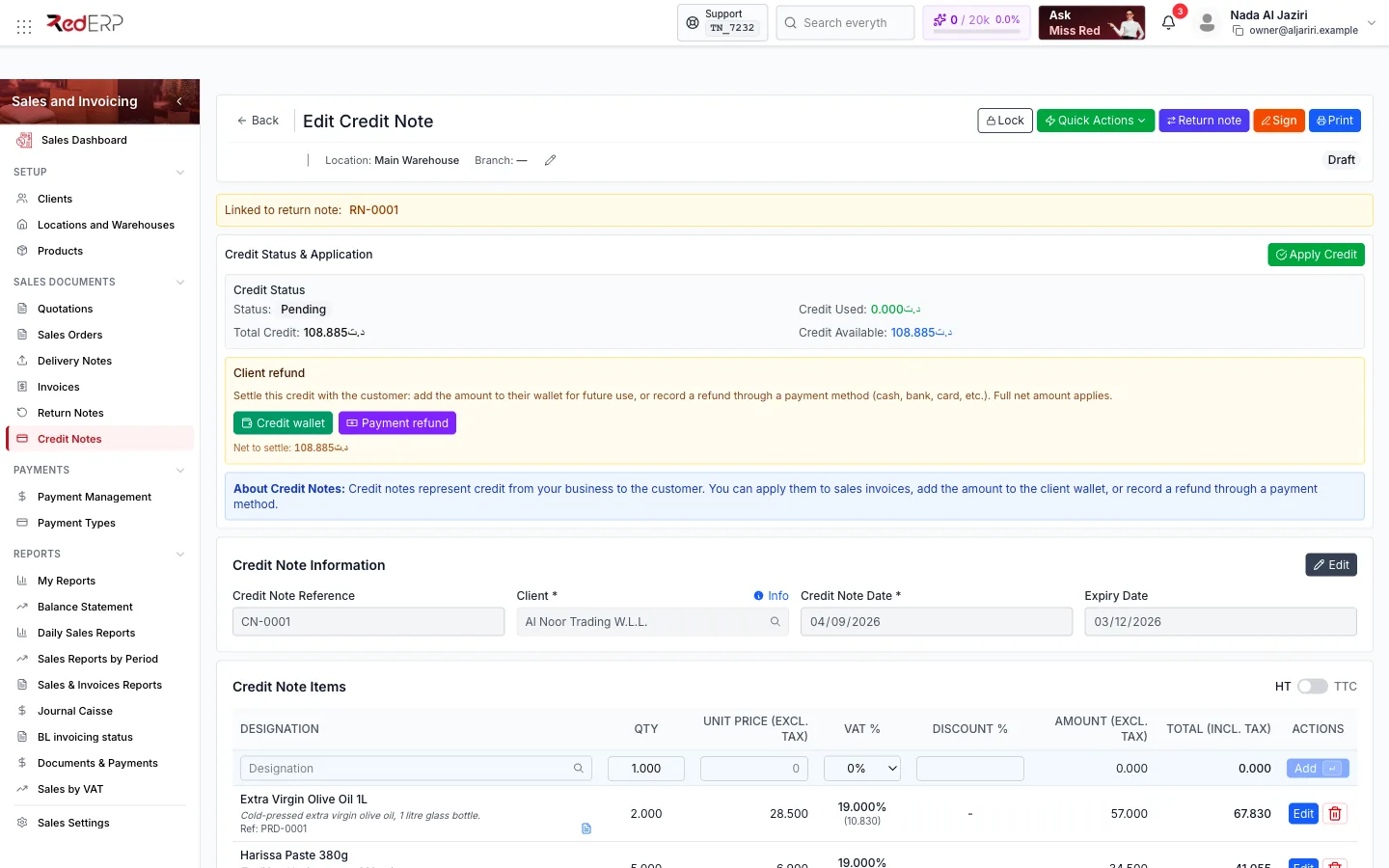
| Area | What you do there |
|---|---|
| Toolbar | Lock, Quick Actions, Return note (opens the source return), Sign, Print |
| Banner | Linked to return note: RN-0001 when generated from a return |
| Credit Status & Application | Status, Credit Used, Total Credit, Credit Available, and the settlement buttons Apply Credit, Credit wallet, Payment refund with the Net to settle |
| Credit Note Information | Reference, client, date, expiry date |
| Credit Note Items | Lines with quantity, price, VAT, discount; Edit / delete; inline row |
| Taxes / Credit Note Summary | Tax switches and totals |
| Notes & Remarks, Attachments, Danger Zone | Reason, files, delete |
Quick Actions
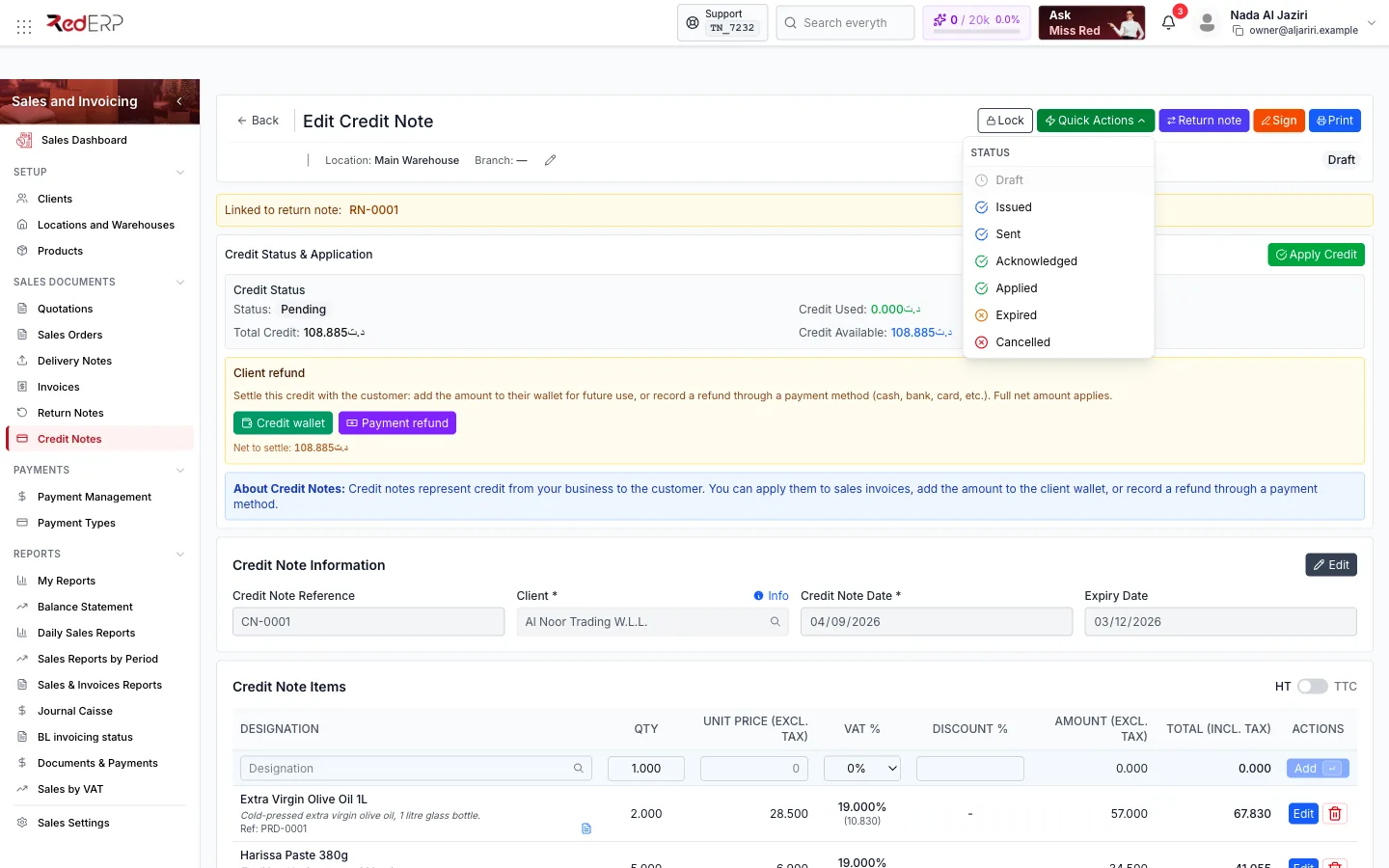
Status: Draft, Issued, Sent, Acknowledged, Applied, Expired, Cancelled.
Settle the credit
Issue the credit note
Quick Actions → Issued. The credit becomes available (Credit Available equals the total).
Apply to an invoice
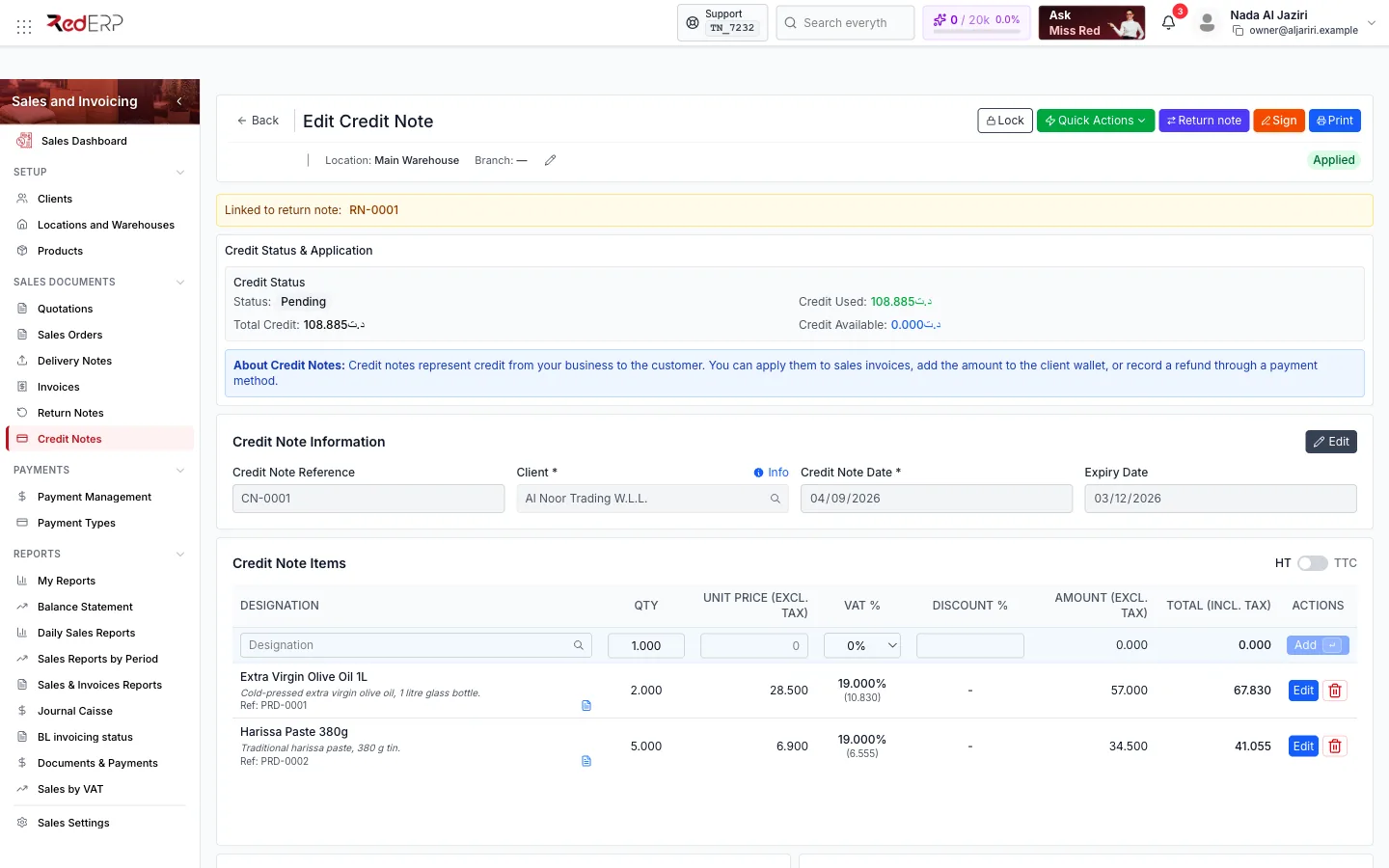
Apply Credit opens Apply Credit to Invoice: the available credit, a Select Invoice list of the client's unpaid invoices, the Amount to Apply (up to the smaller of the credit and the invoice balance) and an optional note. Apply Credit records the application: Credit Used increases, the invoice balance decreases and, when the whole credit is used, the status becomes Applied.
Or credit the wallet
Credit wallet adds the Net to settle to the client's wallet balance, usable on future invoices and delivery notes (the wallet balance is shown in every payment form).
Or refund
Payment refund records an outgoing payment: method (cash, bank, card…), date, ledger and treasury account, plus instrument details for bank methods. The credit note is marked refunded.
Status workflow
The settlement itself is tracked by the payment status of the credit note: Pending, Partially Applied, Fully Applied, Wallet or Refunded.
Logic and rules
- Only issued credit notes can be applied, credited to the wallet or refunded; a locked credit note cannot be settled.
- Apply Credit lists the client's invoices with payment status Pending or Partially Paid; the amount applied cannot exceed the invoice balance.
- A partially applied credit stays available for another invoice (Partially Applied).
- Credit notes generated from a return keep a link to the return note (Return note button and banner); the return note shows the credit note in return.
- Amounts follow the same tax rules as invoices (VAT per line, FODEC, stamp duty, withholding).
Field reference
| Field | Required | Notes |
|---|---|---|
| Customer | Yes | Client who receives the credit |
| Location, Ledger | Yes | Ledger from Ledger Settings |
| Credit Note Date | Yes | Defaults to today |
| Expiry Date | No | Drives the Expired status |
| Lines | Yes | Copied from the return note or entered manually |
| Apply: Invoice, Amount to Apply, Note | Invoice and amount | Amount limited by credit and invoice balance |
Troubleshooting
| Situation | What to do |
|---|---|
| No unpaid invoices found for this customer | The client has no invoice with a balance; use Credit wallet or Payment refund instead |
| Settlement buttons are missing | Set the status to Issued and make sure the note is not locked |
| Credit already partly used | Only the Credit Available can be applied or refunded |