Return Notes
Handle goods a client sends back — create a return note against a delivery note, choose the returned lines and quantities, receive them into stock, approve and generate the credit note.
A return note records products a client gives back. It always refers to a delivery note (the goods must have been delivered), lists the returned lines and quantities, puts them back into stock when received, and can generate the credit note that settles the client.
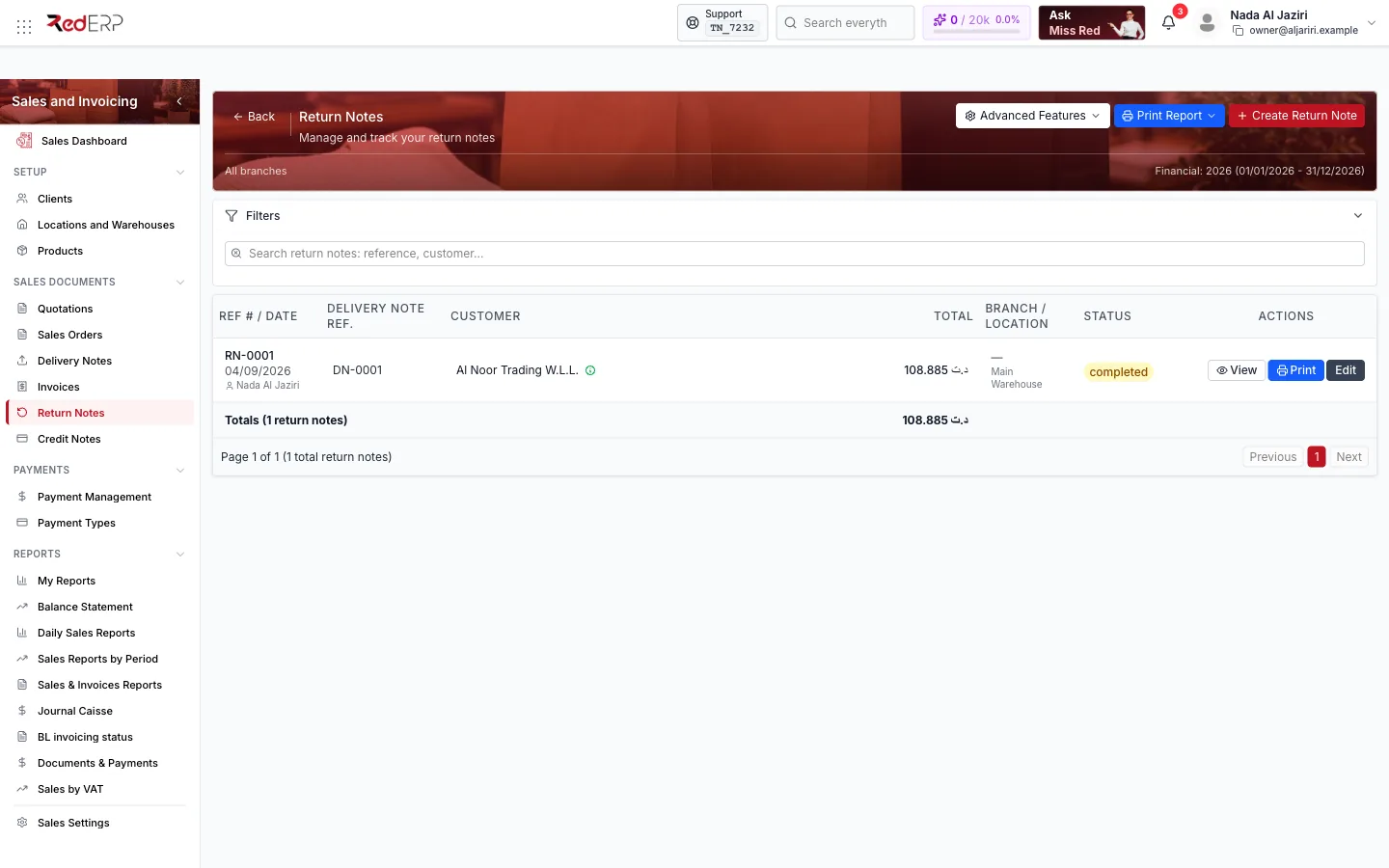
Screen tour
| Control | What it does |
|---|---|
| Create Return Note | Create drawer: customer, source delivery note, lines to return |
| Advanced Features | Numbering, Exercice, Statistics, Export PDF, Print List |
| Print Report / Filters | Print the list; filter by search, Status (Draft, Pending, Processing, Approved, Processed, Rejected, Cancelled), year, branch, location, customer, dates |
| Column | Content |
|---|---|
| Ref # / Date | Reference (RN-0001) and return date |
| Delivery note ref. | The delivery note the goods come from |
| Customer, Total | Client and value of the returned goods, taxes included |
| Branch / Location | Location that receives the goods |
| Status, Signed, Actions | Status badge, signed mark, View / Print / Edit |
Create a return note
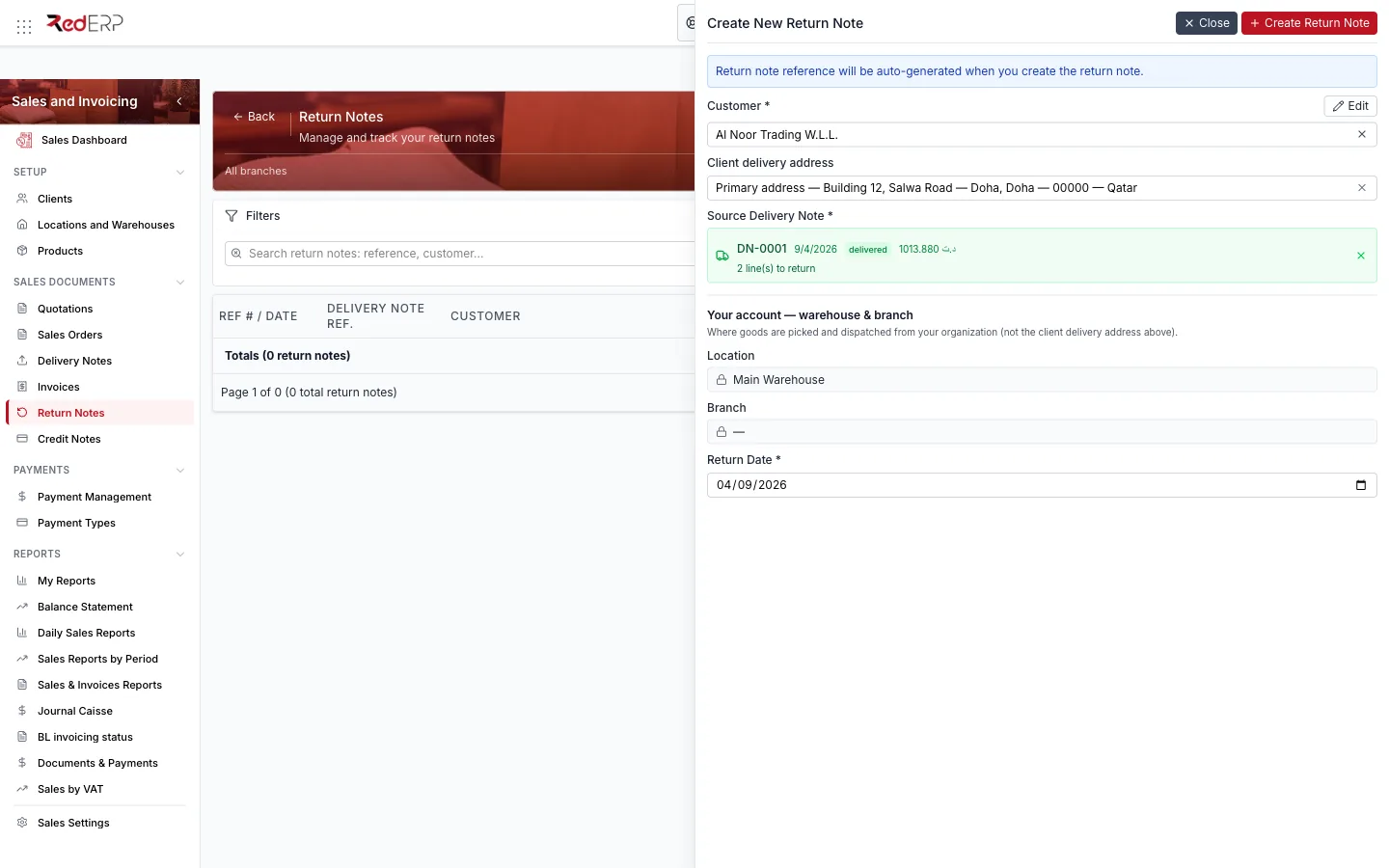
Customer and delivery note
Create Return Note, pick the Customer (the Client delivery address is filled), then search the Source Delivery Note by reference — the list shows the reference, date, status and amount of each note of that client.
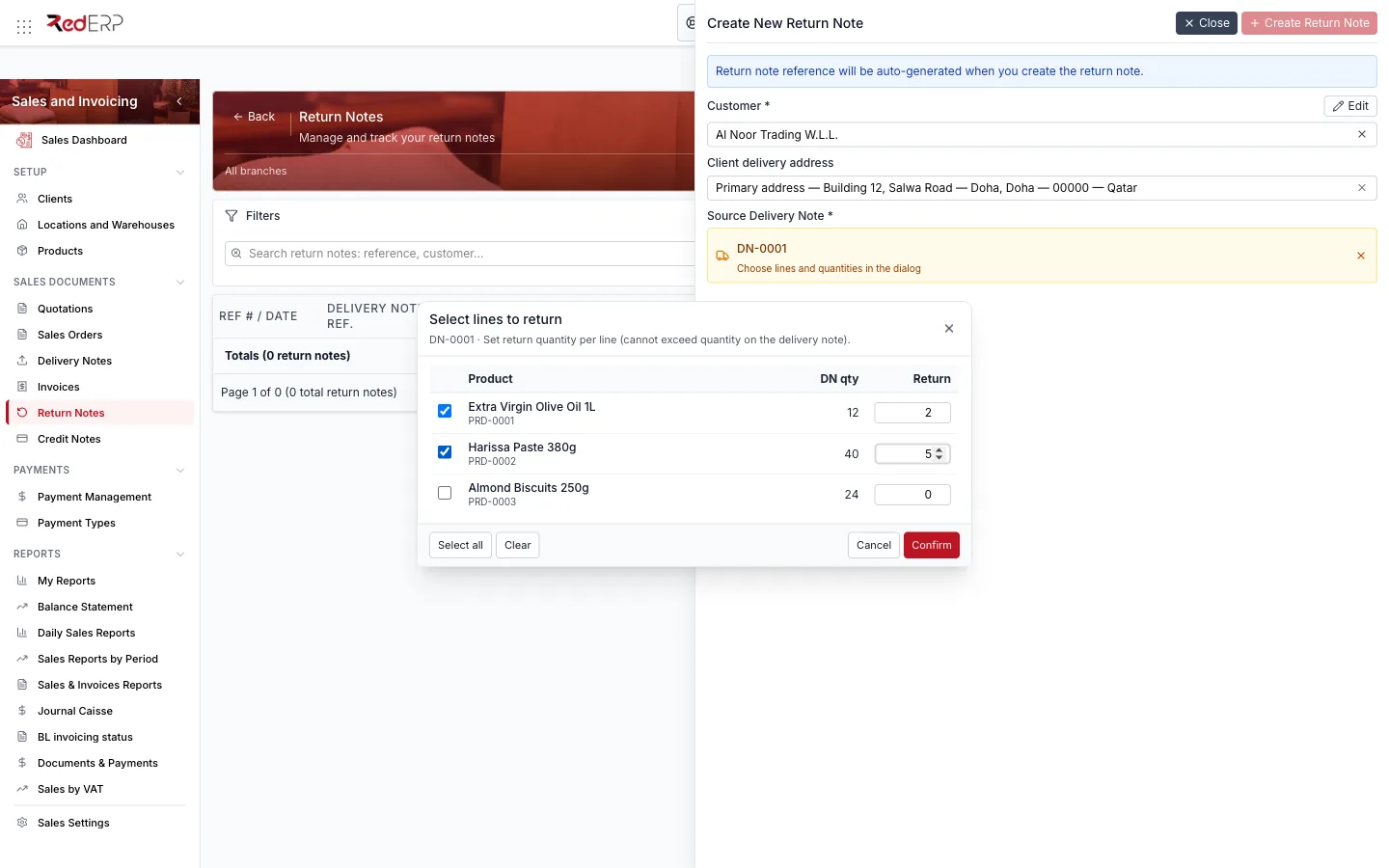
Choose what comes back
A line selector opens with Product, DN qty and Return columns. Tick the lines (or Select all), type the returned quantity for each, then Confirm.
Location and date
Check Location (where the goods are received), Branch and the Return Date, then Create Return Note. The editor opens with the selected lines.
The editor
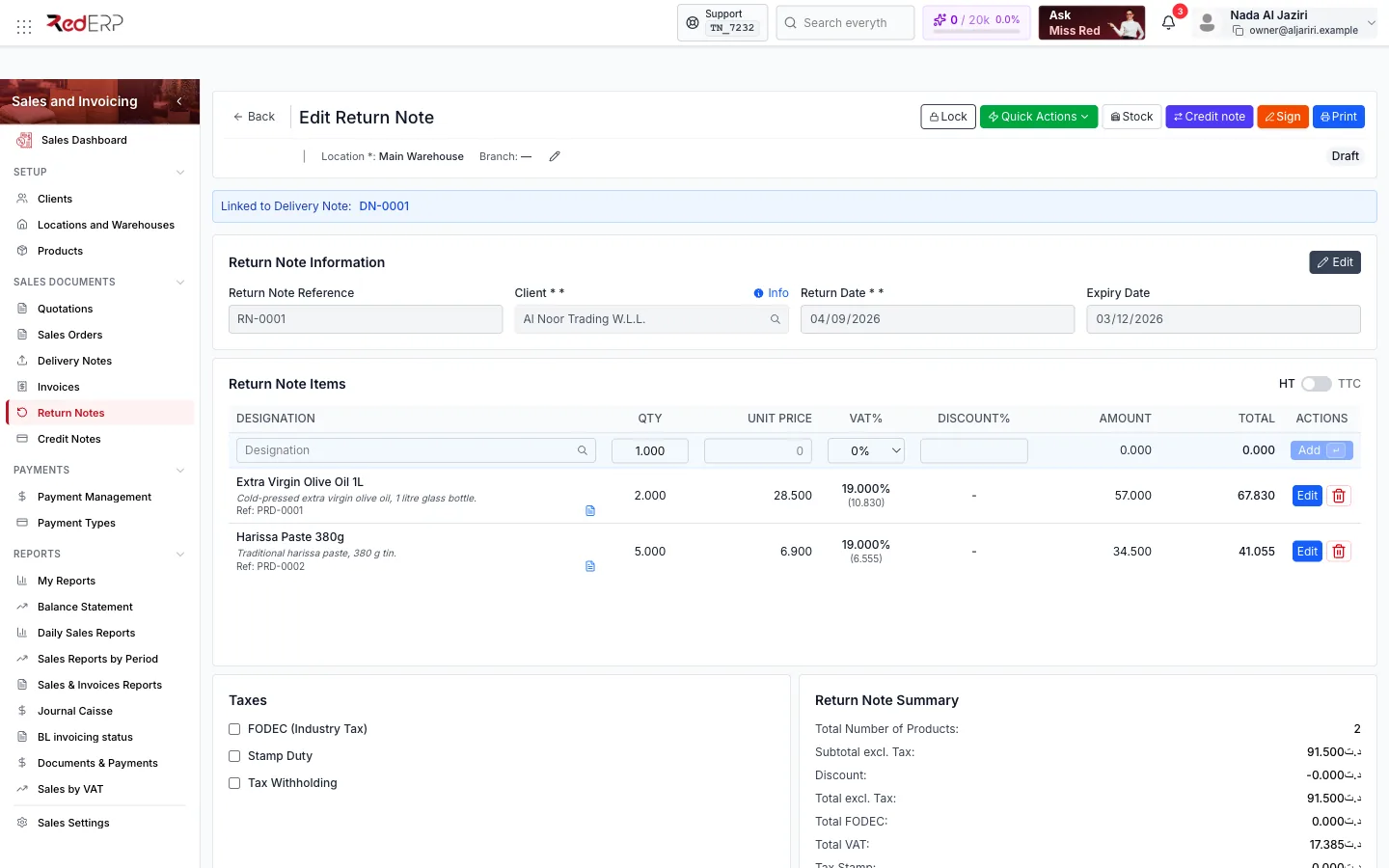
| Area | What you do there |
|---|---|
| Toolbar | Lock, Quick Actions (statuses), Stock menu (Full receive, Partial receive), Credit note, Sign, Print |
| Return Note Information | Reference, client, return date, source delivery note |
| Return Note Items | Returned lines with quantity, price, VAT, discount; Edit / delete; inline row to add a line |
| Taxes / Return Note Summary | Tax switches and totals — the value that will be credited |
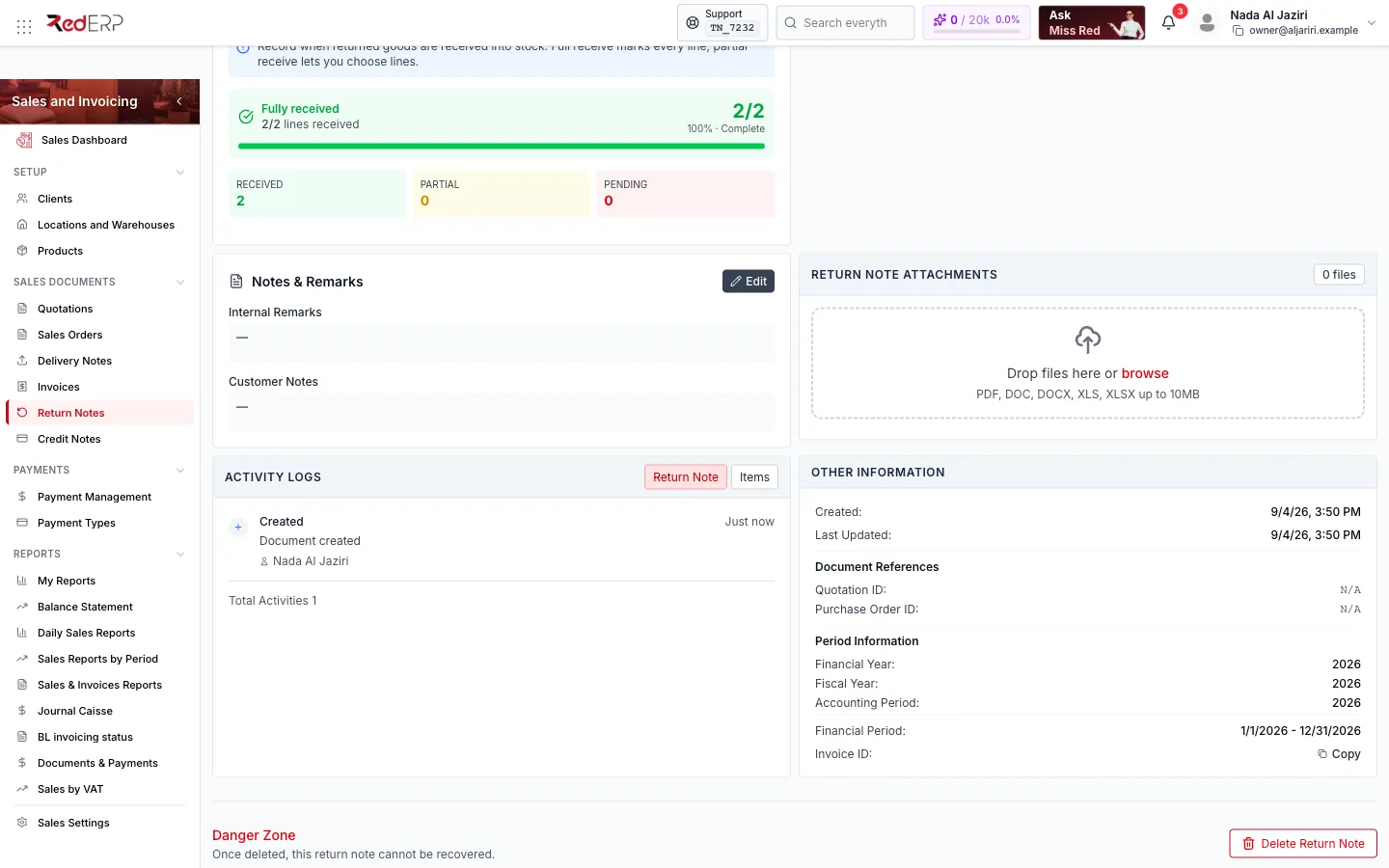
| Return stock | Progress of the stock receipt: received, partial and pending lines, Full receive / Partial receive, Reset |
| Notes & Remarks, Return Note Attachments, Danger Zone | Reason of the return, photos or documents, delete |
Quick Actions
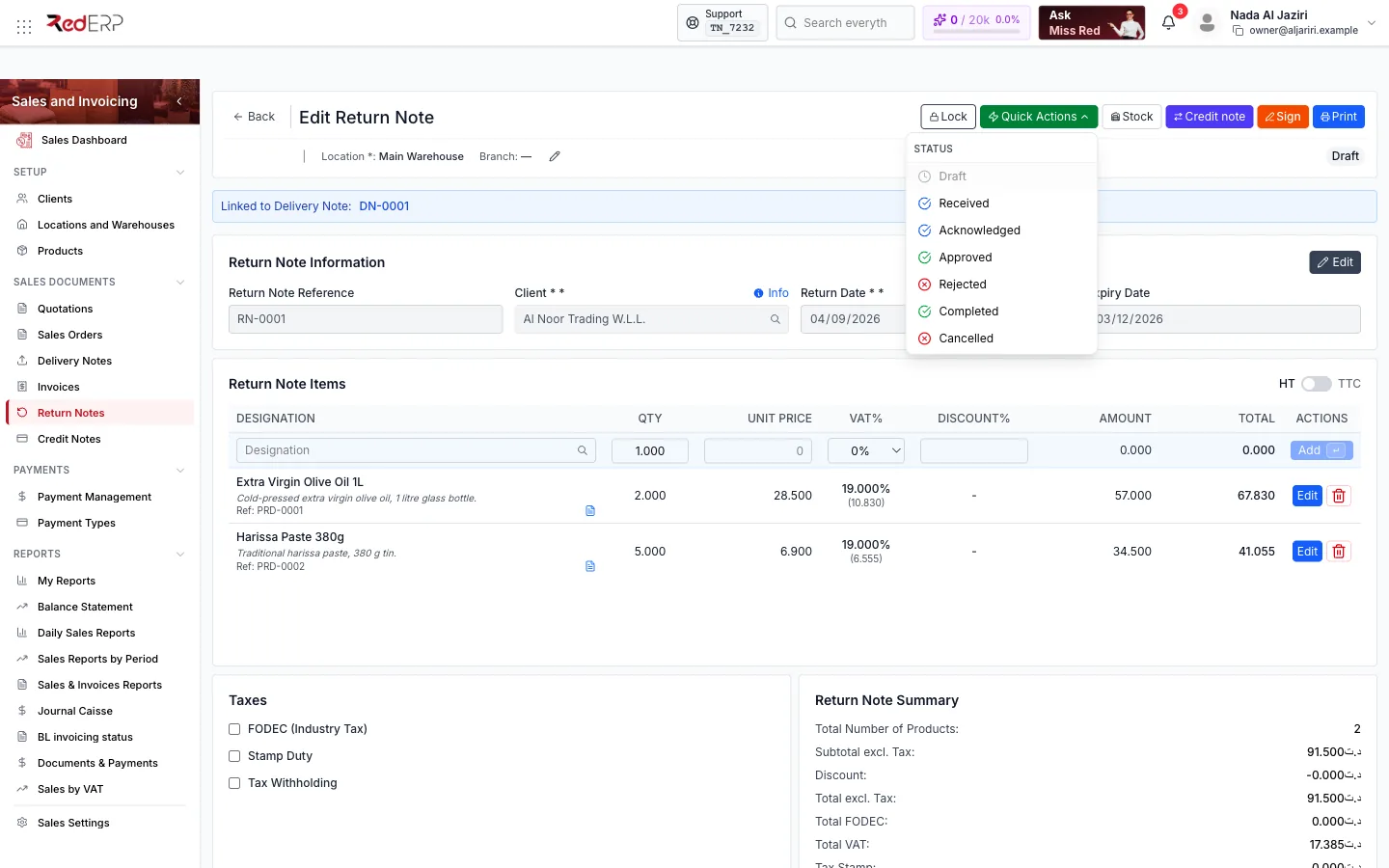
Status: Draft, Received, Acknowledged, Approved, Rejected, Completed, Cancelled.
Receive the goods (stock-in)
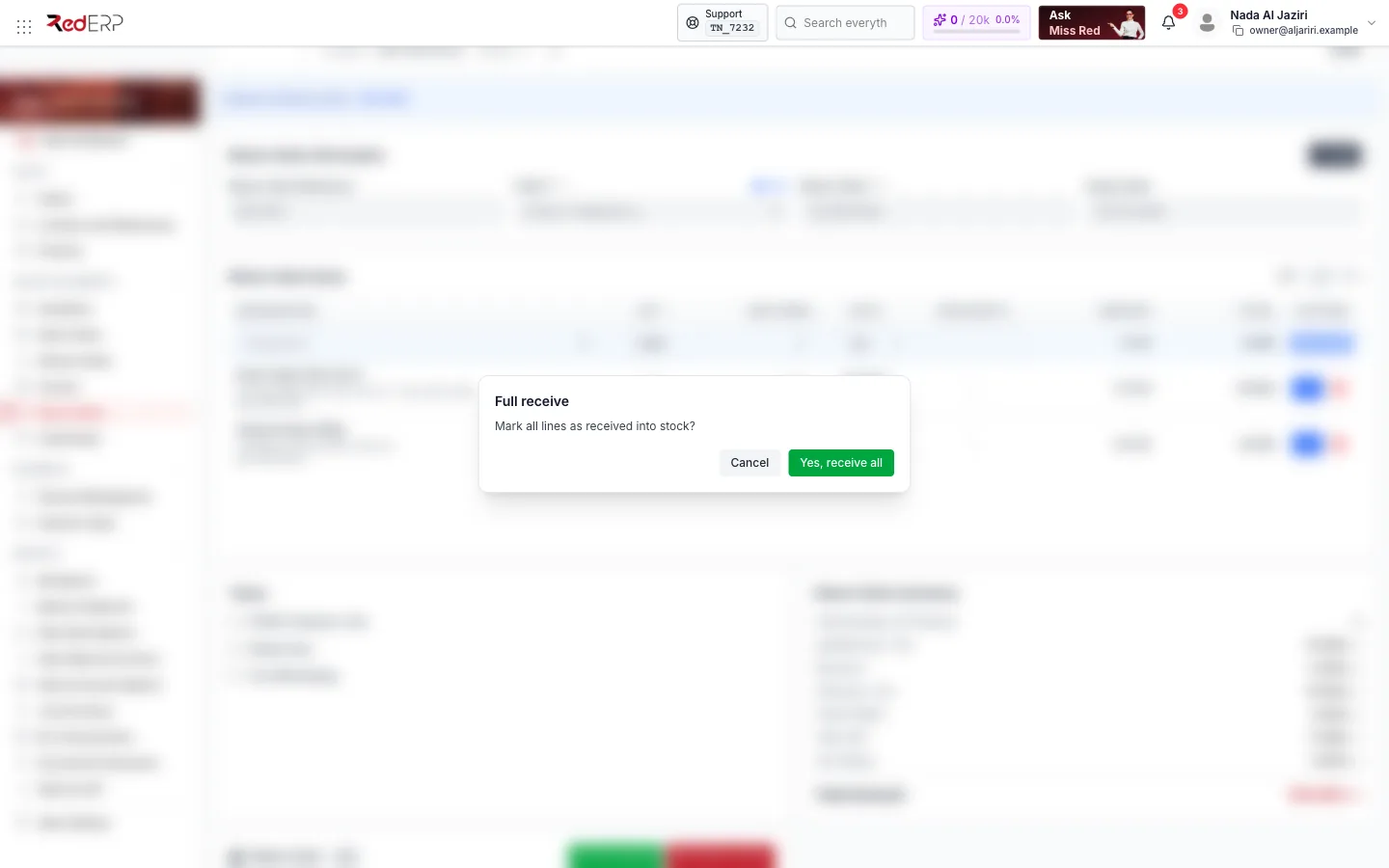
Full receive
Stock → Full receive, confirm Mark all lines as received into stock? with Yes, receive all. A stock-in movement is created for every line in the return note's location.
Partial receive
Stock → Partial receive to tick only the lines physically received; the rest stays pending. Reset clears the receipt if you need to start over.
Generate the credit note
Approve the return
Set the status to Received when the goods arrive, then Approved once checked (or Rejected if the return is refused).
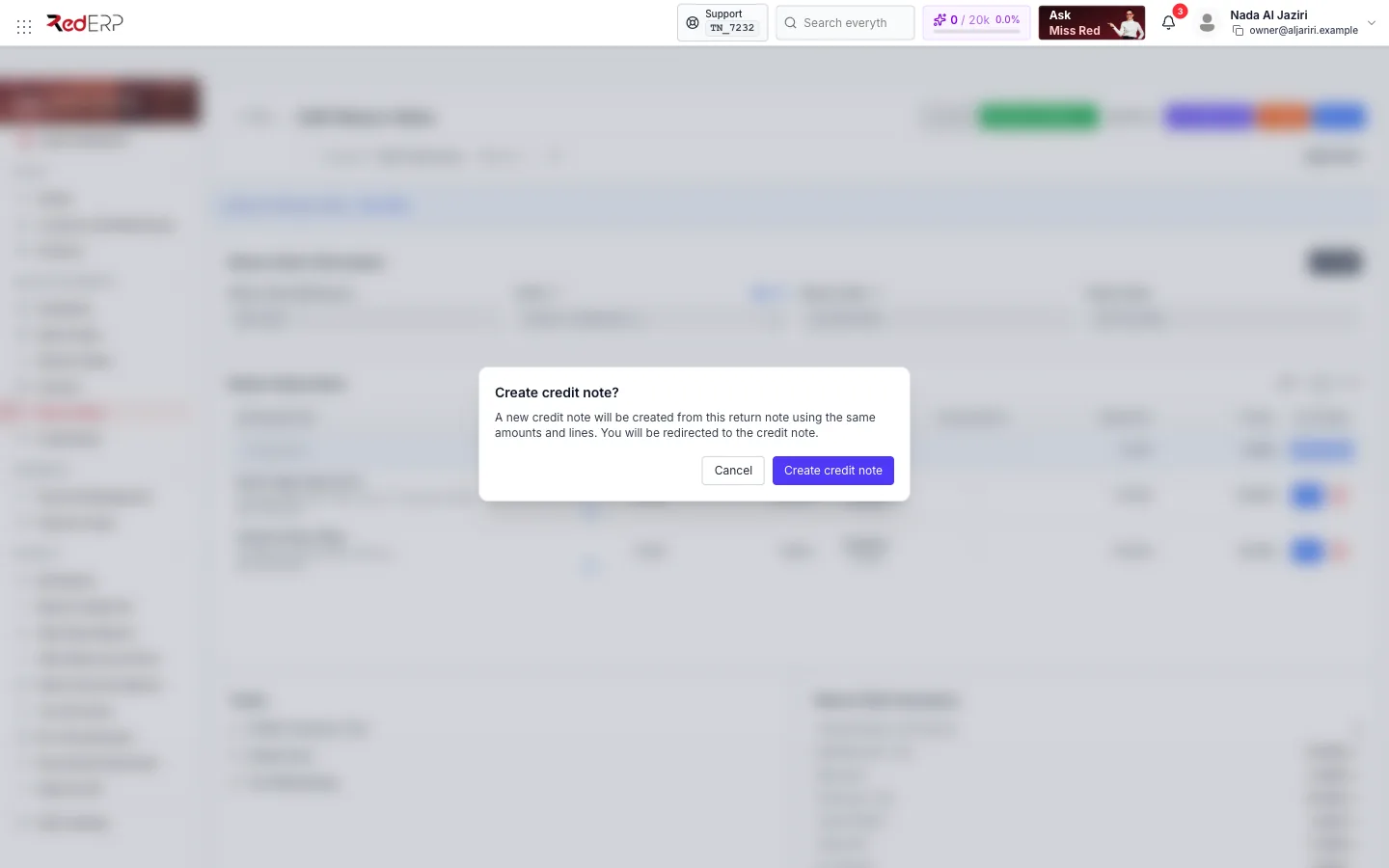
Create the credit note
Click Credit note. The confirmation explains that a new credit note will be created from this return note using the same amounts and lines and that you will be redirected to it. Click Create credit note.
Settle the client
In the credit note, apply the credit to an invoice, add it to the client wallet or refund it — see Credit Notes. The return note is linked to its credit note in both directions.
Status workflow
Stock receipt (Full receive / Partial receive) is independent from the status: you can receive goods before approving the return, and a rejected return can be left unreceived.
Logic and rules
- A return note is always tied to one delivery note; the line selector only offers lines and quantities that were delivered.
- Returned quantities go back to the return note's Location with a stock-in movement per line.
- The value of the return (lines, taxes) is what the credit note will carry; adjust prices or taxes on the return note before generating it.
- Generating the credit note is possible once; the credit note keeps a Linked to return note reference.
Field reference
| Field | Required | Notes |
|---|---|---|
| Customer | Yes | Client of the delivery note |
| Source Delivery Note | Yes | Searched by reference among the client's notes |
| Returned lines and quantities | Yes | Cannot exceed delivered quantities |
| Location | Yes | Receiving location |
| Return Date | Yes | Defaults to today |
| Reason / remarks | No | In Notes & Remarks |
Troubleshooting
| Situation | What to do |
|---|---|
| The delivery note does not appear in the search | It belongs to another client, or it is not delivered yet |
| Credit note button disabled | The return is locked, or a credit note has already been generated |
| Stock did not change | Use Stock → Full receive — creating the return note alone does not move stock |