Quotations
Create, send and follow quotations, then transfer an approved quotation into a sales order or an invoice — list, editor, statuses, numbering, scan, statistics and printing.
A quotation is a priced offer sent to a client. It carries the products, quantities, prices, discounts and taxes of the future sale without touching stock or receivables. When the client agrees, you approve it and transfer it: the sales order or the invoice is created with the same lines, and the quotation is marked Converted.
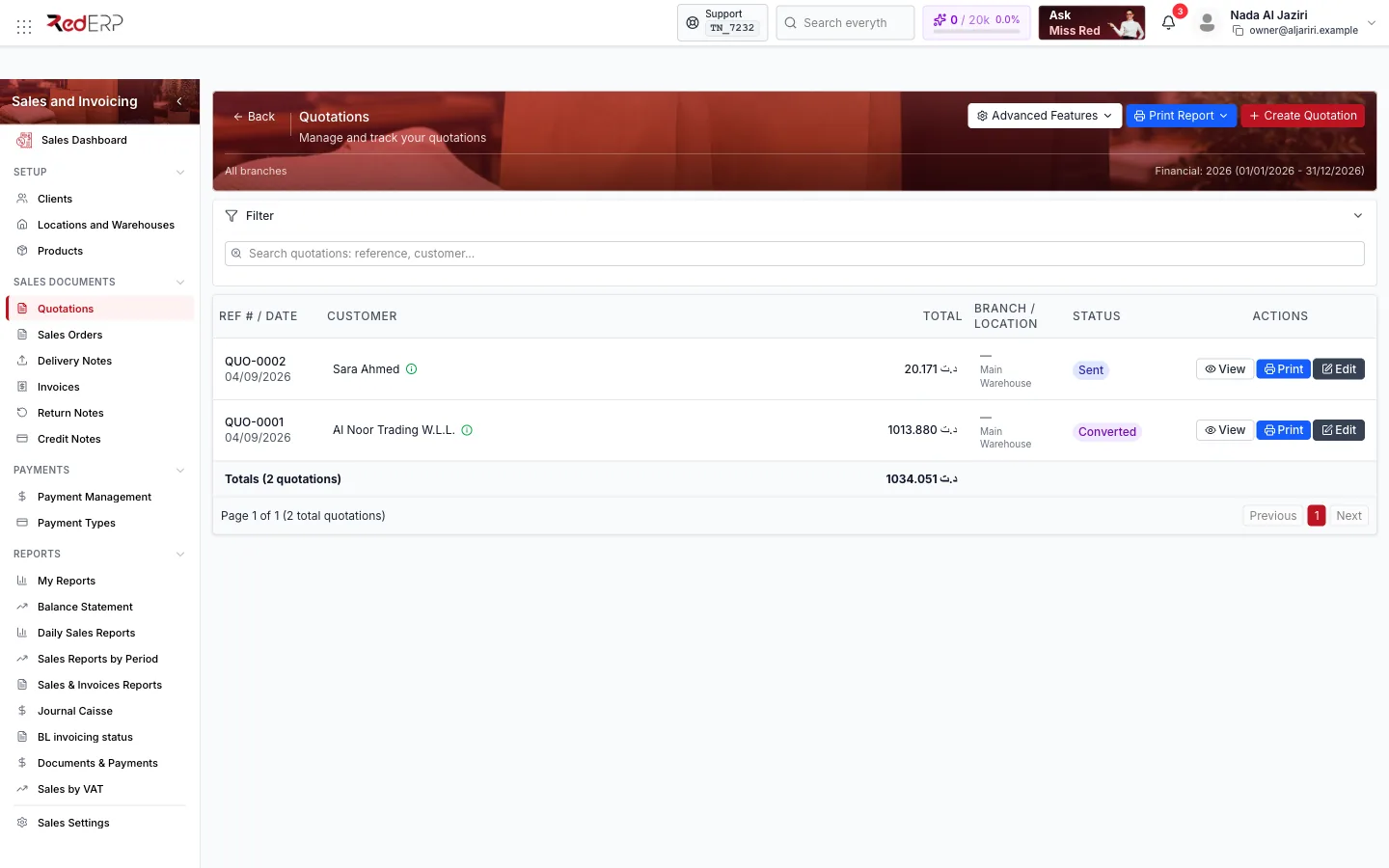
Screen tour
Header
| Control | What it does |
|---|---|
| Create Quotation | Opens the create drawer (see below) |
| Advanced Features | Numbering (reference format), Exercice (active years), Statistics, Scan Quotation, Export PDF (the filtered list as PDF), Print List |
| Print Report | Prints the list with the current filters |
| Banner | The branch scope (All branches) and the active financial year |
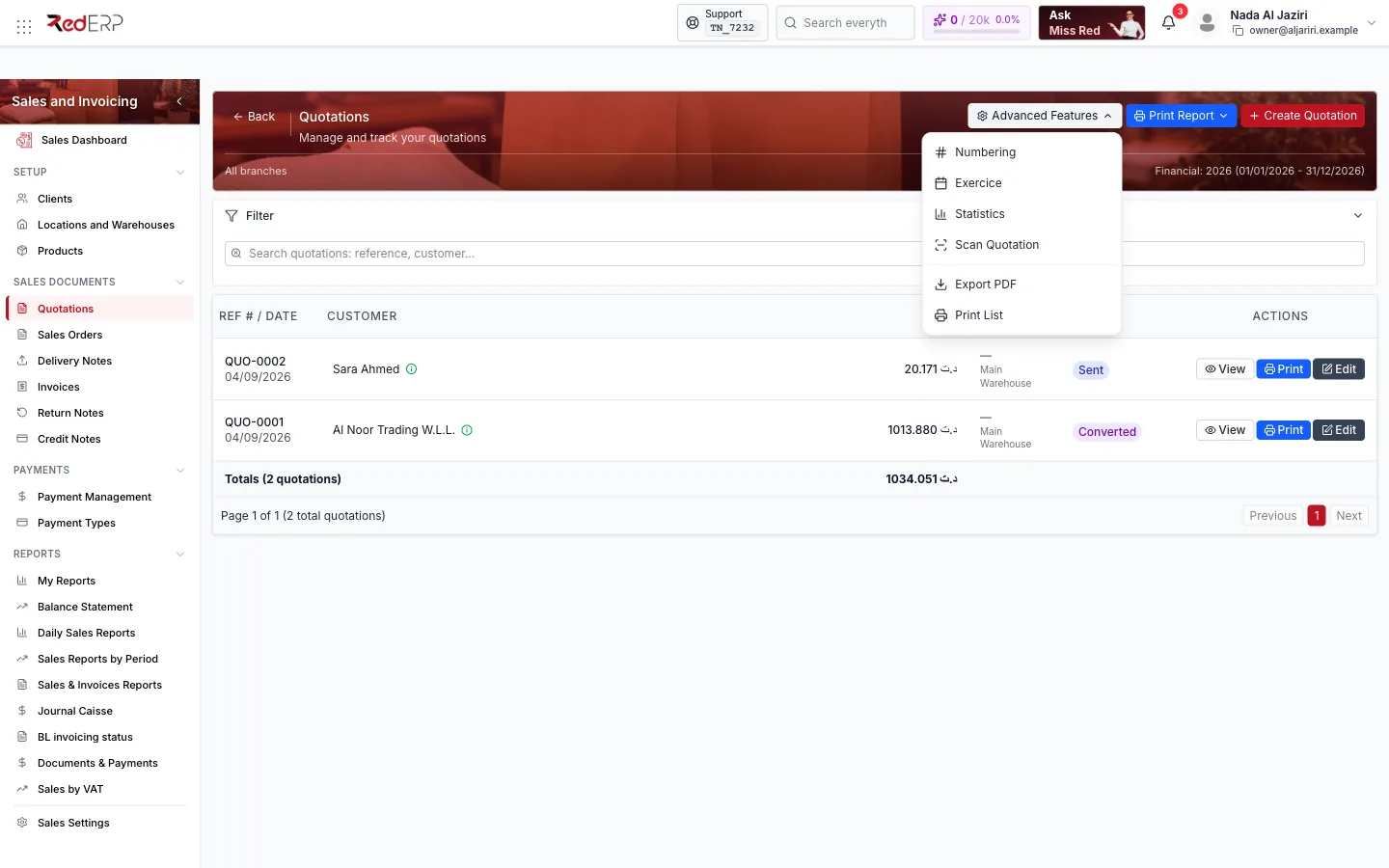
Filter panel
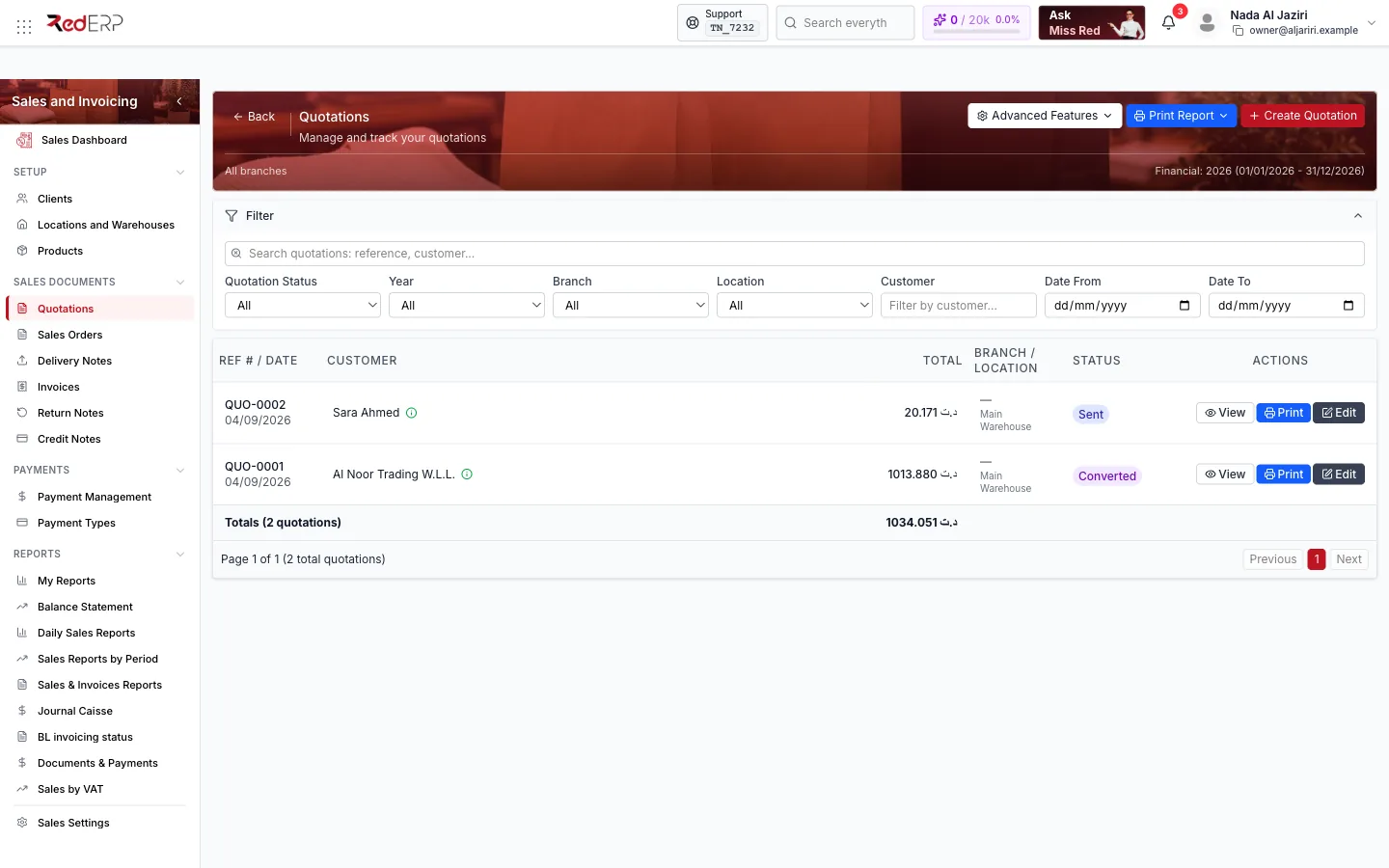
Click Filter to show or hide it. Filters are kept when you leave the page and come back.
| Filter | Values |
|---|---|
| Search | Reference or customer name |
| Quotation Status | All, Draft, Pending, Sent, Accepted, Approved, Rejected, Expired, Converted, Cancelled |
| Year | The financial, fiscal or accounting years defined for the company |
| Branch / Location | Restrict to a branch or a stock location |
| Customer | Type to filter by client |
| Date From / Date To | Quotation date range |
Table
| Column | Content |
|---|---|
| Ref # / Date | Reference (for example QUO-0001) and quotation date |
| Customer | Client name, with a small button to view the client card |
| Total | Net to pay, taxes included |
| Branch / Location | Where the goods would be picked from |
| Status | Current status badge |
| Signed | Check mark when the quotation is marked as signed |
| Actions | View (side drawer), Print, Edit (editor) |
A Totals row sums the visible quotations; pagination is at the bottom.
Create a quotation
Open the create drawer
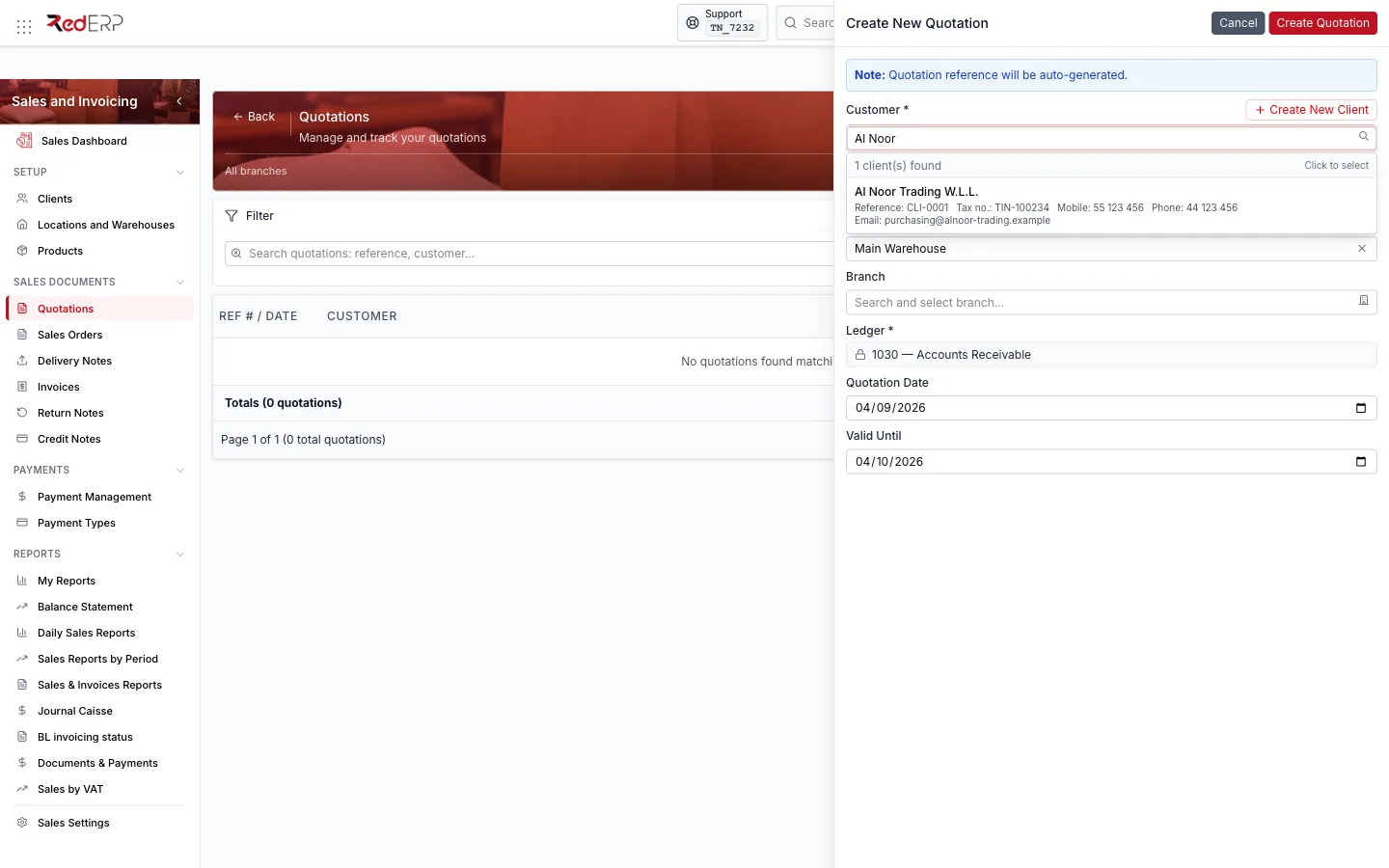
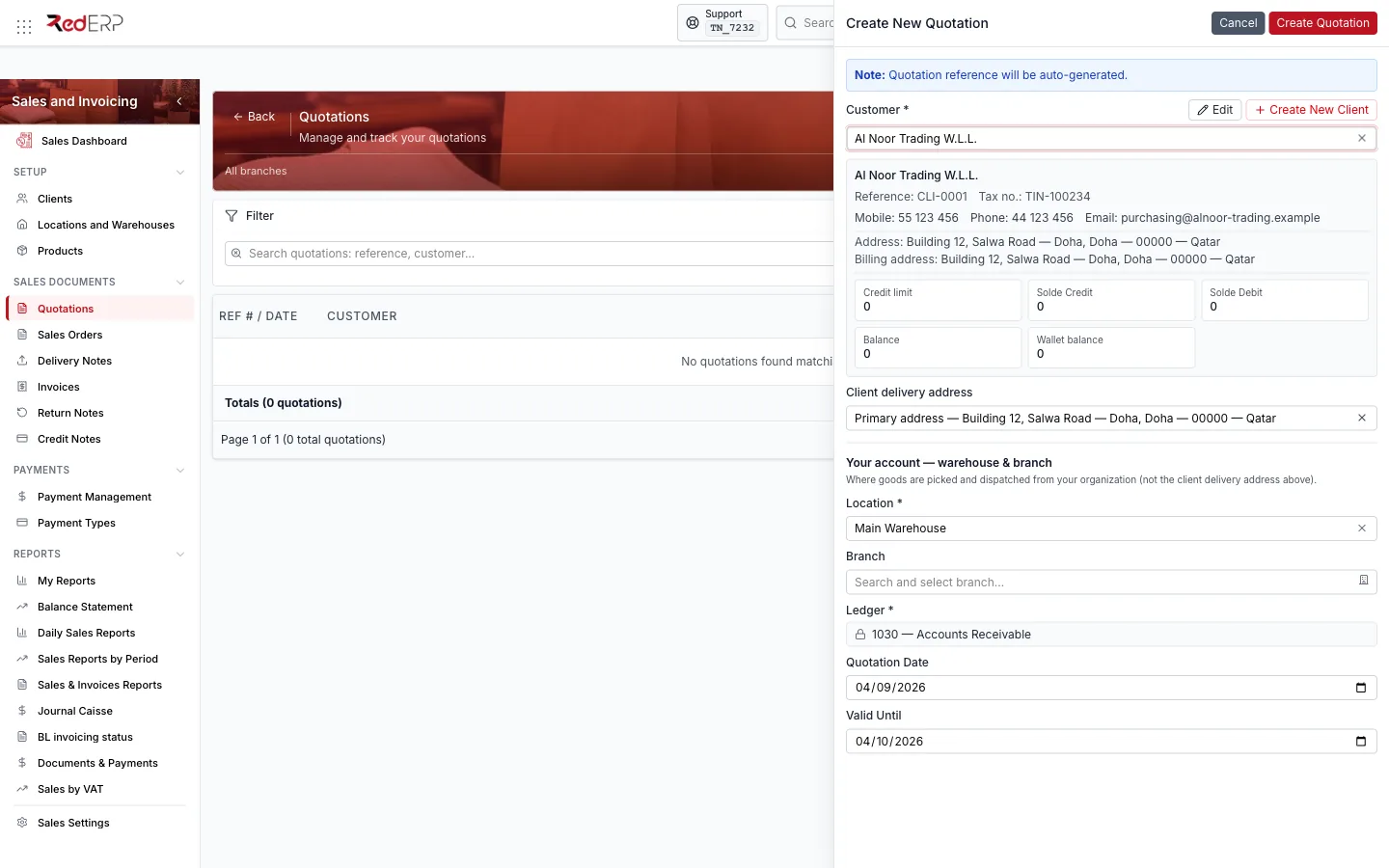
Click Create Quotation. The drawer reminds you that the reference is generated automatically.
Pick the customer
Type in Customer and choose from the list (it shows reference, tax number, mobile, phone and e-mail). Create New Client opens the client form if the client does not exist yet. Once chosen, the Client delivery address is filled with the client's primary address.
Check location, branch, ledger and dates
Location (your warehouse) is pre-filled, Branch is optional, Ledger is the receivable ledger (1030 — Accounts Receivable, locked). Quotation Date defaults to today and Valid Until to one month later.
Create and add the lines
Click Create Quotation: the editor opens. In Quotation Items, type a product name, SKU or barcode in Designation, select it, set the quantity, check the unit price, VAT % and Discount %, then click Add. Repeat for each line.
Wrong exercice:
If the active financial year is not the current year, the drawer shows Active financial year is 2025 — not 2026 with a Fix exercice button. Fix it before creating documents, otherwise they are recorded under the wrong year.
The editor
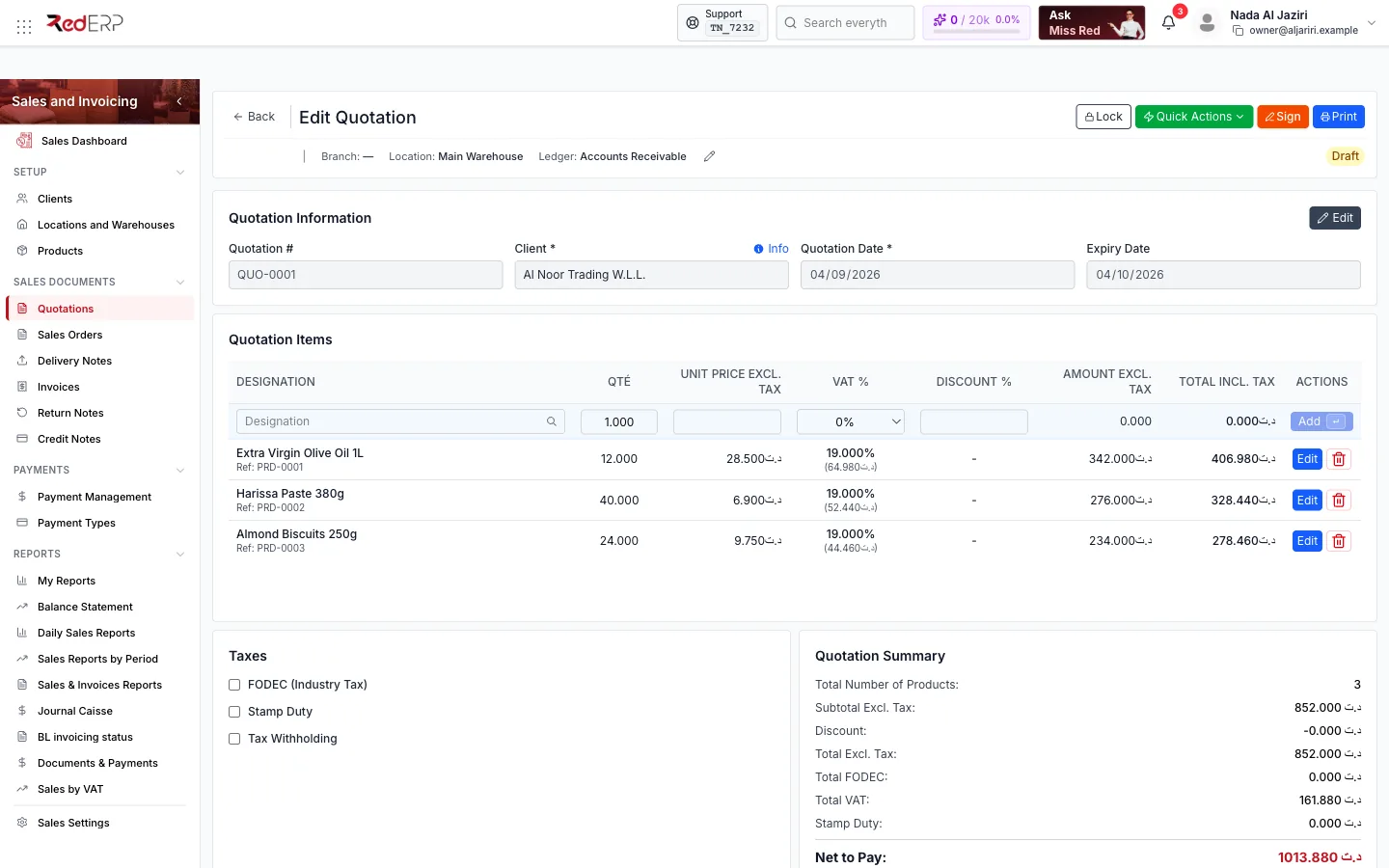
- Quotation Information — reference (locked by the padlock), Client with an Info link to the client card, Quotation Date, Expiry Date. Edit to change them.
- Quotation Items — inline entry row and the lines with Edit / delete. The HT / TTC switch lets you type prices excluding or including VAT.
- Taxes — FODEC (Industry Tax), Stamp Duty, Tax Withholding switches.
- Quotation Summary — products count, subtotal, discount, total excl. tax, FODEC, VAT, stamp duty and Net to Pay.
- Notes & Terms, Attachments, Quotation Logs, Other Information, Danger Zone (delete).
Quick Actions
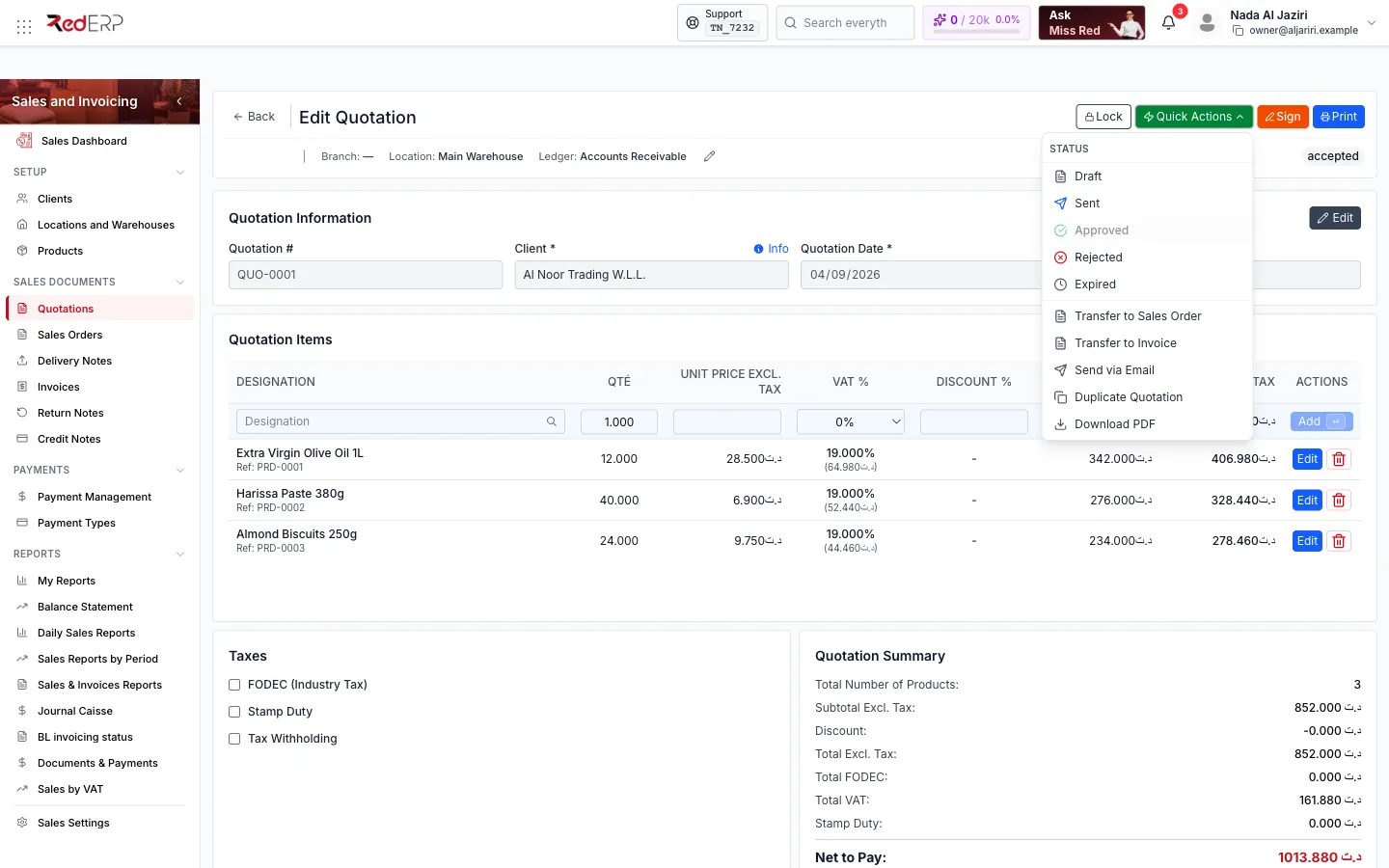
| Group | Actions |
|---|---|
| Status | Draft, Sent, Approved, Rejected, Expired — the current status is greyed out |
| Transfers (approved quotations only) | Transfer to Sales Order, Transfer to Invoice |
| Other | Send via Email, Duplicate Quotation, Download PDF |
Status workflow
- Only an Approved (or accepted) quotation shows the transfer actions.
- Converted is set automatically by the transfer; the quotation stays readable and printable but should not be edited further.
- A locked quotation refuses status changes and edits until it is unlocked.
Transfers and imports
| Action | Result |
|---|---|
| Transfer to Sales Order | A new sales order is created with every line, the client, location, ledger, taxes and notes. You are redirected to the order editor. The order is created Confirmed |
| Transfer to Invoice | Same, but an invoice is created directly — for sales without a separate order or delivery step |
| Import from → From quotation (on a delivery note or an invoice) | Pulls the quotation lines into an existing document; the quotation is then marked converted |
| Duplicate Quotation | Copies the quotation (lines, client, taxes) into a new draft with a new reference |
Scan a quotation
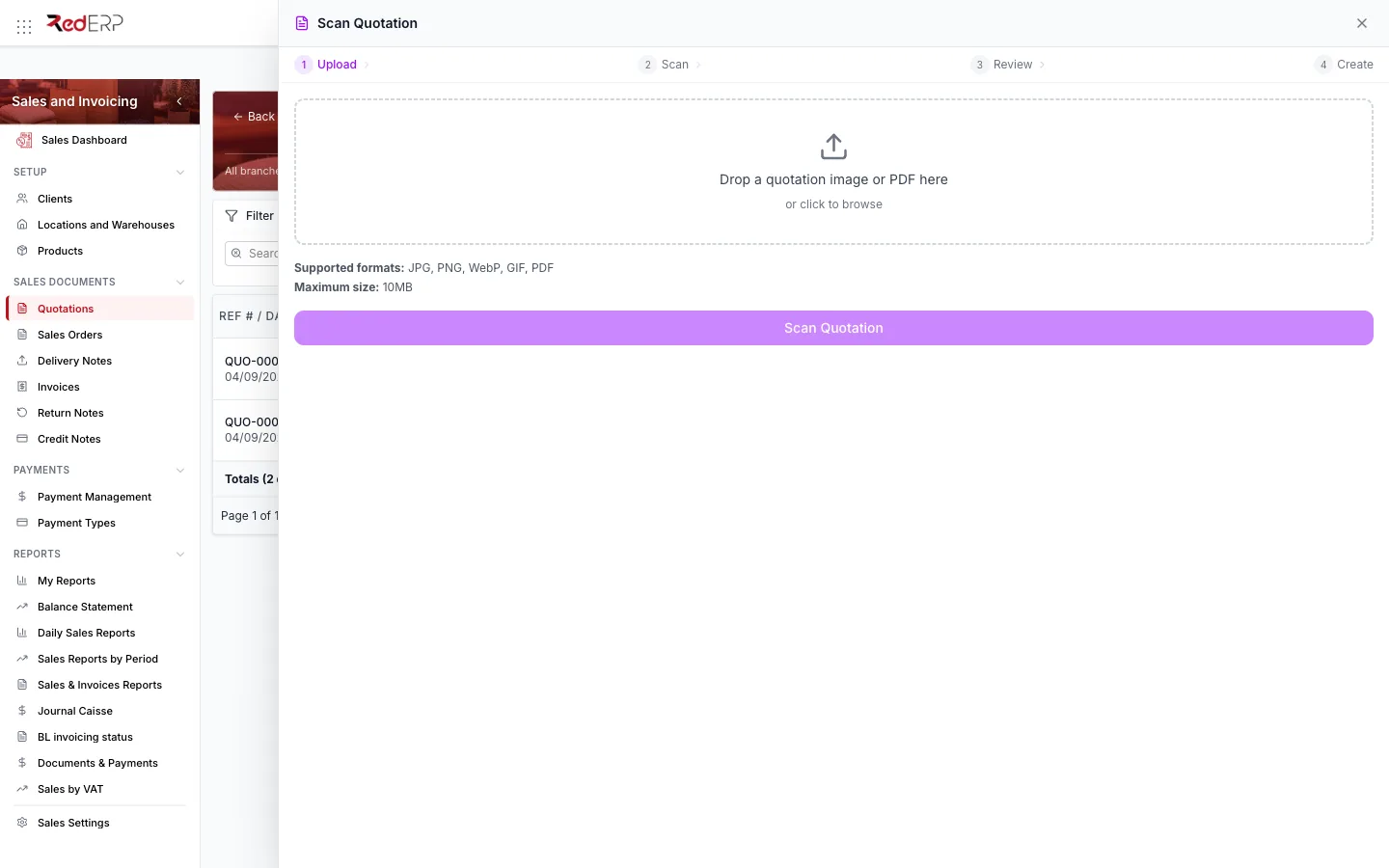
Advanced Features → Scan Quotation creates a quotation from a picture or a PDF (for example a request received by e-mail). The four-step wizard uploads the file, extracts the client and lines, lets you Review them and finally Create the document. Check quantities and prices before creating.
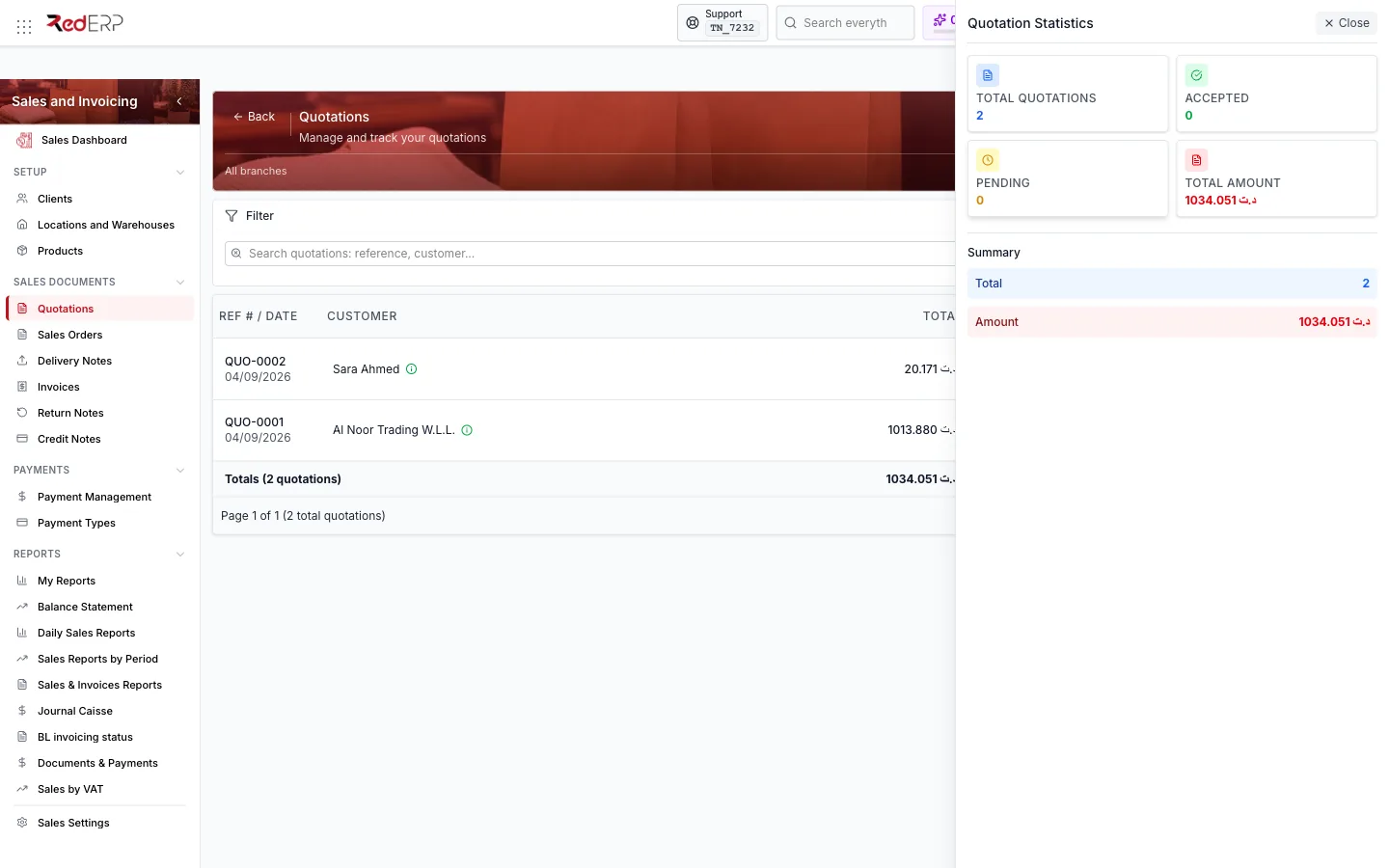
Statistics
Advanced Features → Statistics shows the number of quotations, how many are accepted or pending and the total amount for the current filters.
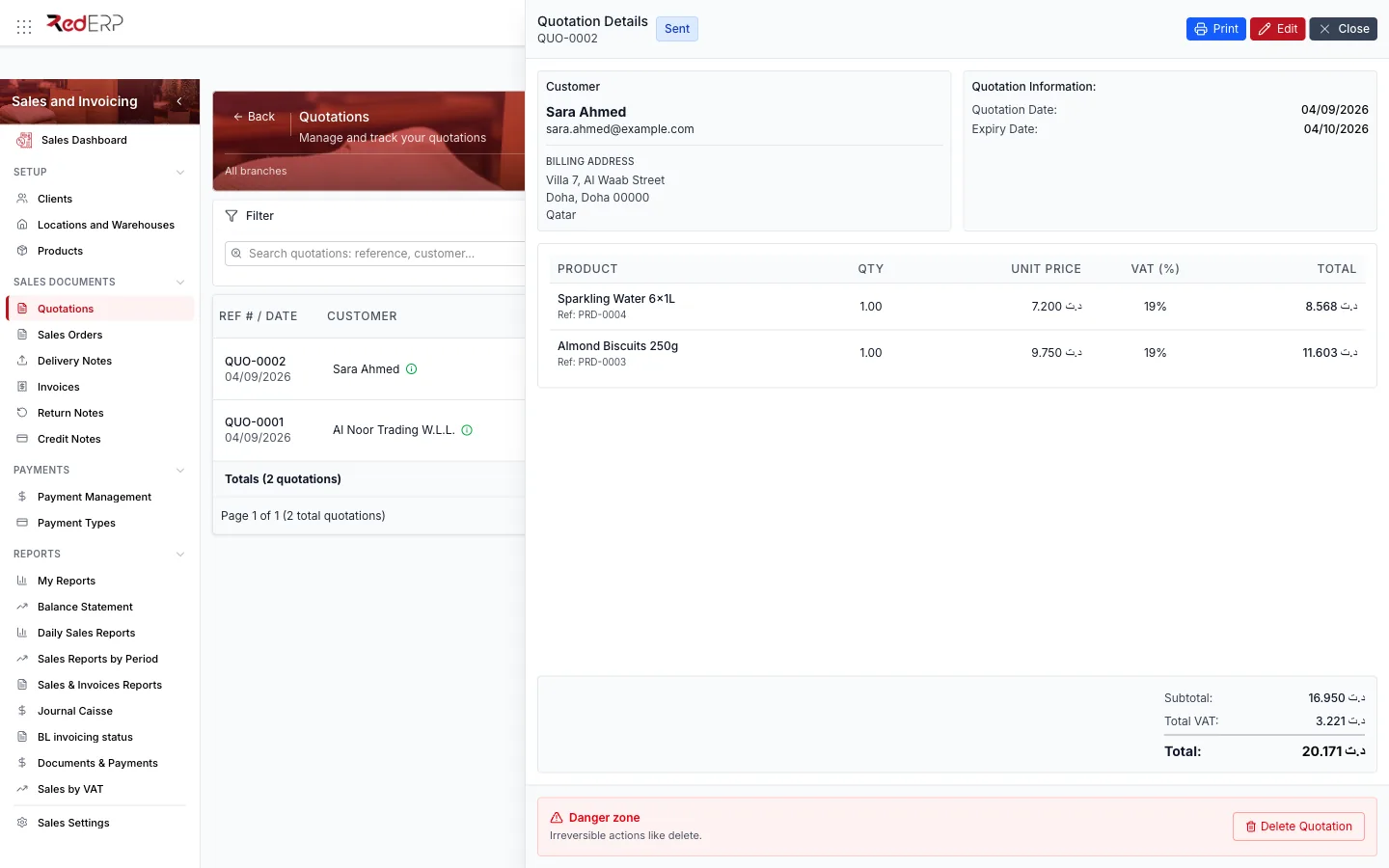
View drawer
View on a row opens the quotation without leaving the list: reference and status, customer and billing address, dates, the lines with VAT and totals, plus Print, Edit and a Danger zone to delete.
Field reference
| Field | Required | Notes |
|---|---|---|
| Customer | Yes | Existing client; Create New Client to add one on the fly |
| Client delivery address | No | Defaults to the client's primary address |
| Location | Yes | Stock location the goods would ship from |
| Branch | No | For companies with several branches; drives branch numbering |
| Ledger | Yes | Receivable ledger, pre-filled from Ledger Settings |
| Quotation Date | Yes | Defaults to today |
| Valid Until / Expiry Date | No | Defaults to one month; used by the Expired status |
| Line: Designation, Qty, Unit price, VAT %, Discount % | Yes (product and quantity) | Unit price and VAT come from the product and can be overridden |
Troubleshooting
| Message or situation | What to do |
|---|---|
| Active financial year is … — not … | Click Fix exercice and activate the current year |
| Transfer actions are missing in Quick Actions | Set the status to Approved first |
| Cannot edit or change status | The quotation is locked — click Unlock and give a reason |
| Product not found in Designation | Create it in Products or check it is active |
Related
- Sales Orders — the next step of the chain
- Invoices
- Clients · Products