Delivery Notes
Record goods leaving stock — create or import a delivery note, deliver it fully or partially (stock-out), track carrier and dates, take payments on delivery and transfer it to an invoice.
A delivery note (BL) documents the goods handed over to a client. It is the document that moves stock: marking it delivered creates the stock-out movements from the selected location. A delivery note can be created from scratch, from a sales order, or by importing lines from quotations, orders or invoices, and it is usually transferred to an invoice afterwards.
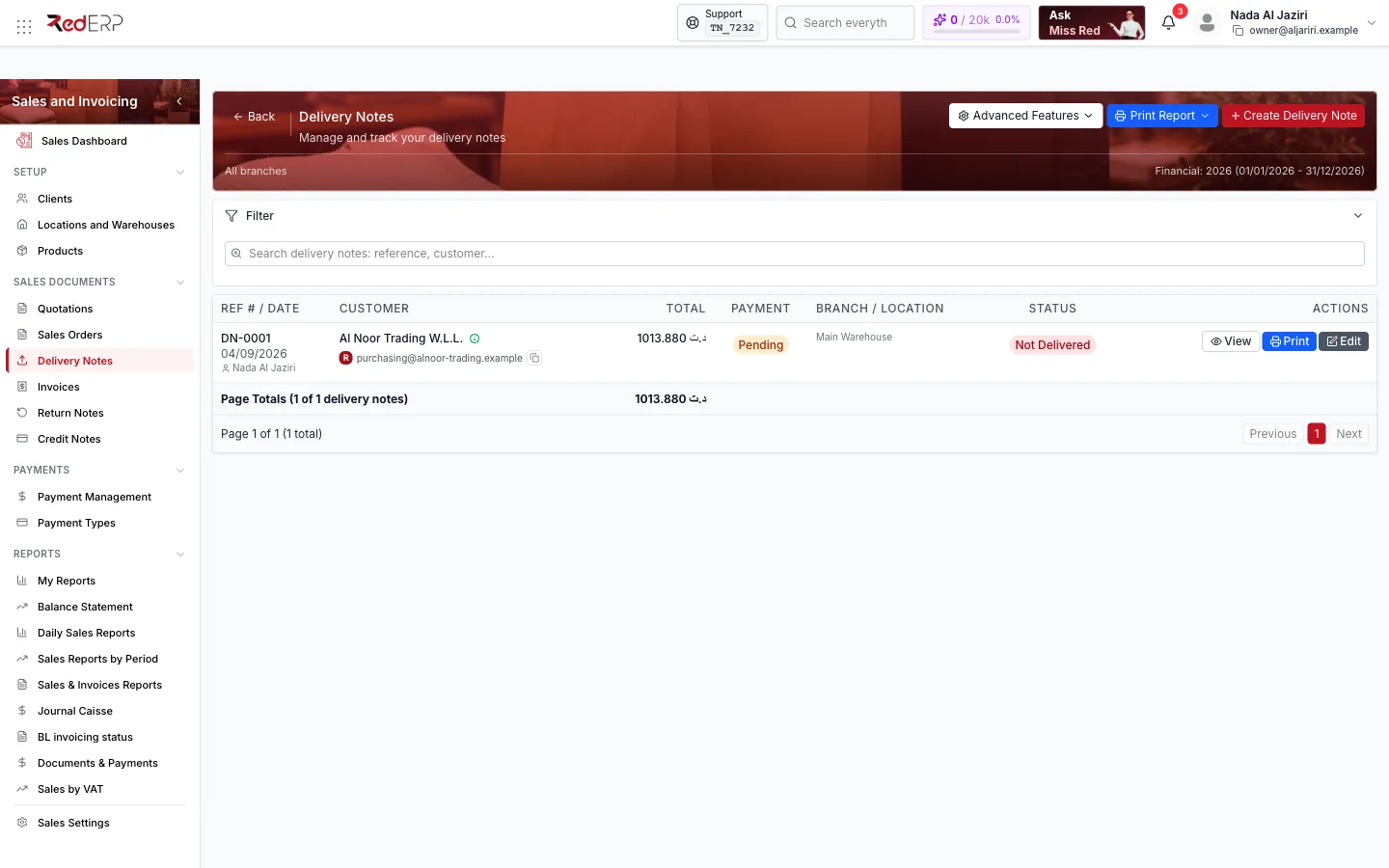
Screen tour
| Control | What it does |
|---|---|
| Create Delivery Note | Create drawer: customer, location, branch, ledger, delivery date |
| Advanced Features | Numbering, Exercice, Statistics, Scan Delivery Note, Export PDF, Print List |
| Print Report | Prints the filtered list |
| Filter | Search, Status (Not Delivered, Partially Delivered, Delivered), year, branch, location, customer, dates |
| Column | Content |
|---|---|
| Ref # / Date | Reference (DN-0001) and date |
| Customer | Client and shortcut to the client card |
| Total | Net to pay |
| Payment | Payment status of the note (Pending, Partial, Paid) |
| Branch / Location | Location the goods leave from |
| Status | Not Delivered, Partially Delivered, Delivered |
| Signed / Actions | Signed mark; View, Print, Edit |
Create a delivery note
Three ways:
| Method | When |
|---|---|
| Create Delivery Note and add lines manually | Direct sale without order |
| From a sales order: Transfer to Delivery Note | Normal flow — see Sales Orders |
| In an existing note: Import from → From quotation / From sales order / From invoice | Consolidate several documents into one delivery, or deliver an invoice already issued |
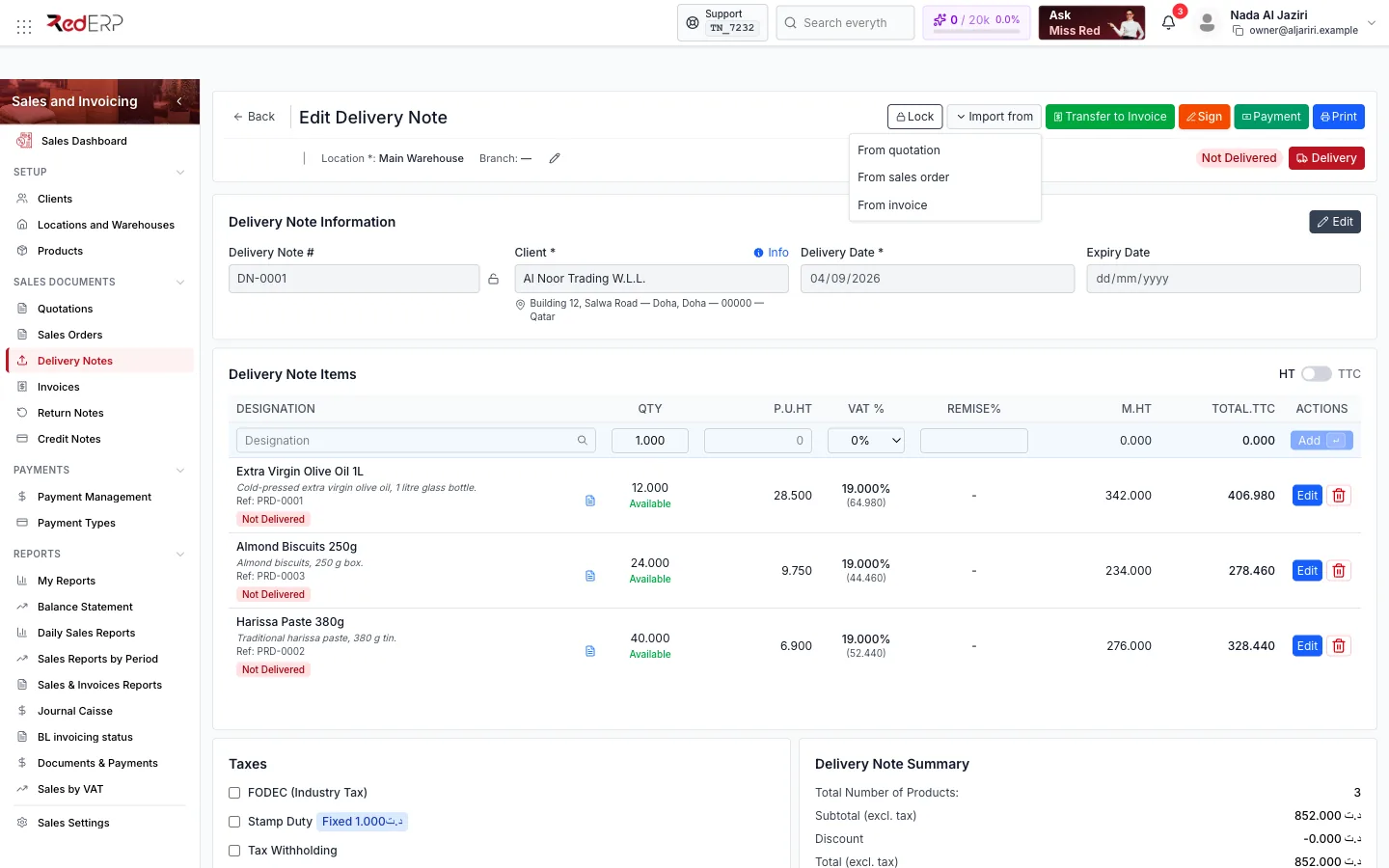
The editor
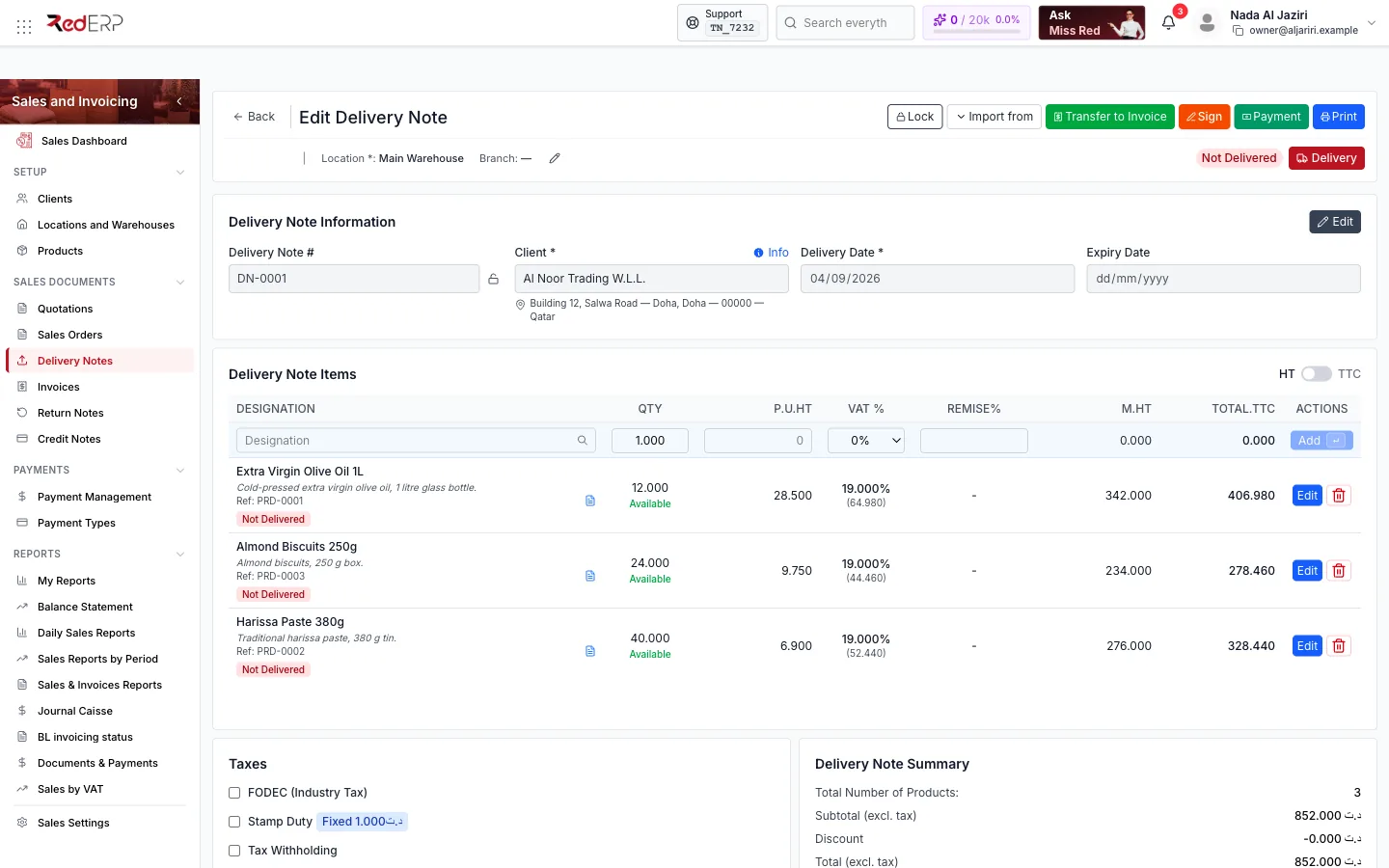
| Area | What you do there |
|---|---|
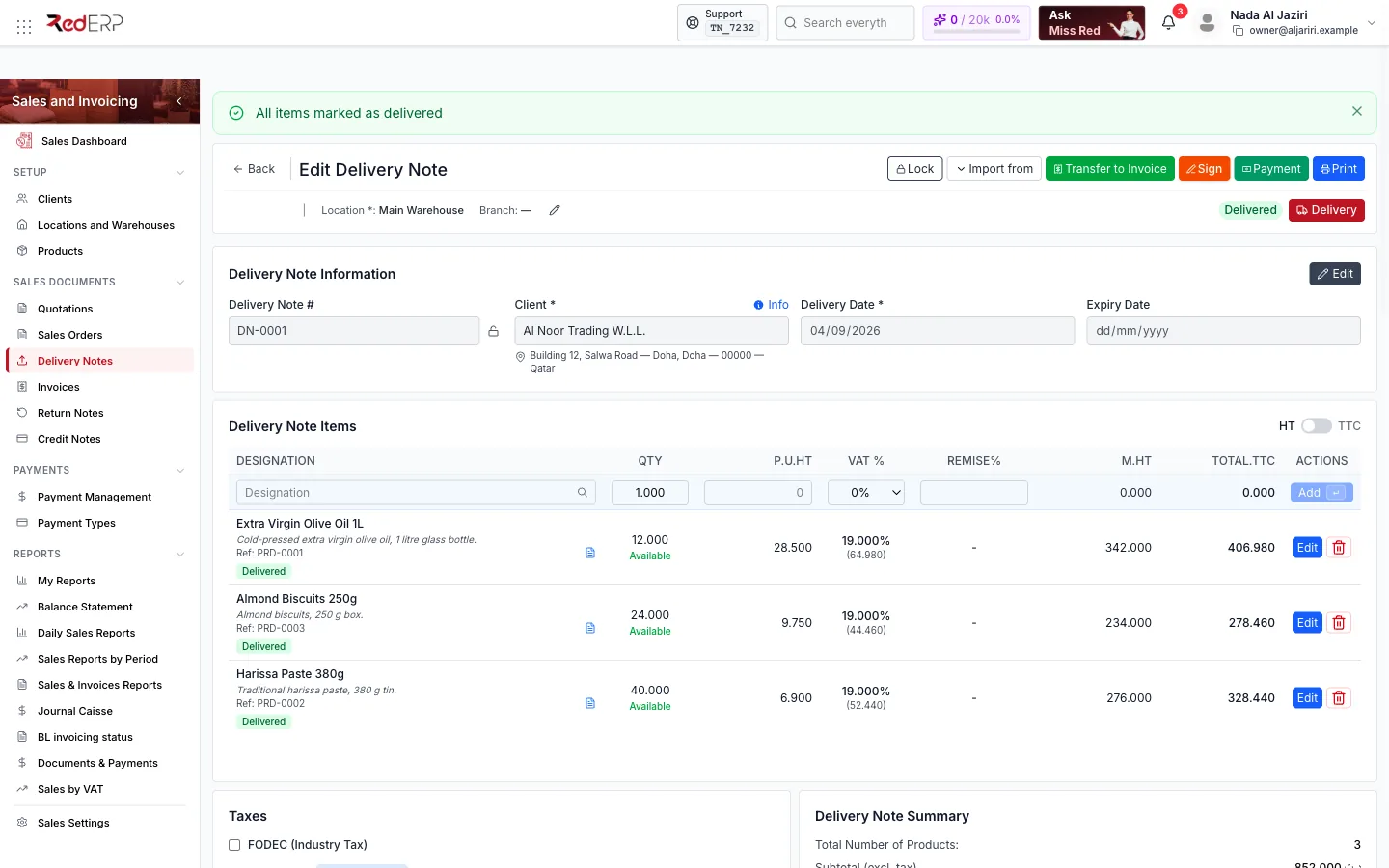
| Toolbar | Lock, Import from, Transfer to Invoice, Sign, Payment, Print, the status badge and the Delivery menu (Full Delivery, Partial Delivery) |
| Delivery Note Information | Reference, client and address, Delivery Date, Expiry Date |
| Delivery Note Items | Lines with quantity, price, VAT, discount and, per line, the stock Available indicator and the line delivery status (Not Delivered / Delivered) |
| Taxes / Delivery Note Summary | Same as other documents |
| Payment Management / Payment Transactions | Add Payment for cash on delivery and the list of payments |
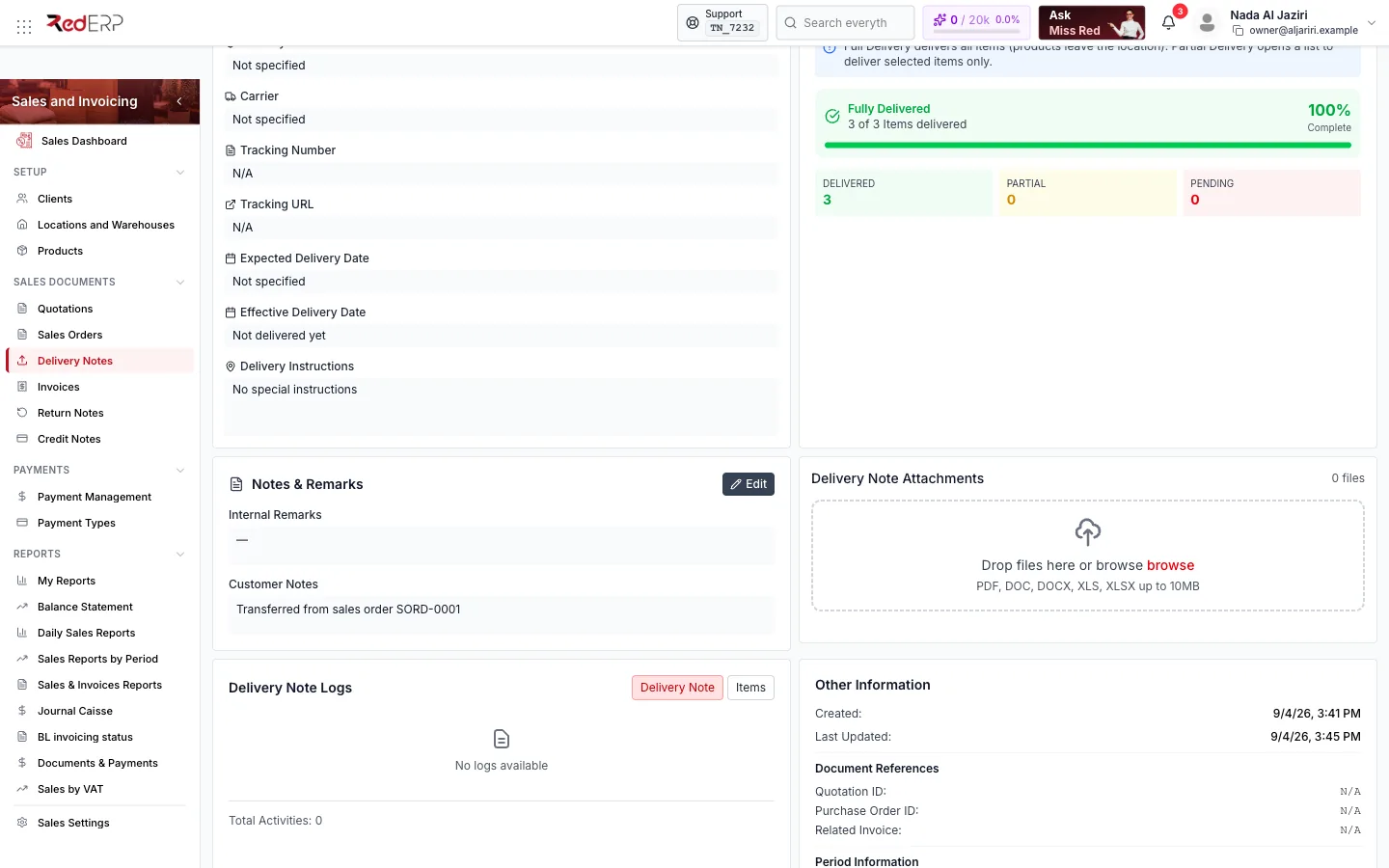
| Delivery Information | Delivery Method, Carrier, Tracking Number, Tracking URL, Expected Delivery Date, Effective Delivery Date, Delivery Instructions |
| Delivery Tracking | Progress: delivered, partial and pending lines, with the Full Delivery / Partial Delivery buttons |
| Notes & Remarks, Attachments, Logs, Other Information, Danger Zone | Remarks, files, history, references (quotation, purchase order, related invoice), delete |
Deliver the goods (stock-out)
Full Delivery
Toolbar Delivery → Full Delivery, then confirm Mark all items as delivered? with Yes, deliver all. Every line becomes Delivered, the note status becomes Delivered and one stock-out movement per line is created in the note's location.
Partial Delivery
Delivery → Partial Delivery opens the list of lines: tick the ones handed over now. The note becomes Partially Delivered; repeat later for the rest.
Undo
Marking the note Not Delivered again reverses the movements (stock-in) — only possible while the note is unlocked and not yet invoiced.
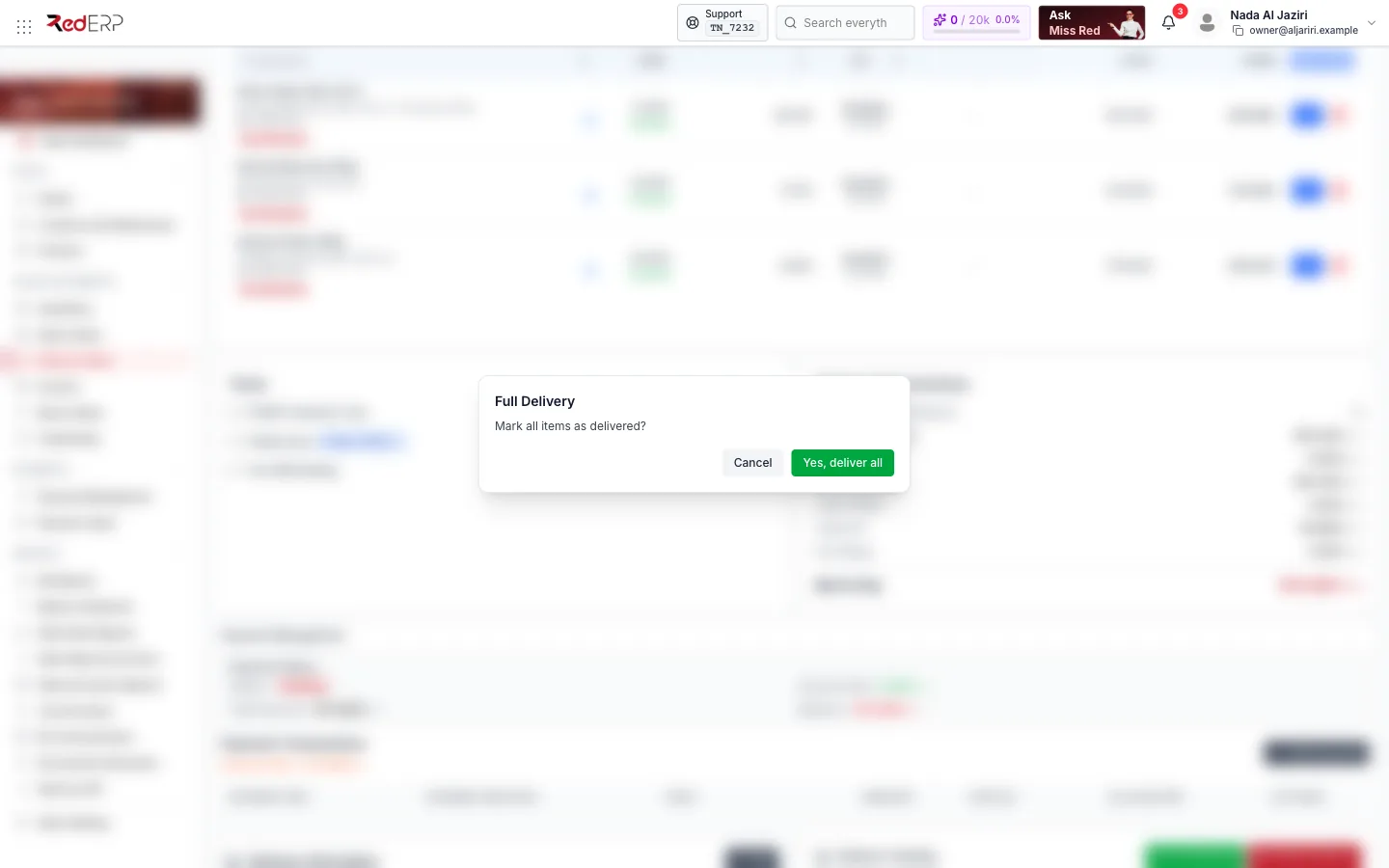
The Delivery Tracking card summarises progress (3 of 3 items delivered — 100 % Complete) and hosts the same buttons.
Stock rules
- The stock-out is taken from the note's Location; a line shows Available when the quantity is in stock.
- If the note comes from a Point of Sale ticket that already reduced stock, the second stock-out is skipped.
- Negative stock is refused unless allowed (for example during a Snoonu import with Allow negative stock on delivery).
Transfer to invoice
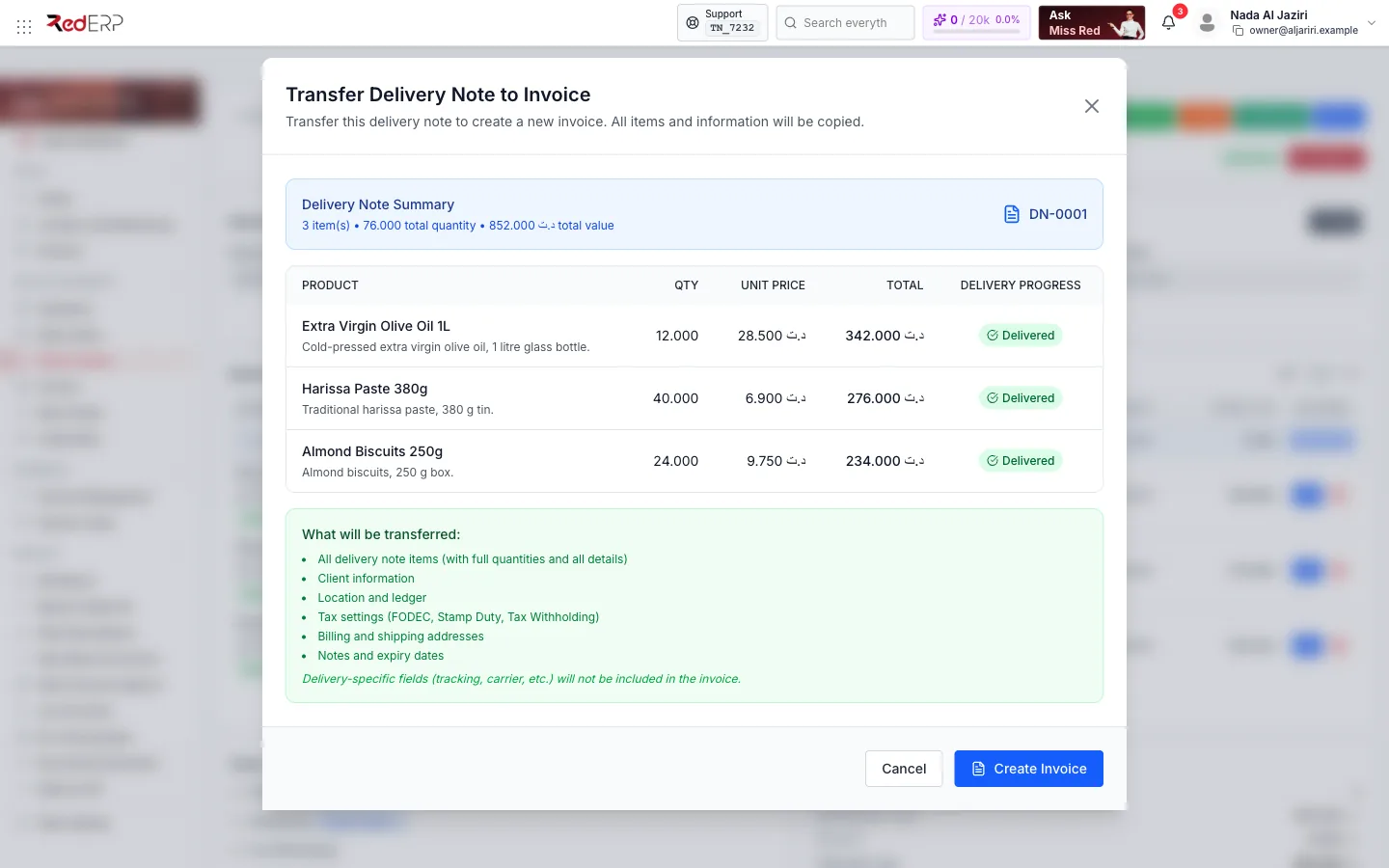
Transfer to Invoice shows a summary of the note (items, total quantity, total value), lists the lines with their delivery progress and explains what is copied: all items with full quantities, client, location and ledger, tax settings (FODEC, stamp duty, withholding), billing and shipping addresses, notes and expiry date. Delivery-specific fields (carrier, tracking) are not copied. Create Invoice creates the invoice and opens it.
Several delivery notes of the same client can be grouped into one invoice from the invoice side: Import from → From delivery note (or Convert from the list). The BL invoicing status report lists which notes are still to invoice.
Payments on delivery
Payment → Add Payment records what the driver collected: amount, method, status, ledger, treasury account and instrument details for cheques and transfers. These payments feed the Journal Caisse. When the note is later transferred to an invoice, its payments are taken into account in the invoice balance.
Status workflow
Field reference
| Field | Required | Notes |
|---|---|---|
| Customer, Location, Ledger | Yes | As for other documents; the location decides where stock is taken |
| Delivery Date | Yes | Date of the note |
| Expiry Date | No | For consignment or return deadlines |
| Delivery Method, Carrier, Tracking Number, Tracking URL | No | Shown in Delivery Information and on the client tracking |
| Expected / Effective Delivery Date | No | Effective date is filled when the note is delivered |
| Delivery Instructions | No | Printed for the driver |
Troubleshooting
| Situation | What to do |
|---|---|
| A line is not Available | Stock is missing in that location — adjust stock or change the location before delivering |
| Transfer to Invoice is disabled | The note is locked, or it has already been fully transferred |
| Delivered by mistake | Use Not Delivered to reverse the stock movements (if not invoiced), then deliver again |
| Numbering shows BL and BLS | With branch numbering enabled, each branch has its own sequence |