Membership Plans & Renewals
Configure membership plans, create fees, collect payments, print receipts, generate renewals, and update expired memberships.
Overview
Membership plans define the price and renewal rules offered by the association. The Memberships screen tracks registration, recurring, renewal, and late fees for members.
Membership plans
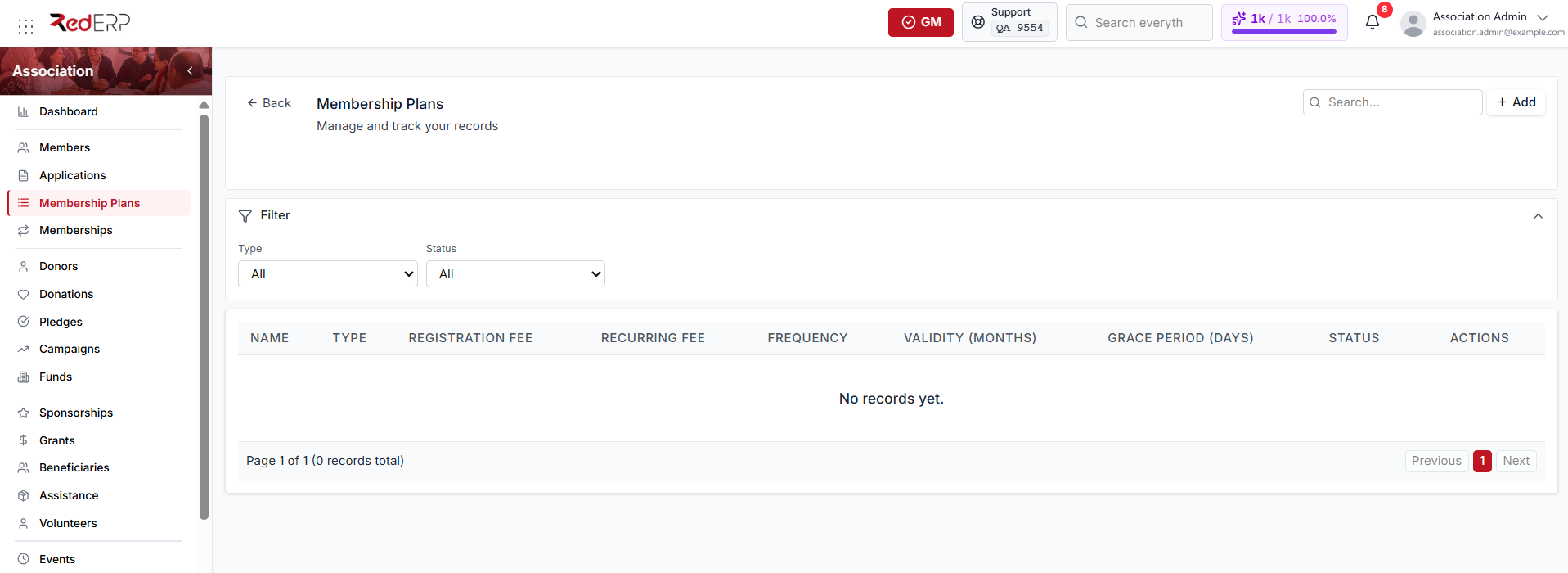
Create a plan before assigning it to applications, memberships, or fees.
Create a membership plan
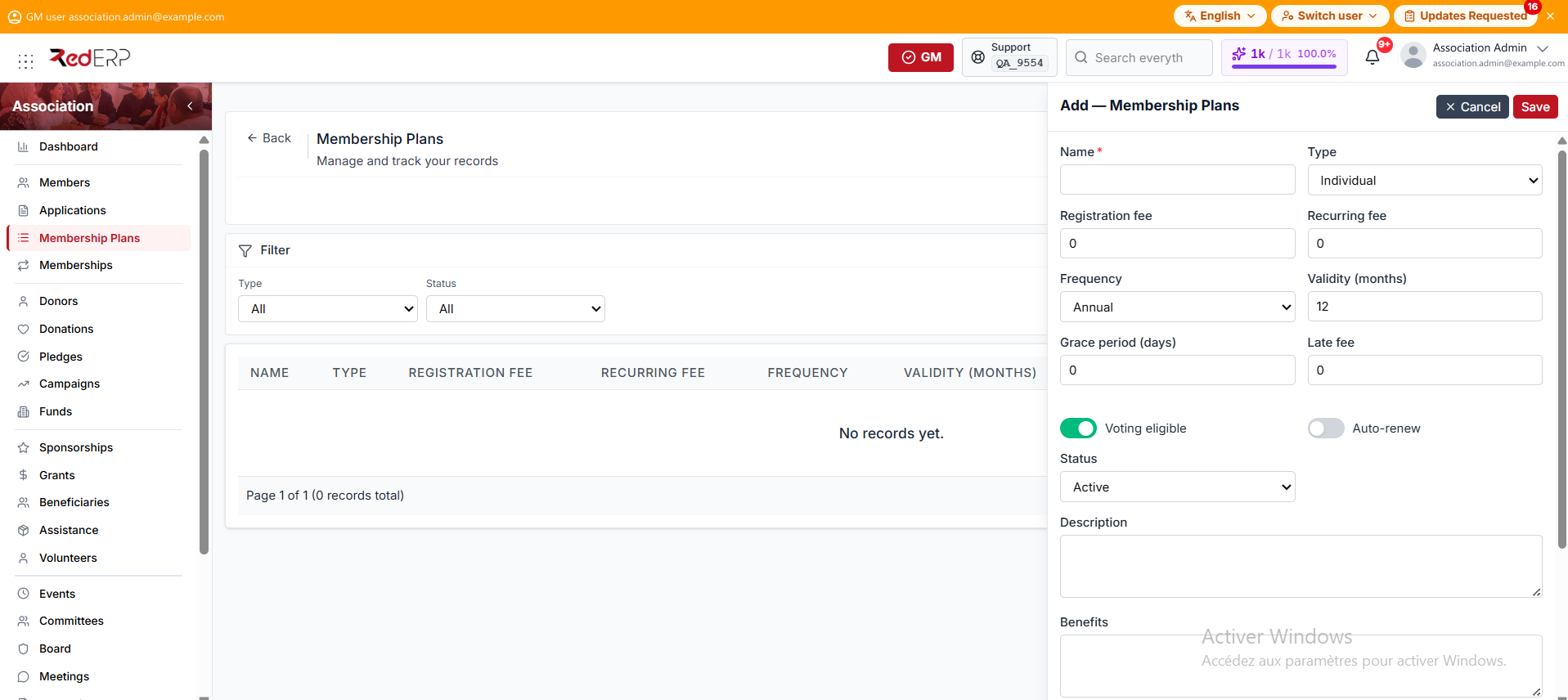
- Open Association → Membership Plans.
- Select Add.
- Enter the plan name and choose a type: Individual, Family, Student, Corporate, Honorary, or Lifetime.
- Set the billing frequency: Monthly, Quarterly, Semi-annual, Annual, or Lifetime.
- Enter the registration fee, recurring fee, validity, grace period, and late fee.
- Set voting eligibility and the automatic-renewal indicator when applicable.
- Add eligibility, renewal rules, benefits, or notes, set it to active, then save.
Deactivate a plan that should no longer be selected. Existing records remain available for history.
The automatic-renewal and late-fee values are configuration information. Renewal and late fees are not scheduled automatically; use Generate renewals or create a fee manually.
Membership fees
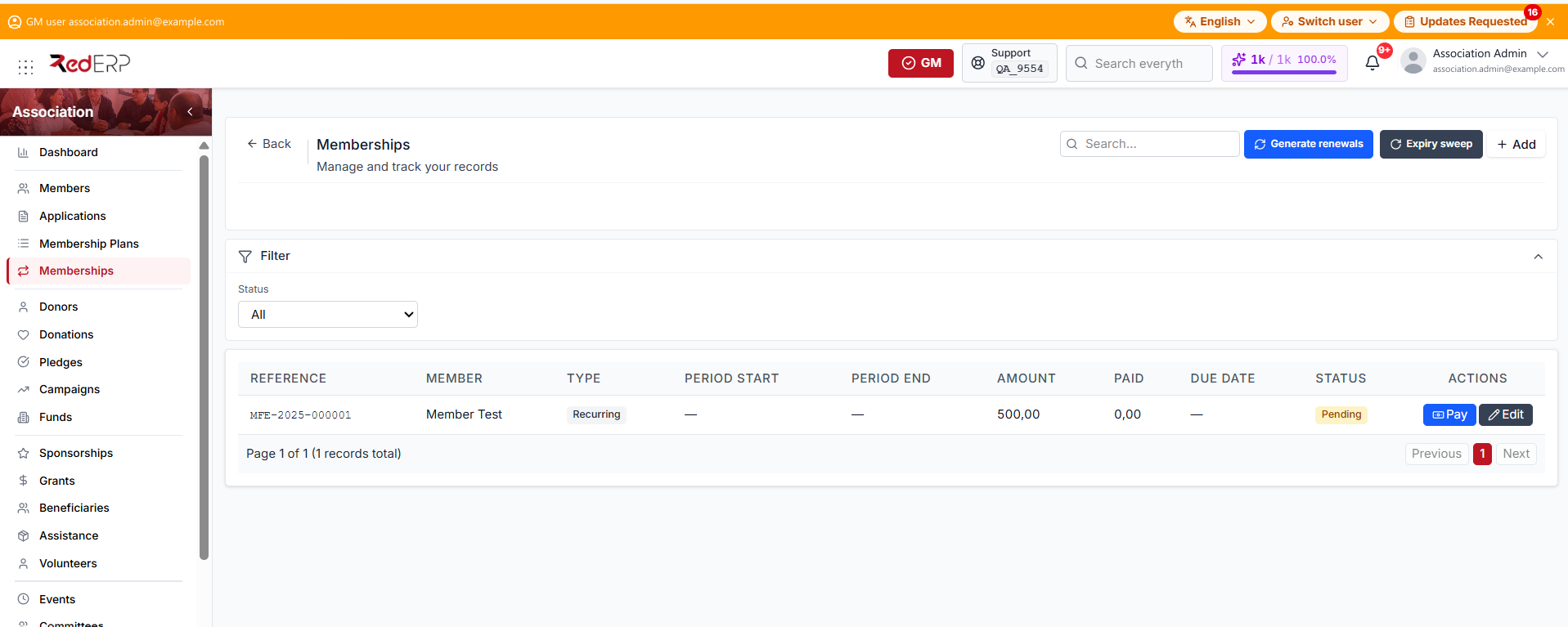
Open Association → Memberships to see:
- Fee reference and member
- Plan and fee type
- Covered period and due date
- Amount, discount, and amount paid
- Payment status
The Status filter offers Pending, Partial, Paid, Waived, and Cancelled. The fee form has no status field: payment moves a fee from Pending to Partial, then to Paid. Waived and Cancelled are filter values that no action on this screen currently sets.
A fee also carries a type:
- Registration — the one-off joining fee defined by the plan
- Recurring — the periodic membership fee for the covered period
- Renewal — the fee for the next period, created manually or by Generate renewals
- Late fee — a penalty added manually when a payment is overdue
Create a fee
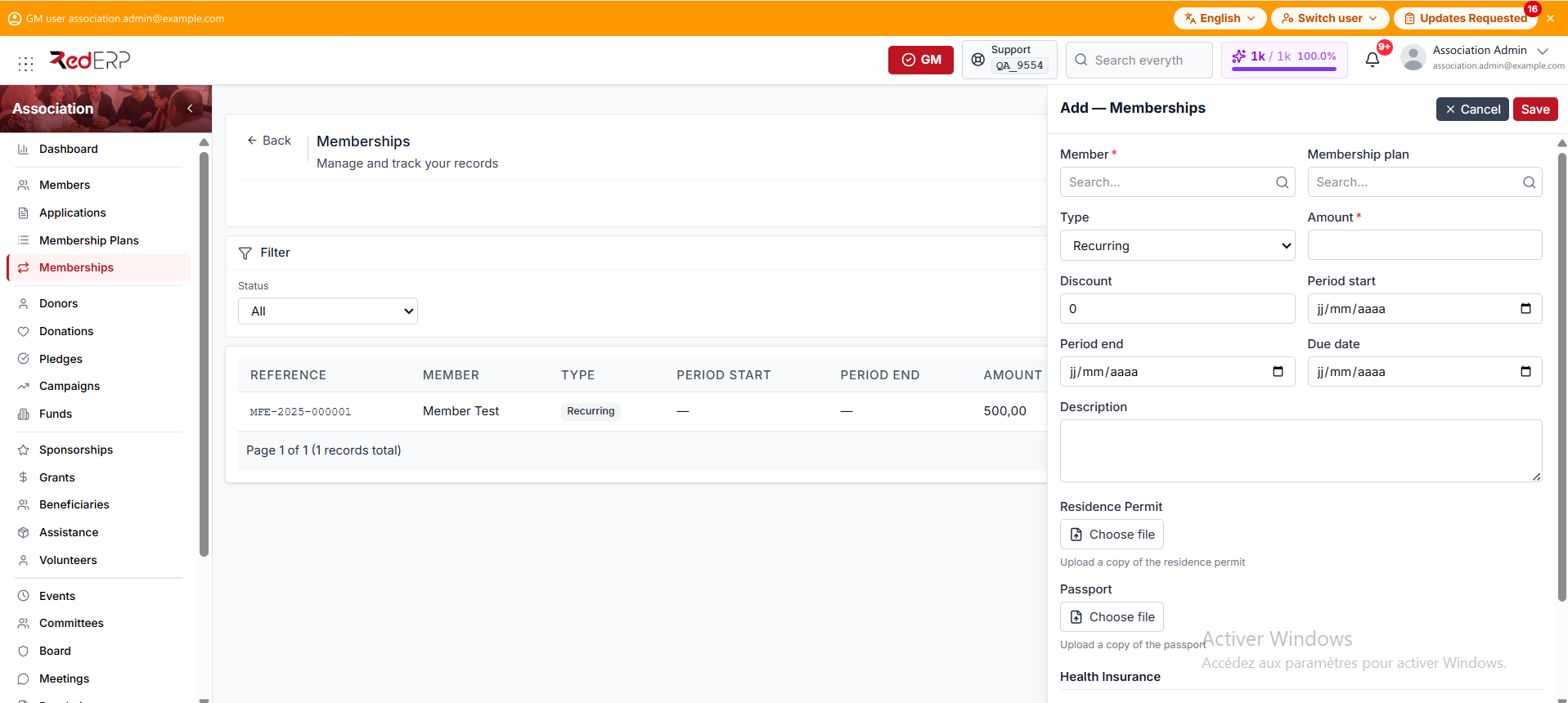
- Open Association → Memberships.
- Select Add.
- Choose the member and the optional plan.
- Choose the fee type, then enter the amount, discount, period, and due date.
- Upload the residence permit and passport copies, and record the health-insurance policy number, expiry date, and company when required.
- Save.
Collect a payment
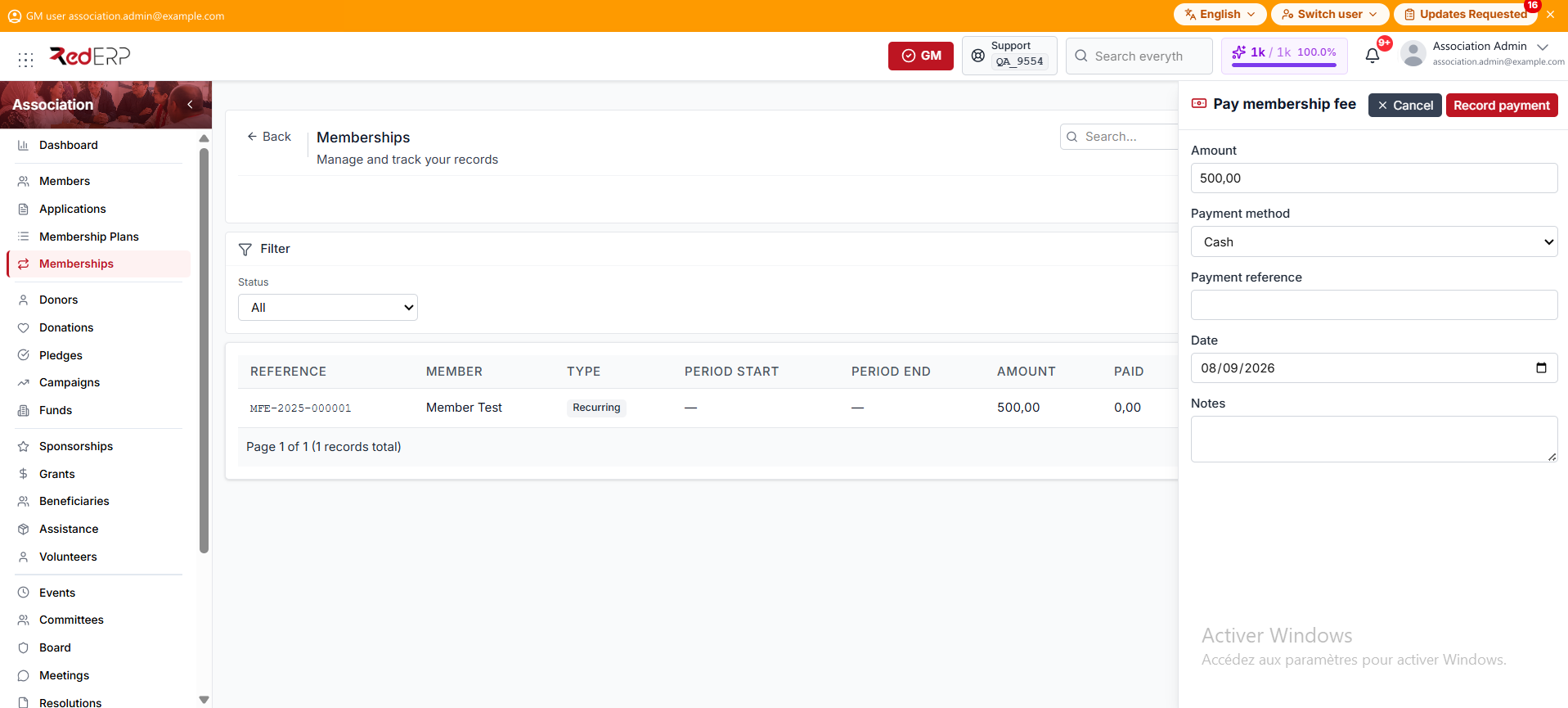
- Select Pay on a fee whose status is Pending or Partial.
- Check the amount. The drawer opens with the outstanding balance already filled in, so a partial payment only requires changing it.
- Choose the payment method. Cheque No. appears only when the method is Cheque.
- Add the payment reference, date, and notes.
- Select Record payment to post the payment, update the fee status, and issue the receipt.
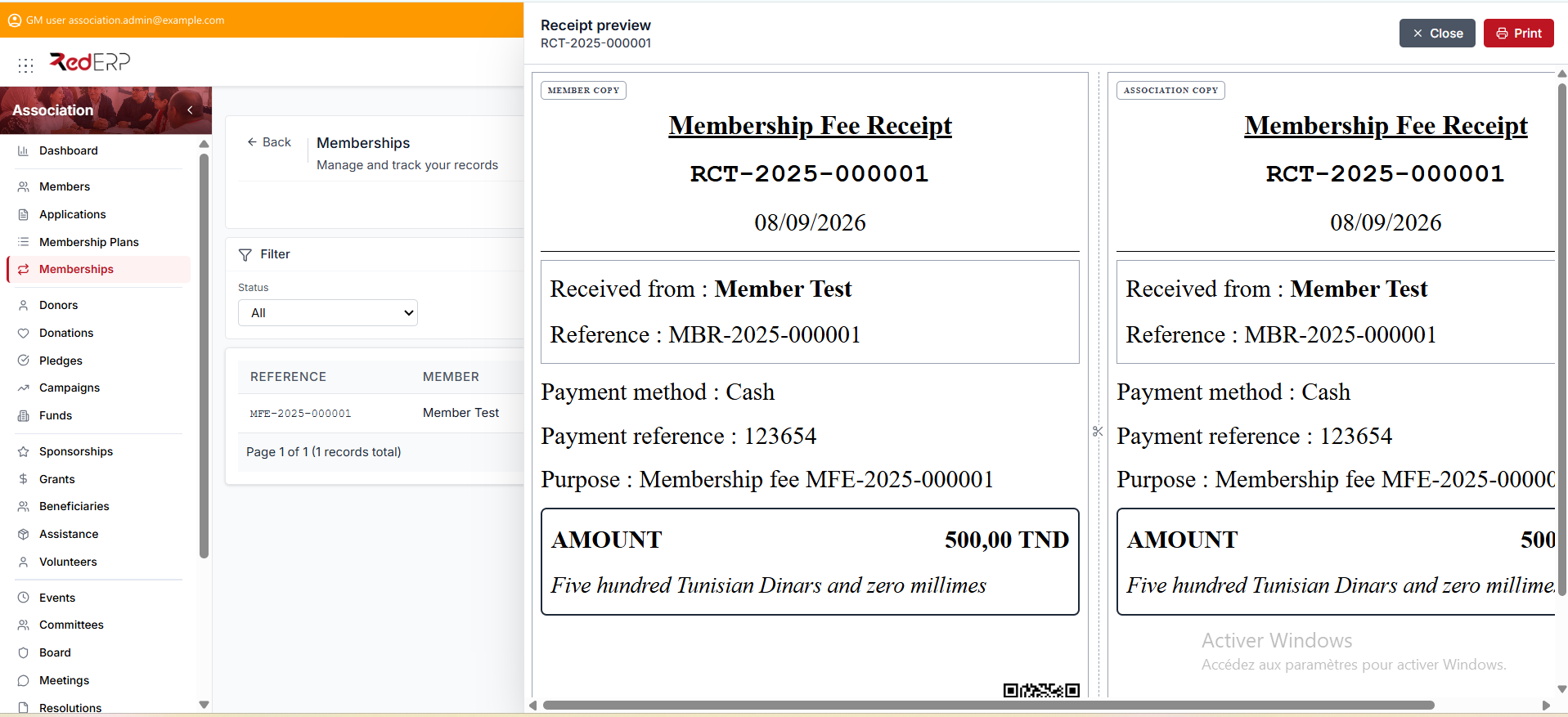
The receipt preview then opens on both copies, printed side by side on a single page: the payer copy on the left, labelled Member Copy for a membership fee, and the Association Copy on the right. Each copy repeats the receipt number, date, payer name and reference, payment method and reference, purpose, the amount in figures and in words, and the receipt barcode.
Select Print for a paper or PDF copy, or Close to return to the list. Every print is counted, and a reprint is stamped Duplicate. Other receipt types use their own title and payer-copy label, such as Donation Receipt with a Donor Copy.
Print stays available on the fee row once a receipt exists, so a receipt can be reissued later without collecting the payment again.
Generate renewals
Generate renewals and Expiry sweep are both buttons in the header of the Memberships screen, not row actions.
Select Generate renewals to create fees for active memberships expiring within the next 30 days. Existing pending or partial renewal fees are skipped. The confirmation message reports how many fees were generated.
Select Expiry sweep to expire memberships whose end date plus the plan grace period has passed. Its notice always reports zero updates, so judge the result from the Members and Memberships lists; see Troubleshooting.
Run generation once for the intended period and review the fee list before repeating it. Paying a renewal fee records the payment and receipt but does not move the member or membership expiry date forward automatically, so review the dates after payment.