Pledges, Campaigns & Funds
Track donor commitments, fundraising campaigns, restricted funds, installments, and fund transfers.
Overview
Pledges track promised contributions, campaigns track fundraising targets, and funds track the purpose and balance of collected money.
Pledges
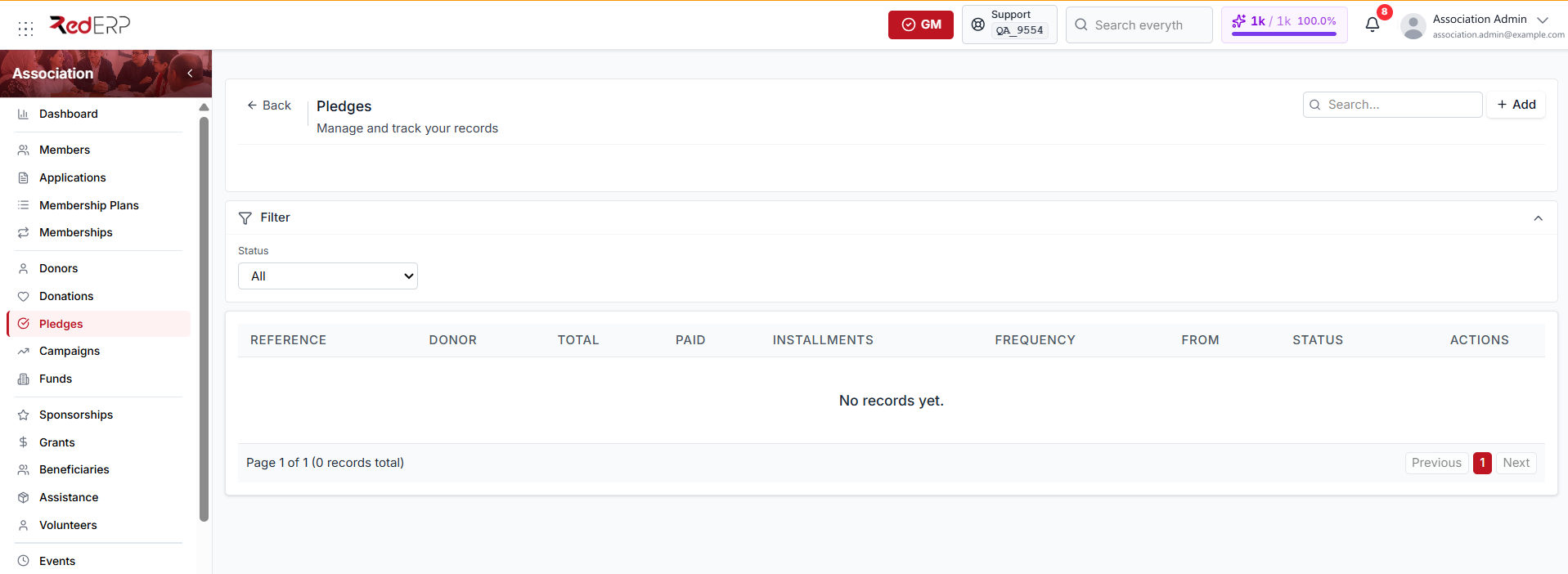
Open Association → Pledges to see each pledge's reference, donor, total, amount paid, installment count, and frequency. The Status filter narrows the list.
A pledge can include a payment schedule. The Status filter offers:
- Draft
- Active
- Partially paid
- Paid
- Overdue
- Cancelled
A fully paid pledge is currently stored as Fulfilled, so it does not match the Paid filter value.
Create a pledge
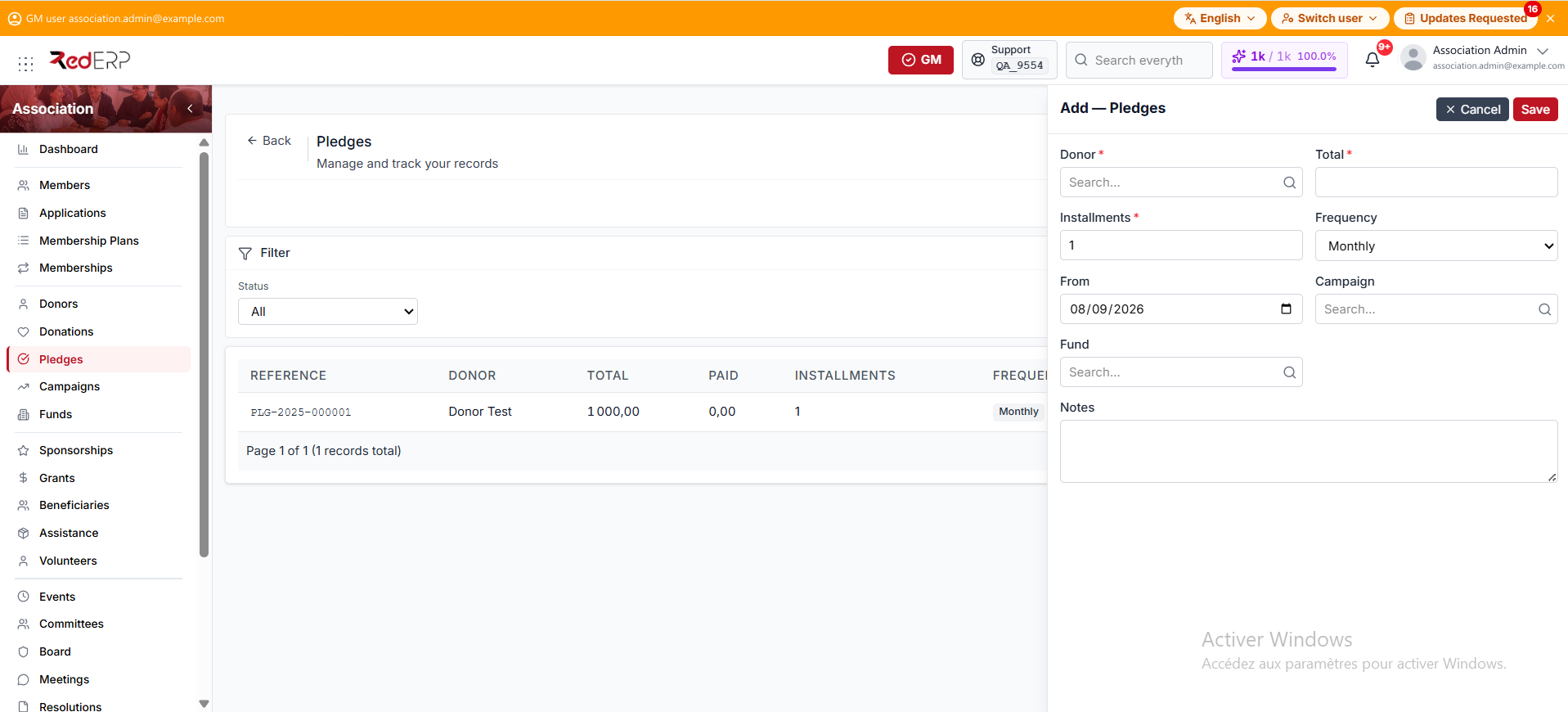
- Open Association → Pledges.
- Select Add.
- Choose the donor and enter the required Total.
- Set Installments. It defaults to 1.
- Set Frequency. It defaults to Monthly. The other values are Quarterly and Annual.
- Set the From date.
- Optionally assign a campaign and fund.
- Add notes, then save.
Pay an installment
Installments is a row action on the Pledges list. It opens the schedule for that pledge and shows the paid total against the pledged total.
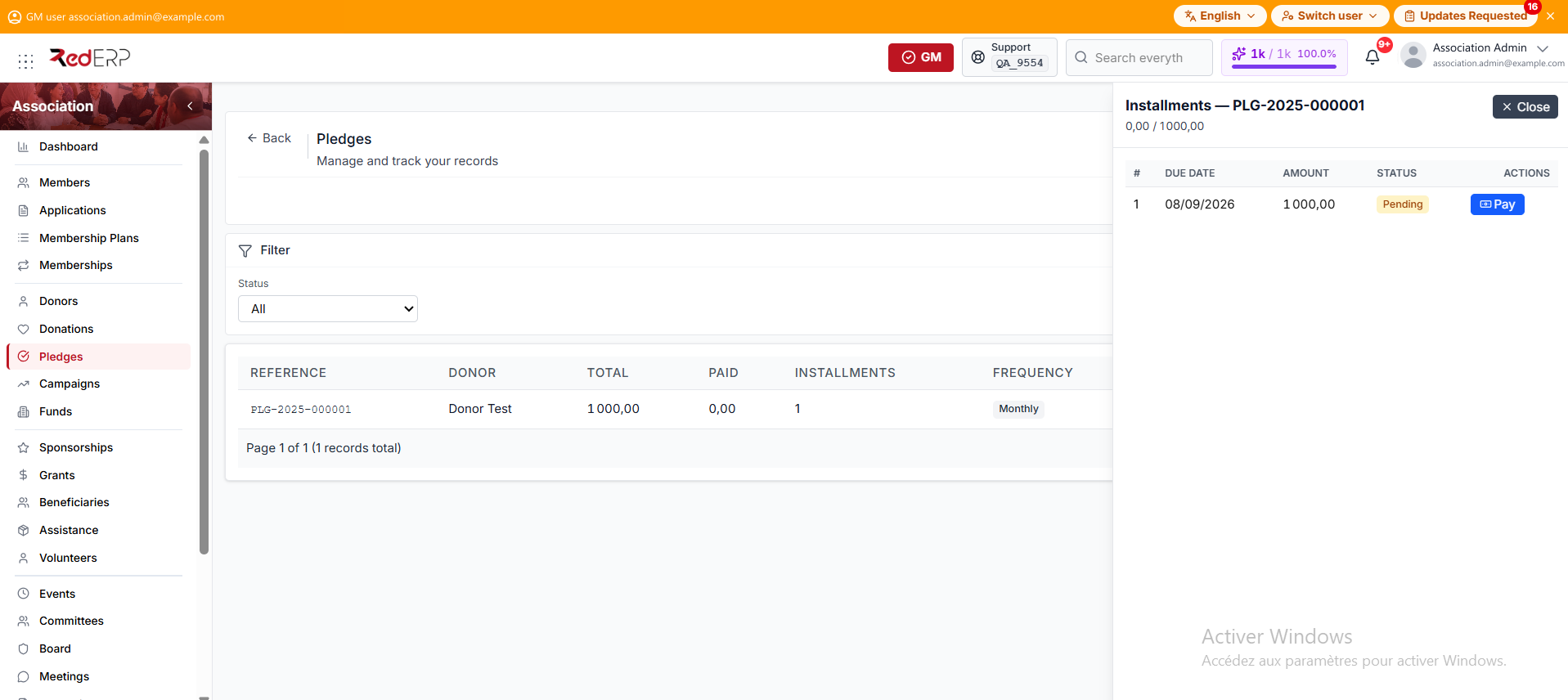
- Select Installments on a pledge row.
- Select Pay on an installment whose status is Pending.
- Enter the payment method and reference accurately. The payment creates a donation and a receipt.
The Pay action is currently available only on Pending installments. If an installment was partly paid, its remaining balance cannot be collected from this drawer.
Print the receipt
Recording a payment opens the receipt preview. It is titled Pledge Installment Receipt, shows the donor copy and the association copy side by side, and Print produces both at once.
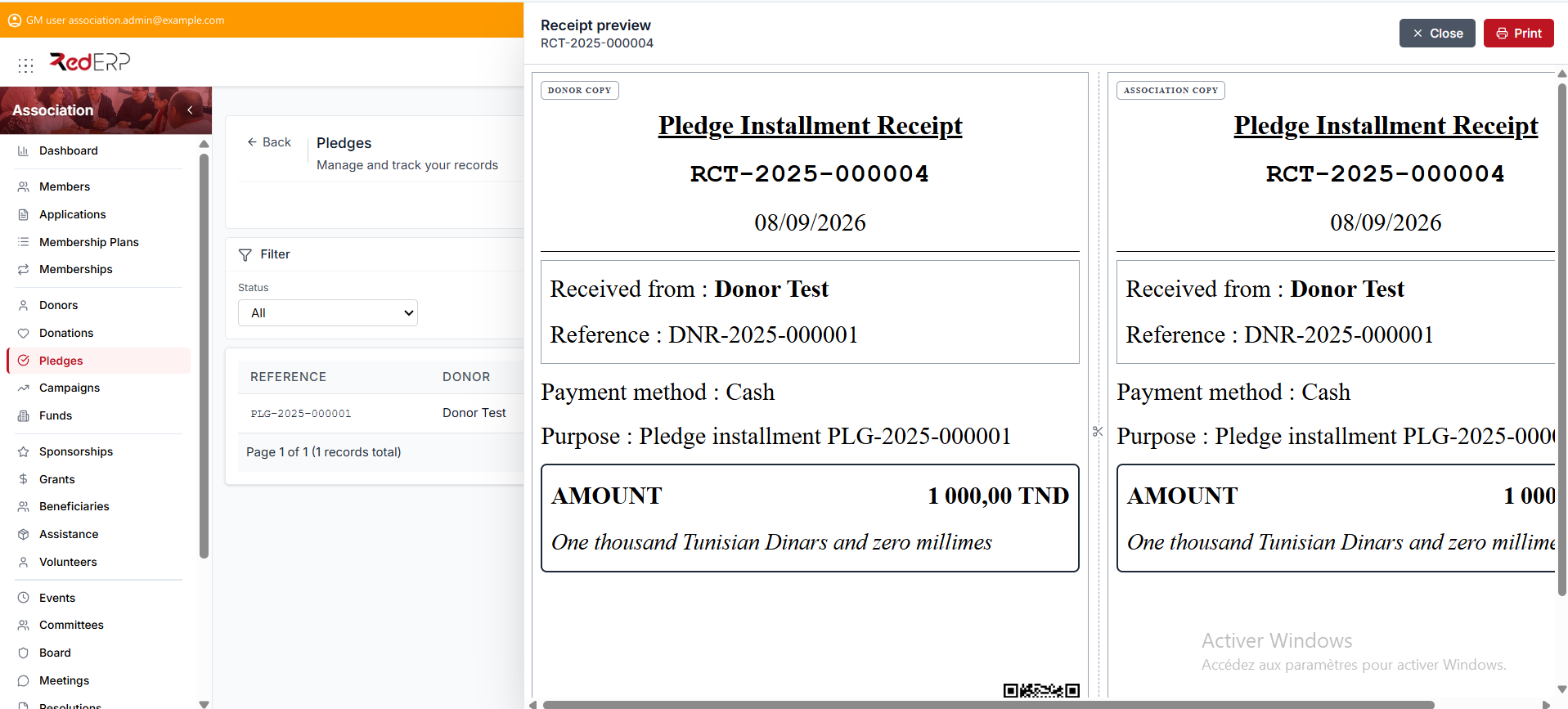
Select Print for a paper or PDF copy, or Close to return to the list. See Receipts & Reports for reprints and cancellations.
Campaigns
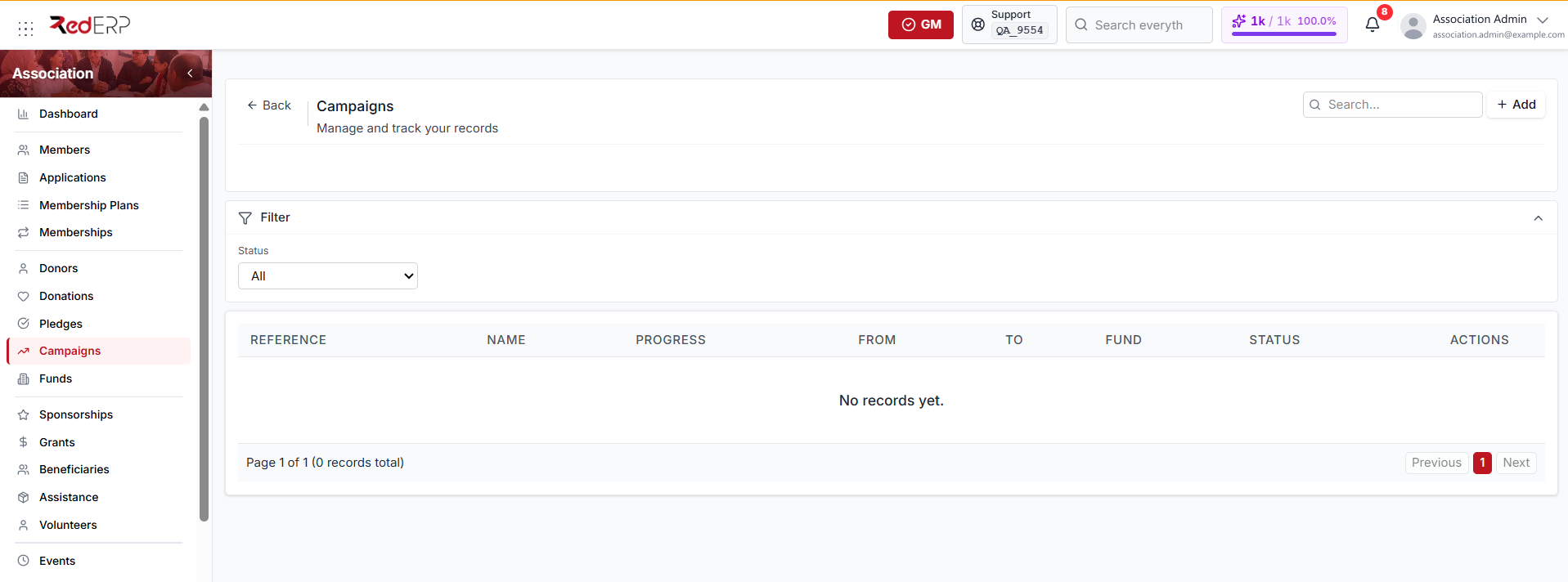
Open Association → Campaigns to see each campaign's reference, name, progress, and From / To dates. The Status filter narrows the list.
The Progress column shows collected / target and the percentage. The dashboard also compares collected and target amounts for active campaigns.
Campaigns group contributions around a goal and time period.
Create a campaign
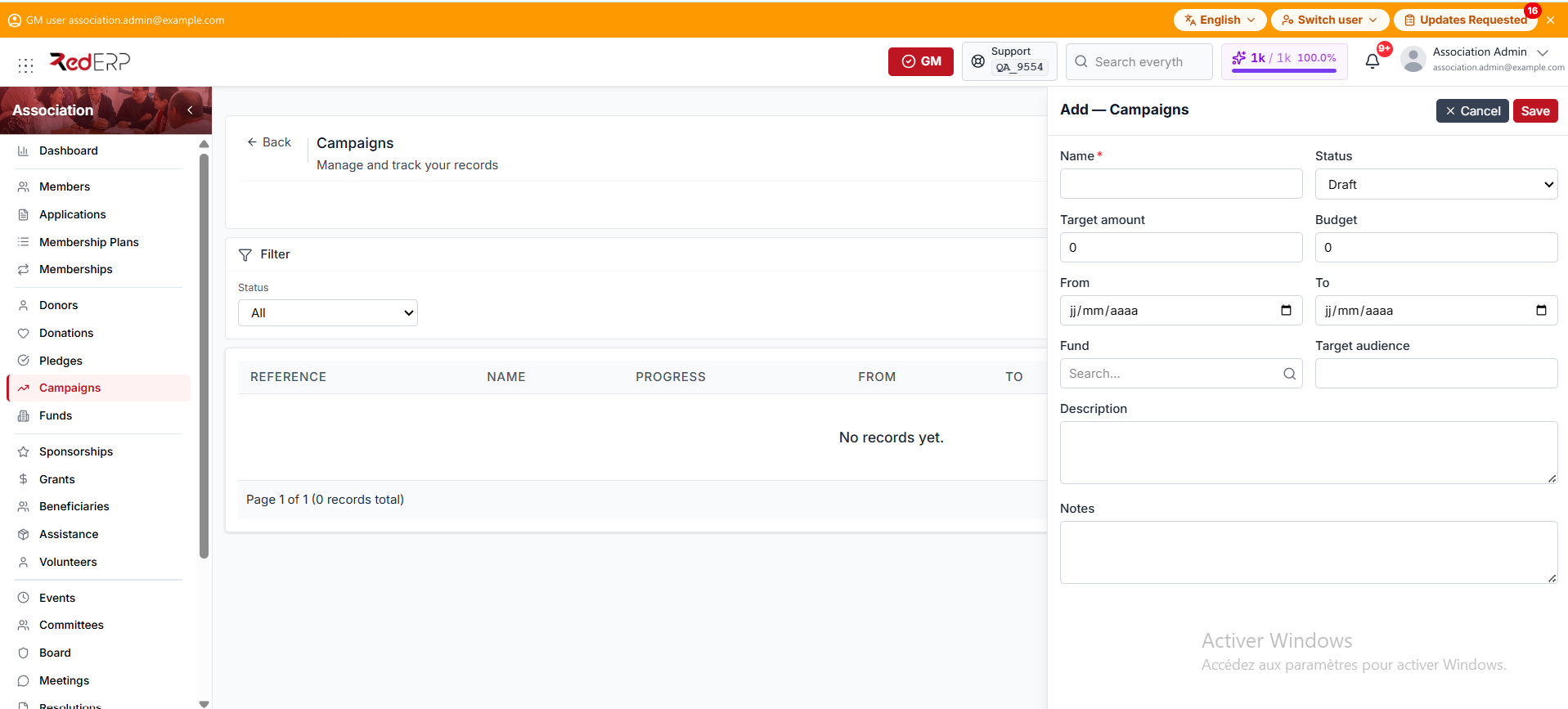
- Open Association → Campaigns.
- Select Add.
- Enter the required Name.
- Set the Status. It defaults to Draft. The other values are Planned, Active, Completed, and Cancelled.
- Enter the Target amount and Budget.
- Set the From and To dates.
- Optionally link a Fund and add the Target audience.
- Add a description and notes, then save.
Funds
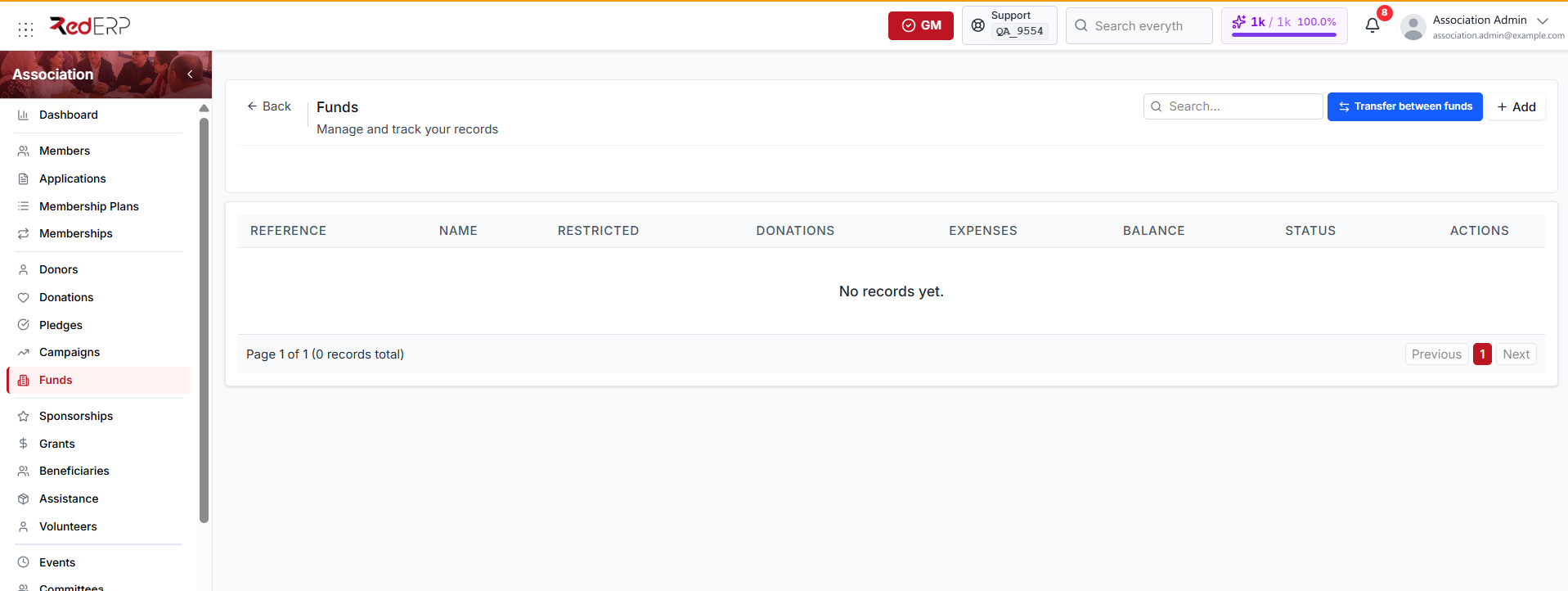
Open Association → Funds to see each fund's reference, name, restricted flag, donations, expenses, and balance.
Funds separate money by purpose or restriction.
Create a fund
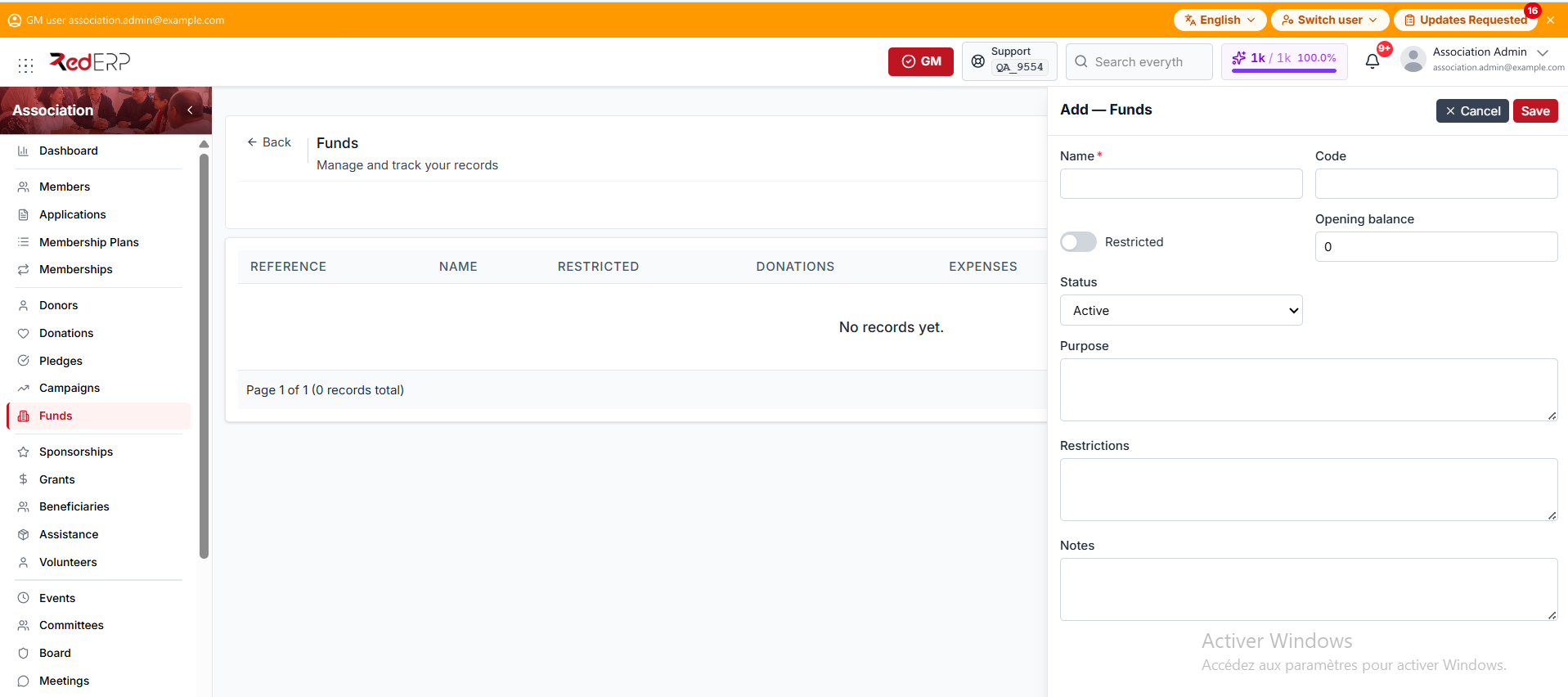
- Open Association → Funds.
- Select Add.
- Enter the required Name, then the optional Code.
- Set the Restricted switch when the money has a limited purpose.
- Enter the Opening balance if the fund already holds money.
- Set the Status to Active or Inactive.
- Add the purpose, restrictions, and notes, then save.
Transfer between funds
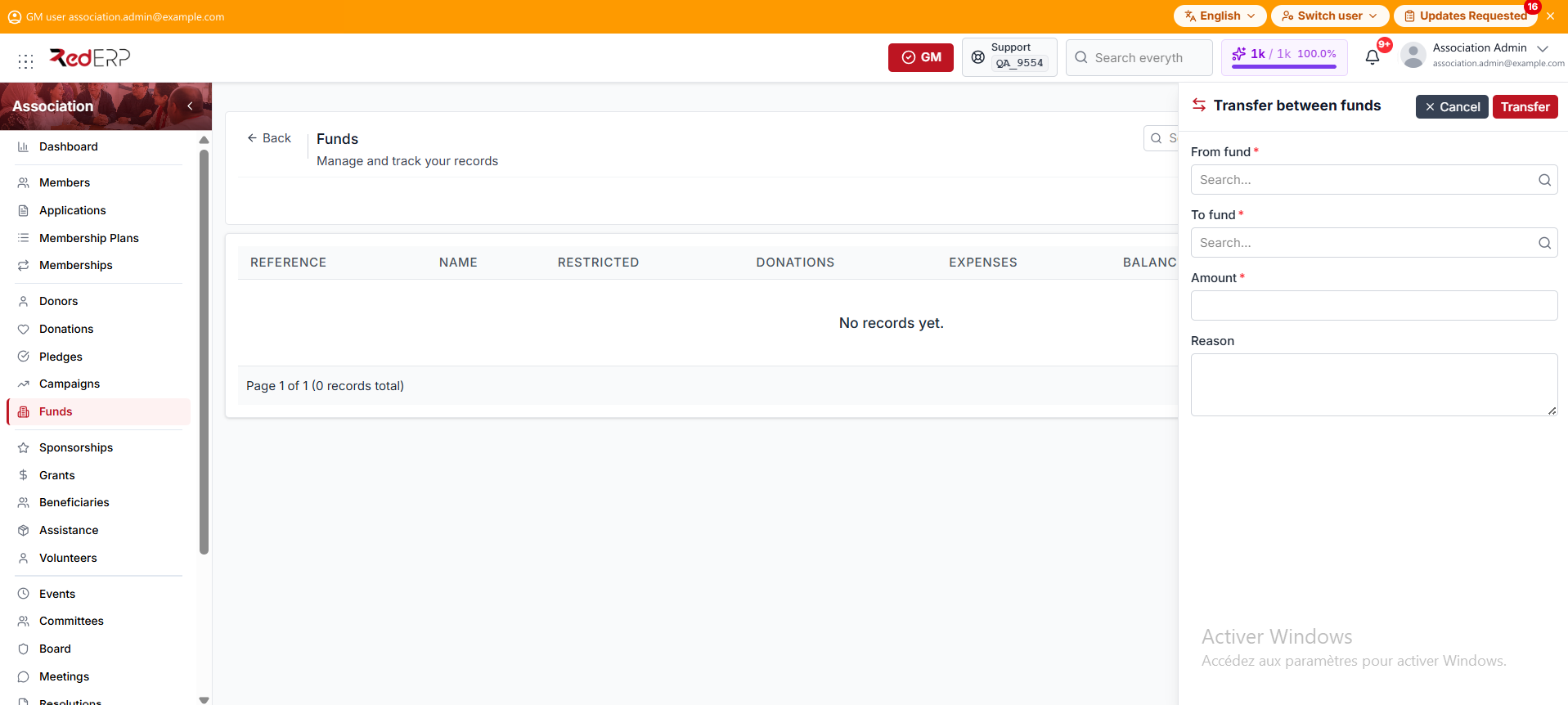
Transfer is a header button on the Funds screen, labelled Transfer between funds. It is not a row action.
-
Open Association → Funds.
-
Select Transfer.
-
Choose the source and destination funds.
-
Enter the amount and reason.
-
Confirm the transfer.
A transfer changes fund allocation; it is not a new donation. Keep a clear reason and reference for audit review.