Store Categories
Manage product categories for RedERP ecommerce navigation and category pages.
E-commerce → Categories organises products for menus, category pages, and home tiles. Title: Product Categories — Manage product categories for your store.
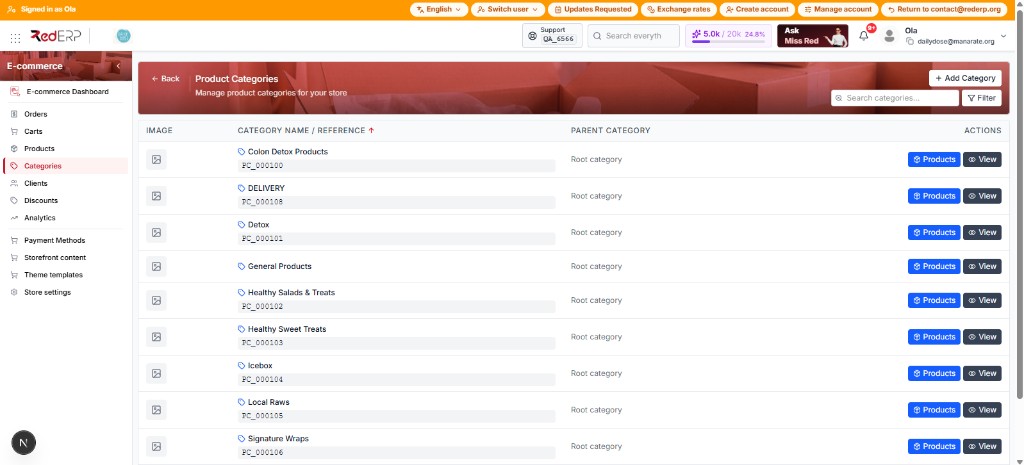
The list
Search, Filter, and + Add Category.
Per row
See which products belong, or open the category to edit.
On the shop
Upload an image and set a parent for nested menus.
The categories list
Open E-commerce → Categories from the sidebar.
| Control | What it does |
|---|---|
| + Add Category | Create a category (name, optional parent) |
| Search categories… | Find by name or reference (e.g. PC_000100) |
| Filter | Narrow the list |
Table columns
| Column | What you see |
|---|---|
| Image | Category picture, or a placeholder if none |
| Category name / Reference | Clickable name (blue) plus code such as PC_000100 |
| Parent category | Parent name, or Root category when it sits at the top |
| Actions | Products (blue) and View (grey) |
Example names on Daily Dose: Colon Detox Products, DELIVERY, Detox, General Products, Healthy Salads & Treats, Healthy Sweet Treats, Icebox, Local Raws, Signature Wraps.
Row actions
| Button | What it does |
|---|---|
| Products | Opens the products that belong to this category — use it to check membership |
| View | Opens the category so you can edit name, parent, and image |
Edit a category
View opens a View Category pane on the right (list stays visible). Example: Colon Detox Products (PC_000100).
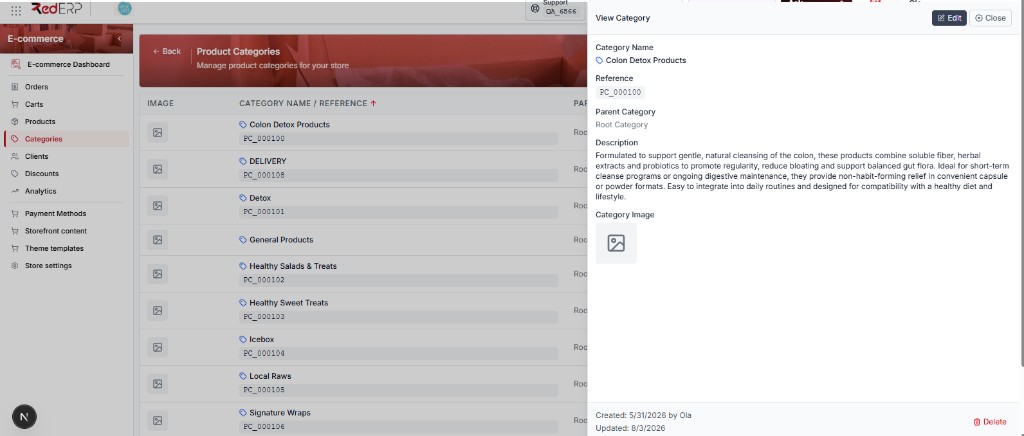
The pane shows Category name, Reference, Parent category (Root Category), Description, Category image (placeholder if none), Created / Updated, plus Edit, Close, and Delete.
Create or open
Click + Add Category, or View on an existing row. Click Edit in the pane to change fields.
Set name and parent
Enter the name. Pick a parent for a nested menu, or leave Root category.
Upload an image
Add a category image while editing. The upload can auto-save. Closing a create drawer without save discards unsaved new images.
Assign products
Put products in the right category from the product form or from Products on the row. Empty categories look poor on marketing home grids.
Deleting a category may also remove its subcategories.