Tracking Tags
How to add GA4, GTM, and meta tags on the storefront. This is not the sales Analytics menu.
E-commerce → Storefront content → Analytics puts tracking IDs into the shop HTML. It does not show revenue or orders.
Open Storefront content, then click Analytics (or /modules/ecommerce/content#analytics).
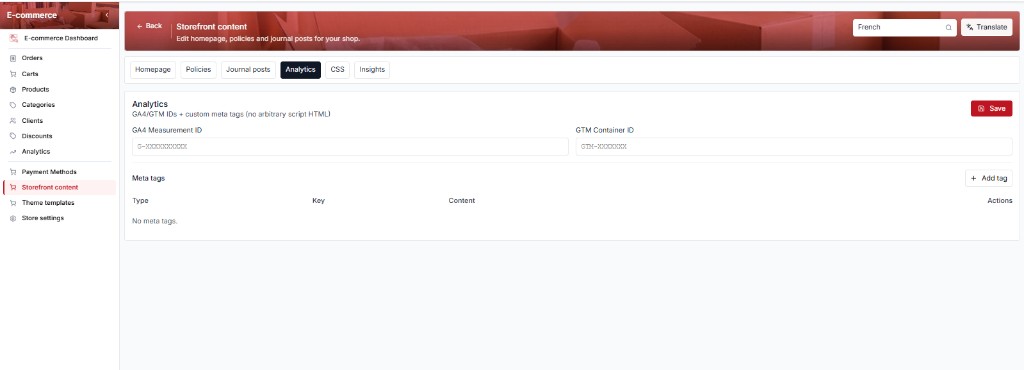
The subtitle on the card: GA4/GTM IDs + custom meta tags (no arbitrary script HTML). You cannot paste a <script>…</script> block here.
| If you wanted… | Use this instead |
|---|---|
| Revenue, orders, top products | Store Analytics (sidebar Analytics) |
| Visits, funnel, top paths | Traffic Insights (tab Insights on this same page) |
| Google / GTM / verification tags | This tab |
These fields are store-wide (not per language). The language dropdown does not change GA4 / GTM.
How to use this tab
Get the IDs from Google
GA4 Measurement ID looks like G-XXXXXXXXXX (Admin → Data streams in Google Analytics). GTM Container ID looks like GTM-XXXXXXX (Tag Manager → Container). Leave a box empty if you do not use that product. The grey G-XXXXXXXXXX / GTM-XXXXXXX in the screenshot are placeholders, not real IDs — do not click Save thinking they are already set.
Paste and Save
Type the real IDs, then click the red Save on the right of the Analytics card. Until you Save, the shop still has the old (or empty) tags.
Check the live shop
Open the storefront, view page source, and search for G- or GTM-. Or use Google Tag Assistant. If nothing appears, confirm Save and that you are on the right store handle.
You can fill only GA4, only GTM, or both. Many teams use GTM alone and fire GA4 from inside GTM — in that case fill GTM and leave GA4 empty (or the opposite). Do not paste the same ID in both boxes.
Meta tags (Search Console, extra SEO)
The table starts as No meta tags. (see screenshot). That is normal.
| Column | How to use it |
|---|---|
| Type | name for most tags (Search Console). property for Open Graph style keys |
| Key | e.g. google-site-verification |
| Content | The token Google gave you |
| Actions | Remove that row |
Add a verification tag
Click + Add tag. Type = name, Key = google-site-verification, Content = the string from Google Search Console. Save.
Remove a tag
Remove on the row, then Save again.
Homepage SEO title / description / OG image are not here — they are on Homepage (bottom of that tab), and they are per language.