Carriers
How to add optional shipping carriers for tracking on ecommerce orders.
E-commerce → Store settings → Carriers stores optional labels you attach when you ship an order (tracking).
Open Store settings, then Carriers (/modules/ecommerce/settings#carriers). The tab can read Carriers or Shipping Carriers.
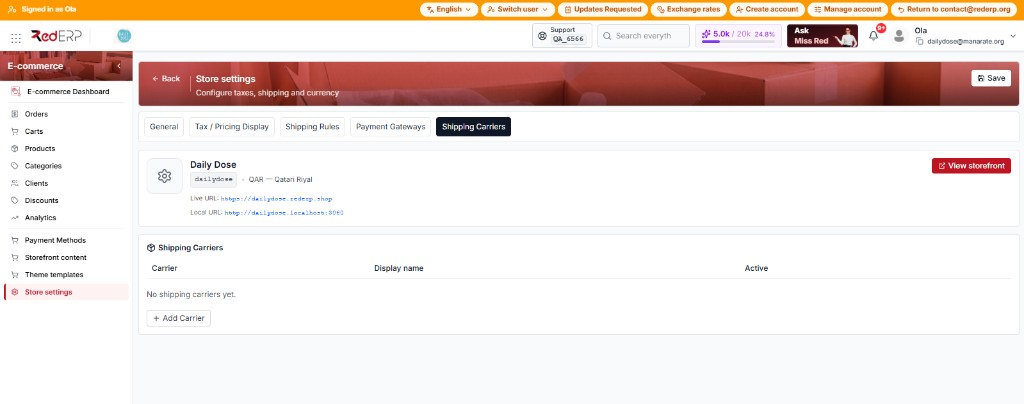
The shop can go live without any carrier. Add them when you start handing parcels. Checkout does not use this list for the delivery price — that is Shipping rules.
Do not use the top-right Save. + Add Carrier has its own Save / Cancel.
How to use this tab
Empty store: No shipping carriers yet. and + Add Carrier. Columns: Carrier, Display name, Active.
Open the form
Click + Add Carrier.
Pick a code and name
Carrier code: dhl, aramex, local, or pickup. Display name is required (what staff see on the order).
Optional extras
Credentials (JSON) — leave blank when editing to keep the existing secret. Supported countries — comma-separated ISO2. Tick Active → Save on the form.
Pencil / trash on a row, or the Active checkbox to turn a carrier off without deleting it.
On Orders, pick the carrier and paste a tracking number when the parcel leaves.