Activities
Create CRM follow-ups, review overdue work, mark activities done, and convert a prospect when the outcome is won.
Overview
Use Activities to plan and close follow-ups. Link each activity to a Prospect or a Deal.
Activities list
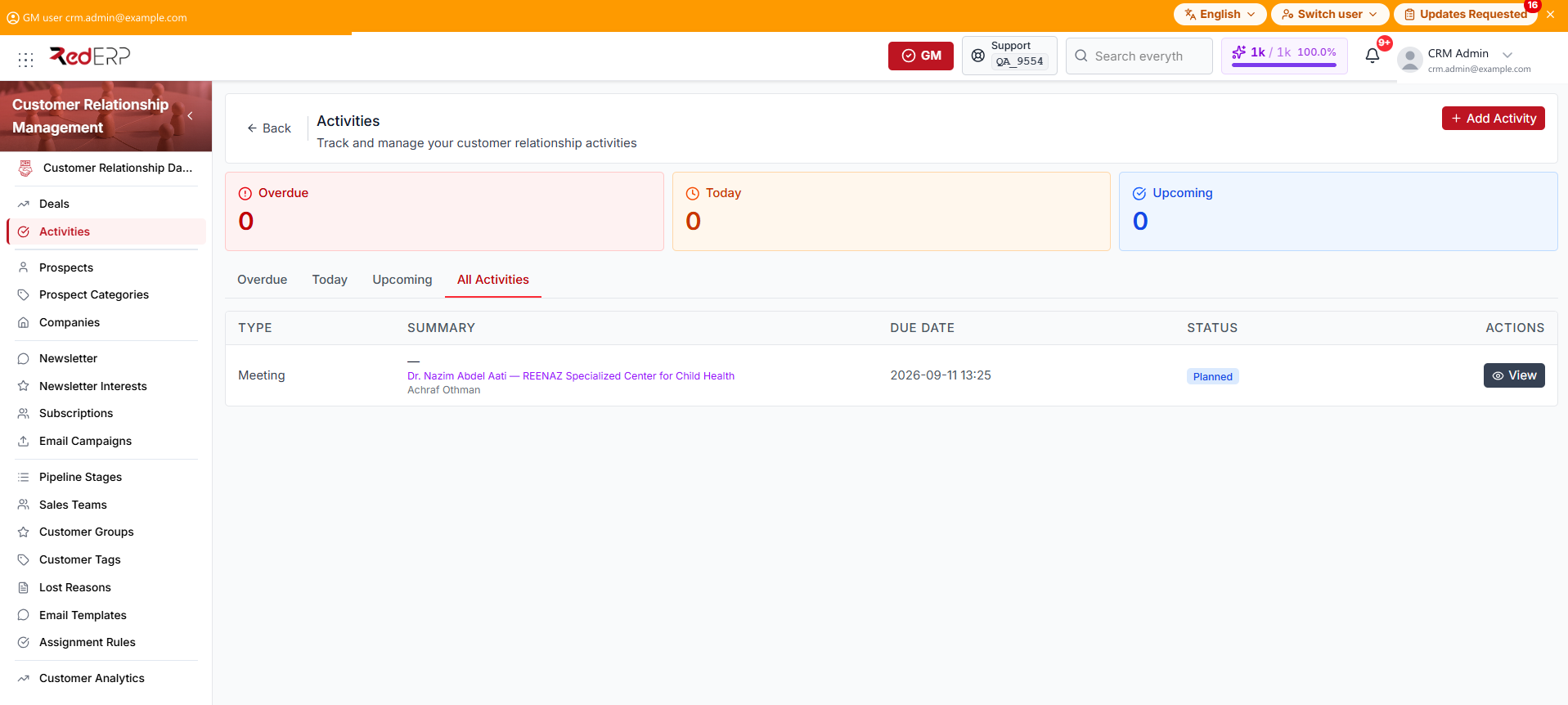
The tiles at the top show Overdue, Today, and Upcoming. Tabs filter the same lists, plus All Activities. The default tab is Upcoming.
The columns are Type, Summary, Due Date, Status, and Actions. The summary cell can also show the linked prospect or deal and the assignee. Select View, or the summary, to open the activity.
Create an activity
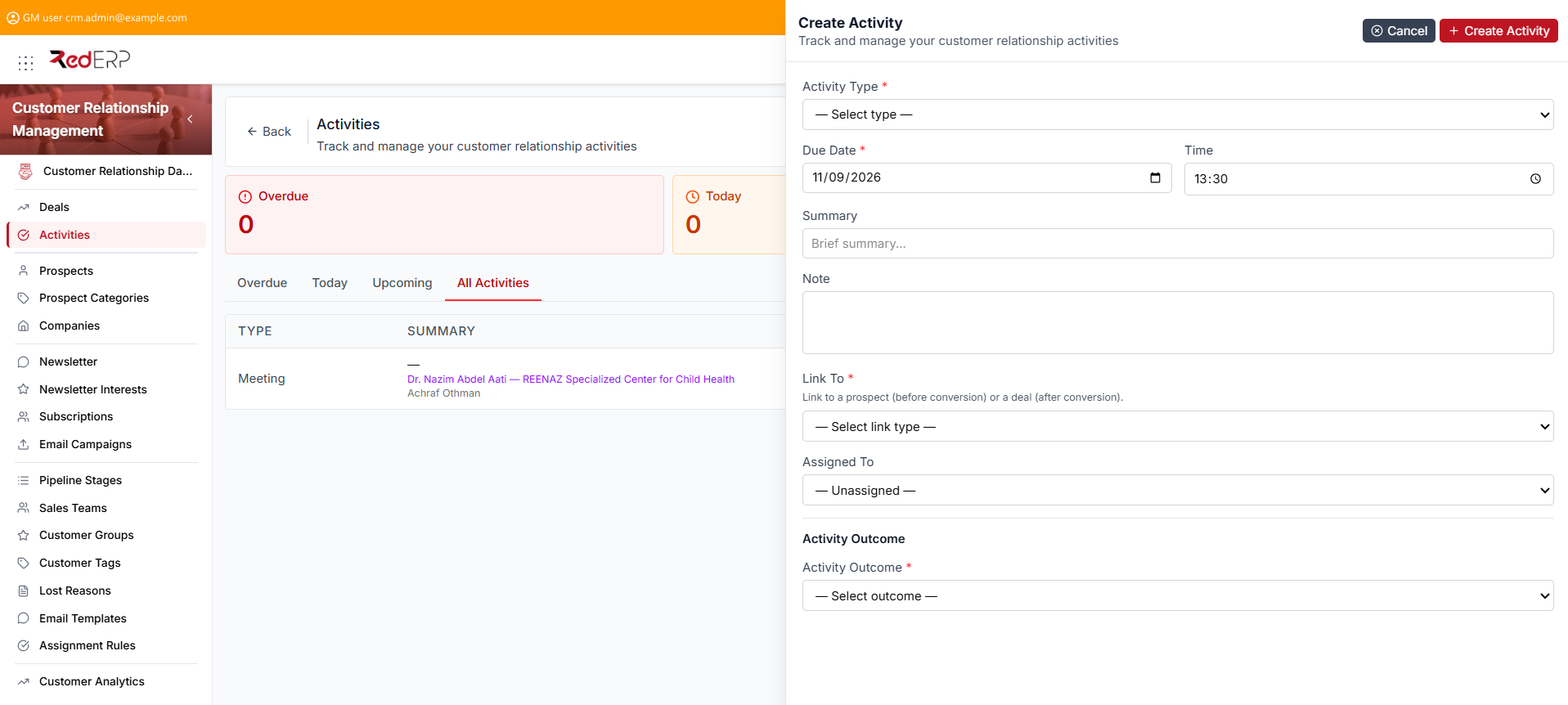
- Open CRM → Activities.
- Select Add Activity. The drawer title is Create Activity.
- Choose the required Activity Type.
- Set the required Due Date. Time is optional (the drawer pre-fills the current time).
- Enter a Summary and a Note as needed.
- Under Link To, choose Prospect or Deal, then pick the record (required).
- Set Assigned To if needed (optional).
- Set the required Activity Outcome.
- Select Create Activity.
You can pre-fill the drawer with ?create=true, ?prospect_id=, or ?deal_id=.
Activity outcomes (create)
Activity Outcome is required on create. It is not on the detail or edit form.
- Interested
- Follow Up Required — Next Follow-up Date is required
- No Answer
- Not Interested
- Won — when the activity is linked to a prospect, you can select Convert Prospect to Deal and a required Pipeline Stage; RedERP creates the deal when you save
- Lost — Lost Reason is required
Activity statuses
- Planned — not finished; you can Mark Done or Edit
- Done — completed; Edit is hidden
- Cancelled — no longer needed
Activity detail
- Open CRM → Activities.
- Select View on a row, or select the summary. The path is
/modules/crm/activities/[id]. - Review Type, Due Date, Done Date (when set), Summary, Note, Prospect, Deal, and Assigned To.
- When the status is Planned, select Mark Done. You can add a Completion Note, then confirm Mark Done.
- When the status is not Done, select Edit, change the fields, then Save Changes. Outcome cannot be changed here.
- Use Delete Activity in the Danger Zone only when the record must be removed permanently.
Good practice
- Overdue items stay on the red Overdue tile on this page and on the CRM dashboard until you mark them Done or change the due date.
- Always link a prospect or a deal so the activity appears on that record.
- Use Won + Convert Prospect to Deal on create only when the prospect is ready to become a deal.