Lost Reasons
Create custom reasons used when a CRM deal, prospect, or activity is marked Lost.
Overview
Use Lost Reasons when a deal, prospect, or activity is closed as Lost. System reasons cannot be edited or deleted.
Lost Reasons
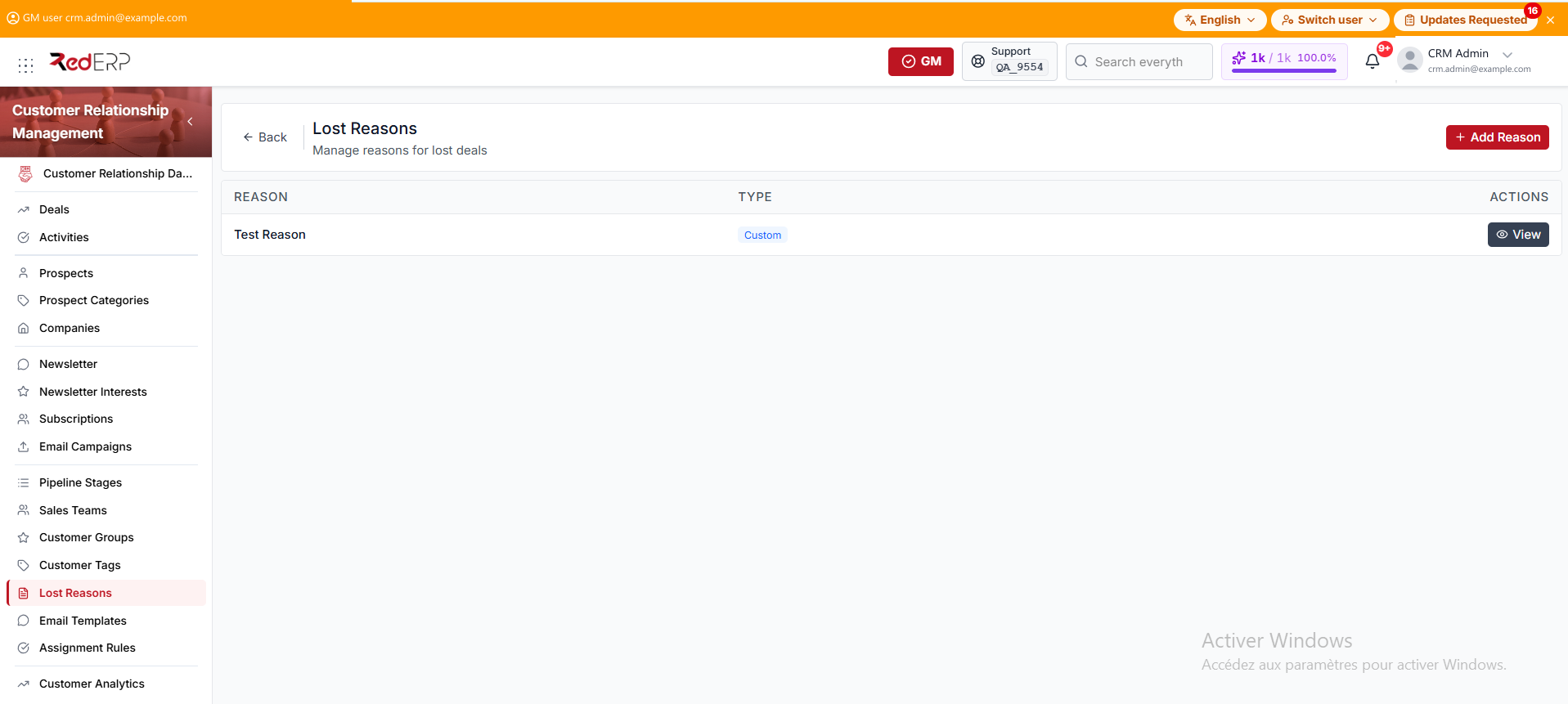
The columns are Reason, Type, and Actions. Type is System or Custom. A system reason shows a lock next to the name.
The row action is View. You can also select the reason name.
Create a custom reason

- Open CRM → Lost Reasons.
- Select Add Reason. The drawer title is Create Reason.
- Enter the required Reason. The placeholder is e.g. Budget constraints.
- Select Create Reason.
New reasons are Custom. Prospects and Activities require a reason when you mark Lost. On Deals, the reason is optional.
View, edit, or delete a reason
- Open CRM → Lost Reasons.
- Select View. The drawer title is Reason Details.
- Review Reason and Type. A system reason also shows System reasons cannot be edited.
- On a Custom reason, select Edit. The drawer title is Edit Reason. Change Reason, then select Save Changes.
- Use Delete Reason in the Danger Zone only on a Custom reason. Confirm in the Delete Reason dialog.
Good practice
- Add the custom reasons your team uses before you close records as Lost.
- Leave system reasons in place. They cannot be edited or deleted.