Deals
Create CRM deals, work them in list or kanban, mark Won or Lost, and send deal email.
Overview
Use Deals for leads and opportunities already in the pipeline. Use Prospects for people you have not converted yet. You can also create a deal directly from this page, without converting a prospect.
Deals list
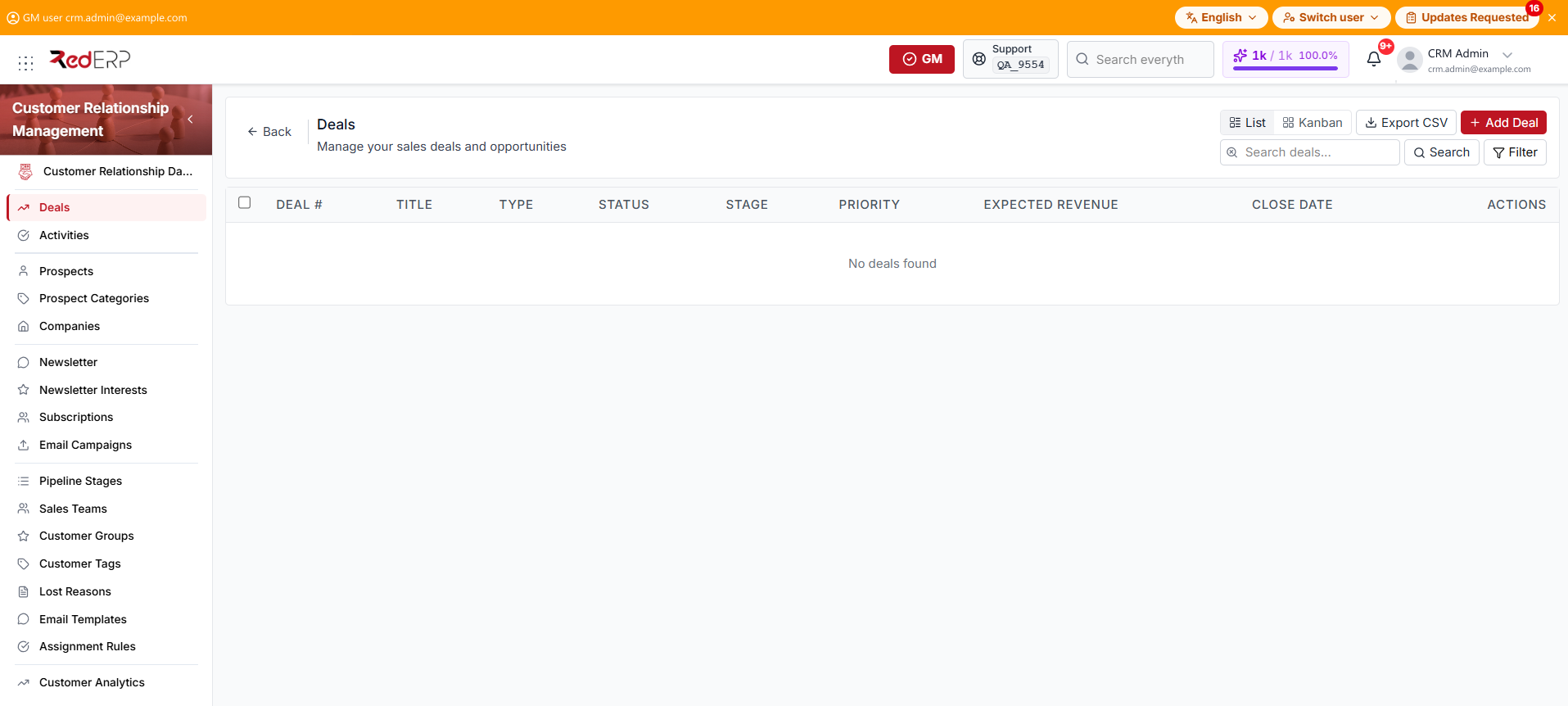
The columns are Deal #, Title, Type, Status, Stage, Priority, Expected Revenue, Close Date, and Actions.
Create a deal
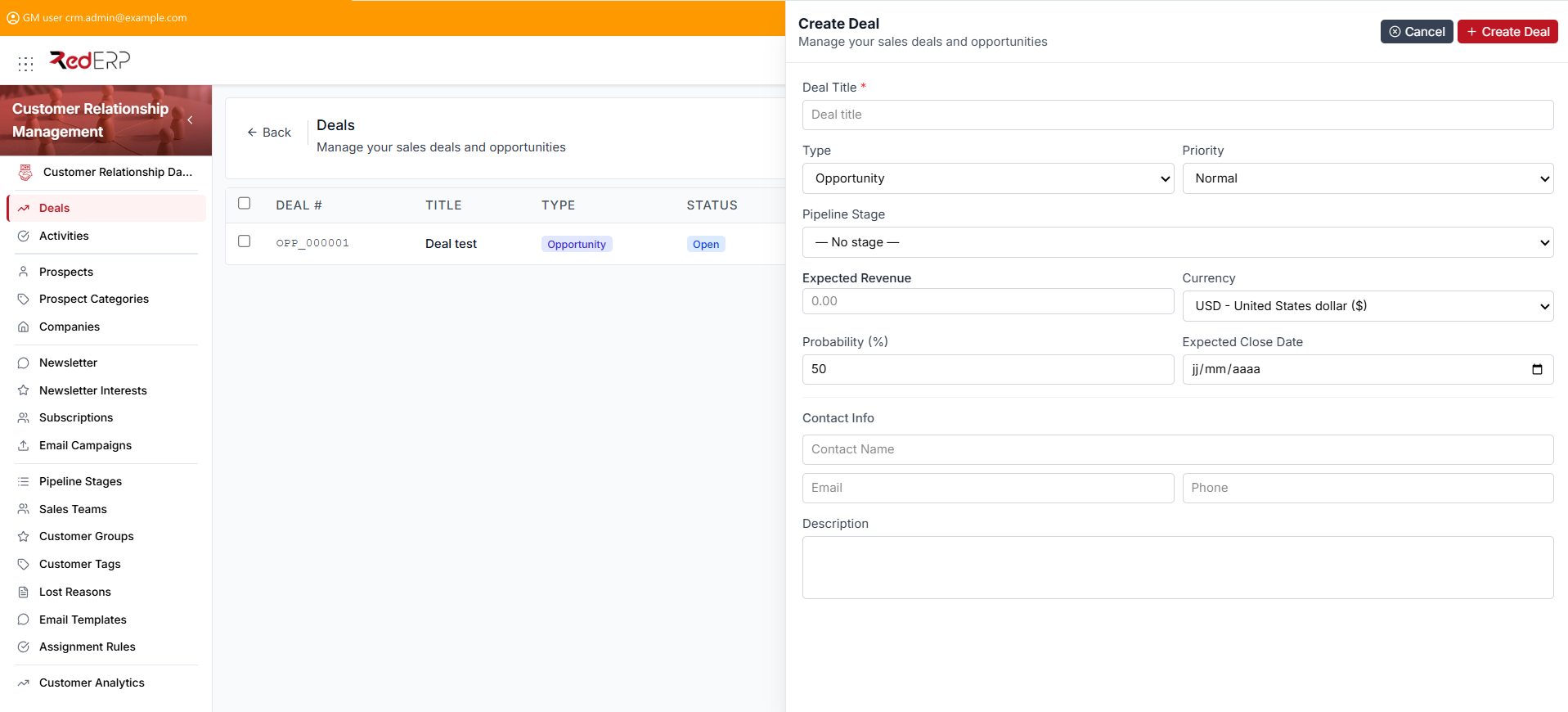
- Open CRM → Deals.
- Select Add Deal. The drawer title is Create Deal.
- Enter the required Deal Title.
- Set Type (Lead or Opportunity), Priority (Normal, Low, High, or Very High), Pipeline Stage, Expected Revenue, Currency, Probability (%), and Expected Close Date.
- Under Contact Info, add Contact Name, Email, and Phone as needed, plus Description.
- Select Create Deal.
Find a deal
- Open CRM → Deals.
- Use Search for title, deal number, contact name, email, or phone.
- Select Filter to narrow by Status, Type, and Pipeline Stage.
- Select Reset to clear filters.
- Select List or Kanban to change the view.
- Select Export CSV when you need a file (
deals-YYYY-MM-DD.csv).
Kanban builds one column per pipeline stage. Each column shows the deal count and total revenue. Cards show title, contact (when set), revenue, and type. Select a card to open the deal.
Bulk actions
- In List view, select one or more rows.
- Choose Move to Stage, Mark Won, or Mark Lost.
- For Move to Stage, pick a stage. For Mark Lost, a lost reason is optional.
- Select Apply.
- Select Clear selection to drop the checkboxes.
Deal statuses
- Open — still in the pipeline
- Won — closed successfully
- Lost — closed unsuccessfully; a lost reason is optional
Types are Lead and Opportunity. Priority labels are Normal, Low, High, and Very High.
Mark Won or Lost
- Open an Open deal with View (or the title link).
- On the General tab, select Won or Lost.
- For Lost, you can choose a Lost Reason and add Additional Notes, then Confirm Lost.
You can also mark several open deals from the list with bulk Mark Won or Mark Lost. List rows do not have their own Won or Lost buttons.
Weighted forecast on the detail page is expected revenue × probability ÷ 100.
Deal detail
- Open CRM → Deals.
- Select View on a row, or select the title. The path is
/modules/crm/deals/[id]. - Use General to review the deal. Select Edit to change fields, including Source (not on the create drawer). Deal Number and Status stay read-only.
- Use Chatter & Notes for the thread of notes and emails.
- Use Attachments for files on the deal.
- Select Send Email to compose a message. You can start from an Email Template. The send is logged to chatter.
- Use Delete Deal in the Danger Zone only when the record must be removed permanently.
Good practice
- Configure Pipeline Stages before you rely on Kanban columns.
- Create lost reasons before you close deals as Lost, even though the reason is optional.
- Invoice a won deal in Sales & Invoicing, not on this page.
- Convert from Prospects when the person already exists, instead of typing a second contact.