Companies
Create CRM companies and link them to prospects — type, contact, city, and industry.
Overview
Use Companies for the organization behind one or more prospects. You can also add a company from a prospect, or a scan can create one when the card includes an organization.
Companies
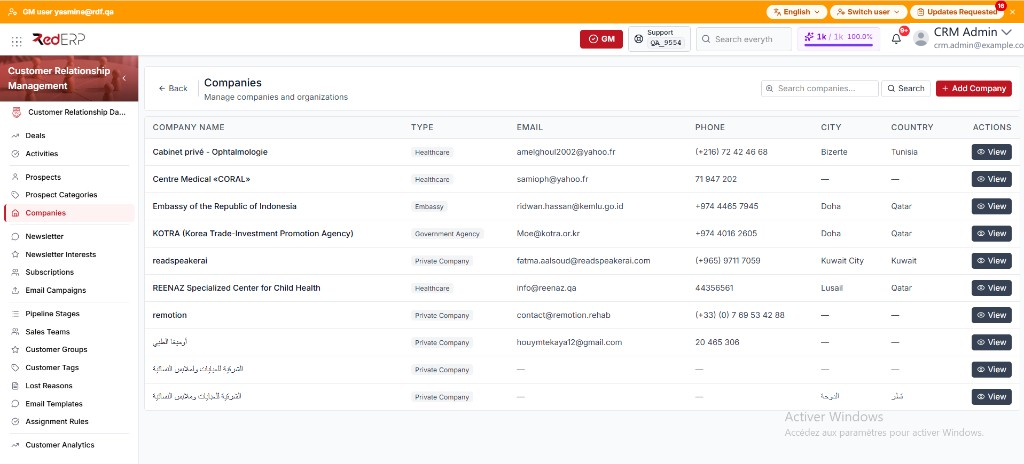
The columns are Company Name, Type, Email, Phone, City, Country, and Actions. Empty cells show an em dash.
The row action is View. You can also select the company name. If nothing matches, the list shows No companies found.
Create a company
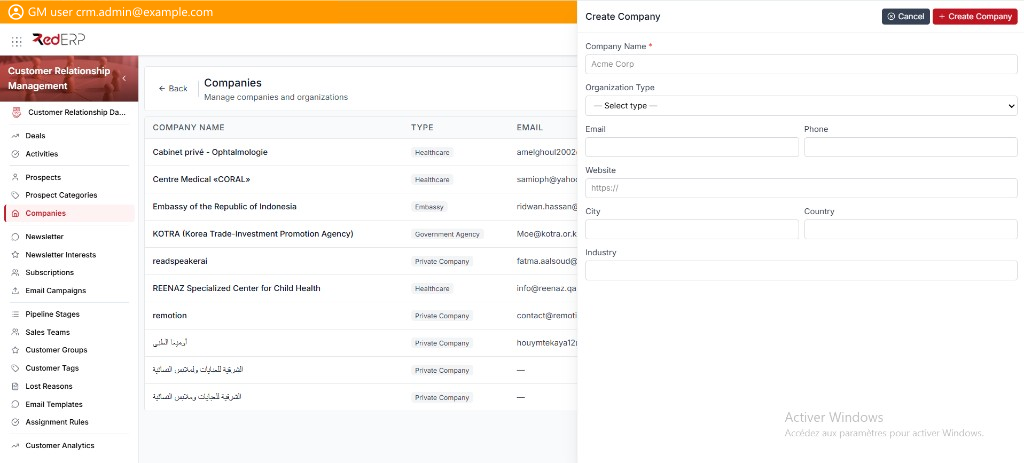
- Open CRM → Companies.
- Select Add Company. The drawer title is Create Company.
- Enter the required Company Name.
- Set Organization Type, Email, Phone, Website, City, Country, and Industry as needed.
- Select Create Company.
Organization Type values include Embassy, Consulate, International Organization, Government Agency, NGO, Private Company, Public Company, Startup, Freelancer, Educational Institution, Healthcare, Media, Religious Organization, Trade Association, Chamber of Commerce, and Other.
Find a company
- Open CRM → Companies.
- Use the search box (Search companies...) for name, email, or website.
- Select Search, or press Enter.
View, edit, or delete a company
- Open CRM → Companies.
- Select View. The drawer title is Company Details.
- Review Name, Type, Email, Phone, Website, Location (city and country), and Industry.
- Select Edit. The drawer title is Edit Company. Change the fields, then select Save Changes.
- Use Delete Company in the Danger Zone only when the company must be removed. Confirm in the Delete Company dialog.
A scanned business card can create the company when the card includes an organization. See Prospects.
Good practice
- Search before you create a second company with the same name.
- Link the company on the prospect so deals and activities stay with the organization.