Prospect Categories
Create CRM prospect categories with scoring weight, expected conversion rate, and average deal size.
Overview
Use Prospect Categories to classify leads for scoring and reporting. Each category stores a Lead Scoring Weight, an Expected Conversion Rate (%), and an Average Deal Size.
Prospect Categories
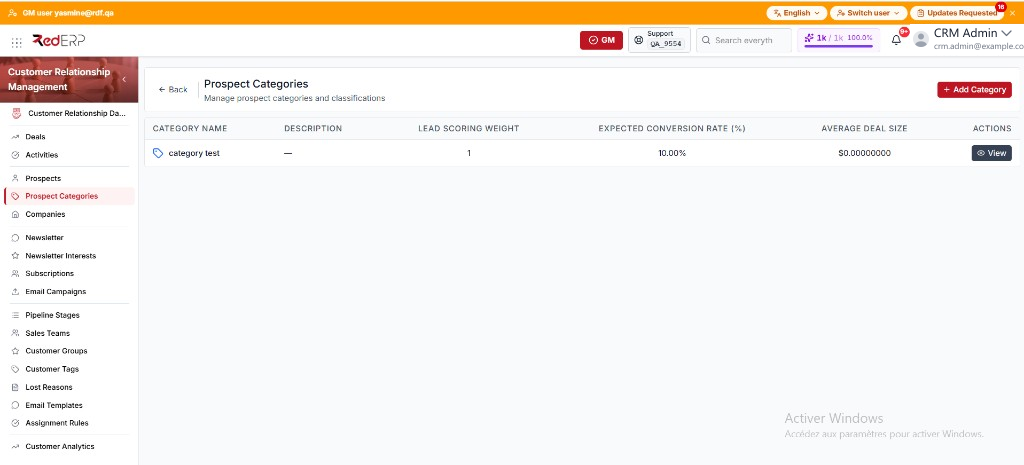
The columns are Category Name, Description, Lead Scoring Weight, Expected Conversion Rate (%), Average Deal Size, and Actions. Conversion rate shows as a percent. Average deal size shows as currency, or an em dash when it is empty.
The row action is View. You can also select the category name. If the list is empty, select Create your first category.
Create a category
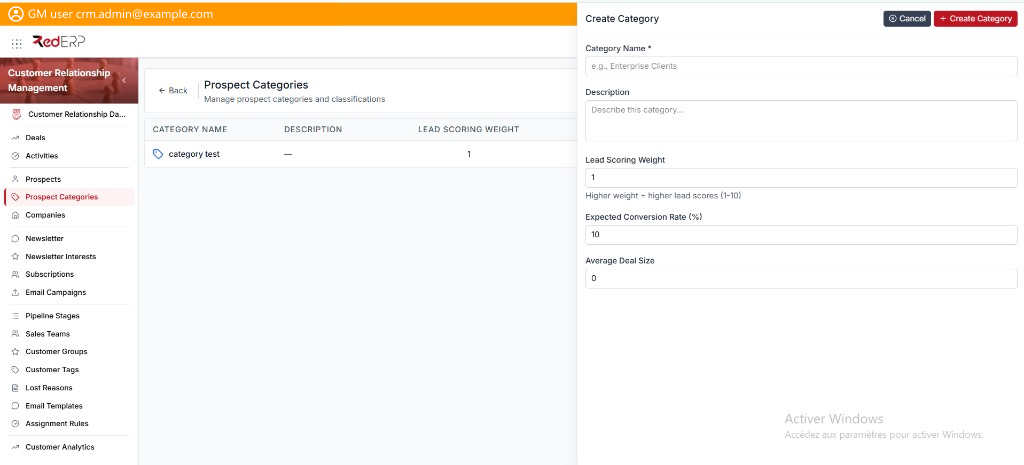
- Open CRM → Prospect Categories.
- Select Add Category. The drawer title is Create Category.
- Enter the required Category Name. Names must be unique.
- Add a Description if needed.
- Set Lead Scoring Weight (1–10). The hint is Higher weight = higher lead scores (1-10). The default is 1.
- Set Expected Conversion Rate (%) (0–100). The default is 10.
- Set Average Deal Size (0 or more). The default is 0.
- Select Create Category.
View, edit, or delete a category
- Open CRM → Prospect Categories.
- Select View. The drawer title is Category Details.
- Review Category Name, Description, Lead Scoring Weight, Expected Conversion Rate, Average Deal Size, and Status when a status is set.
- Select Edit. The drawer title is Edit Category. Change the fields, then select Save Changes.
- Use Delete Category in the Danger Zone only when the category must be removed. Confirm in the Delete Category dialog.
Good practice
- Keep a short, stable list of categories so scores stay comparable.
- Change the weight here before you recalculate a prospect Lead Score on Prospects.