Coffee Shop — full steps
Open a coffee shop on RedERP in five minutes: sign-up, café setup (counter, menu or tables with QR), starter menu, register PIN, first sale, QR sheet, day-end and plan — with a screenshot for every step.
This guide follows Coffee Shop Bora Bora (Doha, QAR) from an empty browser to the first paid ticket. The same flow was run on localhost for the three serve modes; timings are wall-clock from the run and taps are what the owner physically does.
| Mode | Taps to first sale | Time to first sale |
|---|---|---|
| A · Counter / takeaway | 21 | under 4 min |
| B · Menu with sizes & options | 21 | under 4 min |
| C · Tables with QR ordering | 22 | under 5 min |
Budget: ≤ 25 taps and ≤ 5 minutes, zero settings screens, zero e-mails required to proceed. An automated gate (npm run gate:golden-path in the backend) re-runs this path and blocks a release when it regresses.
Before you start
- Your shop name, the country you trade in, and your menu prices.
- A 4-digit number you will remember: your register PIN.
- Mode C only: how many tables you have.
Step 1 — Sign up (≈ 45 s)
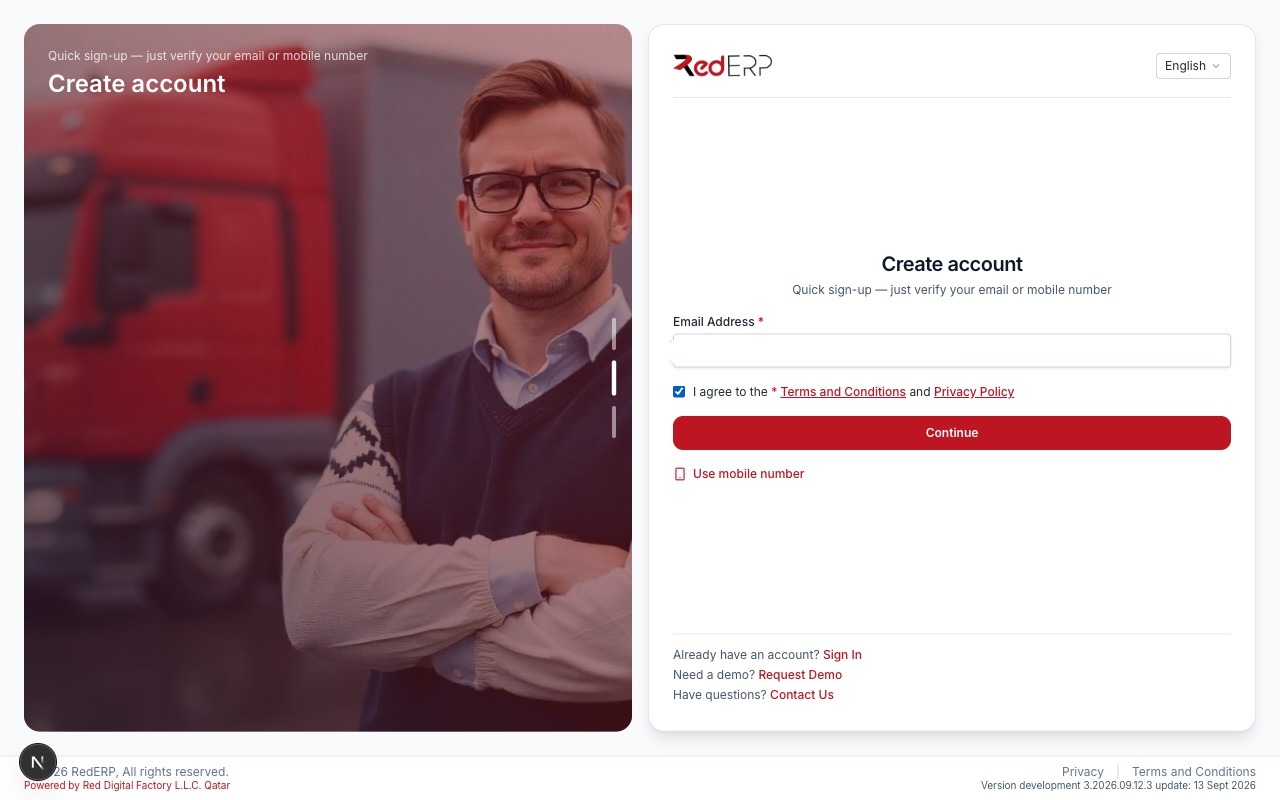
Open /signup, type your e-mail (or switch to Use mobile number), tick the terms and press Continue.
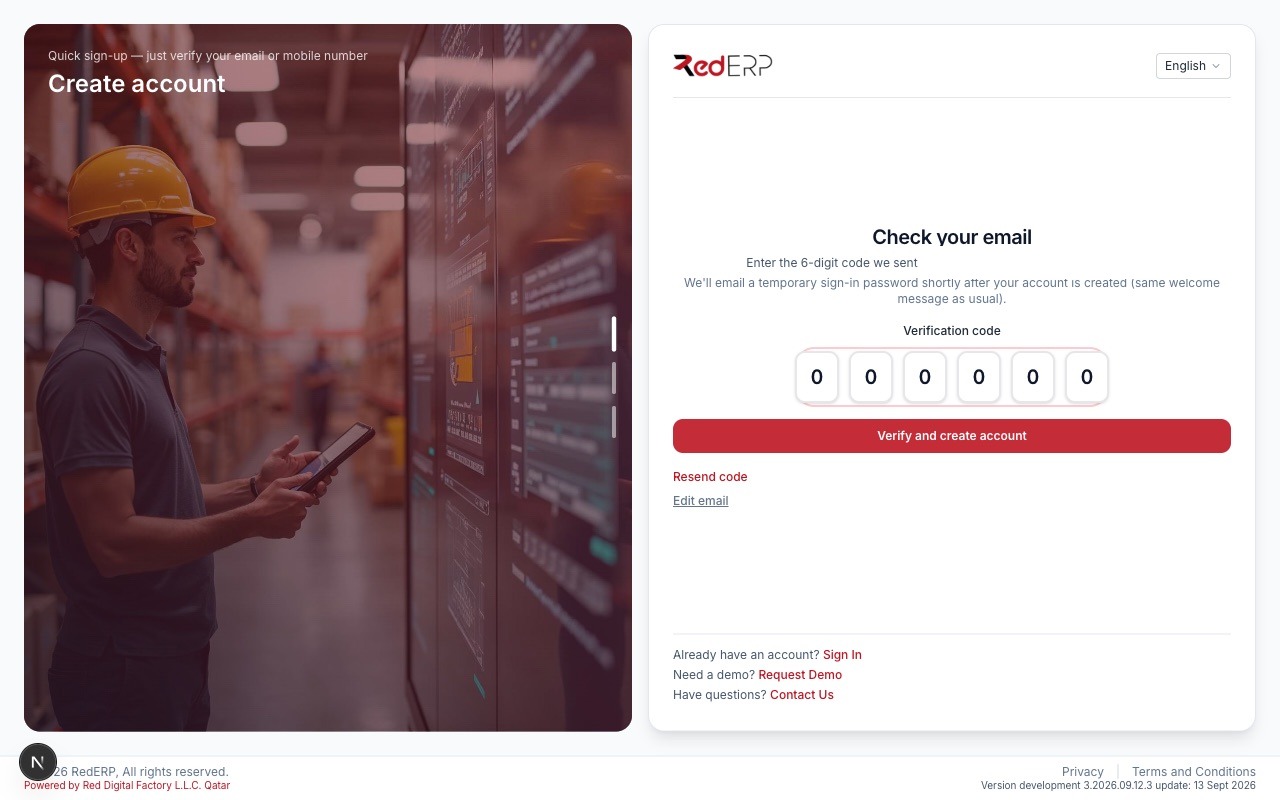
Type the 6-digit code you received and press Verify and create account. You are signed in automatically — no password to invent, nothing to copy from an e-mail.
Note:
The account is created with your e-mail as the sign-in identity. A temporary password exists behind the scenes, but you will never need it: the register opens with your PIN and the web app signs you in with a code. If you want a password (for example for the mobile app), set it once in Settings → Reset password — no current password is asked.
Step 2 — Set up your business (≈ 1 min)
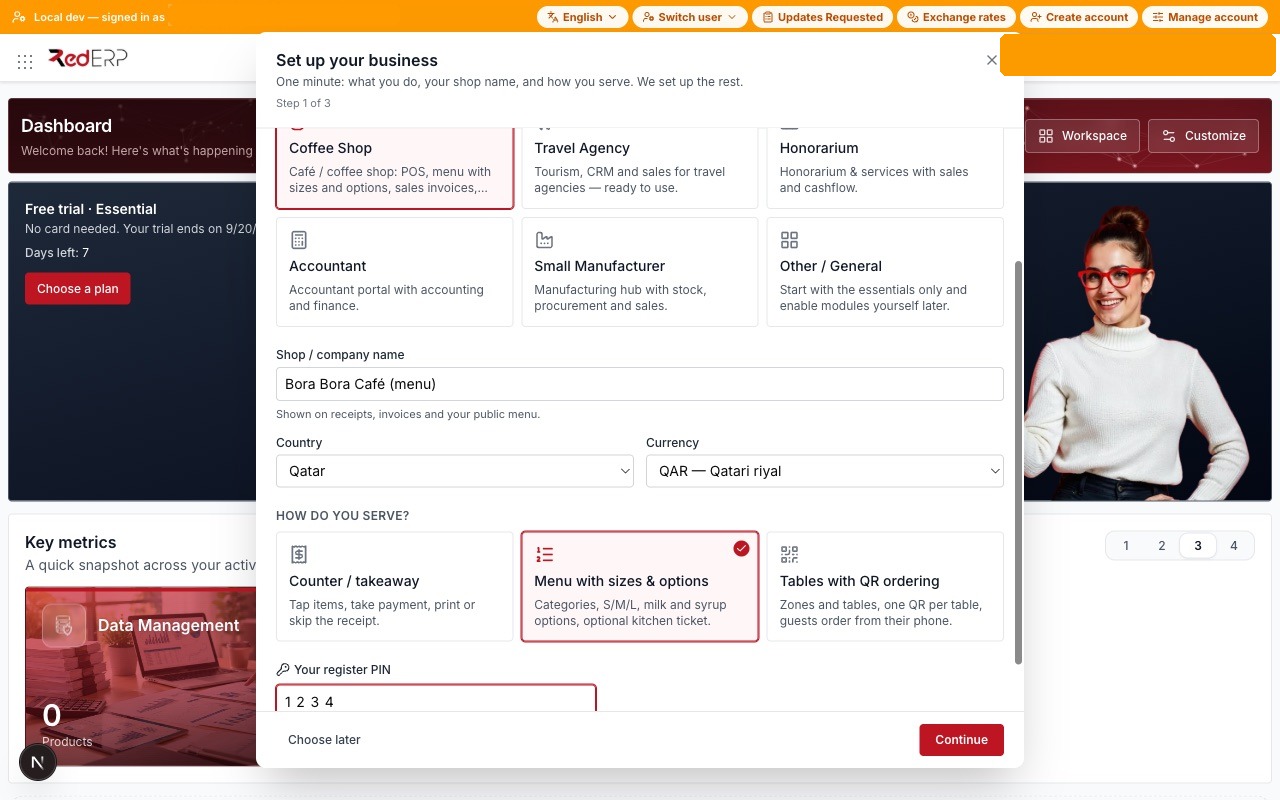
The Set up your business step opens on the dashboard. One screen, five answers:
- What type of business do you run? — pick Coffee Shop.
- Shop / company name — printed on receipts, invoices and your public menu (it also renames the headquarters branch).
- Country — the currency follows (Qatar → QAR), and so do the VAT rates (0 % in Qatar, 15 % in KSA, 5 % in the UAE, 19/13/7 % in Tunisia) and the timezone (Asia/Qatar).
- How do you serve? — Counter, Menu with sizes & options or Tables with QR ordering (then How many tables?).
- Your register PIN — 4 digits, opens the register without a password.
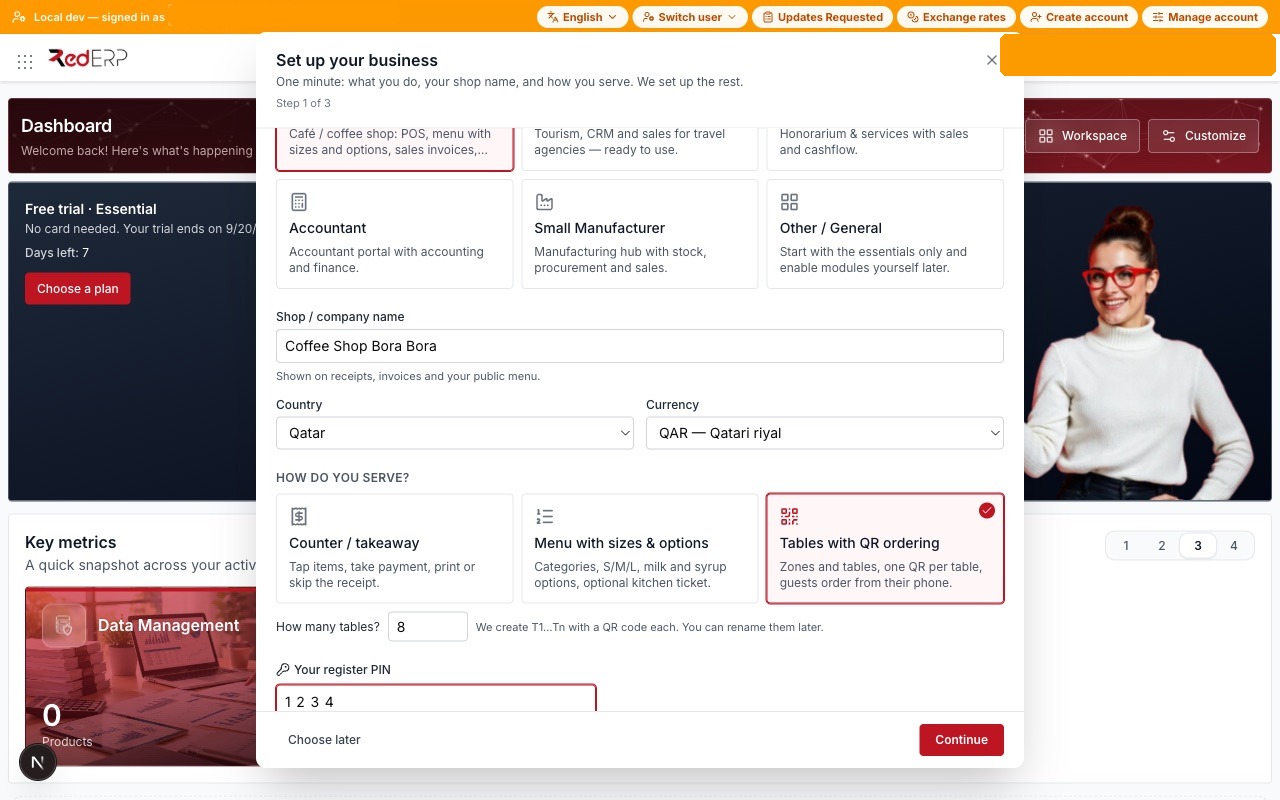
Press Continue. In the background RedERP enables the right modules (POS, Sales, Inventory, Cashflow — plus Restaurant for modes B and C), sets your currency and VAT, creates the outlet, the Main zone and the tables with their QR codes (mode C), links the register to the outlet, stores your PIN and builds your dashboard.
The same step for the other two modes:
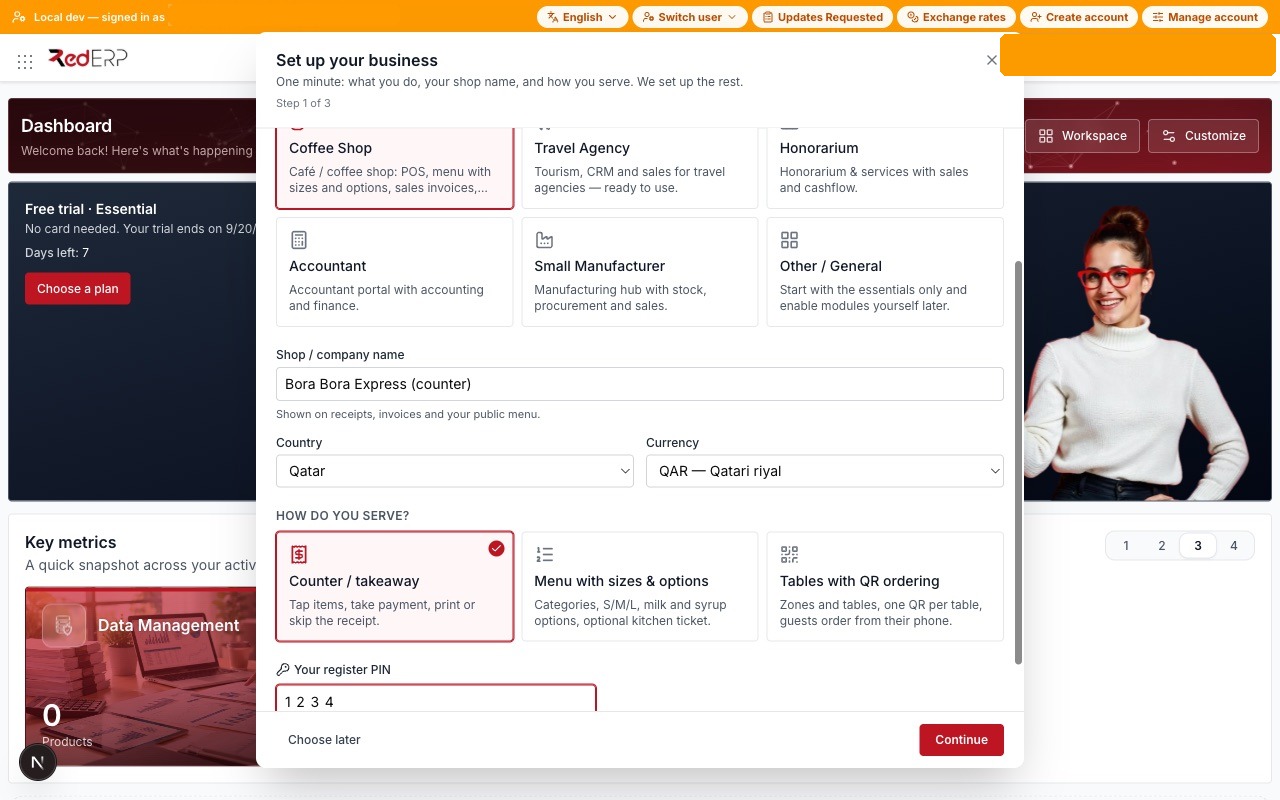
Step 3 — Your menu (≈ 1.5 min)
A starter list appears — espresso, americano, cappuccino, latte, flat white, iced latte, tea, hot chocolate, fresh juice, water, croissant, muffin, cheesecake — priced in your currency. Untick what you do not sell, edit names and prices, add a row, then press Save menu once.
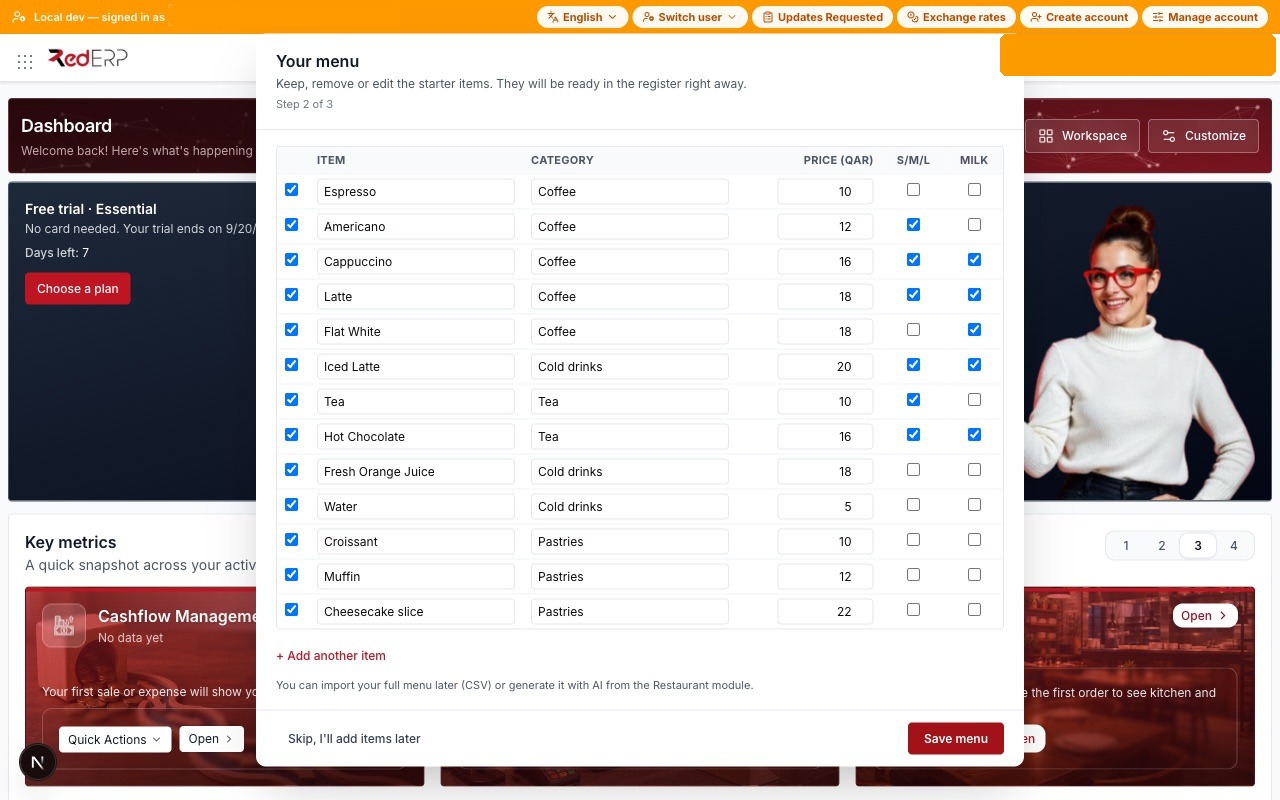
- Mode A creates POS-enabled products in categories (Coffee, Tea, Cold drinks, Pastries).
- Modes B and C also create the menu categories and menu items linked to those products, Small / Medium / Large sizes where ticked, and a Milk option group (whole, skimmed, oat +, almond +) attached to the drinks you ticked.
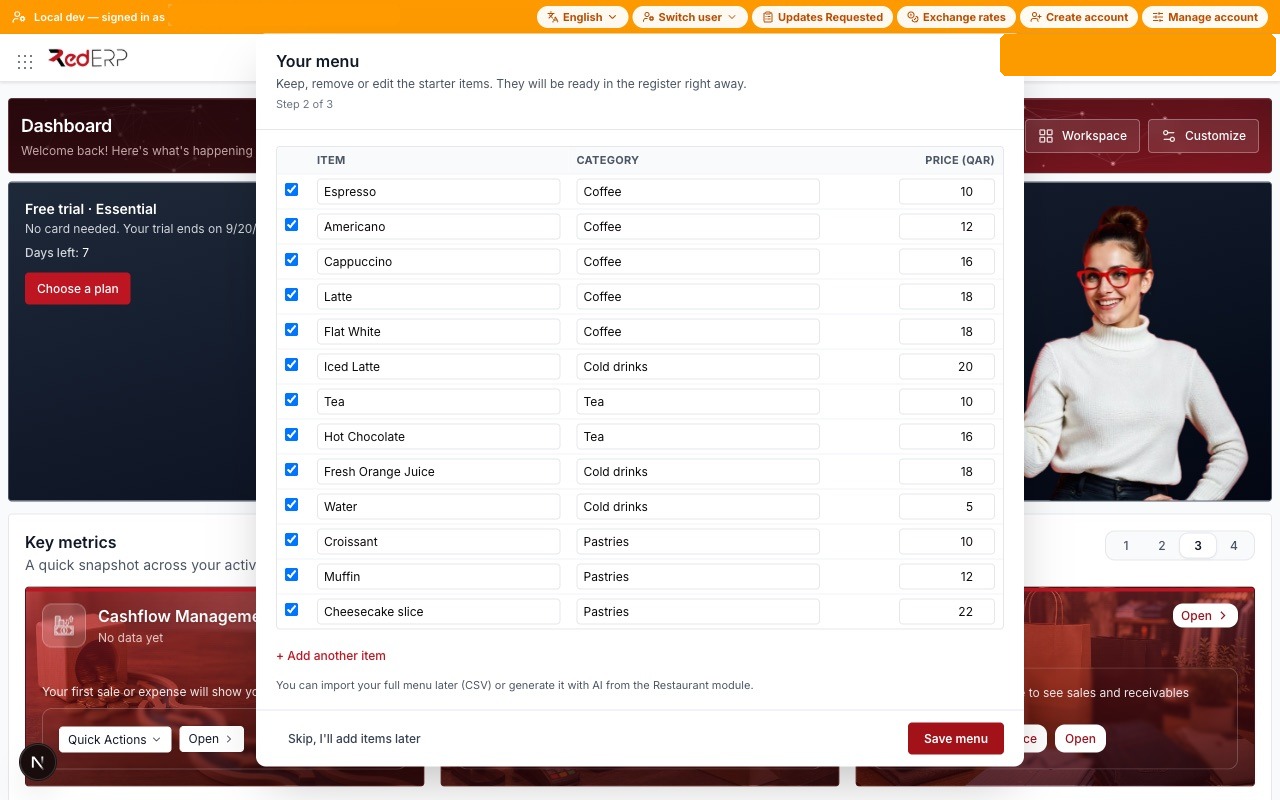
You can skip this step and add items later from POS → Products (a Quick add bar creates an item from a name and a price), import a CSV, or generate a menu with AI from the Restaurant module.
Step 4 — You're live (≈ 30 s)
The summary tells you what was created and offers the next actions: Open the register, Print the QR codes for your tables (mode C), Preview your public menu (modes B/C) and Invite a barista.
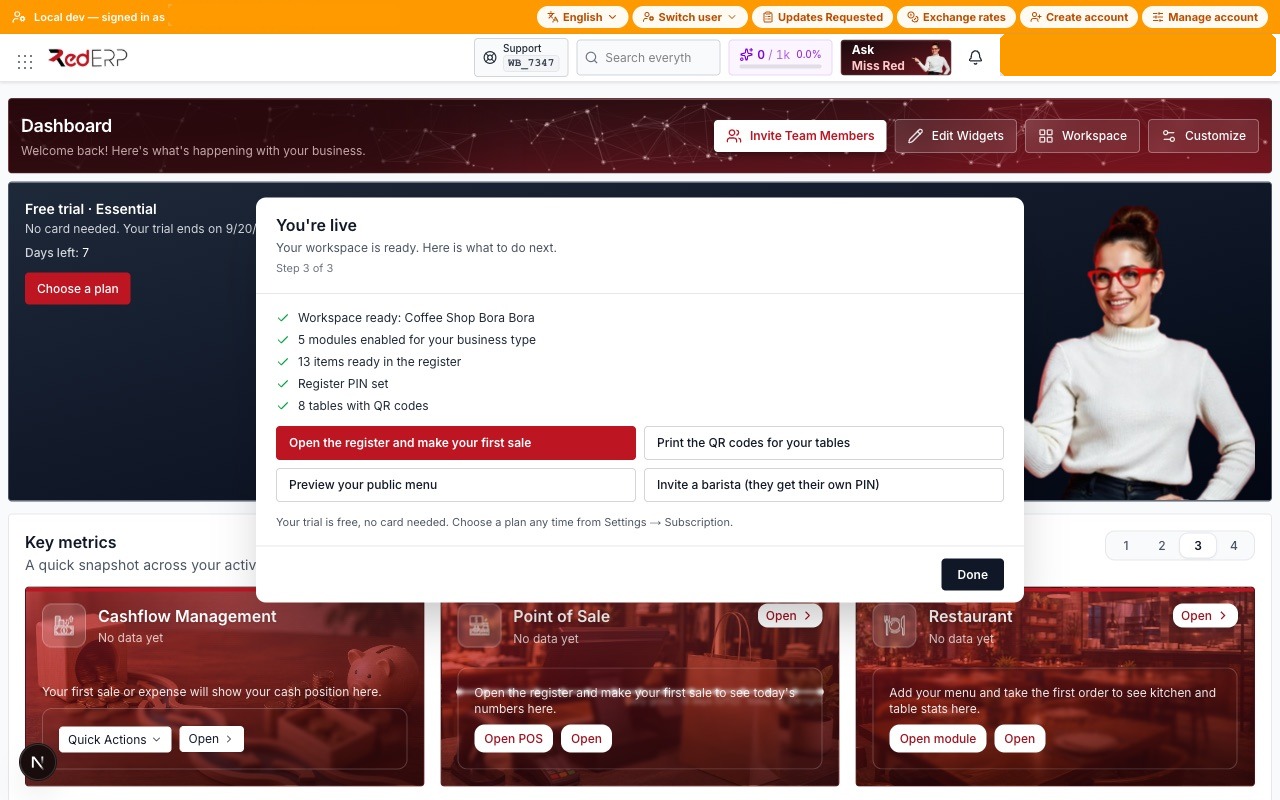
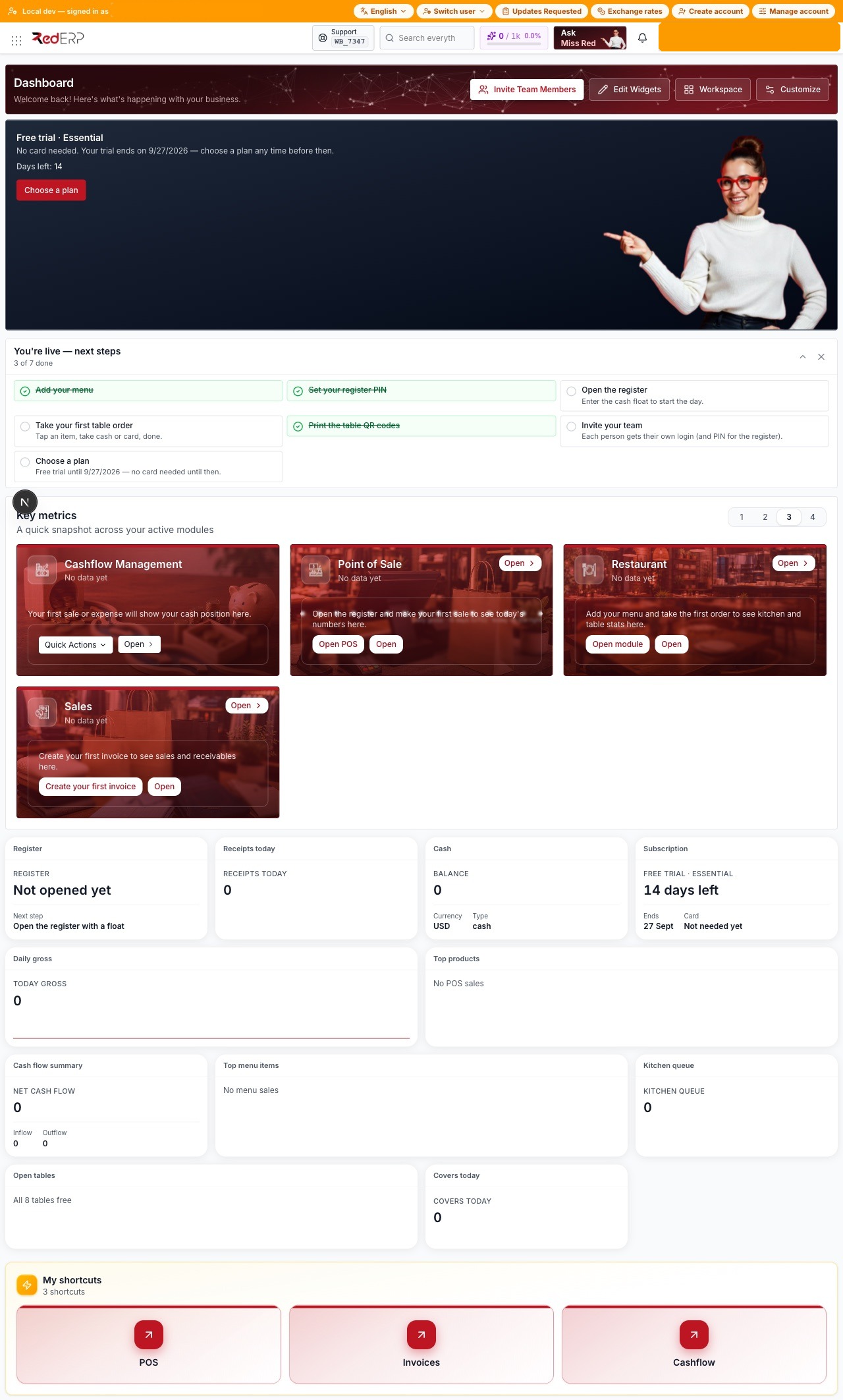
Press Done to see your dashboard. It is already laid out for a café: the You're live — next steps checklist, key metrics for POS, Restaurant, Cashflow and Sales (each empty state tells you the first action), and widgets for the register status, receipts today, cash, subscription, daily gross, top products, open tables and covers.
Step 5 — Open the register (≈ 20 s)
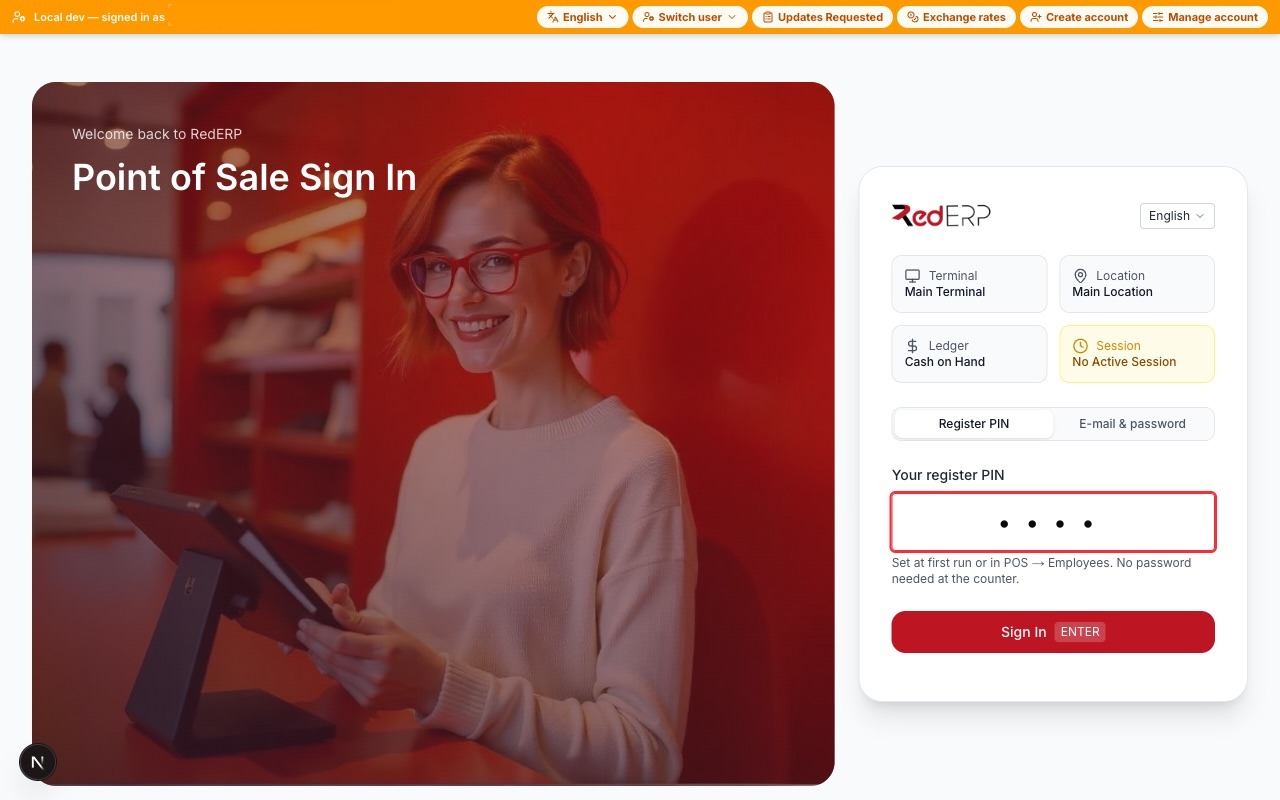
From the dashboard press Open POS (or the POS shortcut). The terminal sign-in defaults to Register PIN: type your 4 digits and press Enter.
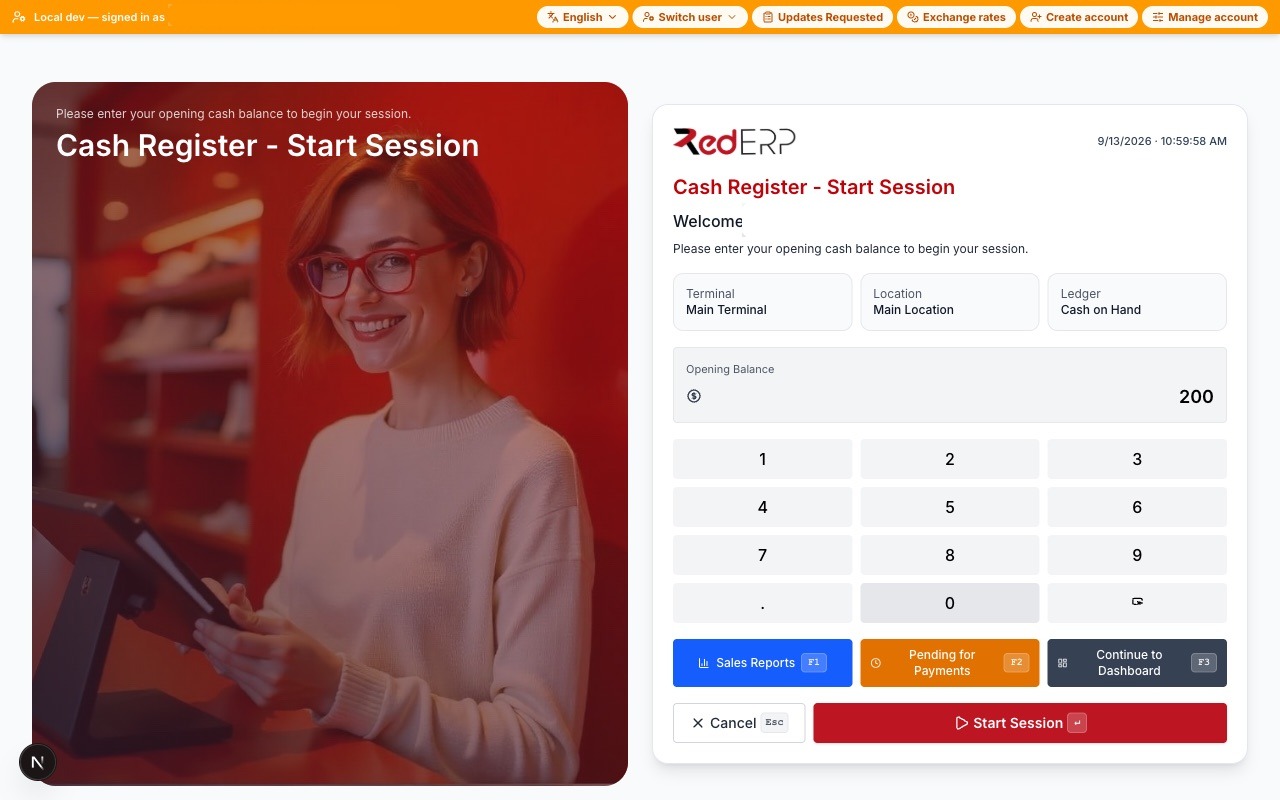
Type the cash float on the numpad (for example 200) and press Start Session. You land directly on a new sale — no hub in between.
Step 6 — First sale (≈ 1 min)
Tap items on the grid. Items with sizes open a Small / Medium / Large chooser; items with options open the option sheet. The order builds on the right.
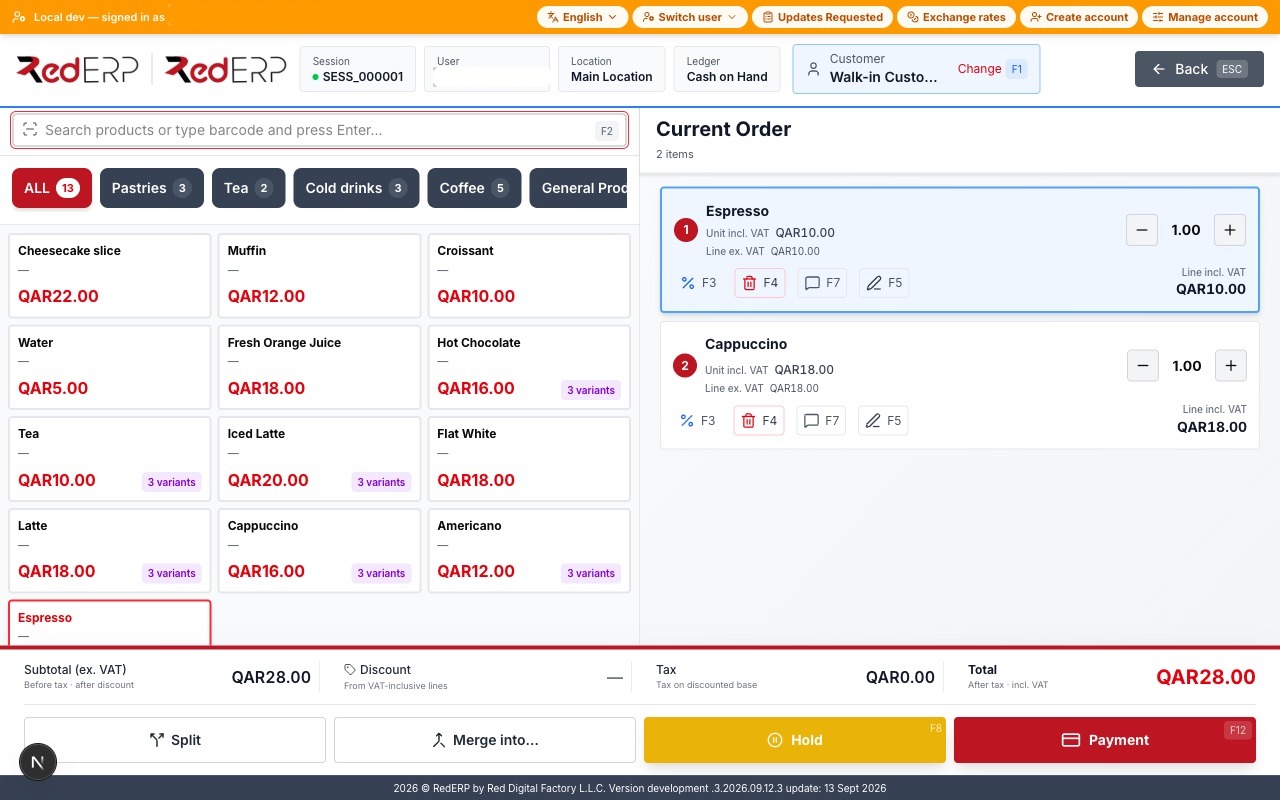
Press Payment, tap Cash, tap a quick amount (QAR 50). No receipt number is asked for cash or card; the change (QAR 22) is shown immediately.
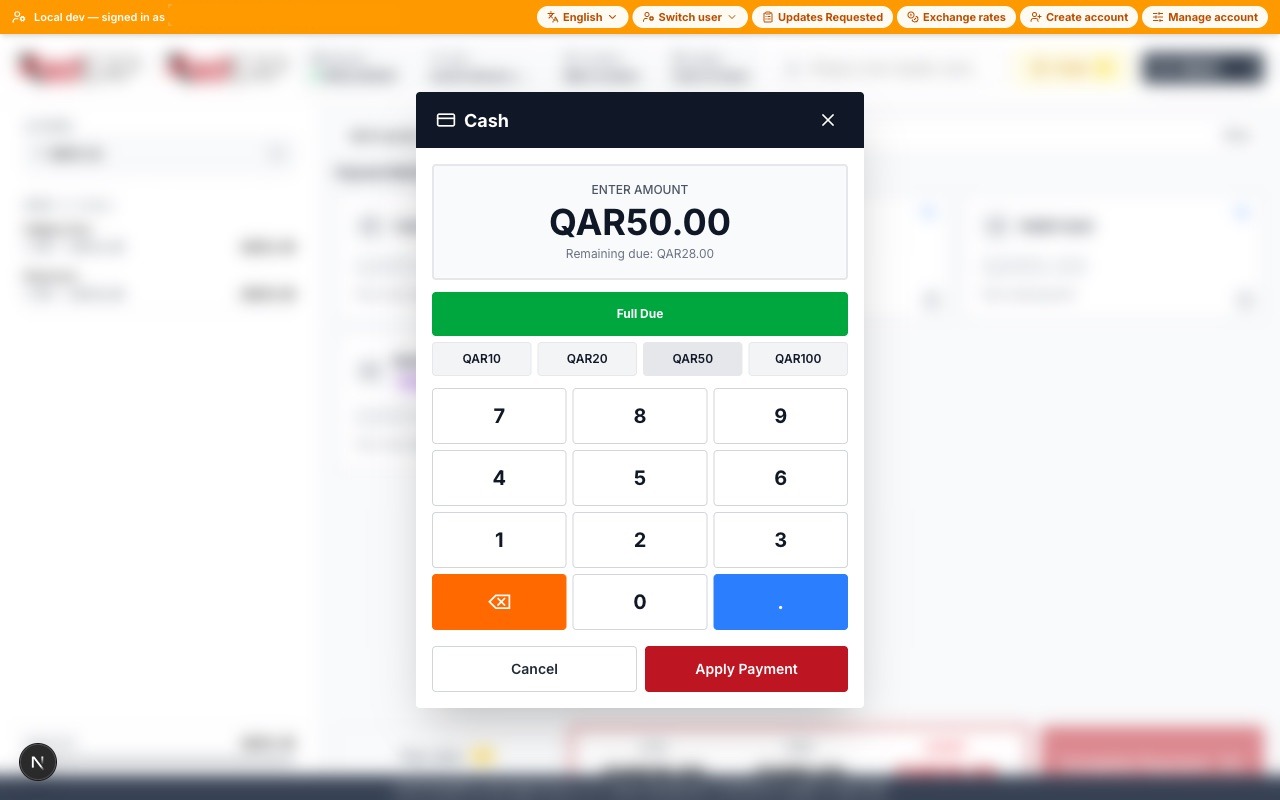
Press Complete Payment. The receipt prints (or is skipped) and the register opens a fresh sale for the next customer.
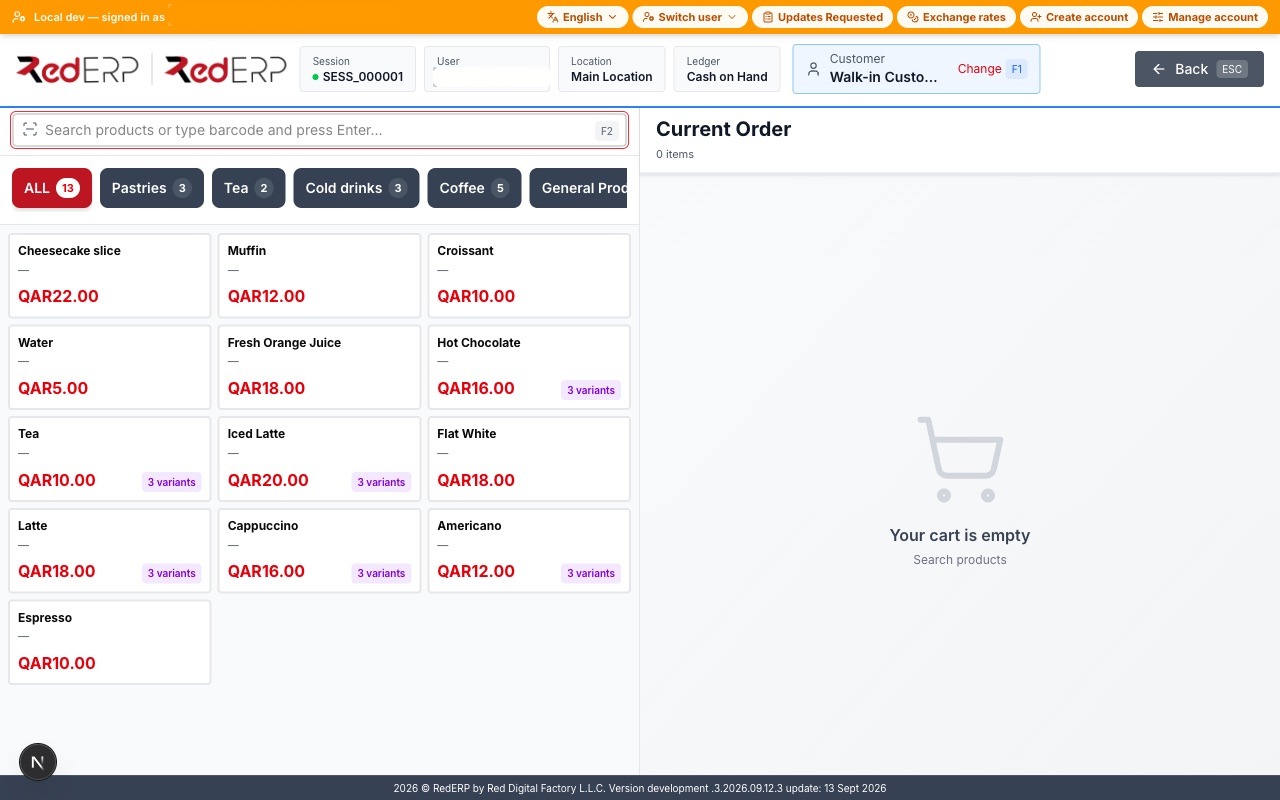
Step 7 — Tables and QR ordering (mode C, ≈ 2 min)
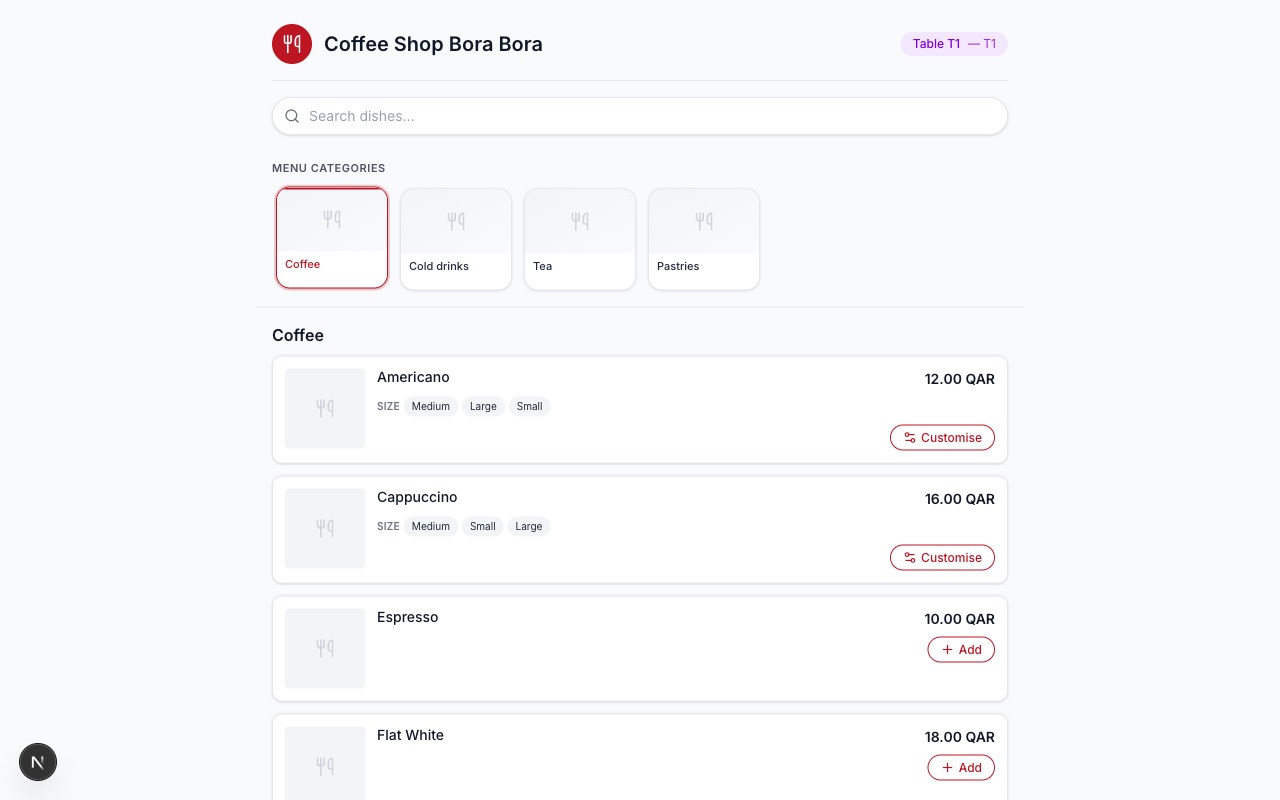
Restaurant → Tables lists T1…T8 in the zone Main, each with its own QR code. Press Print QR for all tables for one A4 sheet (12 cards per page) and run the 20-second self-test: scan a card with your phone, the menu for that table opens, place a test order.
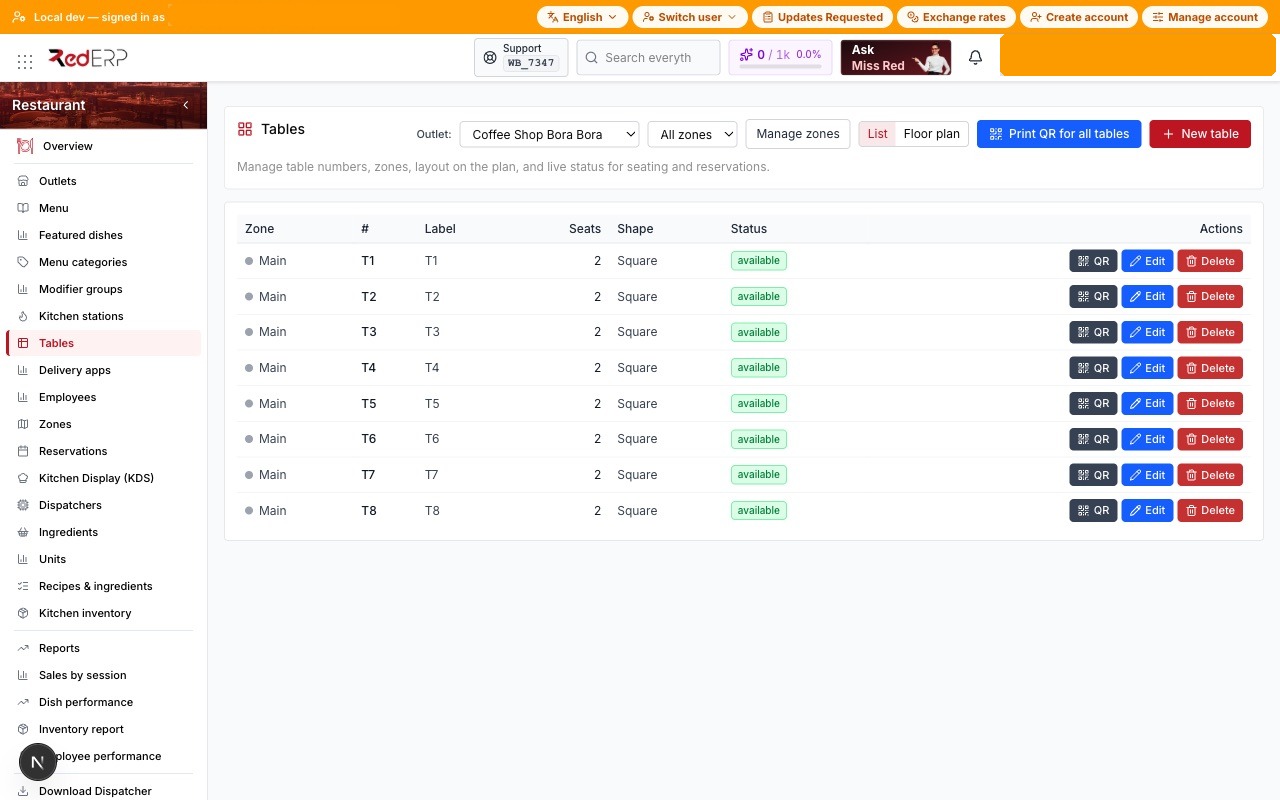
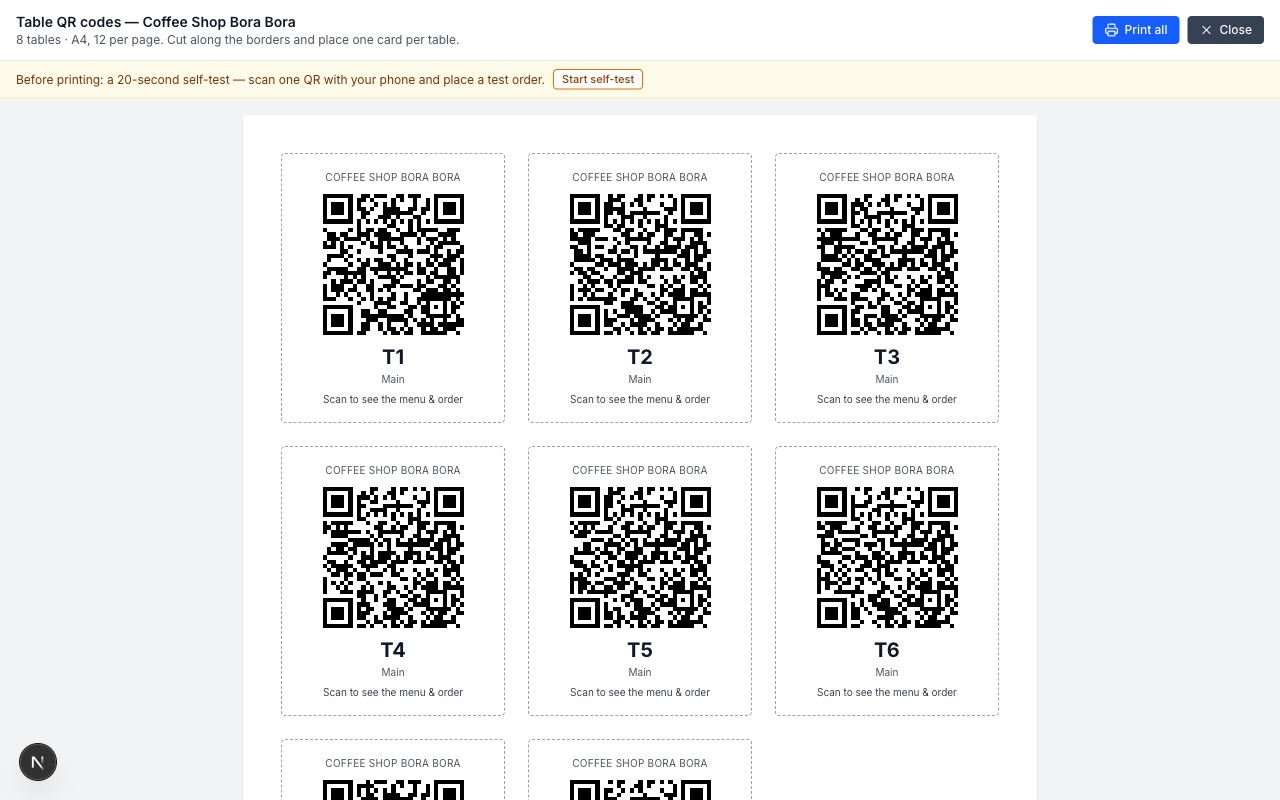
What your guests see after scanning:
Step 8 — A B2B invoice in one screen (optional)
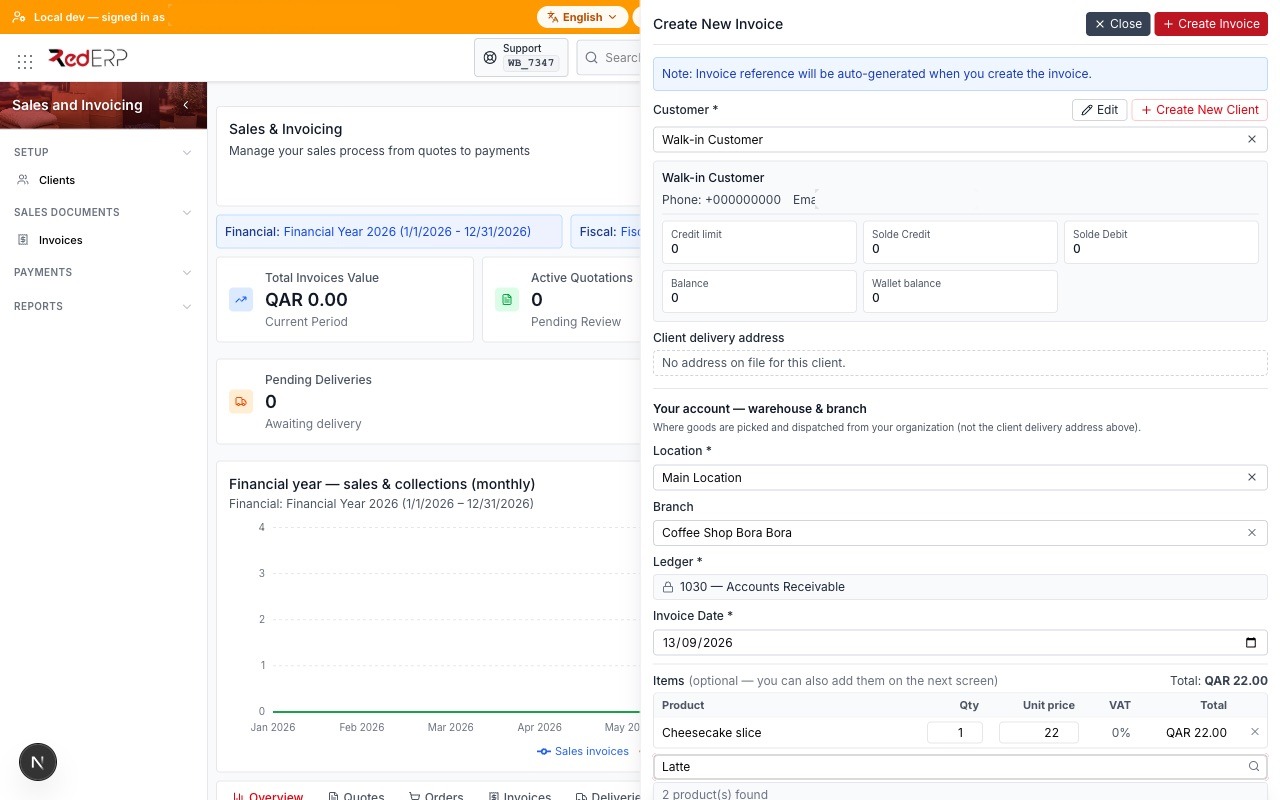
Office orders and catering are invoiced from Sales → New invoice. The client defaults to Walk-in Customer, the branch and warehouse are prefilled, and the lines are typed on the same screen — one Create Invoice press saves header and lines.
Step 9 — Choose a plan (when you are ready)
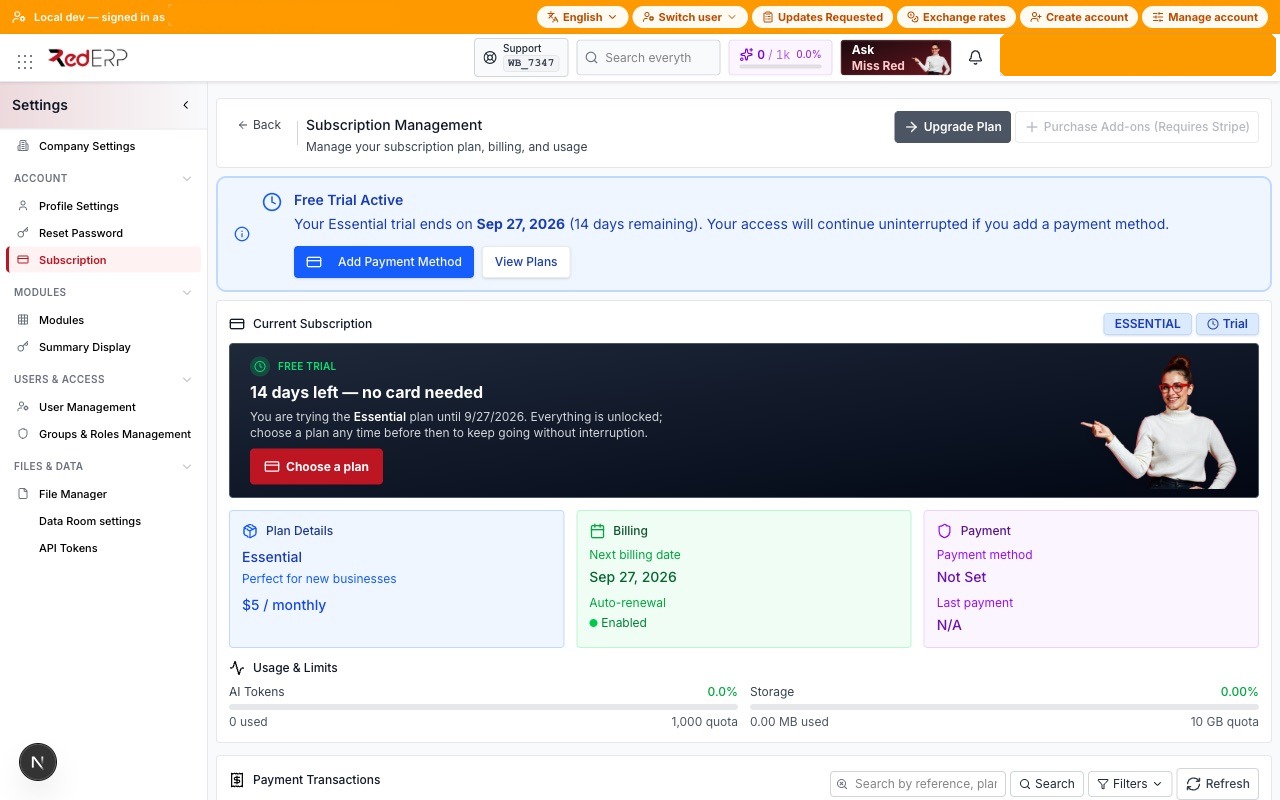
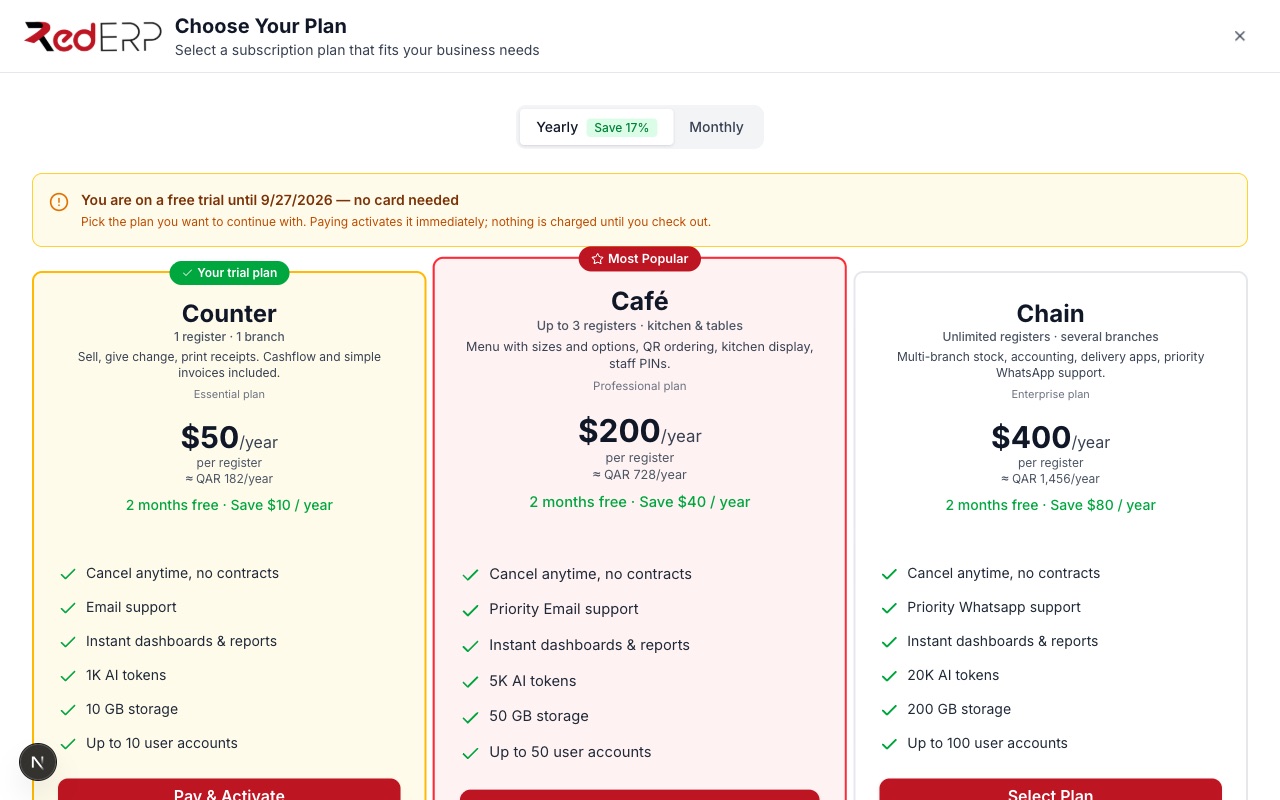
Settings → Subscription shows the trial plainly: 14 days left — no card needed. Plans are presented for cafés as Counter / Café / Chain, priced per register, with the local-currency equivalent next to the USD price. Checkout runs on Stripe; if a card fails you see the reason on the same screen.
Day-end
Press Close register (Z report) in the register hub. RedERP reconciles sales, payments by method, expected cash and discrepancies, e-mails the Z report to the closer and to the account owner, and offers Send summary on WhatsApp for the owner's phone.
What happens next
- Week 1 — invite baristas (Settings → Users): each gets a login and a register PIN. Switch on Inventory for beans, milk and packaging; Cashflow for expenses.
- Mode switch — Settings → Company → How you serve: go from counter to menu to tables at any time; products and menu items are kept, tables and QR codes are added.
- Public menu QR (modes B/C) — print the outlet QR for the counter so guests browse the menu; ordering happens only from table QRs.
- Plan — choose before the trial ends; nothing is charged until you check out.
Troubleshooting
| Symptom | Fix |
|---|---|
| "Invalid PIN for this terminal" | The PIN is per user and per terminal assignment. Set or reset it in POS → Employees; the owner's PIN comes from the setup step. |
Prices show ر.ق instead of QAR | The UI language is Arabic. In English/French the ISO code is shown. |
| A table QR opens "Menu not found" | The outlet slug changed after a rename. Print the sheet again from Restaurant → Tables. |
| "Cash requires a receipt number" | Only Bank transfer asks for a reference. Check Data → Payment methods → requires receipt if you customised tenders. |
| Checkout says the plan is not available | The Stripe prices are not configured for this environment; the message is shown in the plan picker instead of failing silently. |