Restaurant — full steps
Open a restaurant on RedERP in five minutes: sign-up, restaurant setup with tables and QR ordering, starter menu, kitchen, register PIN, first table order, QR sheet, staff PINs, day-end and plan.
This guide follows Bora Bora Grill (Doha, QAR, 12 tables) from sign-up to the first table order. The restaurant template is the café flow with tables and kitchen turned on from the start.
Before you start
- Restaurant name, country, menu prices.
- Number of tables (you can add zones and rename tables later).
- A 4-digit register PIN for you; each waiter gets their own when invited.
Step 1 — Sign up (≈ 45 s)
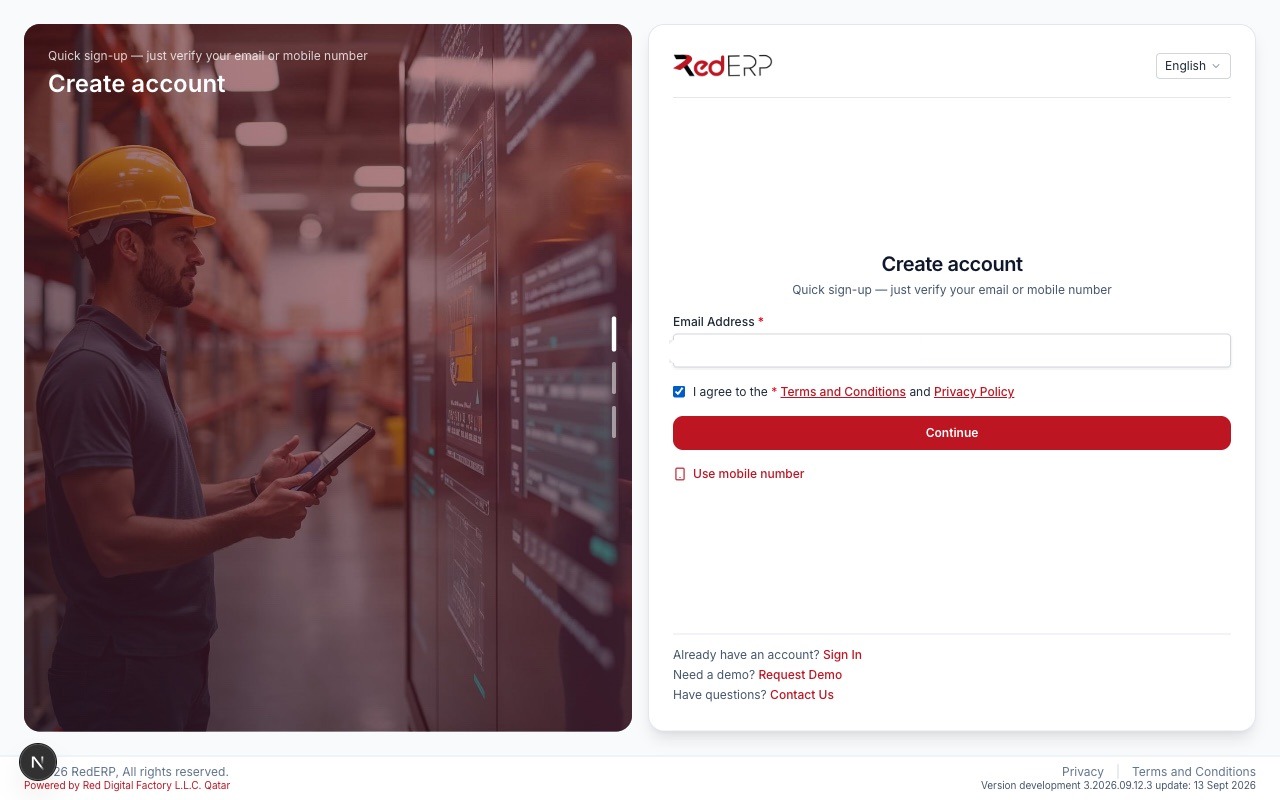
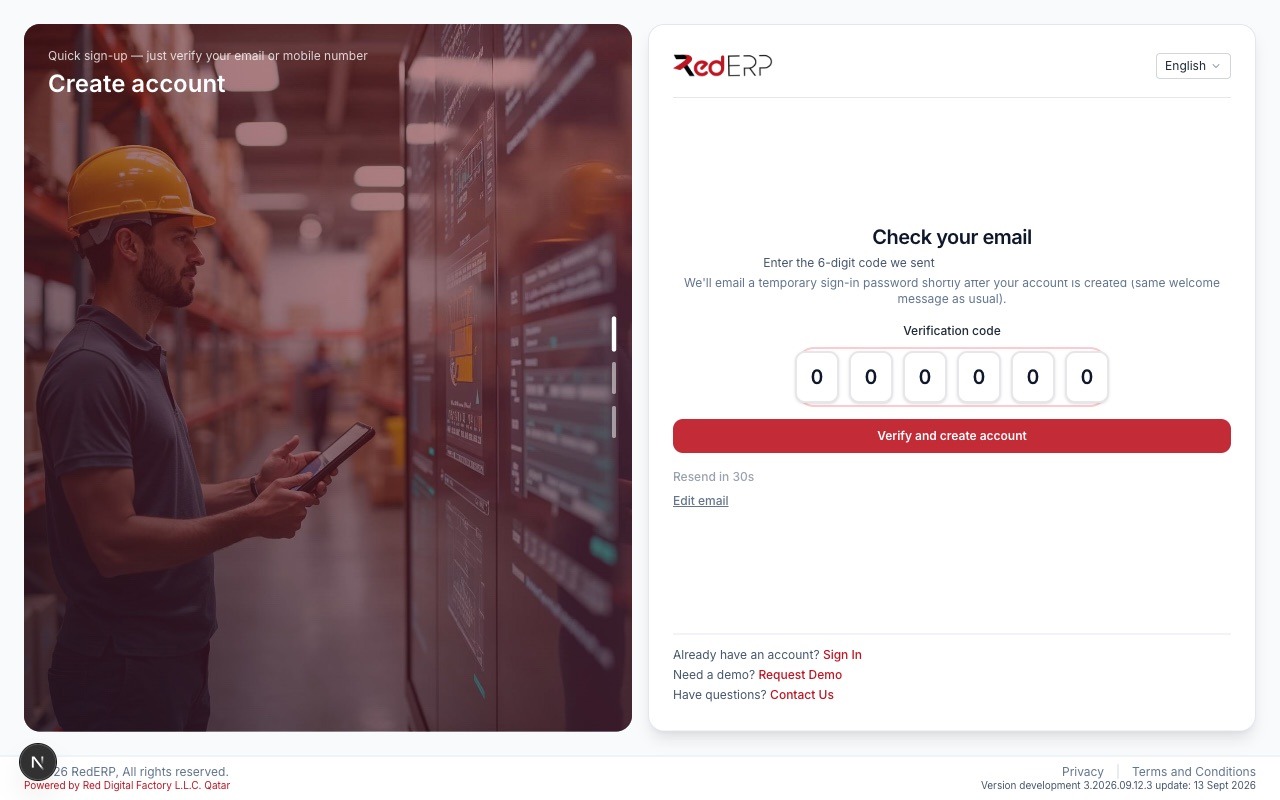
/signup?type=restaurant&serve=tables preselects the template and the table service. E-mail, terms, Continue, 6-digit code, Verify and create account.
Step 2 — Set up your business (≈ 1 min)
Pick Restaurant, type the name, choose the country (currency and VAT follow), keep Tables with QR ordering, enter How many tables (12) and your register PIN. Press Continue.
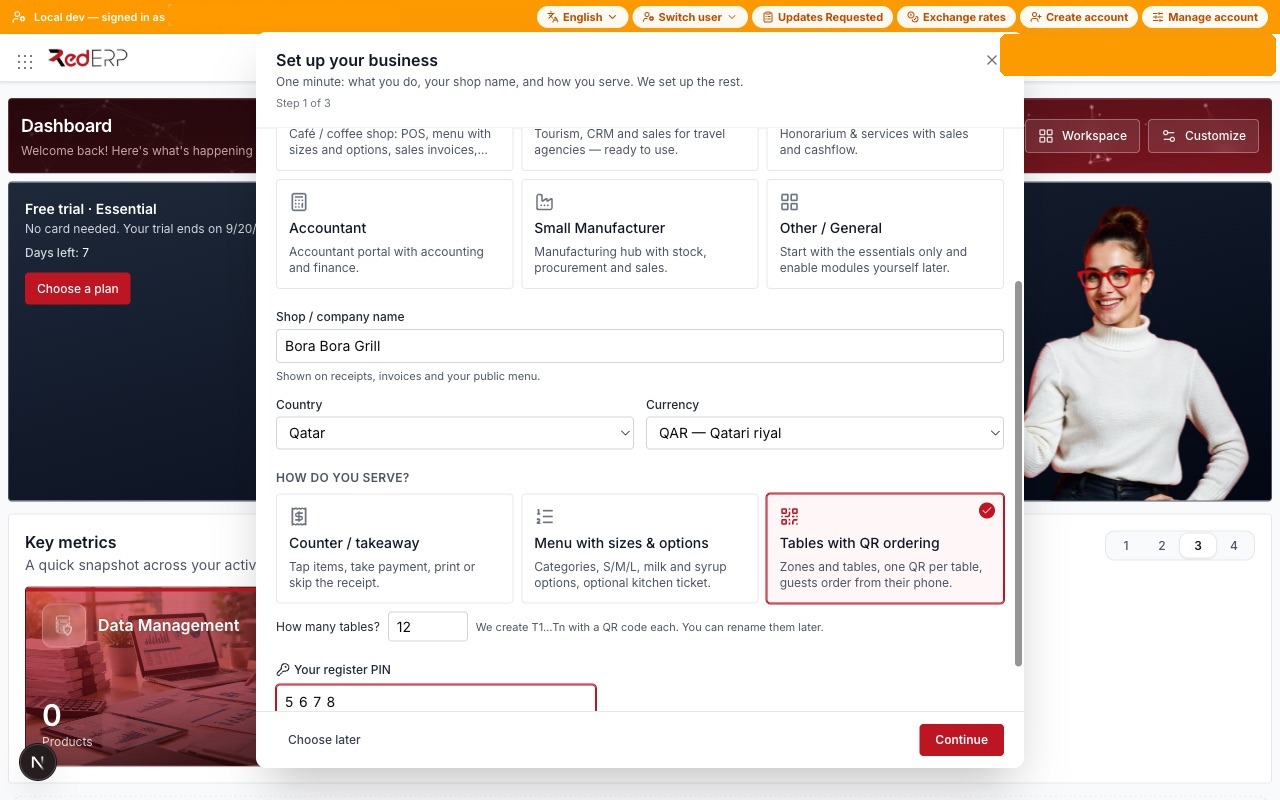
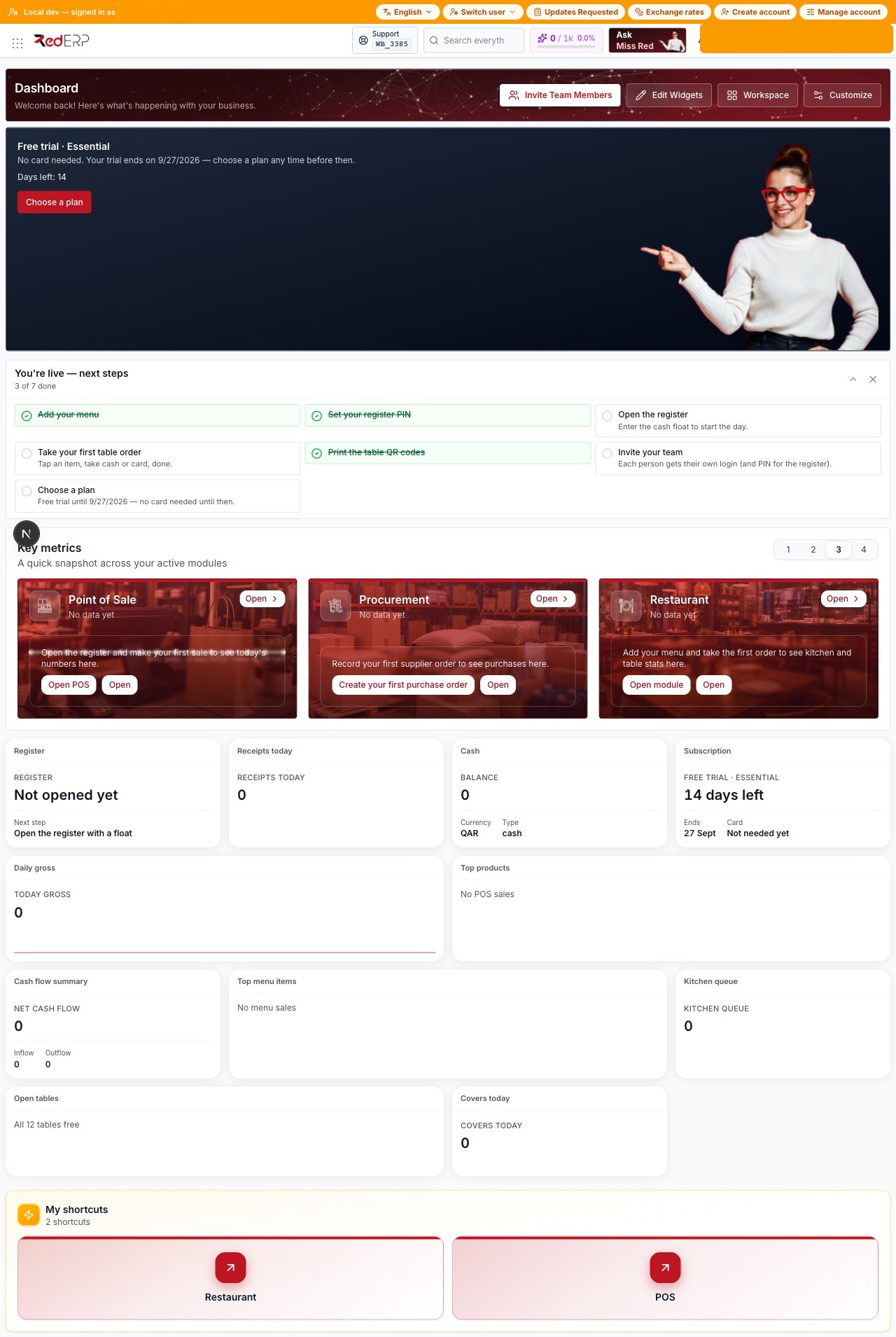
RedERP enables Restaurant, POS, Inventory and Procurement, creates the outlet with a public menu link, the zone Main with tables T1…T12 (each with a QR token), puts the register in restaurant mode linked to the outlet, stores the PIN and provisions the dashboard (register status, receipts, cash, kitchen queue, open tables, covers, top menu items).
Step 3 — Your menu (≈ 1.5 min)
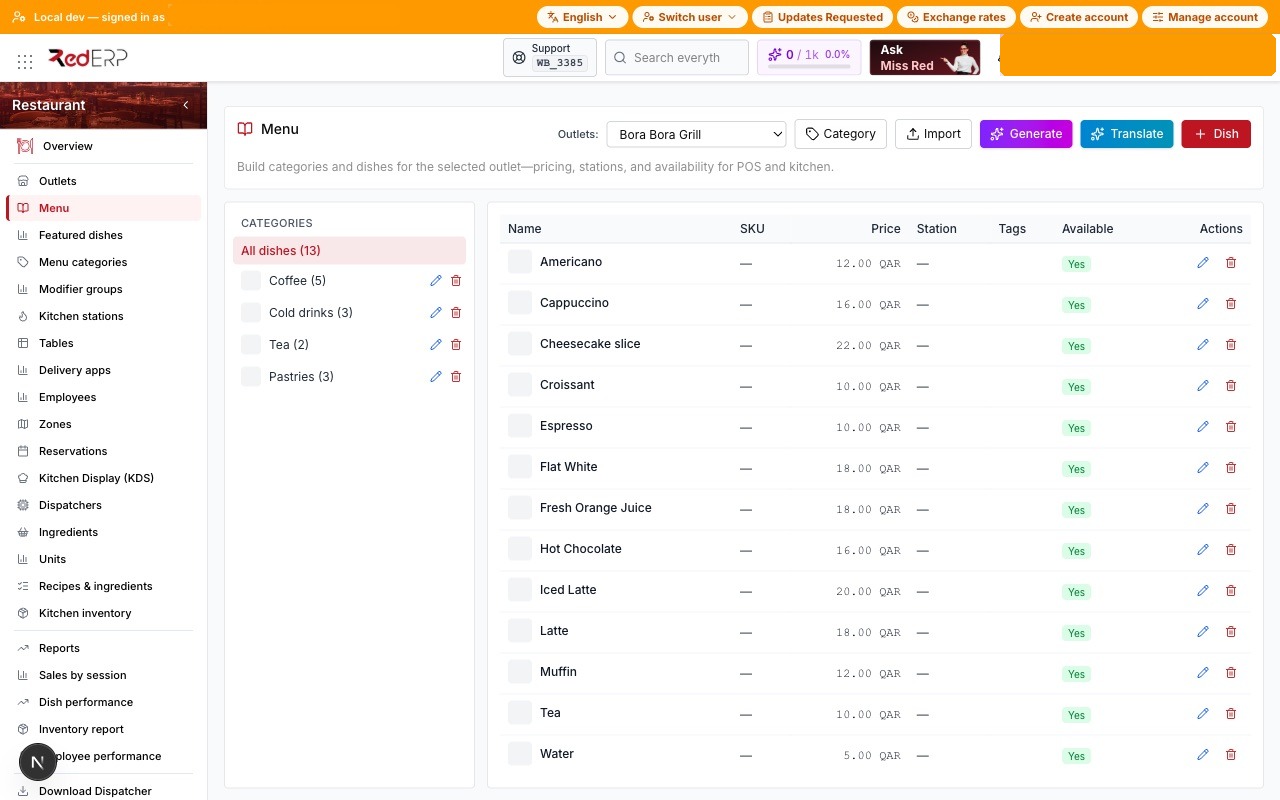
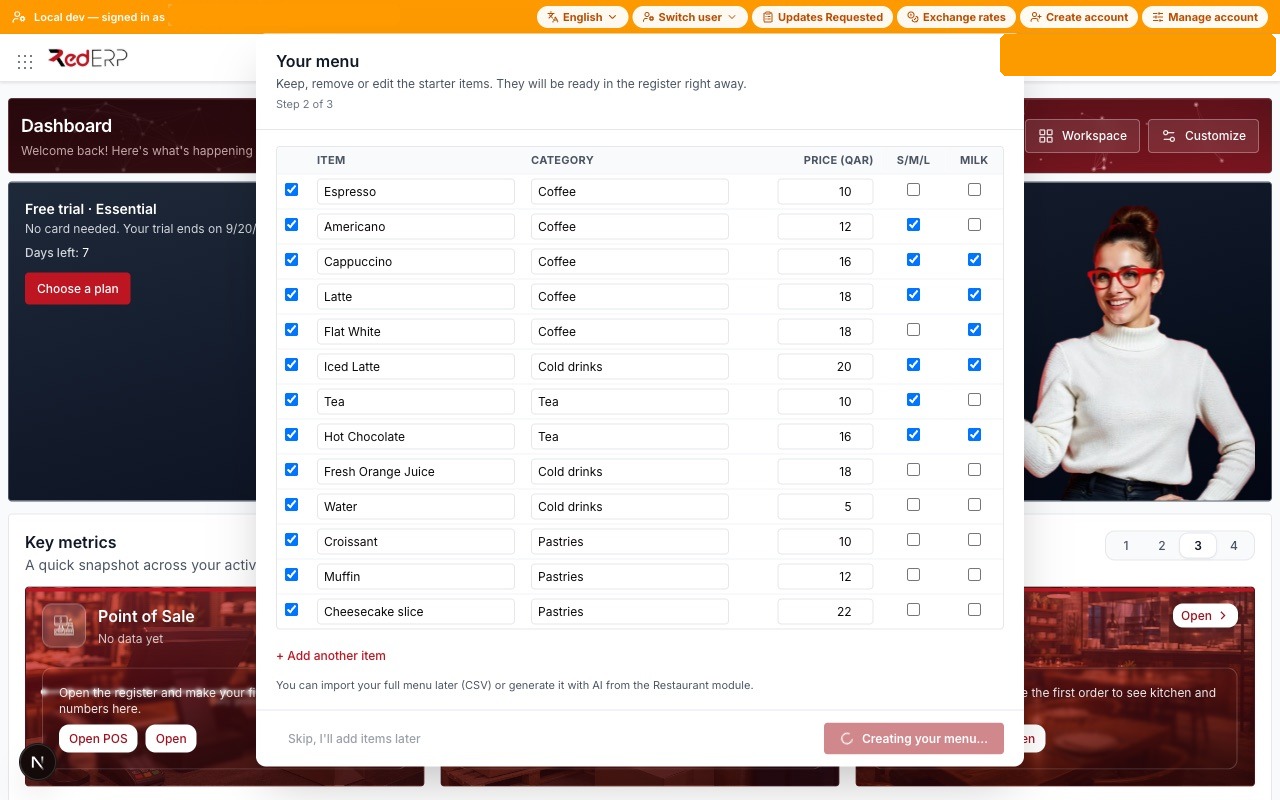
Keep, edit or remove the starter items, tick S/M/L for sizes and Milk for the option group where relevant, press Save menu. Menu categories and dishes are created and linked to sellable products in one save.
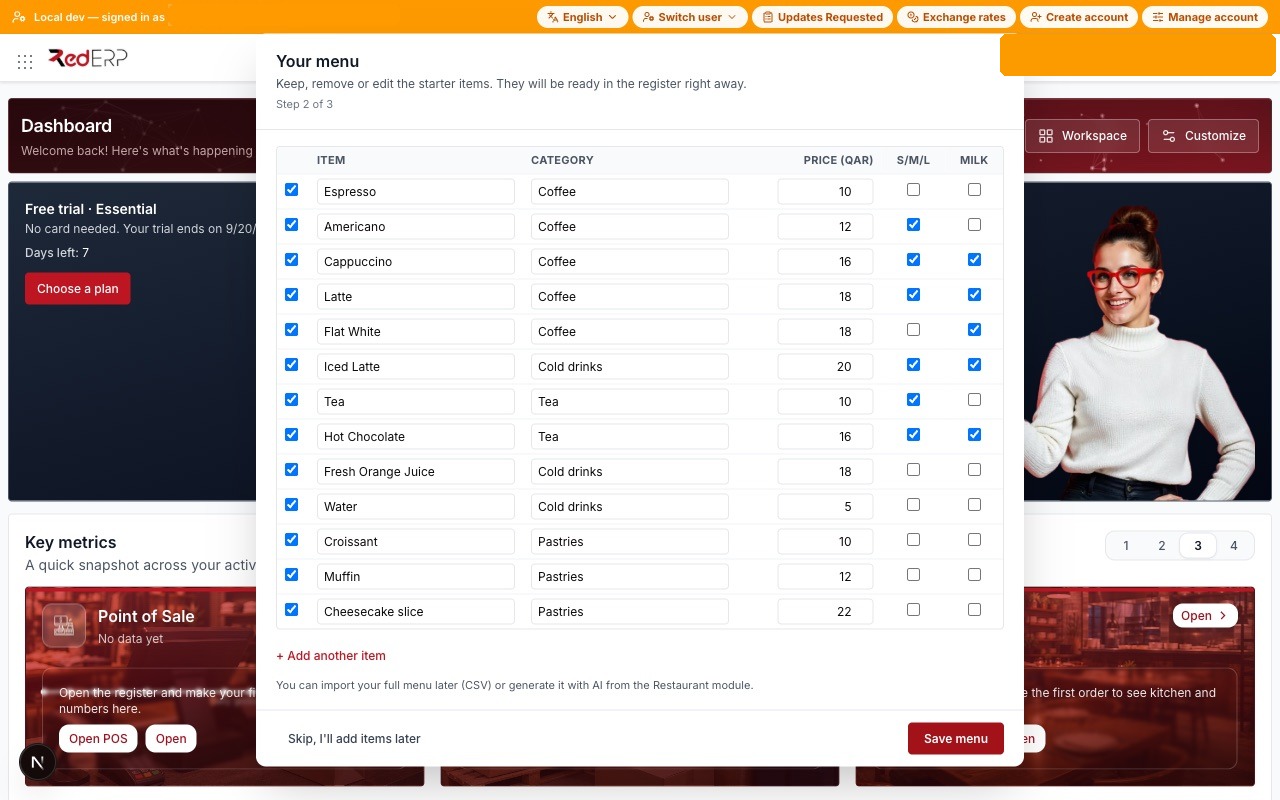
Restaurants usually replace the starter list: use Generate with AI (in the account currency) or Import CSV from Restaurant → Menu, add photos, allergens and preparation times, and assign kitchen stations. Recipes (ingredients per dish) live in Restaurant → Recipes and drive inventory once you switch it on.
Step 4 — You're live
The summary lists what was created and offers Open the register, Print the QR codes for your tables, Preview your public menu and Invite a waiter.
Step 5 — Tables and QR codes (≈ 2 min)
Restaurant → Tables shows the floor plan with T1…T12 in the Main zone; drag to arrange, add zones (Terrace, Upstairs) and rename tables at will.
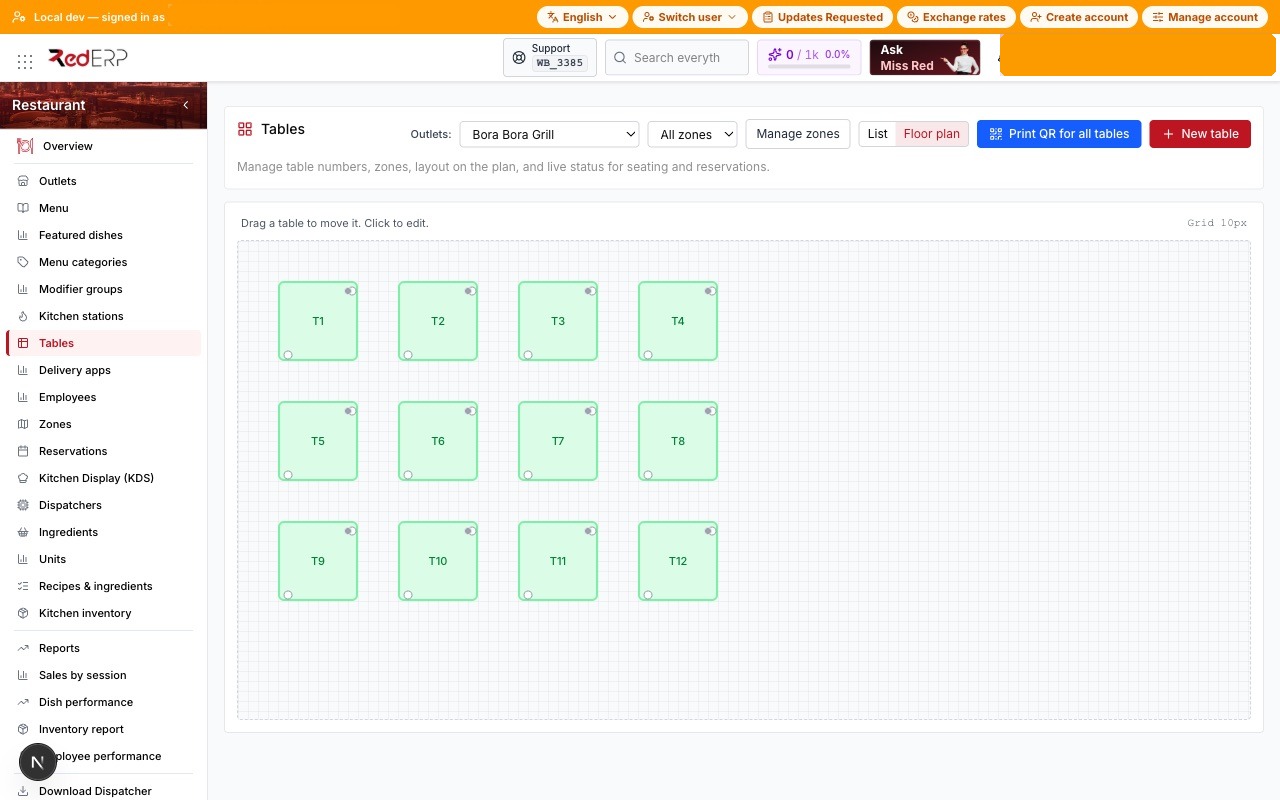
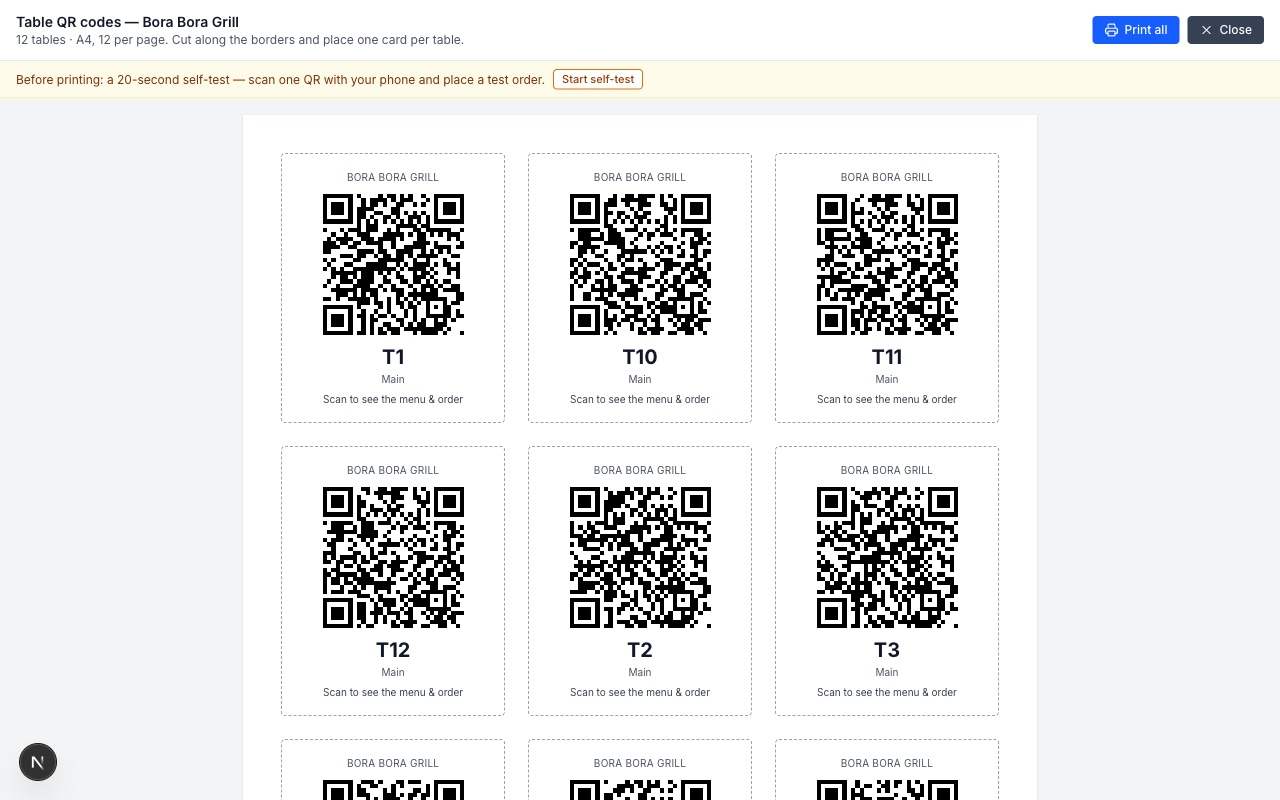
Press Print QR for all tables to get the A4 sheet, run the 20-second self-test (scan one card, the table menu opens, place a test order) and put one card on each table.
Step 6 — Open the register and take the first table order (≈ 1.5 min)
From the dashboard press Open POS, type your register PIN, enter the float and press Start Session. In restaurant mode the register offers the Table Overview: pick a table, add dishes (sizes and options open automatically), press Send to the kitchen, and Pay when the table closes — cash, card or split.
Orders placed by guests through the table QR land in the same table and on the kitchen display (Restaurant → Kitchen); the Kitchen queue widget on the dashboard counts them.
Step 7 — Staff
Settings → Users — invite waiters and kitchen staff. Each user signs in to the register with a PIN; assignments per terminal control who can void or discount. Share the KDS link with the kitchen screen from Restaurant → Kitchen.
Step 8 — Choose a plan
Settings → Subscription: 14-day trial, no card needed. For restaurants the plans read Counter / Café / Chain (per register); Café covers kitchen, tables and QR ordering, Chain adds several branches and multi-branch stock.
Day-end
Close register (Z report) reconciles sales, payment methods and expected cash, e-mails the Z report to the closer and the owner, and offers a WhatsApp summary.
What happens next
- Inventory & recipes — switch on stock for ingredients; recipes deduct automatically per dish sold.
- Reservations & covers — Restaurant → Reservations; the dashboard Covers today widget follows.
- Delivery apps — connect aggregators from Restaurant → Delivery apps.
- Second branch — add a branch, a terminal and an outlet; the Chain plan covers several registers.
Troubleshooting
| Symptom | Fix |
|---|---|
| Table floor is empty in the register | The terminal is not linked to the outlet. POS → Terminals → edit → Restaurant mode + outlet. The setup step does this automatically for the default terminal. |
| Guest order does not appear | The table QR belongs to another outlet or a deleted table. Regenerate from Restaurant → Tables → QR. |
| Kitchen shows nothing | No kitchen station assigned to the dishes and no default station on the outlet. Set a default station in Restaurant → Outlets. |