Small retail — full steps
Open a neighborhood grocery on RedERP: sign-up, Small Shops setup, logo, grocery catalog, supplier purchase, receive stock, B2B invoice and client delivery — with a screenshot for every step.
This guide follows Souq Bora Bora (Doha, QAR) — a neighborhood grocery — from an empty browser to a paid client invoice and a delivered order. The Small Shops template turns on POS, Sales, Inventory, Procurement and Cashflow. Counter service is enough; you do not need tables or a public menu.
Deep link: /signup?type=shop&serve=counter (also ?type=retail).
Company pack (use this data)
Copy these values so your screens match the screenshots. Currency follows Qatar → QAR. VAT is 0 % in Qatar.
| Field | Value |
|---|---|
| Company name | Souq Bora Bora |
| Logo | logo.png — upload in Settings → Company |
| Type | Small Shops |
| Country / currency | Qatar / QAR |
| How you serve | Counter / takeaway |
| Register PIN | 2468 |
| Timezone | Asia/Qatar |
Supplier — Gulf Wholesale Trading
| Field | Value |
|---|---|
| Name | Gulf Wholesale Trading |
| Type | Company |
| purchasing@gulfwholesale.example | |
| Phone | +974 4444 1100 |
| City | Doha |
| Country | Qatar |
Client — Al Maha Offices
| Field | Value |
|---|---|
| Name | Al Maha Offices |
| Type | Company |
| accounts@almahaoffices.example | |
| Phone | +974 4444 2200 |
| Address | West Bay, Doha |
| Country | Qatar |
Catalog (sell prices in QAR)
The first-run step pre-fills this grocery list for Small Shops. Keep them, or type the same names if you skipped the starter save.
| Item | Category | Buy | Sell |
|---|---|---|---|
| Still water 1.5L | Drinks | 2.00 | 3.00 |
| UHT milk 1L | Dairy | 5.00 | 7.50 |
| Rice 5kg | Dry goods | 18.00 | 25.00 |
| Sunflower oil 1.5L | Dry goods | 9.00 | 13.00 |
| White sugar 1kg | Dry goods | 3.50 | 5.00 |
| Pasta 500g | Dry goods | 3.00 | 4.50 |
| Tuna 185g | Canned | 4.50 | 7.00 |
| Tomato paste 400g | Canned | 2.50 | 4.00 |
| Instant coffee 200g | Drinks | 14.00 | 22.00 |
| Tea bags 100 | Drinks | 8.00 | 12.00 |
First purchase (from Gulf Wholesale)
| Item | Qty |
|---|---|
| Still water 1.5L | 20 |
| Tuna 185g | 24 |
| Rice 5kg | 10 |
| Sunflower oil 1.5L | 12 |
| White sugar 1kg | 15 |
First invoice + delivery (to Al Maha Offices)
| Item | Qty | Line (QAR) |
|---|---|---|
| Still water 1.5L | 10 | 30.00 |
| Tuna 185g | 6 | 42.00 |
| Rice 5kg | 2 | 50.00 |
| Total | 122.00 |
Before you start
- Shop name as it should appear on invoices and delivery notes.
- The logo file (PNG or SVG, square).
- Supplier and client names, and the five purchase quantities above.
- A 4-digit register PIN (
2468in this run).
Step 1 — Sign up (≈ 45 s)
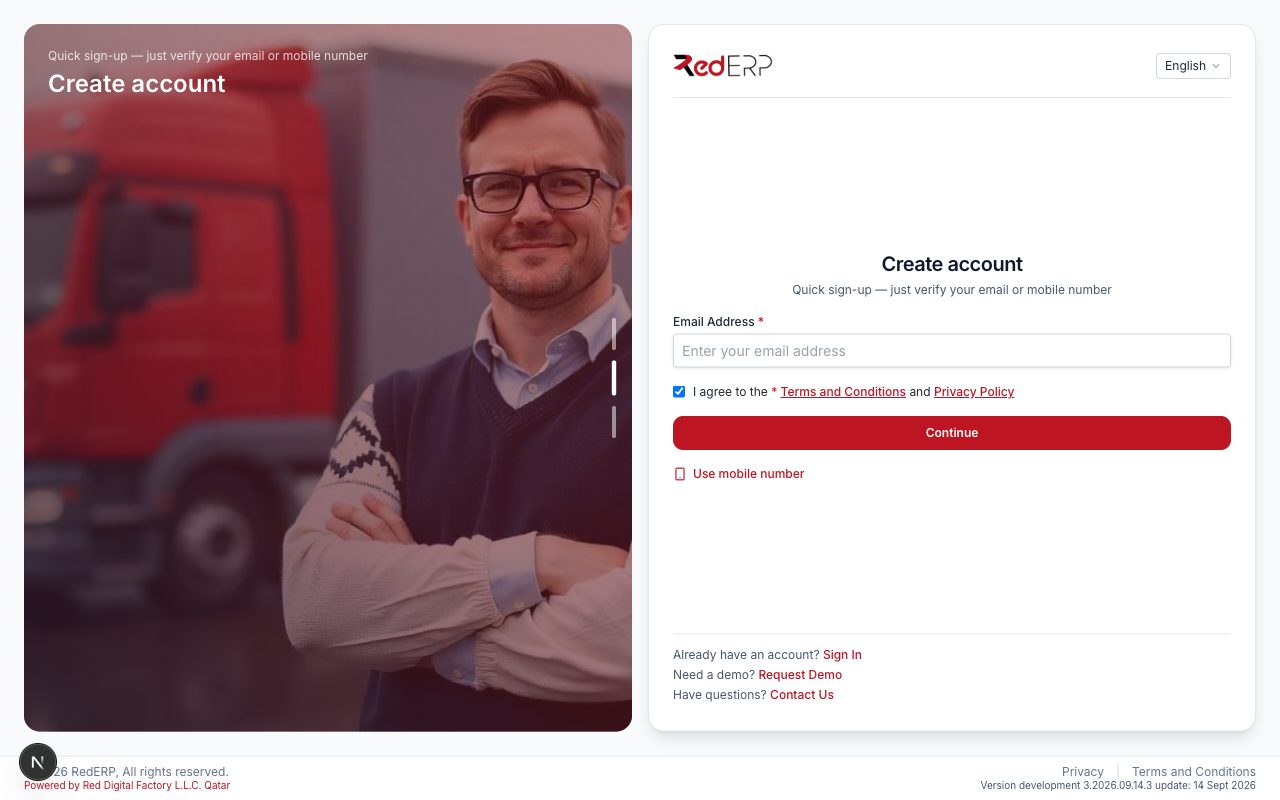
Open /signup?type=shop&serve=counter, type your e-mail (or Use mobile number), tick the terms and press Continue.
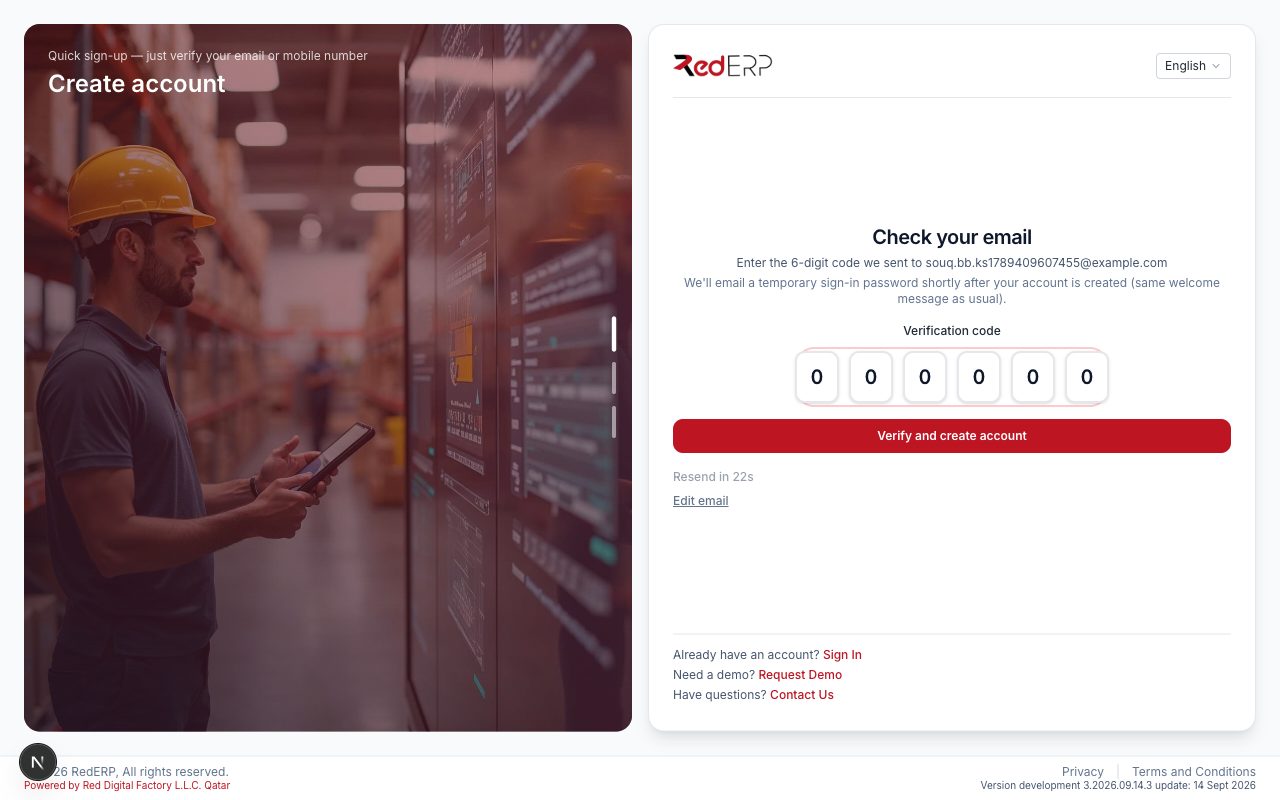
Type the 6-digit code and press Verify and create account. You are signed in automatically.
Step 2 — Set up your business (≈ 1 min)
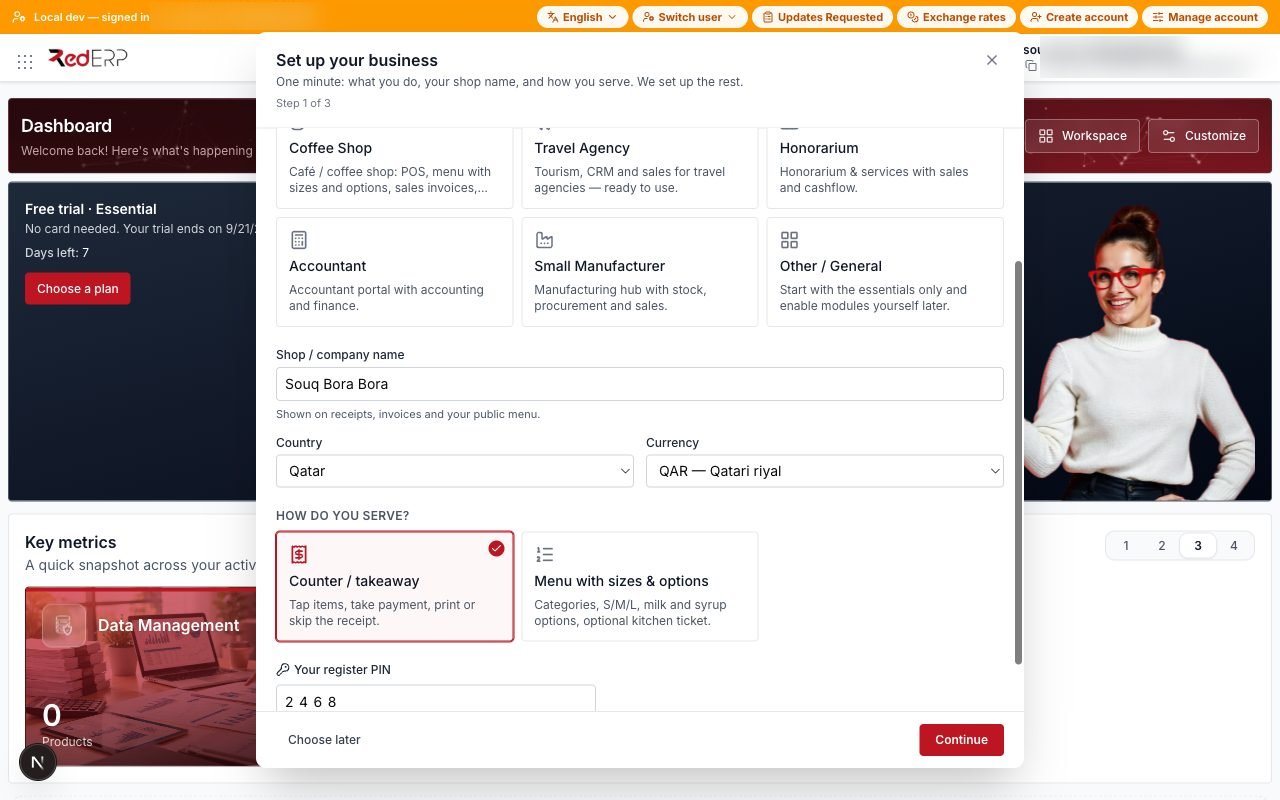
The Set up your business step opens on the dashboard.
- What type of business do you run? — pick Small Shops.
- Shop / company name —
Souq Bora Bora(printed on invoices and delivery notes; it also renames the headquarters branch). - Country — Qatar (currency QAR, VAT 0 %, timezone Asia/Qatar).
- How do you serve? — keep Counter / takeaway.
- Your register PIN —
2468.
Press Continue. RedERP enables POS, Sales, Inventory, Procurement and Cashflow, stores the PIN and builds the dashboard.
Note:
If Procurement is missing on an older workspace template, turn it on once in Settings → Modules → Procurement.
Step 3 — Your catalog (≈ 1.5 min)
A grocery starter list appears (water, milk, rice, oil, sugar, pasta, tuna, tomato paste, coffee, tea), priced in QAR. Keep the rows, press Save menu once. This creates POS-enabled products in categories — no S/M/L, no milk options.
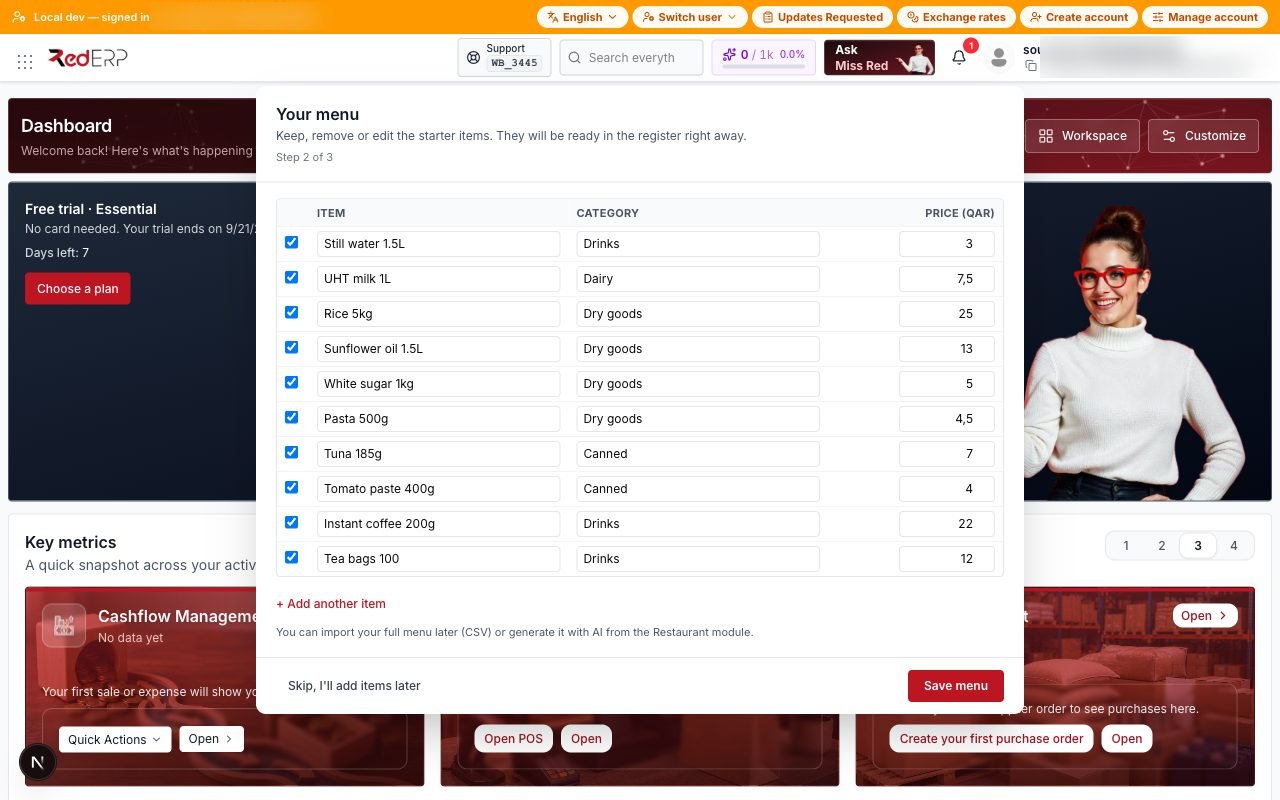
You can skip and add items later from POS → Products or Data → Products.
Step 4 — You're live (≈ 30 s)
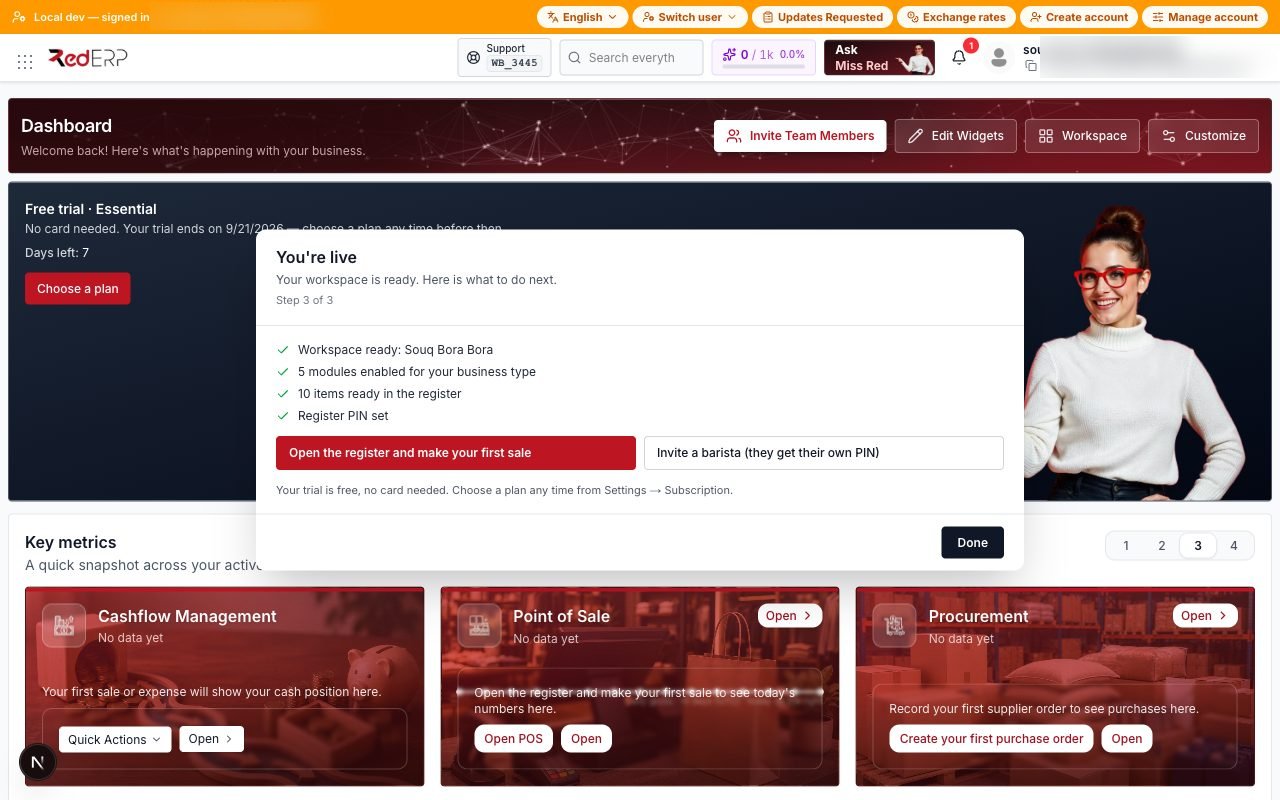
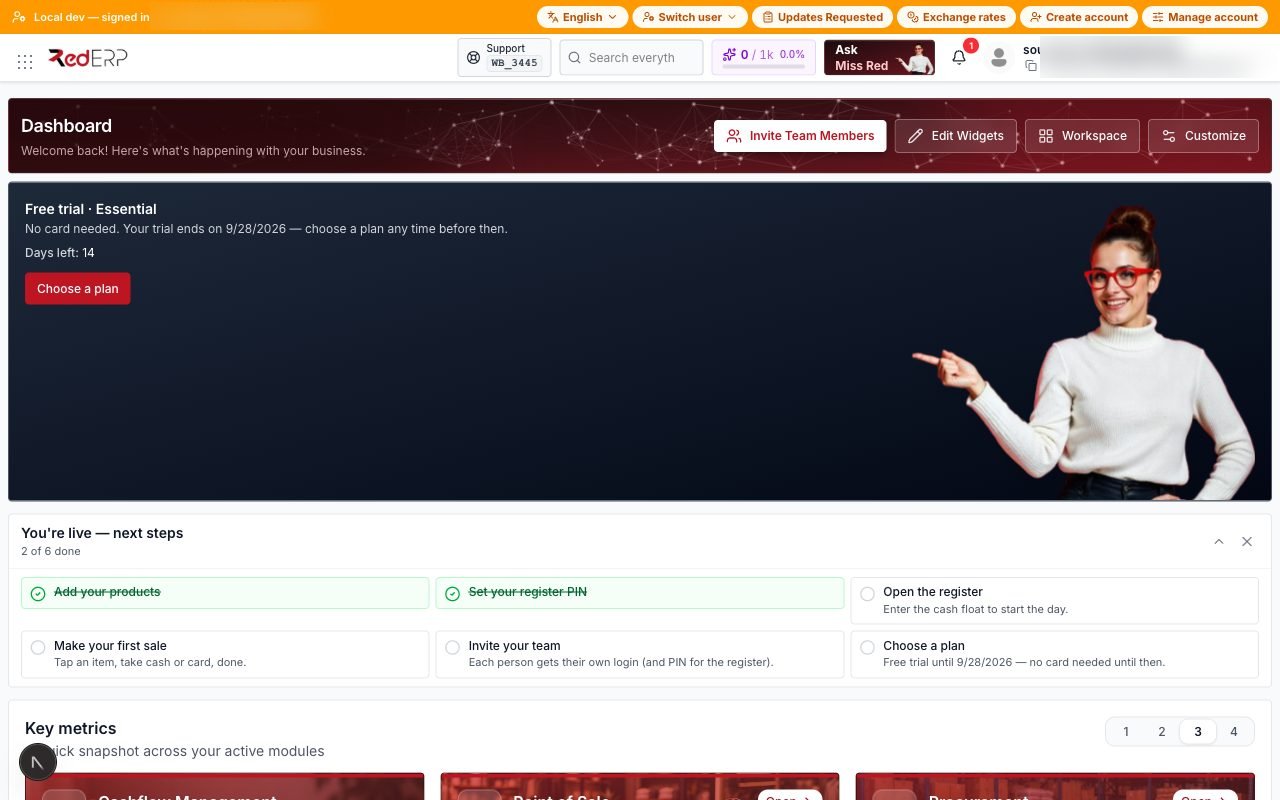
The summary lists what was created. Press Done to open the dashboard: checklist, POS widgets, cash, subscription, and shortcuts for POS, Invoices and Procurement.
Step 5 — Company logo (≈ 30 s)
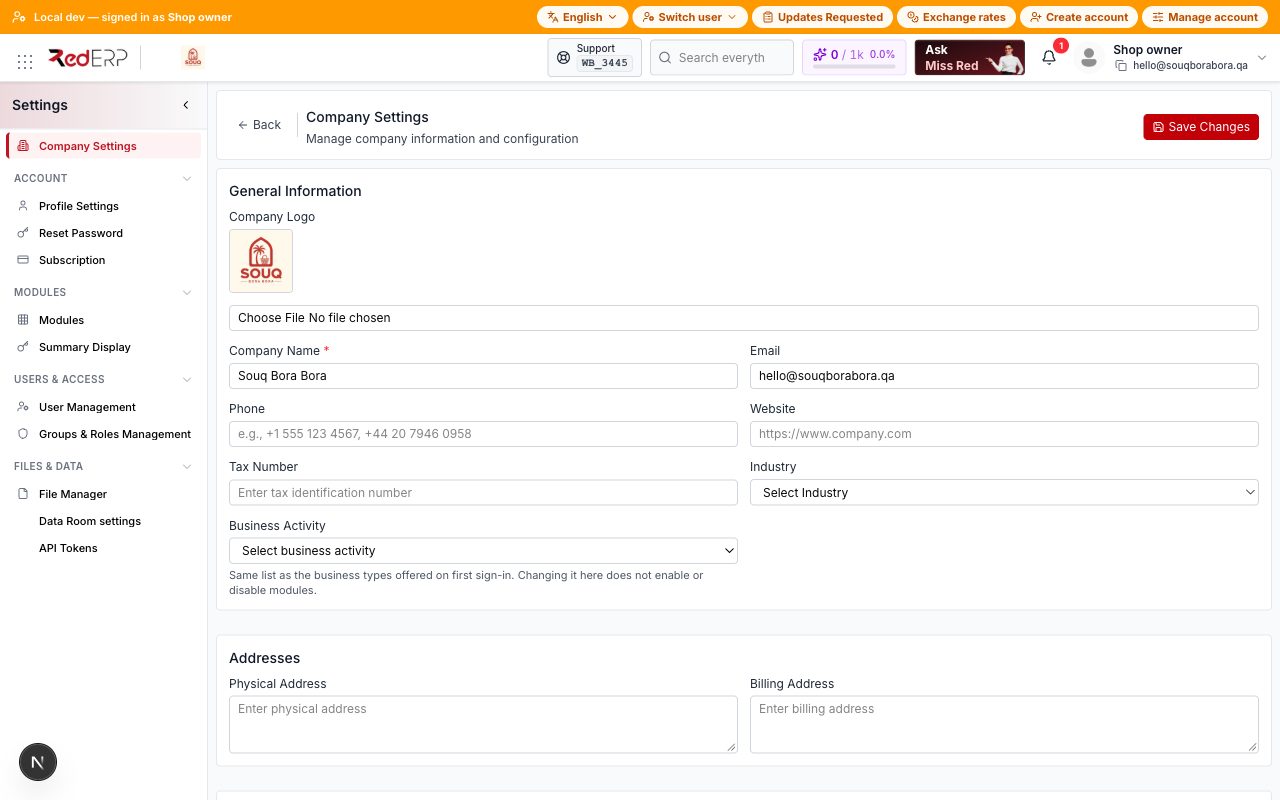
Settings → Company. Under Company logo, upload logo.png. Save. The mark appears on printed invoices and delivery notes.
Step 6 — Supplier (≈ 1 min)
Data → Suppliers (or Procurement → Suppliers) → Add.
- Name
Gulf Wholesale Trading, type Company - Email
purchasing@gulfwholesale.example, phone+974 4444 1100 - City
Doha, country Qatar - Save
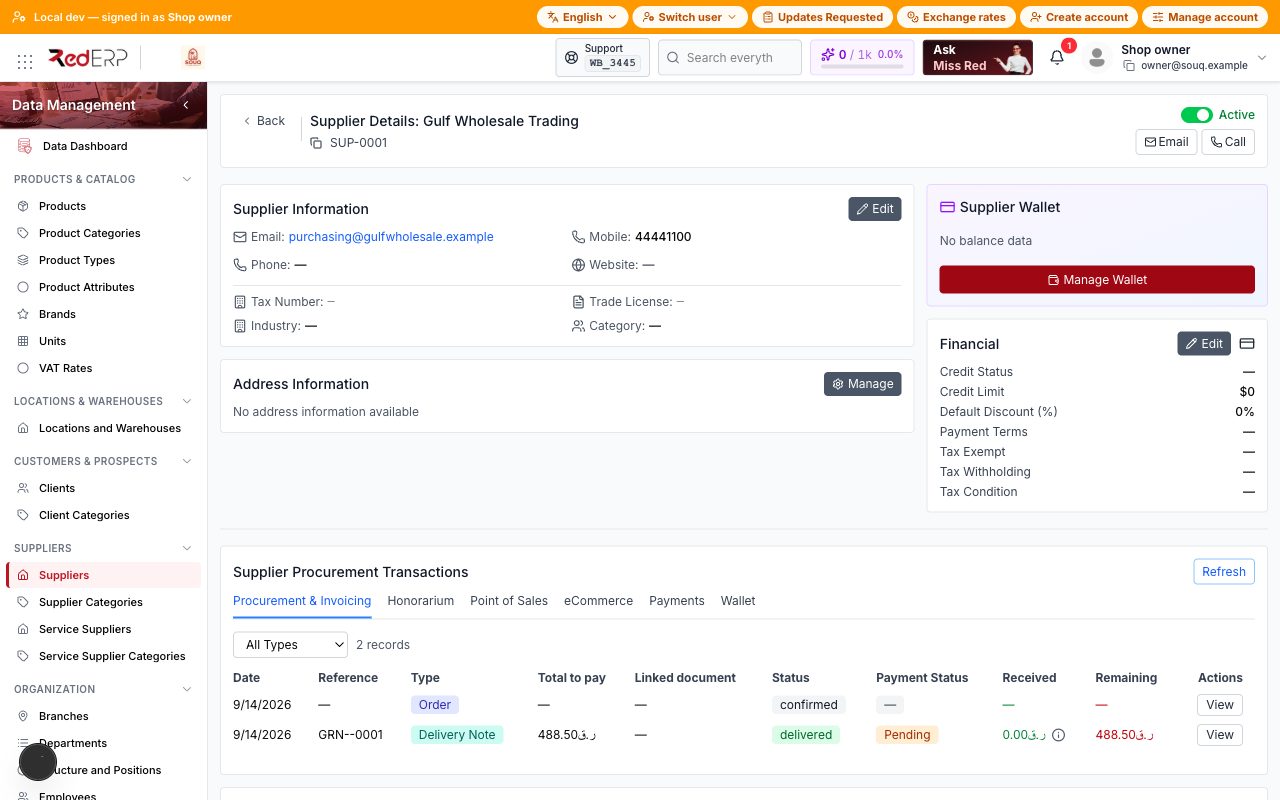
Step 7 — First purchase order (≈ 2 min)
Procurement → Purchase Orders → Create New Purchase Order.
- Supplier Gulf Wholesale Trading
- Location Main Location, ledger and currency prefilled (QAR)
- Order date today, expected delivery today
- Save, then add the five lines (qty × buy price from the pack)
- Approve the order
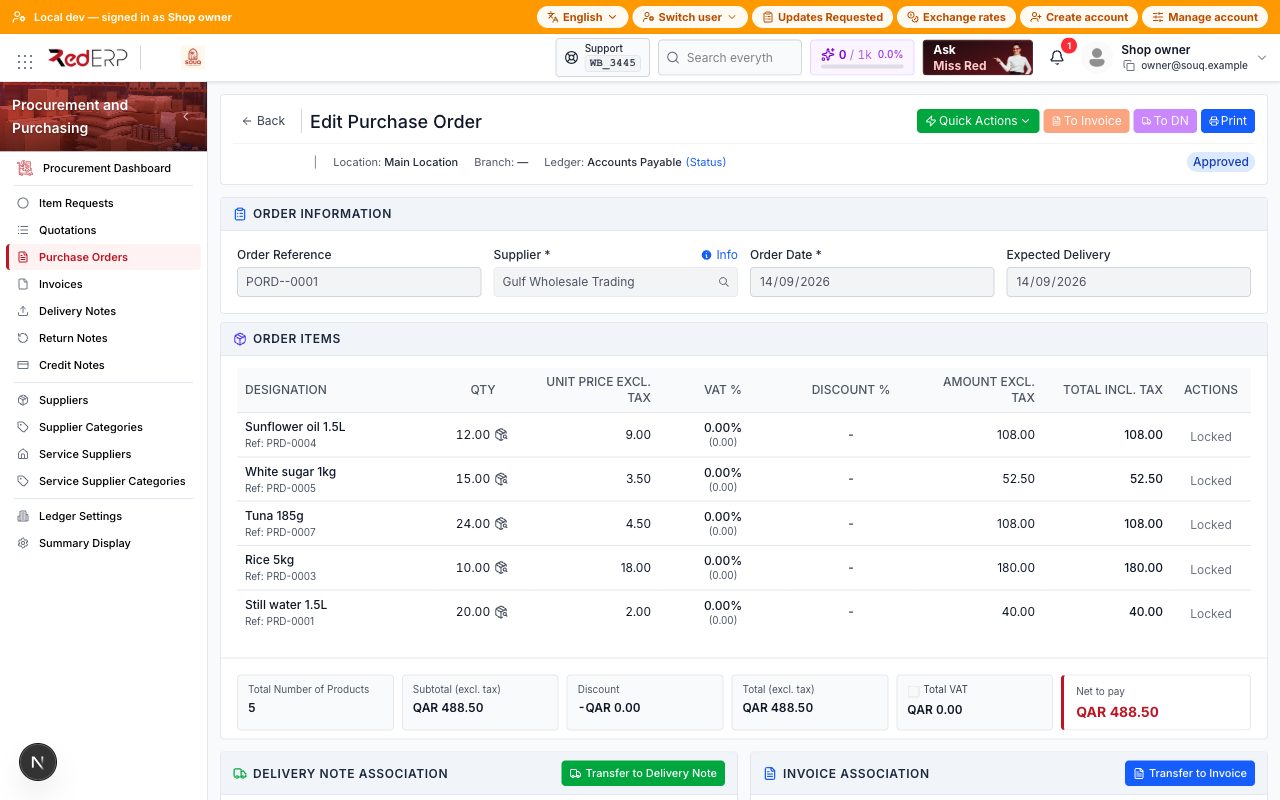
Step 8 — Receive the goods (≈ 1 min)
On the purchase order, Receive / convert to a procurement delivery note, or Procurement → Delivery Notes → Create New Delivery Note, same supplier and Main Location, same five lines.
Confirm receive so stock is booked in. Inventory now shows water 20, tuna 24, rice 10, oil 12, sugar 15.
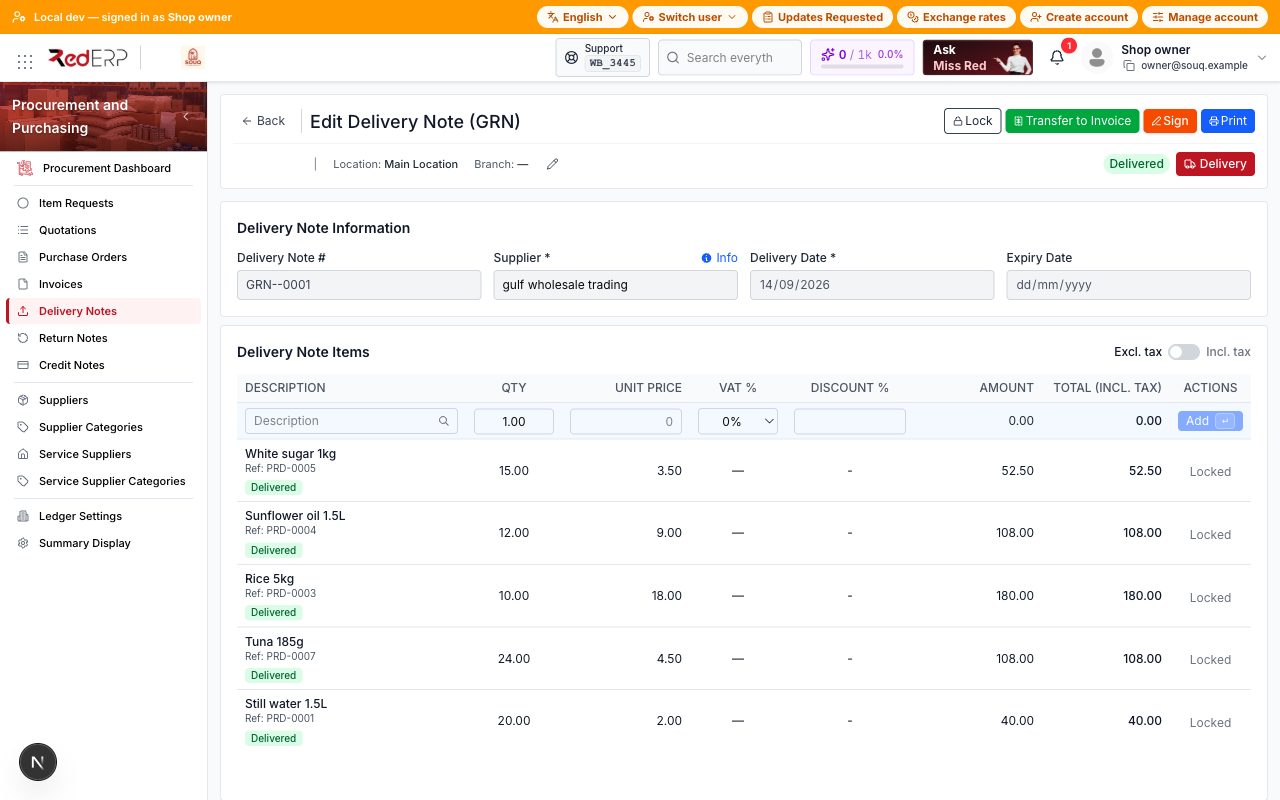
Step 9 — Client (≈ 1 min)
Sales → Clients (or Data → Clients) → Add.
- Name
Al Maha Offices, type Company - Email
accounts@almahaoffices.example, phone+974 4444 2200 - Address
West Bay, Doha - Save
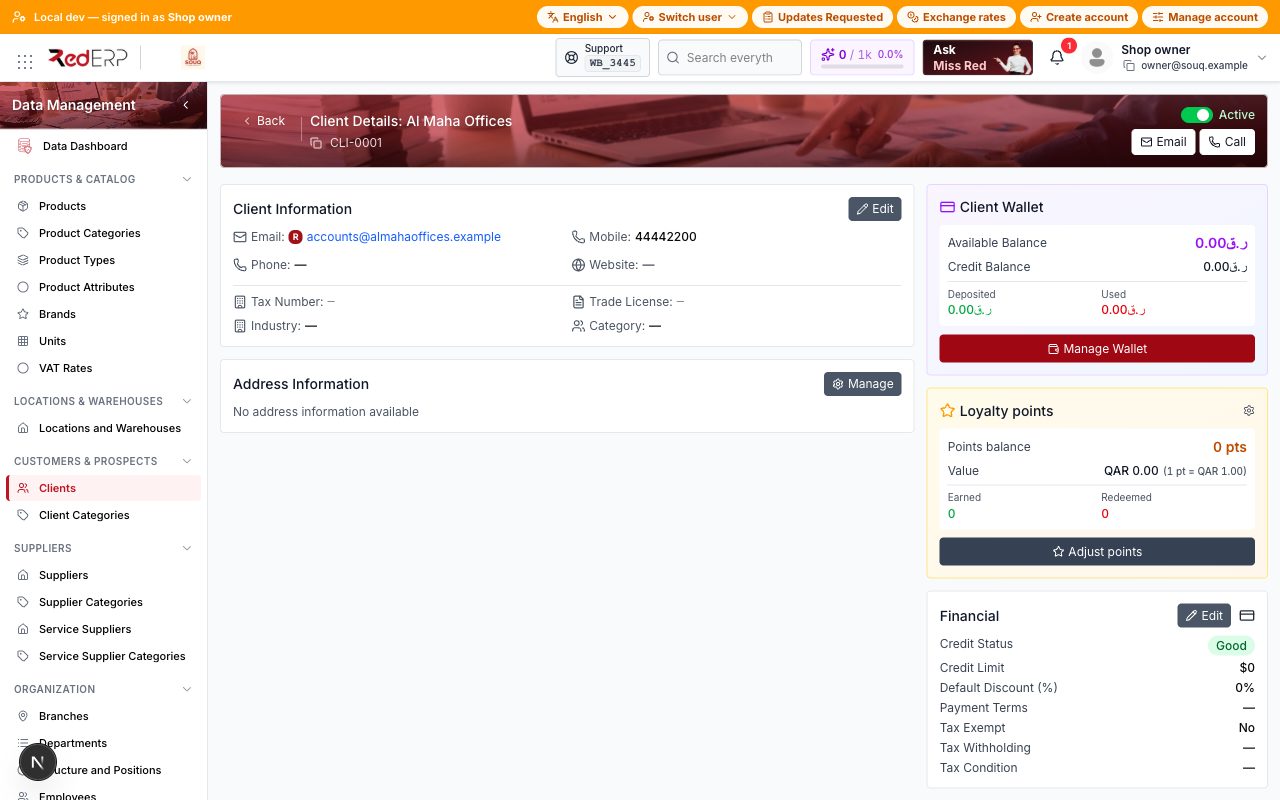
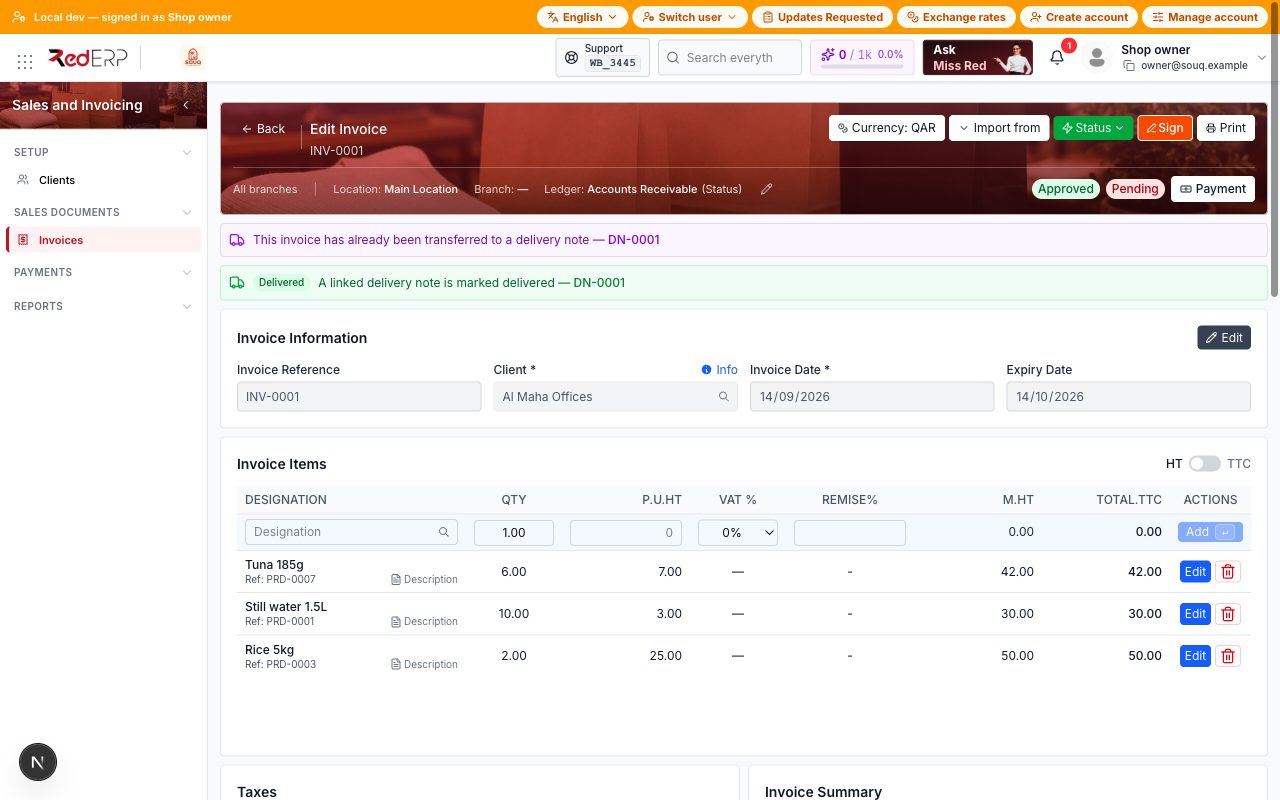
Step 10 — Invoice (≈ 1.5 min)
Sales → Invoices → Create Invoice.
- Customer Al Maha Offices
- Location and branch prefilled
- On the same screen add three lines: 10× water, 6× tuna, 2× rice (sell prices from the pack)
- Create Invoice — total QAR 122.00
- Set status to Approved when you are ready to post the receivable
Note:
Office and wholesale orders use Sales → Invoices. Walk-in retail stays on the register (Open POS, PIN 2468).
Step 11 — Deliver to the client (≈ 1 min)
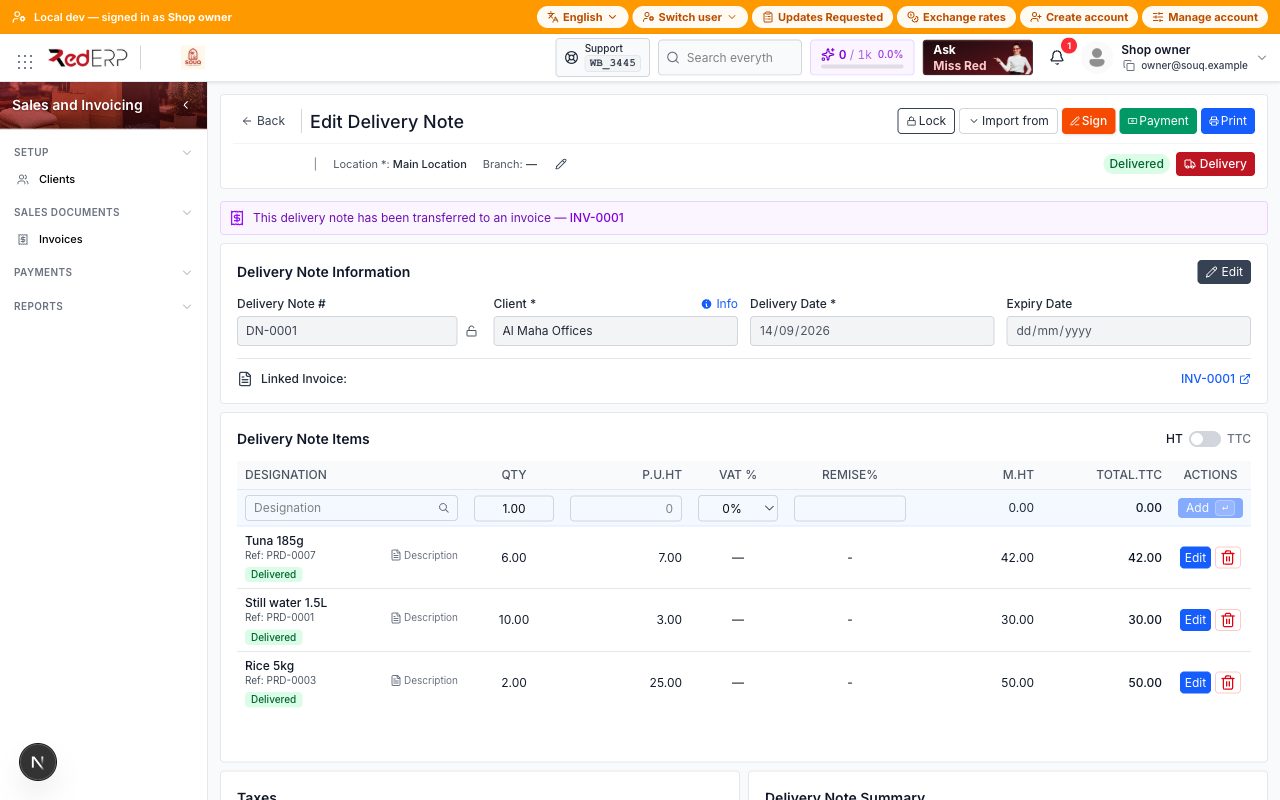
On the invoice, Transfer Items to Delivery Note (or Sales → Delivery Notes → Create Delivery Note, import from the invoice).
- Client Al Maha Offices, location Main Location
- Check the three lines
- Toolbar Delivery → Full Delivery → confirm
Stock-out: water 10, tuna 6, rice 2. Remaining stock: water 10, tuna 18, rice 8.
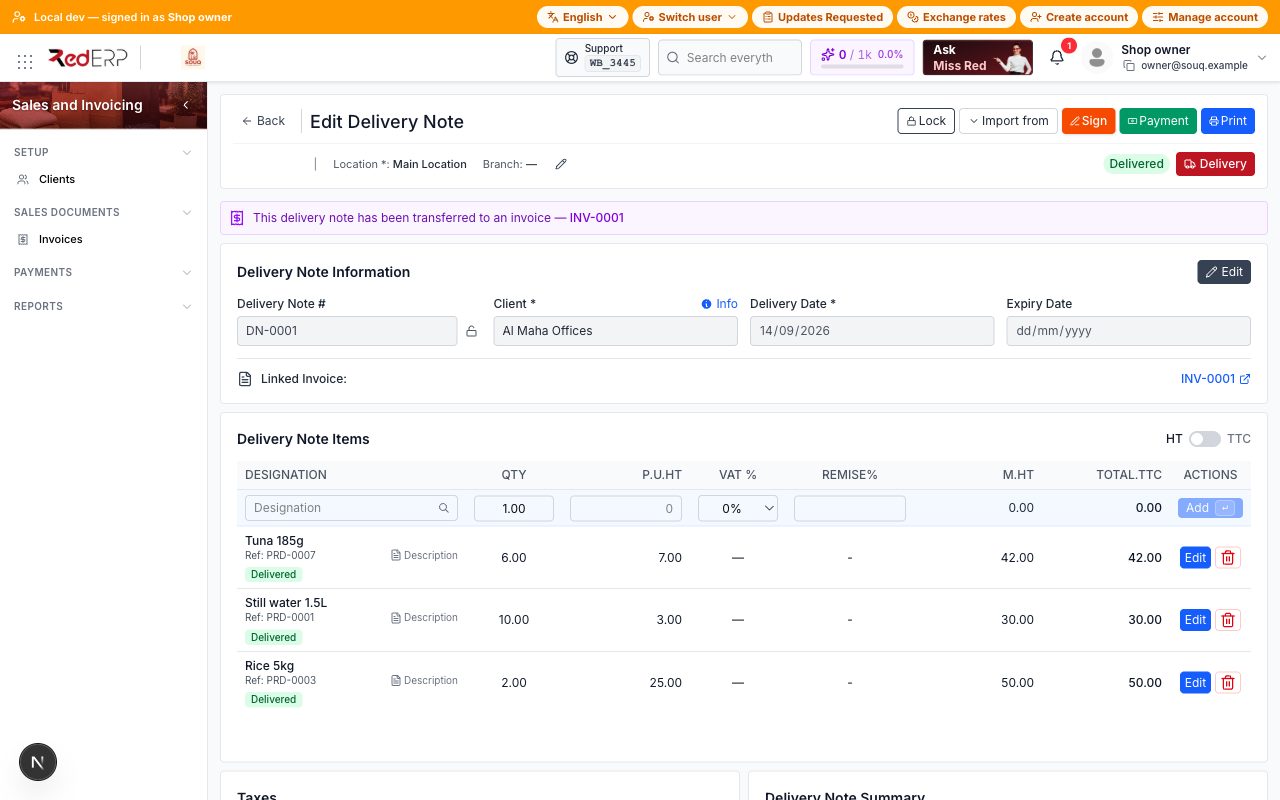
Print the delivery note — the Souq Bora Bora logo is on the header.
What happens next
- Pay the supplier — Procurement → Invoices from the received PO, or record the supplier bill when the invoice arrives.
- Collect from Al Maha — on the sales invoice, Add Payment (transfer or cheque).
- Week 1 — invite a cashier (Settings → Users) with their own register PIN; switch on Cashflow for shop expenses.
- Plan — Settings → Subscription: 14-day trial, no card needed.
Troubleshooting
| Symptom | Fix |
|---|---|
| Procurement is not in the module launcher | Settings → Modules and enable Procurement. New Small Shops workspaces include it. |
| Starter list looks like a café | You picked Coffee Shop. Start again with Small Shops, or replace the rows with the grocery pack before Save menu. |
| "Insufficient stock" on Full Delivery | Receive the purchase order first (Step 8) into Main Location. |
| Invoice total is not 122.00 | Check sell prices (3.00 / 7.00 / 25.00) and quantities (10 / 6 / 2). Qatar VAT is 0 %. |
| Logo missing on the print | Upload it in Settings → Company and save before printing. |