Quality Control
Record manufacturing inspections, quantities, defects, and approval status.
Overview
Quality Control logs inspections against production and work orders. Record inspected, passed, and failed quantities, then review linked defects until the batch is approved, rejected, or on_hold.
Inspections list
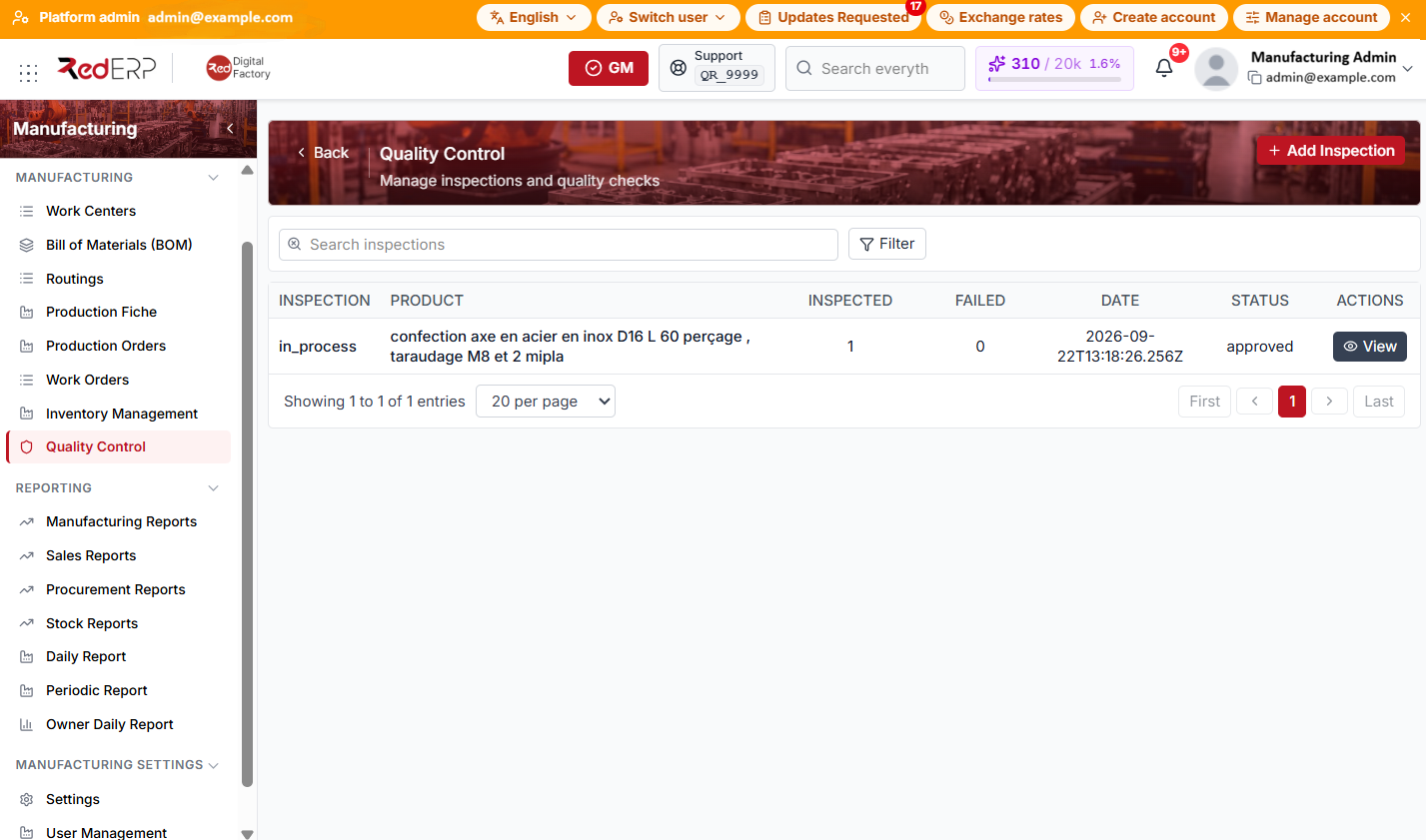
The columns are Inspection (inspection type), Product, Inspected, Failed, Date, Status, and Actions.
Use Search inspections and Filter by Production order, Work order, Status, Date from, and Date to.
Create an inspection
- Open Manufacturing → Quality Control.
- Select Add Inspection. RedERP opens the Create Inspection drawer.
- Choose Production order, Work order, and Product (all required).
- Set Inspection type — incoming, in_process (default), or final.
- Enter Inspected, Passed, and Failed, Status (default approved), Inspection date, and Notes.
- Select Create. The new inspection appears in the list.
Inspection detail
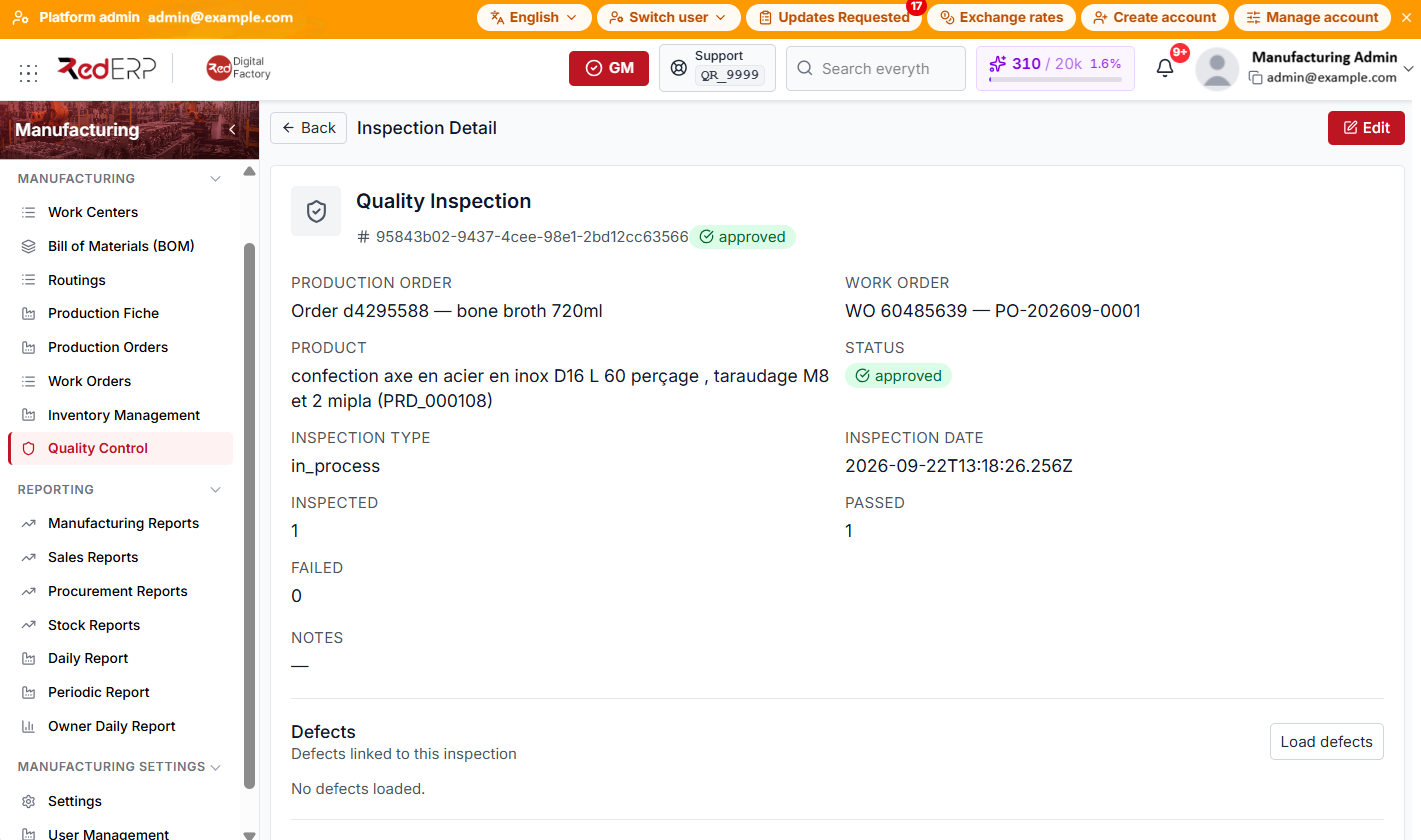
- Select View to open the Inspection Detail page.
- Use Edit then Save to change production order, work order, product, inspection type, quantities, status, inspection date, or notes.
- In the Defects section, select Load defects to view linked lines (Type, Description, Severity, Qty, Status).
- Set Status to pending, approved, rejected, or on_hold when review is complete.
- Delete Inspection removes the record when you have delete permission.
Inspection types and statuses
Types: incoming, in_process, final
Statuses: pending, approved, rejected, on_hold
Good practice
- Run in_process checks at critical routing steps before the next work order starts.
- Record final inspections before posting finished-goods receipts when quality gates apply.
- Use Load defects to verify each defect line is recorded for traceable rework and scrap reporting.