Production Orders
Create, release, start, and complete production orders; track materials, work orders, and shop-floor progress.
Overview
A Production Order is a manufacturing run for a product quantity. It carries the production fiche snapshot (materials and steps), dates, priority, and lifecycle status. Releasing an order can auto-create work orders on routing-based orders; completing it closes the run on the shop floor.
Production Orders list
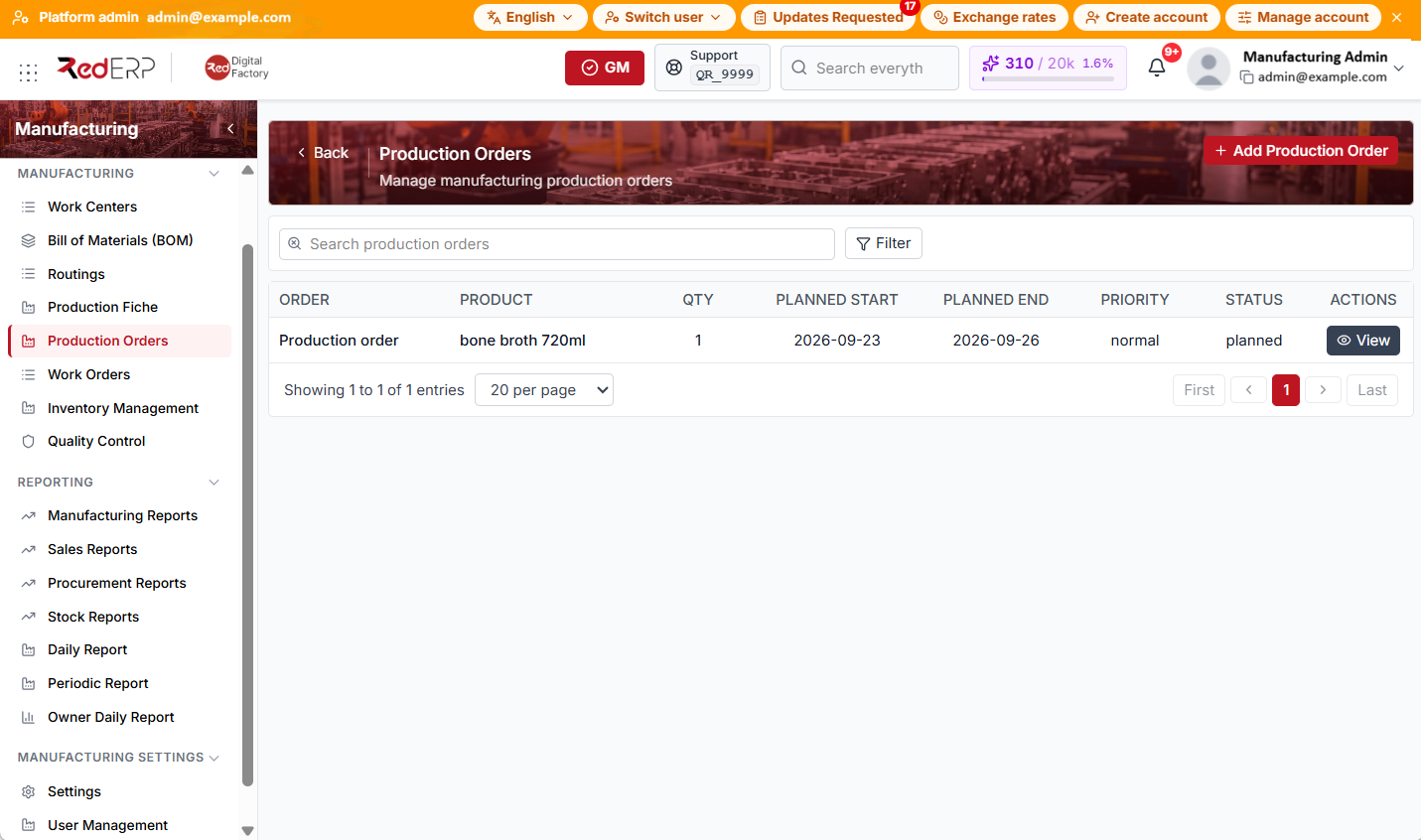
The columns are Order, Product, Qty, Planned start, Planned end, Priority, Status, and Actions.
Use Search production orders and Filter by Status, Product, Date from, and Date to.
Create a production order
- Open Manufacturing → Production Orders.
- Select Add Production Order. RedERP opens the Create Production Order drawer.
- Select Production fiche * (required — only Active fiches appear).
- Product is filled from the fiche (you can change it). Set Quantity, Progress mode (Quantity or Steps), Priority, Planned start, Planned end, and Status (default Planned).
- Select Location * (required).
- Optionally link a Sales order (only orders that include the selected product are listed) and add Notes.
- Select Create. On success, RedERP opens the production order detail page.
Production order detail
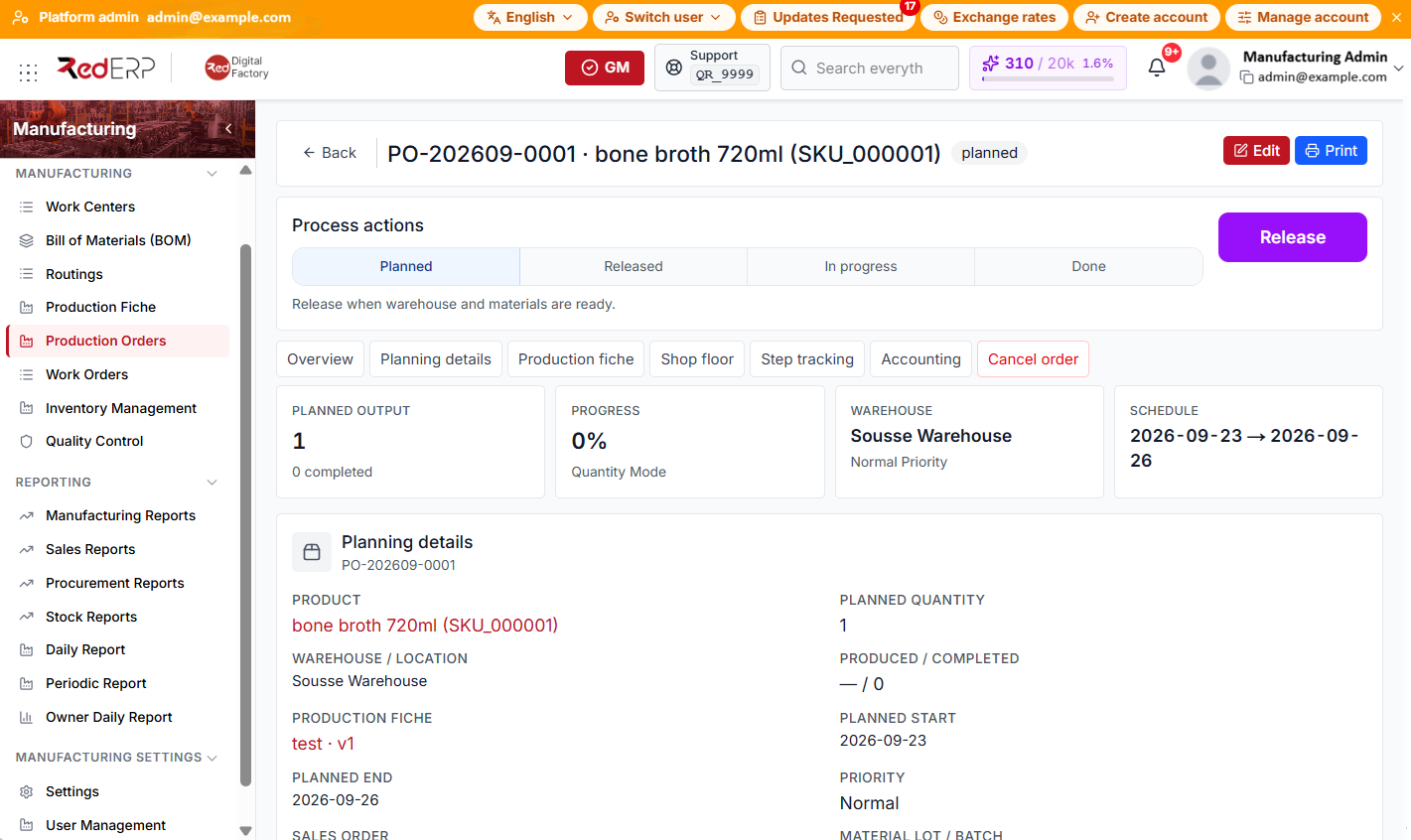
- Select View on a row to open the production order detail page.
- Use Edit (when status is Draft or Planned) and Print from the page header.
- Under Process actions, follow the workflow bar (Planned → Released → In progress → Done) and use the action buttons on the right.
Page sections depend on whether the order was created from a production fiche:
- From a production fiche (typical): Overview, Planning details, Production fiche, Shop floor, Step tracking, Accounting, and Cancel order (when allowed).
- Without a fiche snapshot: Overview, Order information, Production process, Work orders, Materials, Accounting, and Cancel order (when allowed).
Workflow actions (status-dependent):
- Release — available on Draft or Planned; moves to Released
- Start — available on Released; moves to In progress
- Complete — available on In progress; moves to Completed
- Pause / Resume / Stop — available on fiche-based orders while In progress or On hold
- Cancel order — use the Cancel order section at the bottom of the page
Use Print to open a print preview for that order.
Edit product, location, BOM, routing, quantity, dates, priority, sales order, lot, and notes while the order is Draft or Planned.
Statuses and priorities
Statuses: Draft, Planned, Released, In progress, Completed, Cancelled, On hold
Priorities: Low, Normal, High, Urgent
Typical flow: Draft/Planned → Released → In progress → Completed.
Materials and work orders
- Fiche-based orders: materials and steps live under Production fiche, Shop floor, and Step tracking. Issue materials and update step progress from those sections when the order is active.
- Routing-based orders: Materials shows exploded BOM requirements; Work orders lists routing steps created on Release (or manually). Production process shows the routing flow diagram.
- When Enforce sequential work orders is on in manufacturing settings, a work order cannot Start until prior routing steps are Completed.
Good practice
- Release only after the production fiche (or BOM and routing), location, and materials are confirmed.
- Link the sales order when the run is make-to-order.
- Complete material issues and QC inspections before marking the order Completed.