Work Orders
Manage shop-floor work orders, start and complete steps, and report production progress.
Overview
A Work Order is one routing step executed on the shop floor. It belongs to a production order, names a work center, and tracks planned and actual quantity through Start, Report progress, and Complete.
Work Orders list
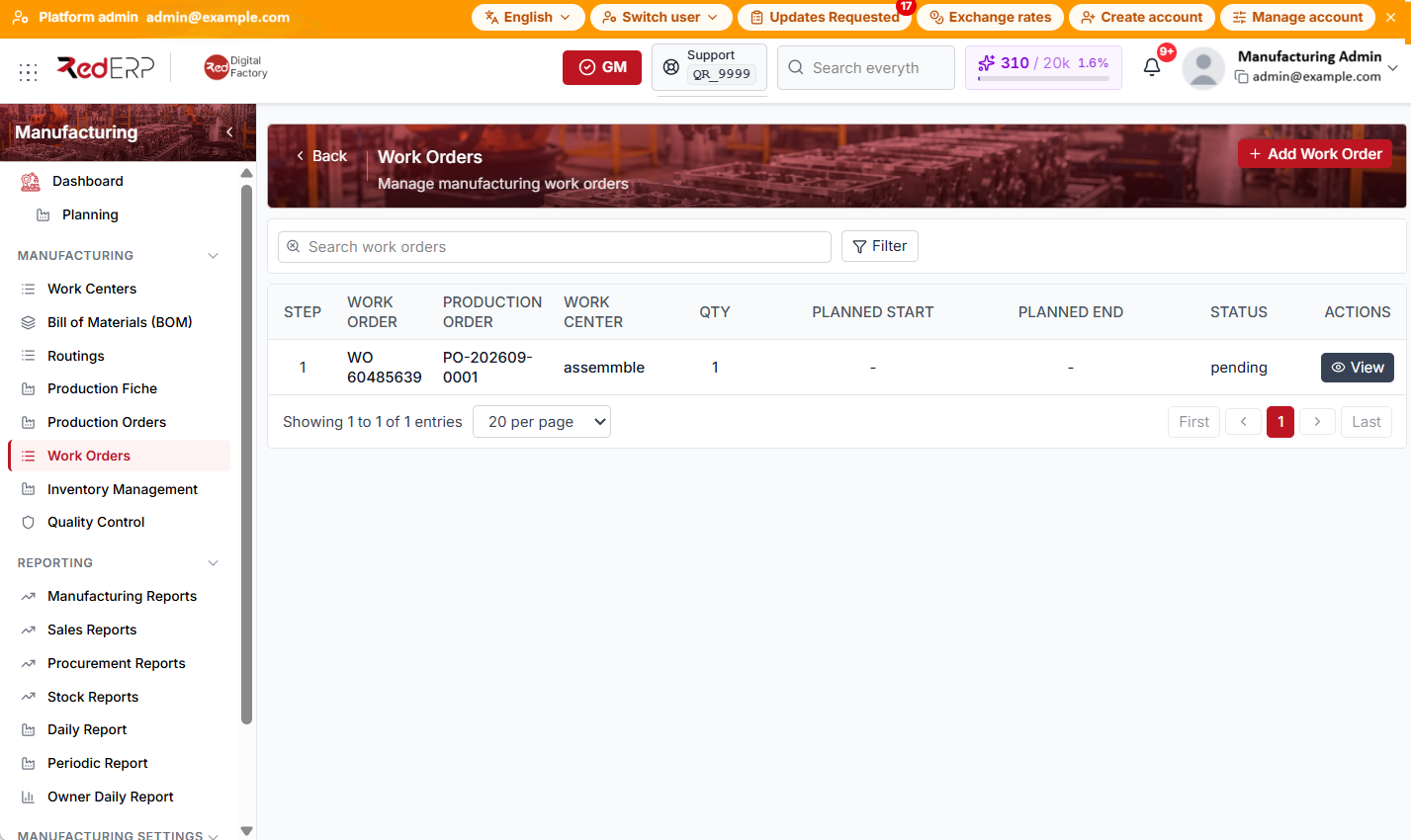
The columns are Step, Work Order, Production Order, Work Center, Qty, Planned start, Planned end, Status, and Actions.
Rows sort by routing Sequence within each production order.
Use Search work orders and Filter by Production order, Work center, and Status.
Create a work order
- Open Manufacturing → Work Orders.
- Select Add Work Order when a step was not auto-created on production-order Release. RedERP opens the Create Work Order drawer.
- Choose Production order, Routing, Routing operation, and Work center (all required).
- Enter Quantity (required), Status (default Pending), Planned start, Planned end, optional Operator id, and Notes.
- Select Create. The new work order appears in the list.
Work order detail
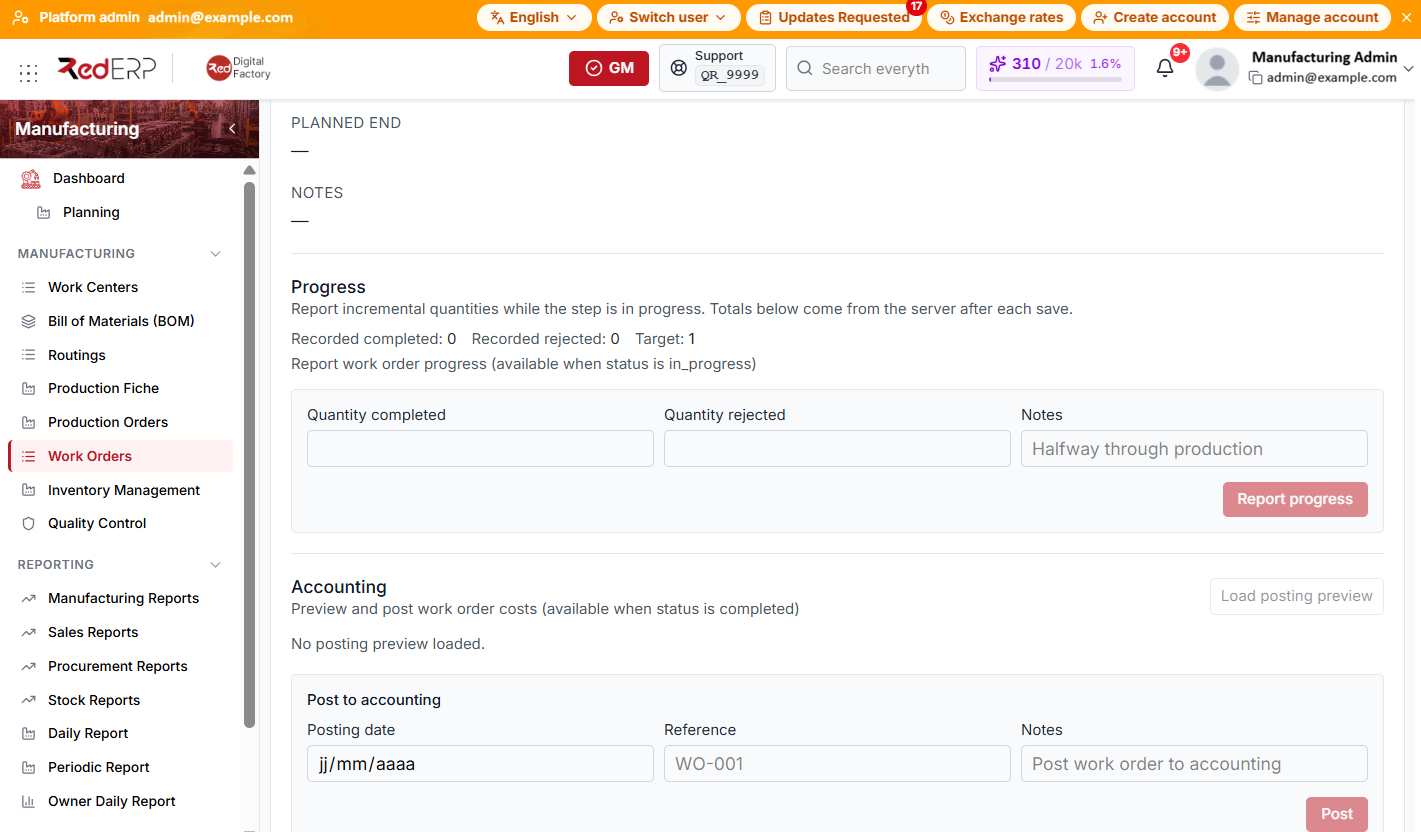
- Select View to open the work order detail page.
- Use Edit then Save to change planned fields, routing operation, work center, quantity, planned dates, or notes.
- In edit mode, the Status dropdown accepts Pending, Ready, or Cancelled only — use Start and Complete for In progress and Completed.
- Start — available from Pending or Ready; moves to In progress when allowed.
- Report progress (in the Progress section) — enter Quantity completed, Quantity rejected, and notes while status is In progress.
- Complete — available from In progress; finishes the step.
- Accounting — after Completed, use Load posting preview and Post to send costs to accounting.
- Delete Work Order — removes the work order when you have delete permission.
When Enforce sequential work orders is enabled in manufacturing settings, Start on step N+1 stays disabled until step N is Completed.
Work order statuses
- Pending — created, not ready to run (default on create)
- Ready — can be started
- In progress — operator is working the step
- Completed — step finished
- Cancelled — step will not run
Good practice
- Prefer auto-created work orders from production-order Release when routings are stable.
- Report rejected quantity during progress so material and QC records stay accurate.
- Complete work orders in routing sequence to avoid backend validation errors.