Work Centers
Create manufacturing work centers, set capacity, and assign them on routings and work orders.
Overview
Use Work Centers to name each machine, line, or cell on the shop floor and record its capacity. Routings and work orders reference a work center so planning and load reporting stay consistent.
Work Centers list
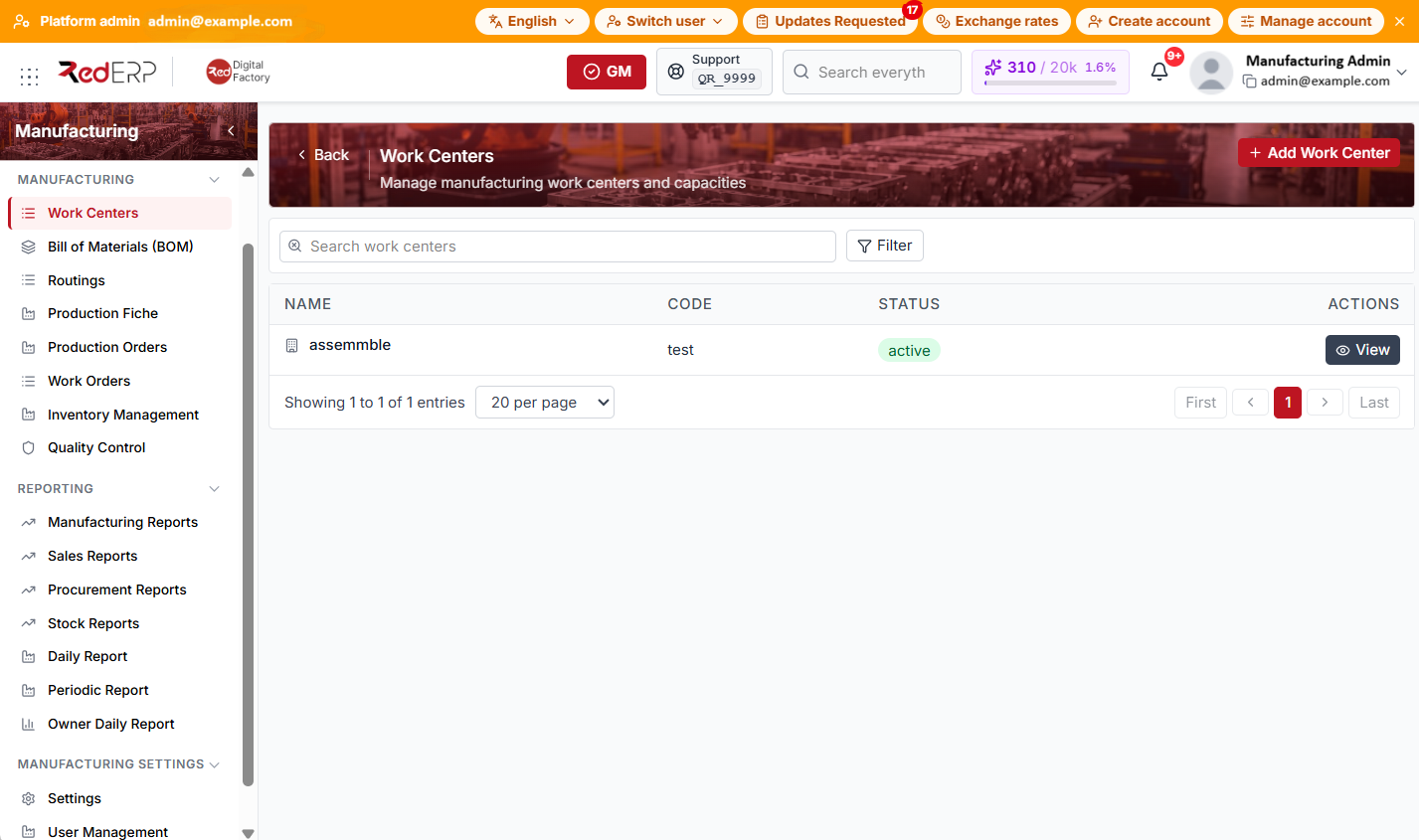
The columns are Name, Code, Status, and Actions.
Use the search field (Search work centers) to filter by name or code. The list refreshes as you type.
Select Filter to open the filter panel:
- Work Center — pick one work center or leave All
- Status — Active, Inactive, or All Status (default Active)
Create a work center
- Open Manufacturing → Work Centers.
- Select Add Work Center.
- Enter Code and Name (both required).
- Choose Type if needed — Assembly, CNC, Packaging, Painting, or Inspection (optional).
- Set Status to Active or Inactive.
- Enter Capacity / hour, Setup time (minutes), and Description as needed.
- Select Create Work Center.
View or edit a work center
- Select View on a row to open the work center detail page.
- Review the fields in read-only mode.
- Select Edit to change Name, Code, Type, Status, Capacity / hour, Setup time (minutes), or Description.
- Select Save, or Cancel to discard changes.
- Select Delete Work Center at the bottom only when the record is no longer needed and nothing references it. Confirm in the dialog.
Work center statuses
- Active — available for routings and work orders
- Inactive — hidden from new assignments; existing links may remain
Good practice
- Use short, stable Code values operators recognize on the floor.
- Set realistic Capacity / hour before you rely on dashboard utilization tiles.
- Keep inspection or QC stations as Inspection type work centers so routings stay readable.