Bill of Materials (BOM)
Maintain product bills of materials, component lines, versions, and print views.
Overview
A Bill of Materials (BOM) lists every component needed to build a finished product. Routings, production fiches, and production orders use the active BOM to explode material requirements.
BOM list
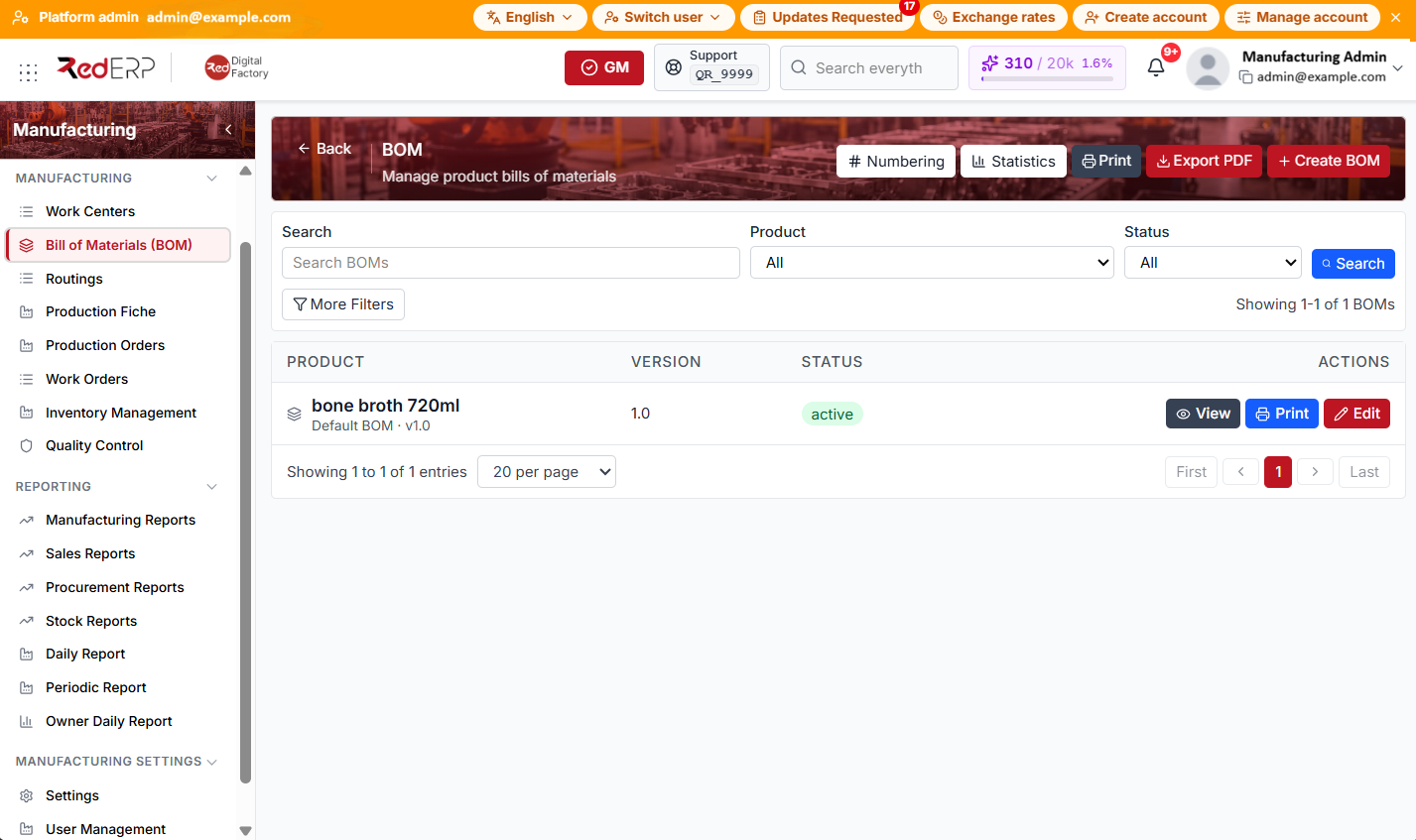
The columns are Product, Version, Status, and Actions.
Create a BOM
- Open Manufacturing → Bill of Materials (BOM).
- Select Create BOM.
- In the drawer, fill in:
- Product (required)
- Version (required; default
1.0) - Status — Draft, Active, Inactive, or Archived (default Active)
- Effective date (default today)
- Days to expire — preset (1, 3, 7, 30, 60, 90, or 365 days), Other with a custom day count, or leave empty
- Expiry date — set directly or calculated from effective date + days to expire
- Description (optional)
- Select Create BOM. On success, RedERP opens the BOM detail page so you can add components.
View, edit, or print from the list
Row actions:
- View — opens a read-only BOM Details drawer with header fields and component lines; use Print or Edit from the drawer header
- Print — opens a print preview for that BOM
- Edit — opens the BOM detail page
BOM detail
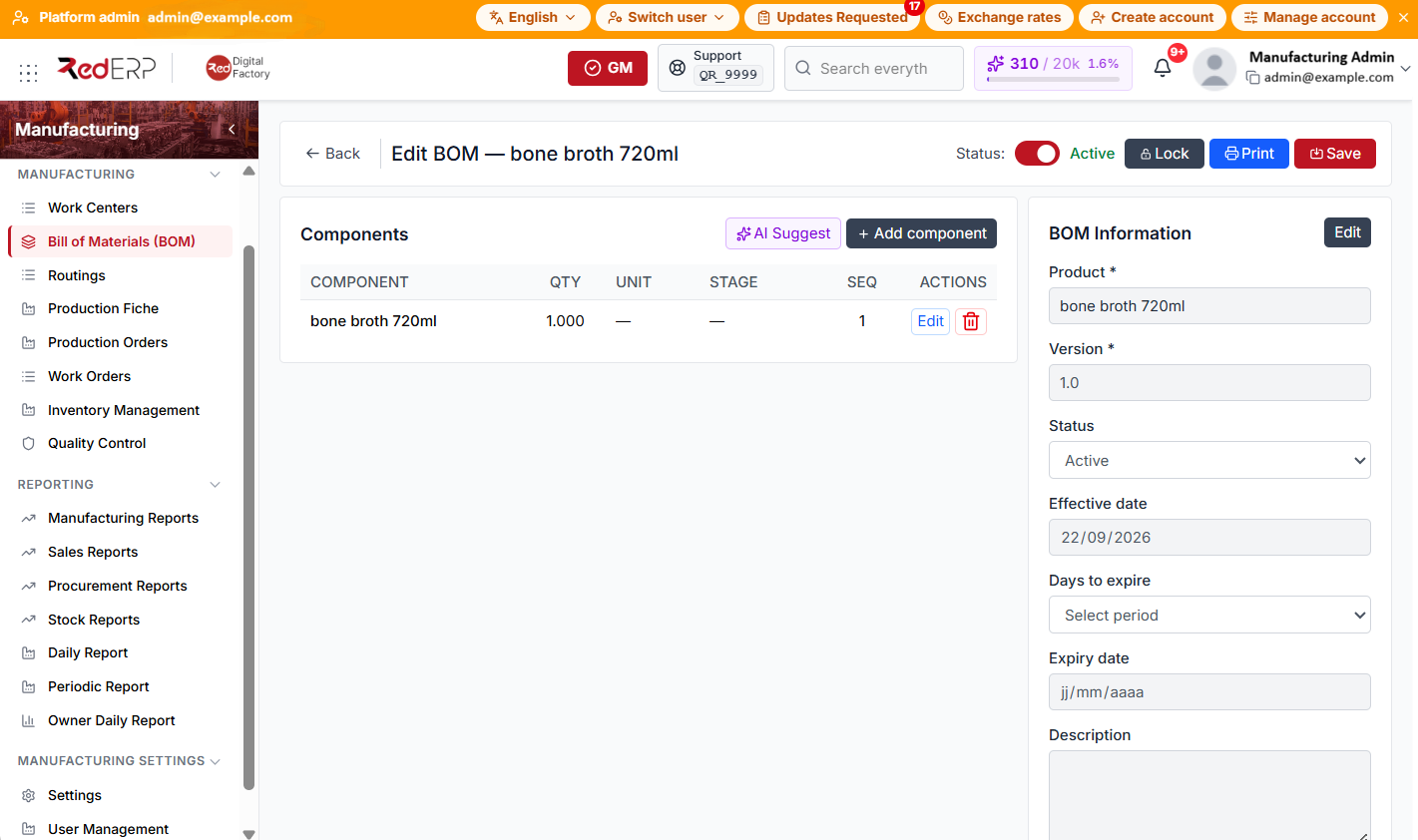
The detail page title is Edit BOM — {product} (with variant name when applicable).
Header actions
- Back — return to the BOM list
- Status toggle — switch between Active and Inactive (saved when you click Save)
- Lock / Unlock — prevent or allow edits in the UI
- Print — open Preview BOM with a print-ready view
- Save — save header changes from the top bar
Variant scope (products with variants)
When the product has variants, a scope bar appears above the content:
- Default BOM is the base recipe
- Each variant can have an alteration BOM for extra or different components
- Switch between BOMs or create an alteration BOM for a variant
Components panel
The Components table columns are Component, Qty, Unit, Stage, Seq, and Actions.
Actions above the table:
- AI Suggest — suggest materials, services, and tools from product context (uses tokens for new products)
- Undo Delete — restore the last deleted component (when available)
- Add component — open the component drawer
Component drawer fields: Product, Quantity, Unit, Waste %, Sequence, Stage, Notes. Use Create or Update to save the line.
BOM Information panel
The right panel shows BOM Information in read-only mode by default.
- Select Edit to change Product, Version, Status, Effective date, Days to expire, Expiry date, or Description.
- Select Save in the panel (or Save in the page header), or Cancel to discard panel edits.
BOM statuses
- Draft — editable; not used for explosion on released orders
- Active — current structure used by production
- Inactive — superseded but kept for history
- Archived — read-only reference
Good practice
- Version every structural change instead of overwriting an active BOM.
- Align component Sequence and Stage with routing operations when both exist.
- Activate the BOM only after components, units, and waste percentages are verified.
- Use Lock on approved BOMs to prevent accidental edits on the shop floor.