Volunteers & Events
Manage volunteer profiles and hours, create events, collect registration payments, and check in attendees.
Overview
Use Volunteers to maintain volunteer availability, skills, and contributed hours. Use Events to plan activities and manage participant registration, payment, and attendance.
Volunteers
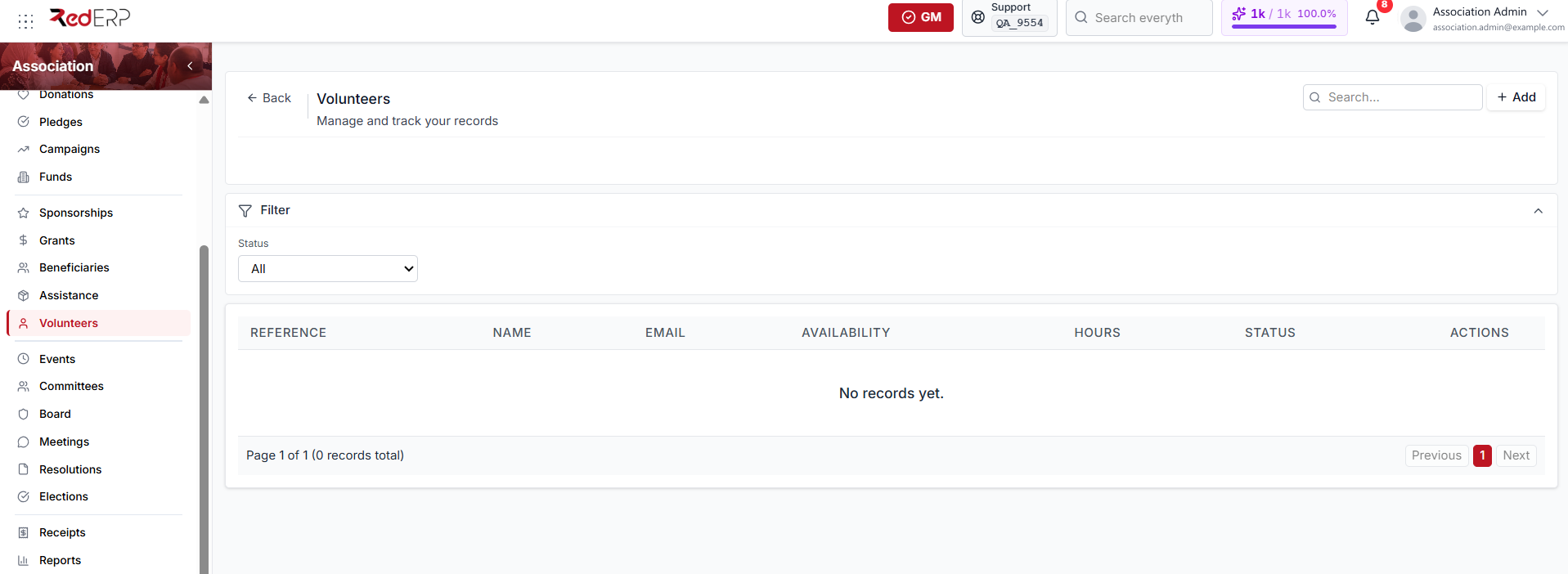
Open Association → Volunteers to see each volunteer's reference, name, email, and availability. The Status filter narrows the list.
A volunteer status can be:
- Applicant
- Active — the default when you create a record
- Inactive
- Archived
Create a volunteer
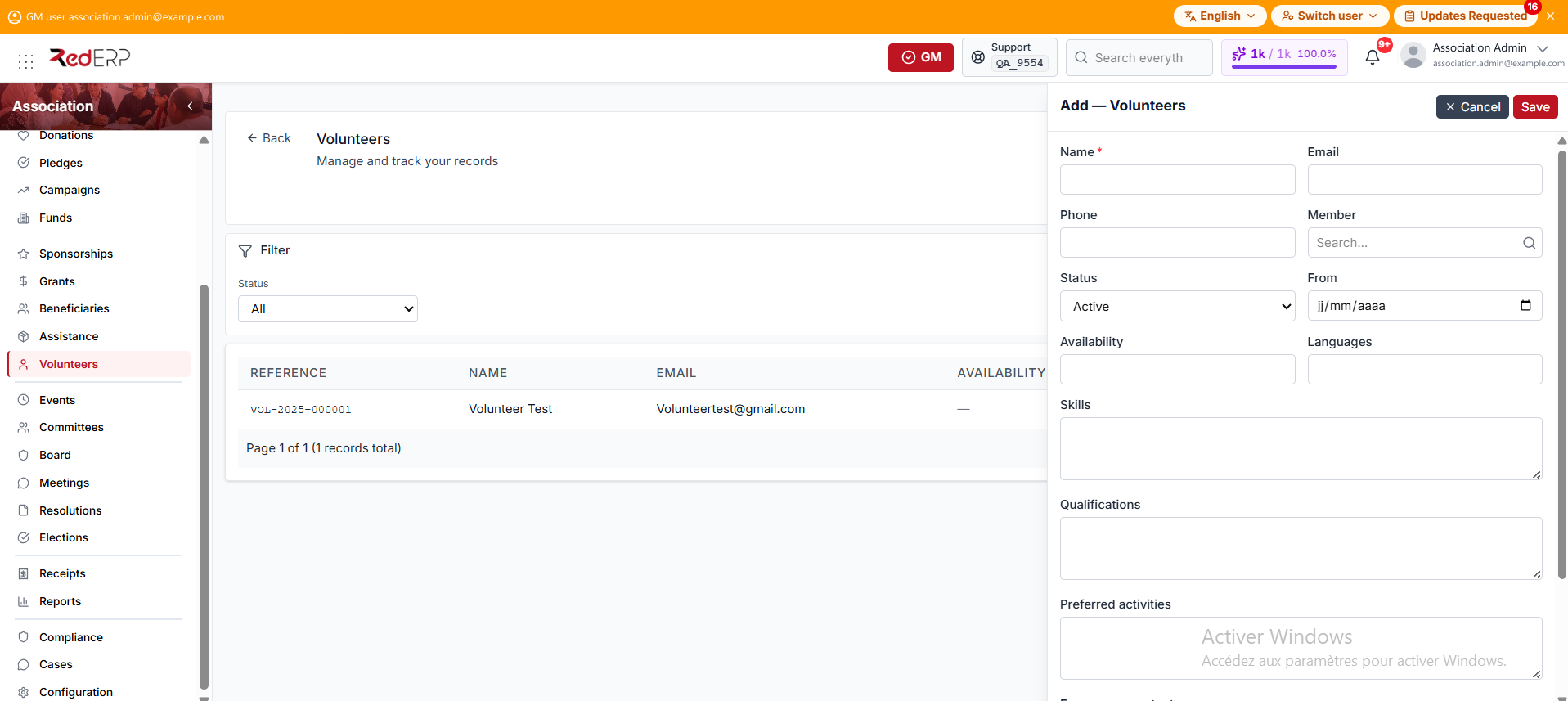
- Open Association → Volunteers.
- Select Add.
- Enter the required Name.
- Add the email and phone.
- Optionally link an existing association Member.
- Set the Status. It defaults to Active.
- Set the From date, then add availability, languages, skills, qualifications, and preferred activities.
- Add the emergency contact and notes, then save.
Record hours
Hours is a row action on the Volunteers list. It opens the hours drawer for that volunteer.
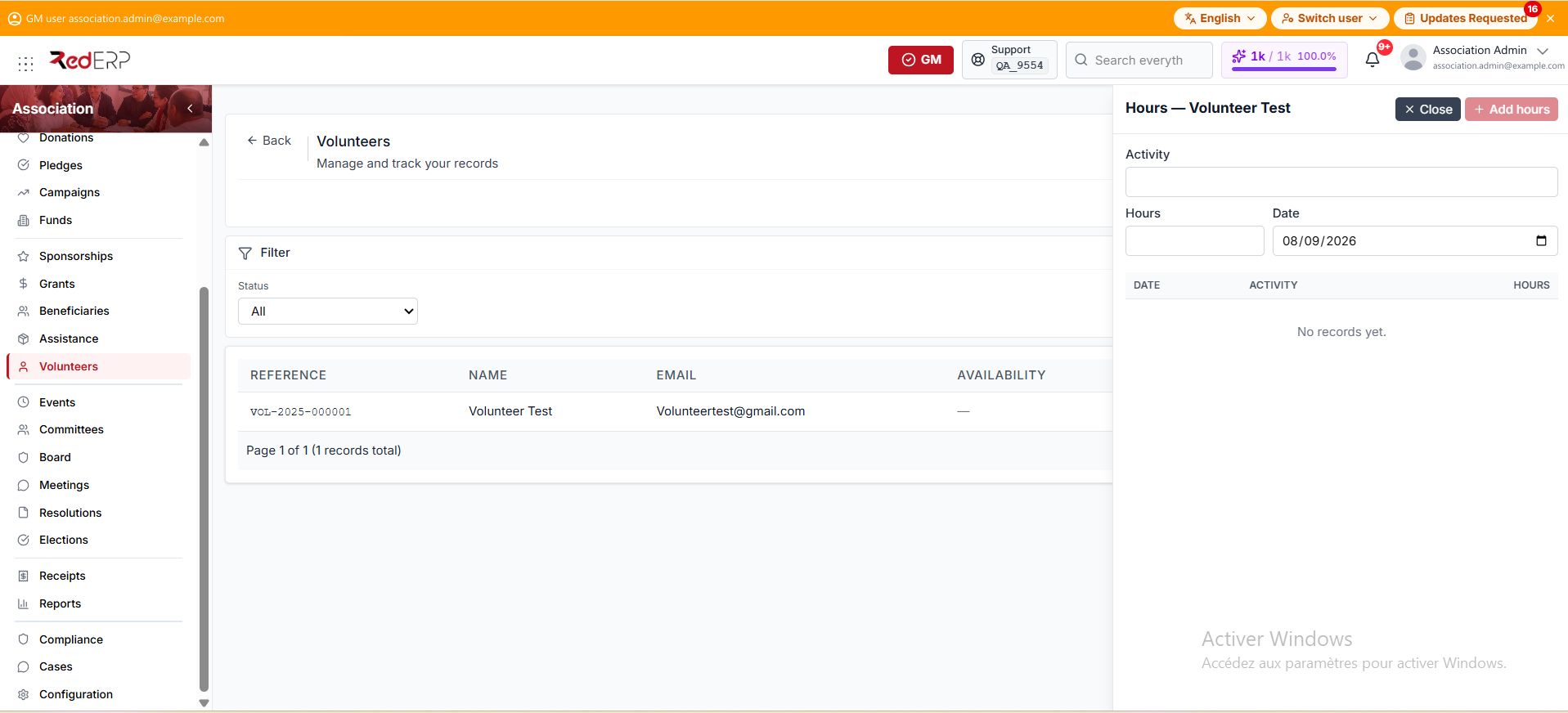
- Select Hours on a volunteer row.
- Enter the activity, the number of hours, and the date.
- Select Add hours. The entry appears in the date, activity, and hours list.
The Volunteer hours report combines these entries for follow-up and recognition.
Events
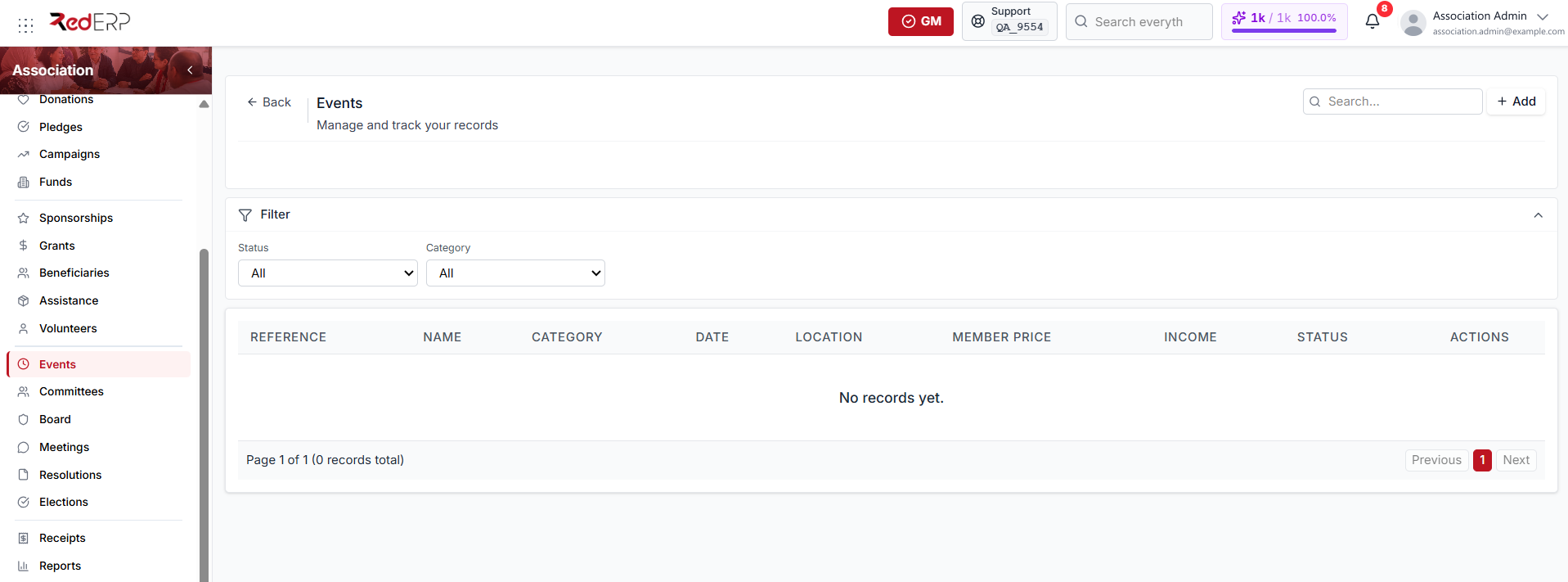
Open Association → Events to see each event's reference, name, category, date, and location. The Status and Category filters narrow the list.
An event category can be:
- Community — the default
- Fundraising
- Training
- General assembly
- Conference
- Other
An event status can be:
- Draft — the default when you create a record
- Planned
- Open
- Completed
- Cancelled
Create an event
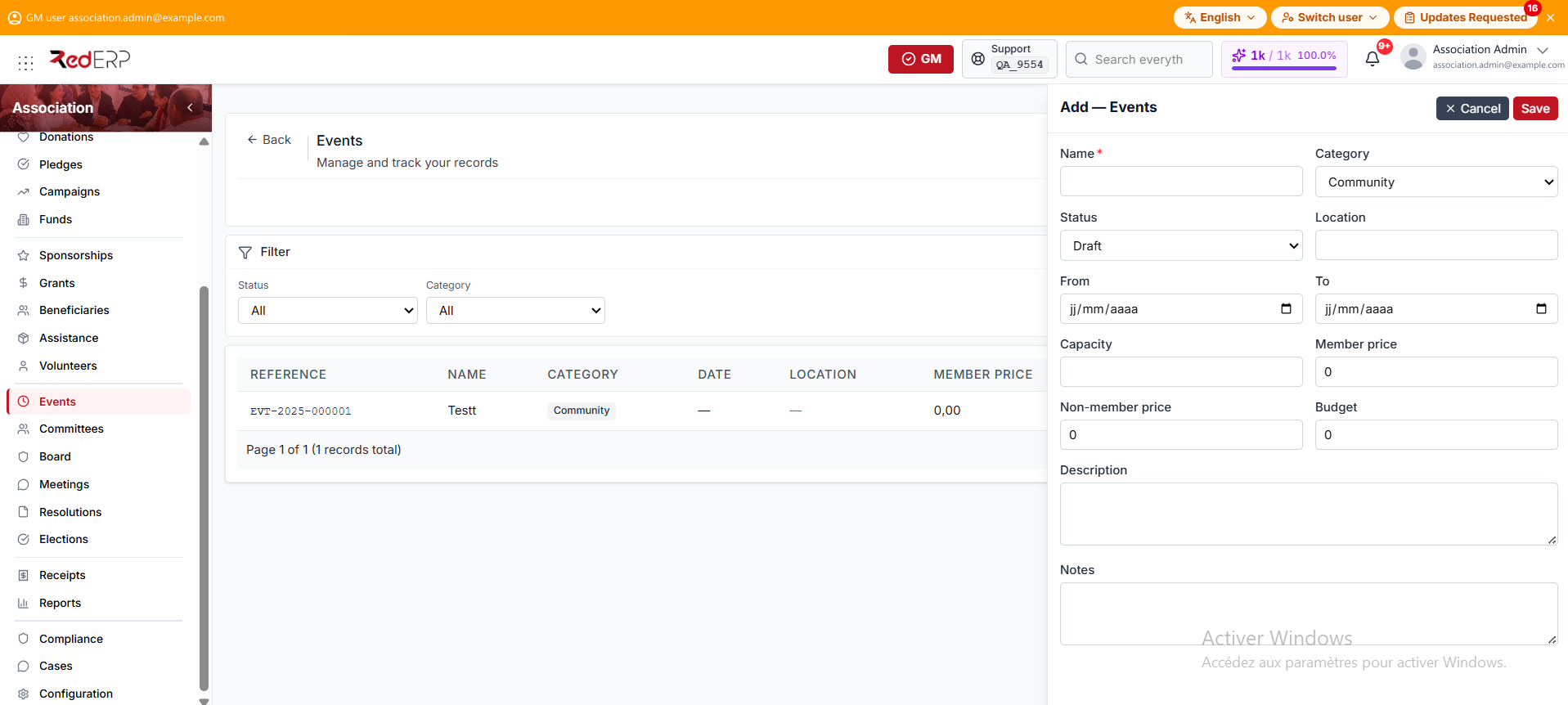
- Open Association → Events.
- Select Add.
- Enter the required Name.
- Set the Category. It defaults to Community.
- Set the Status. It defaults to Draft.
- Add the location, From and To dates, and capacity.
- Set the member price, non-member price, and budget.
- Add a description and notes, then save.
Setting the status to Open is useful when registration should start, but the screen also accepts registrations while the event is still Draft.
Register a participant
Registrations is a row action on the Events list. It opens the registrations drawer for that event.
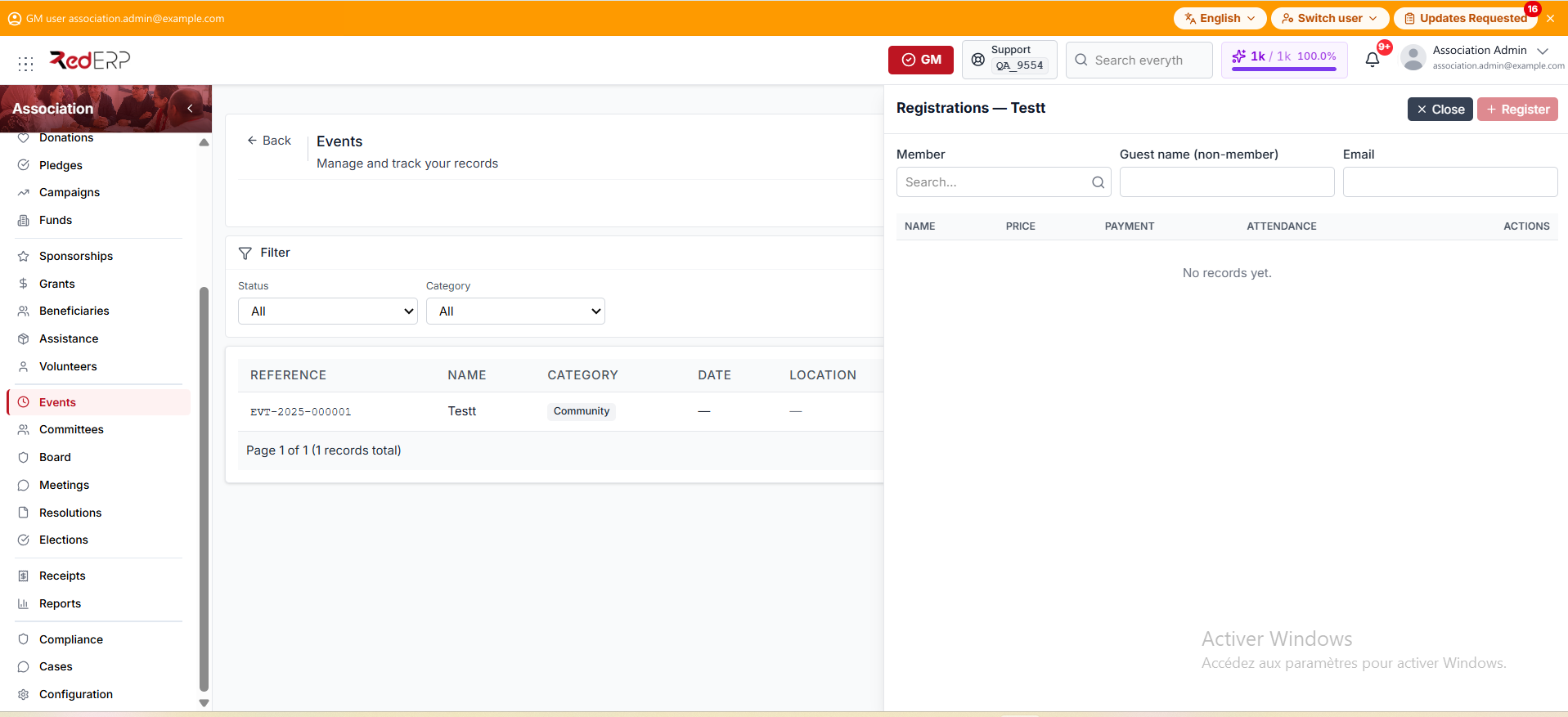
- Select Registrations on an event row.
- Choose a Member, or enter a Guest name (non-member) and optional email.
- Select Register. A member is charged the member price; a guest is charged the non-member price. A zero price is stored as Free.
Compare the number of registrations with the event capacity before accepting additional attendees. The screen does not block registration when capacity is reached.
Collect a payment and check in
Pay and Check-in are row actions in the registrations table.
- Select Pay on a registration whose payment status is Pending. The payment drawer opens with the outstanding balance, and recording the payment issues a receipt.
- Select Check-in when the participant arrives. The action is hidden after the participant is marked as attended.
See Receipts & Reports for reprints and cancellations.