Journal Posts
How to create, publish, hide, edit, and translate storefront journal articles.
E-commerce → Storefront content → Journal posts is the shop magazine / blog.
Open Storefront content, then click Journal posts (or /modules/ecommerce/content#posts).
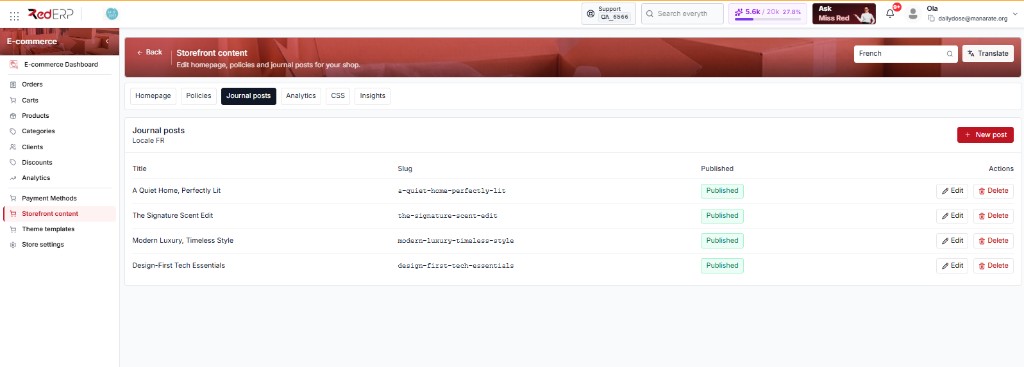
Shoppers read the list at /journal and one article at /journal/{slug} (example from the screenshot: /journal/a-quiet-home-perfectly-lit).
The homepage and product pages can also show a Journal block. Turn that on or off on Homepage (Show Journal section on homepage). Posts stay in this list even if the block is hidden.
How to use this tab
The line under the title is Locale FR (or EN, AR…). That is the language you are editing. The screenshot is the French list: same slugs as English, French titles.
| What you see | How to use it |
|---|---|
| + New post | Opens the drawer to create an article in the current locale |
| Title | Headline on /journal and on the article |
| Slug | Last part of the URL. Keep it stable once the post is live |
| Published (green) | Live. Click the badge to switch to Draft without opening the drawer |
| Draft (grey) | Hidden from the shop. Click to publish |
| Edit | Opens the drawer to change text, cover, body |
| Delete | Removes the post. This cannot be undone |
Empty shop: No posts. Click + New post.
Create a post (step by step)
Set the language
Choose English (or the language you want to write first) in the top-right dropdown.
Open New post
Click + New post. The drawer subtitle shows Locale EN (or FR…).
Fill the required fields
Title and Slug are required. Slug example: a-quiet-home-perfectly-lit (lowercase, hyphens, no spaces). Save stays disabled while a cover photo is uploading.
Add the story
Excerpt = short teaser on the /journal cards. Deck = longer intro under the title on the article. Category = a free label (e.g. Lifestyle). Cover image URL = paste a link or Upload photo. Sections (one paragraph per line) = the article body; one paragraph per line.
Publish
Tick Published in the drawer, then Save. The row should show a green Published badge. Open https://{handle}.rederp.shop/journal/{slug} to check.
Edit, unpublish, or delete
- Edit — change copy or cover, Save in the drawer.
- Unpublish — click the green Published badge so it becomes Draft. Use this for seasonal stories you want to keep.
- Delete — only if you are sure. Prefer Draft if you might need the article again.
- Do not change a live slug if you already shared the link (old URL will 404).
Other languages
Use the Translate modal:
- Write and publish the post in the source language.
- Tick Journal posts, pick source → target. Each post costs 20 AI tokens. Slugs and image URLs stay the same. Translate saves immediately.
- The language dropdown switches to the target (e.g. French). You should see rows like the screenshot (A Quiet Home, Perfectly Lit with slug
a-quiet-home-perfectly-lit). - Open Edit, fix the copy, Save. Confirm Published is still on.
If the French list is empty after Translate, check the language dropdown and that scope included journal posts.
Related guides
- Homepage — show or hide the Journal block
- Translate
- Storefront Content
- Storefront Shopper Guide