Stripe Go-Live
Step-by-step Stripe setup for RedERP ecommerce — keys, webhook, currencies, paid status, and common failures.
Overview
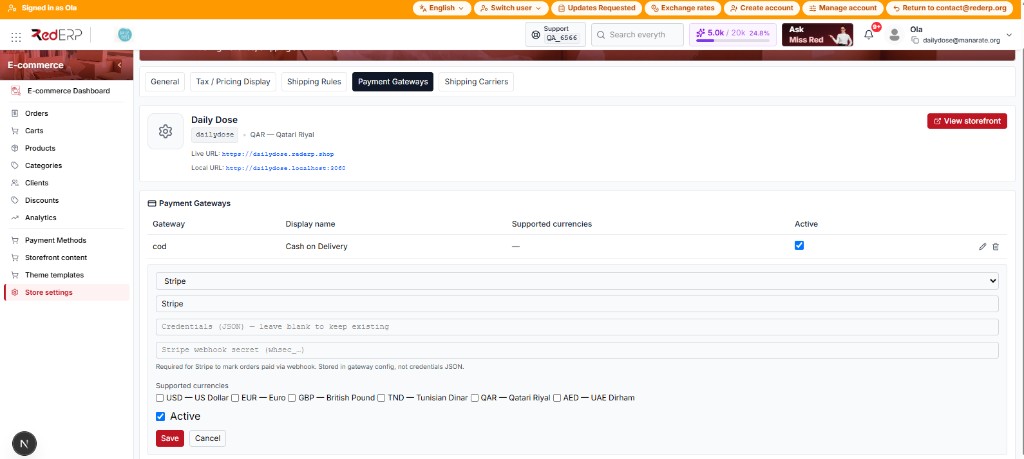
Stripe card checkout uses an active payment gateway in E-commerce → Store settings → Payments, plus storefront PaymentIntent APIs and a webhook for reliable paid/failed/refunded updates.
Gateways here are not the same screen as Payment Methods (
active_ecommerce).

Before you start
- Stripe account (test mode first, then live).
- Store currency set under Store settings → General (
USD,EUR,GBP,TND,QAR,AED). - Products enabled for ecommerce with valid prices and stock.
- At least one shipping option / flat rate so checkout can complete.
Add the Stripe gateway (step by step)
- Open E-commerce → Store settings → Payments.
- Add gateway → code
stripe. - Set a display name (e.g. Card / Stripe).
- In credentials JSON, set:
publishable_key—pk_test_…orpk_live_…secret_key—sk_test_…orsk_live_…
- In Stripe webhook secret, paste
whsec_…(stored inconfig_json.webhook_secret, not inside credentials). - Optionally tick supported currencies.
- Turn Active on → Save.
On edit, leaving credentials blank keeps existing secrets.
Configure the Stripe webhook
-
In Stripe Dashboard → Developers → Webhooks → Add endpoint.
-
Endpoint URL (production backend):
https://{your-api-host}/webhooks/stripe-ecommerce -
Listen for at least:
payment_intent.succeededpayment_intent.payment_failedcharge.refunded
-
Copy the signing secret (
whsec_…) into the gateway field above.
What the webhook does
| Event | Order payment_status | Emails (if notifications ON) |
|---|---|---|
payment_intent.succeeded | paid (+ paid_at) | order confirmed + payment successful |
payment_intent.payment_failed | failed | payment failed |
charge.refunded | refunded | payment refunded |
The storefront also calls confirm payment after Elements succeeds; the webhook is still required for reliability and refunds.
Signature failures respond with: Webhook signature verification failed.
Shopper card flow
- Shopper selects Stripe at checkout.
- Order is created; PaymentIntent is created (
create-intent). - Card is entered in the inline Stripe panel.
- On success, payment is confirmed and confirmation page shows payment success.
- Until paid, Stripe/redirect orders typically defer the main confirmation email (unlike COD).
Test checklist
- Use test keys + test card (
4242…). - Place an order → status becomes paid.
- Confirm emails if notifications are enabled.
- In Stripe, trigger a test refund → ERP shows refunded.
- Switch to live keys + live webhook secret only when ready.
Common failures
| Symptom | Fix |
|---|---|
| Invalid or inactive payment gateway | Gateway missing / Active off / wrong code |
| Stripe is not configured… | Missing publishable_key / secret_key |
| Card OK but order stays unpaid | Webhook URL / whsec wrong or events missing |
| Currency errors in Stripe | Align store currency_code with Stripe account capabilities |
| Order is already paid | Duplicate confirm — ignore / refresh order |
Full list: Troubleshooting.