Email Templates
Create reusable CRM templates for deal emails, with subject and HTML body placeholders.
Overview
Use Email Templates for deal emails. Newsletter campaigns have their own content.
Email Templates
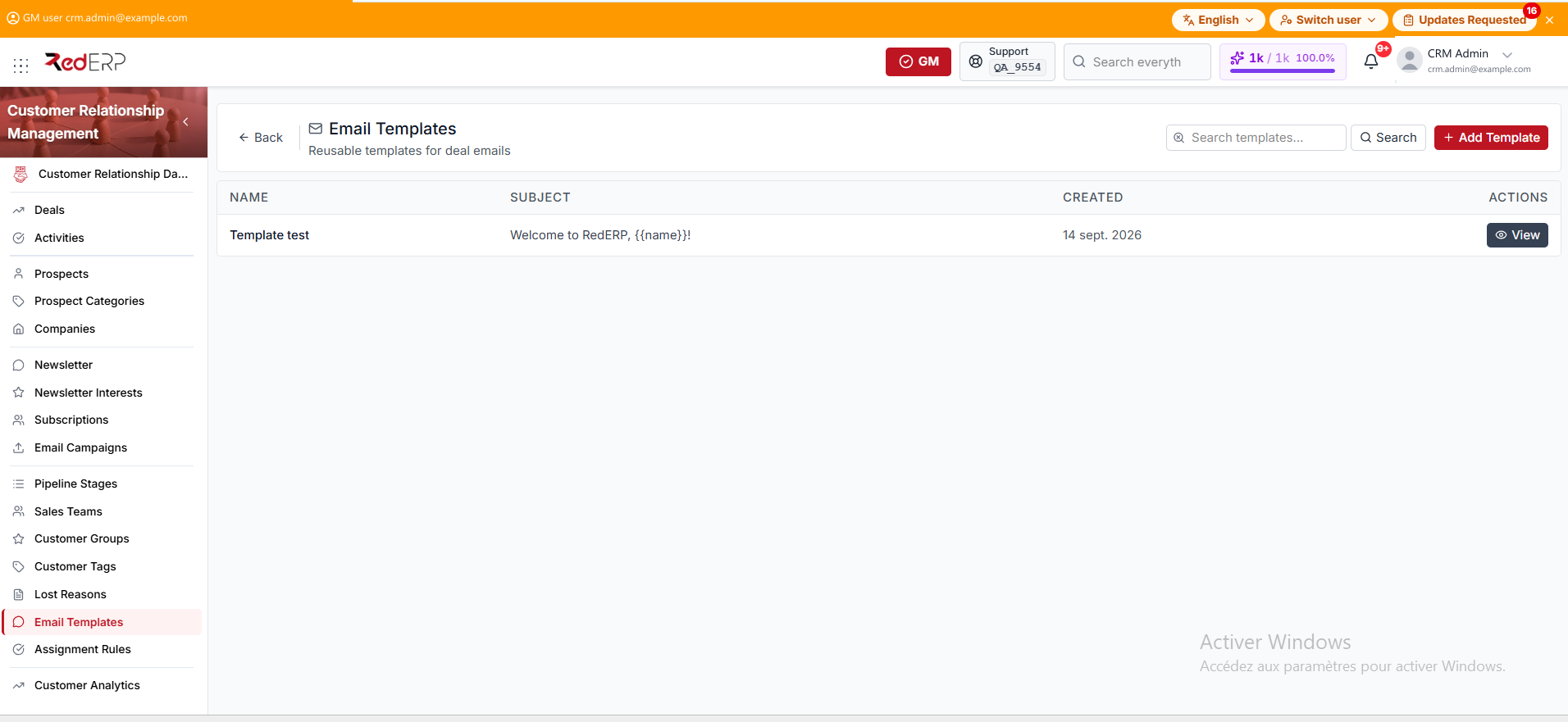
The columns are Name, Subject, Created, and Actions. Use Search templates... then Search (or Enter) to filter the list.
The row action is View. You can also select the template name.
Create a template
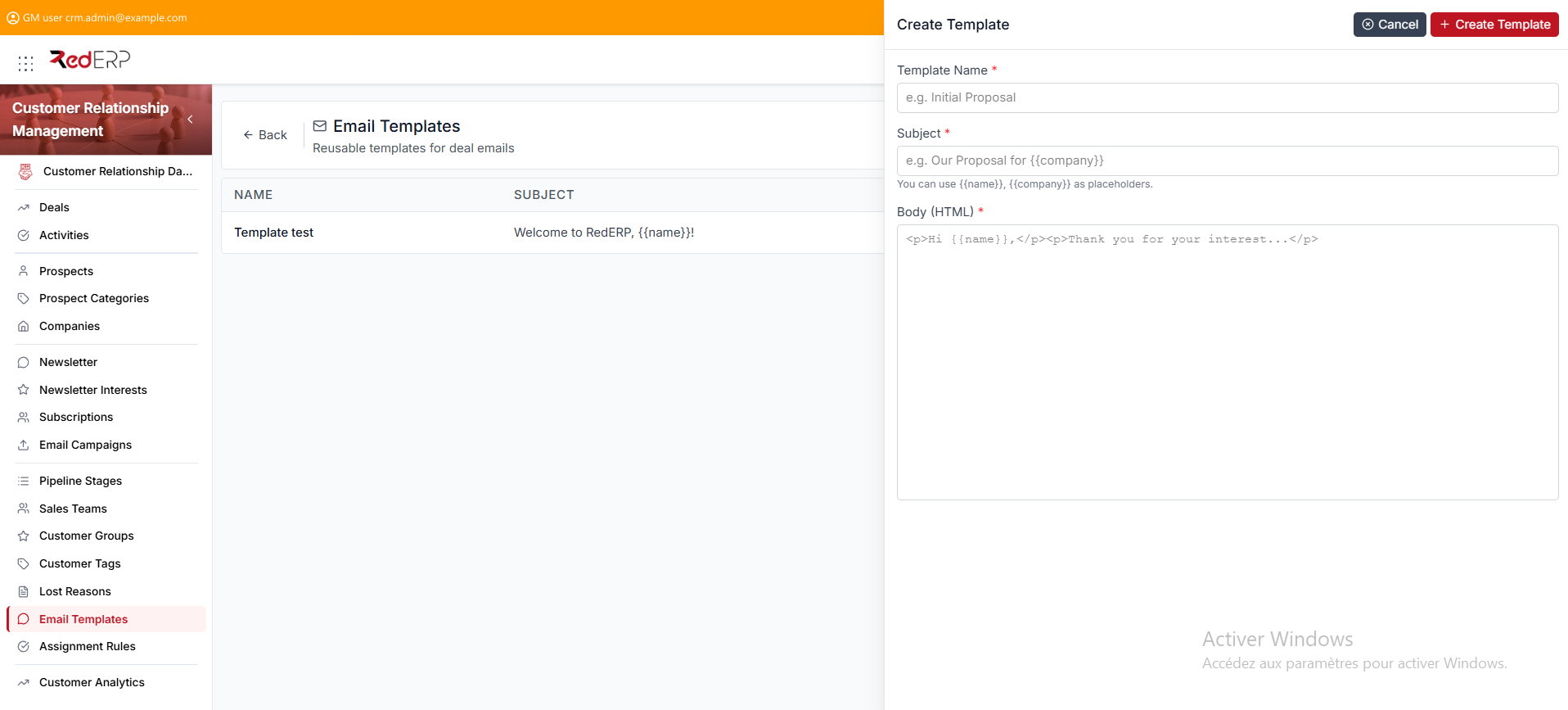
- Open CRM → Email Templates.
- Select Add Template. The drawer title is Create Template.
- Enter the required Template Name. The placeholder is e.g. Initial Proposal.
- Enter the required Subject. The placeholder is e.g. Our Proposal for
{{company}}. Under the field: You can use{{name}},{{company}}as placeholders. - Enter the required Body (HTML).
- Select Create Template.
On Deals detail, Send Email can use Use Template. The send is logged to chatter.
View, edit, or delete a template
- Open CRM → Email Templates.
- Select View. The drawer title is Template Details.
- Review Template Name, Subject, Created, and Body (HTML).
- Select Edit. The drawer title is Edit Template. Change the fields, then select Save Changes.
- Use Delete Template in the Danger Zone only when the template must be removed. Confirm in the Delete Template dialog.
Good practice
- Keep one template per recurring follow-up, not one per deal.
- Test
{{name}}and{{company}}on a sample deal before the team uses the template.