Assignment Rules
Auto-assign new leads to a salesperson or sales team when a prospect or deal is created without an assignee.
Overview
Use Assignment Rules to auto-assign new leads. The screen subtitle is Auto-assign new leads to salespeople based on matching criteria.
Rules run when a prospect or deal is created without an explicit assignee. The lowest Priority number runs first.
Assignment Rules
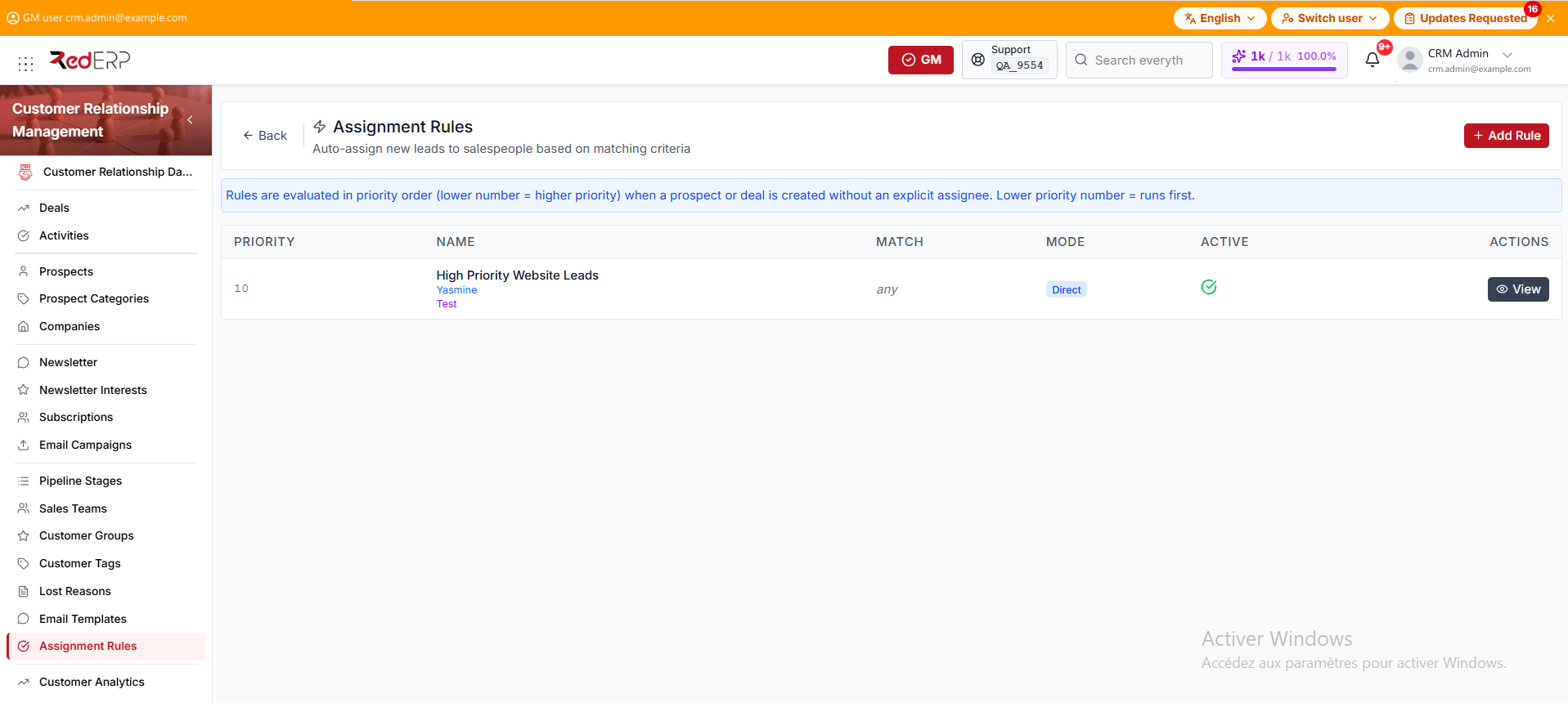
The columns are Priority, Name, Match, Mode, Active, and Actions.
The banner states: Rules are evaluated in priority order (lower number = higher priority) when a prospect or deal is created without an explicit assignee. Lower priority number = runs first.
Match for a catch-all rule shows any. Mode is Direct or Round Robin. Active is a check you can select to deactivate, or an empty circle you can select to activate. The Name cell also shows the assigned user and sales team under the rule name.
The row action is View. You can also select the rule name.
Create a rule
- Open CRM → Assignment Rules.
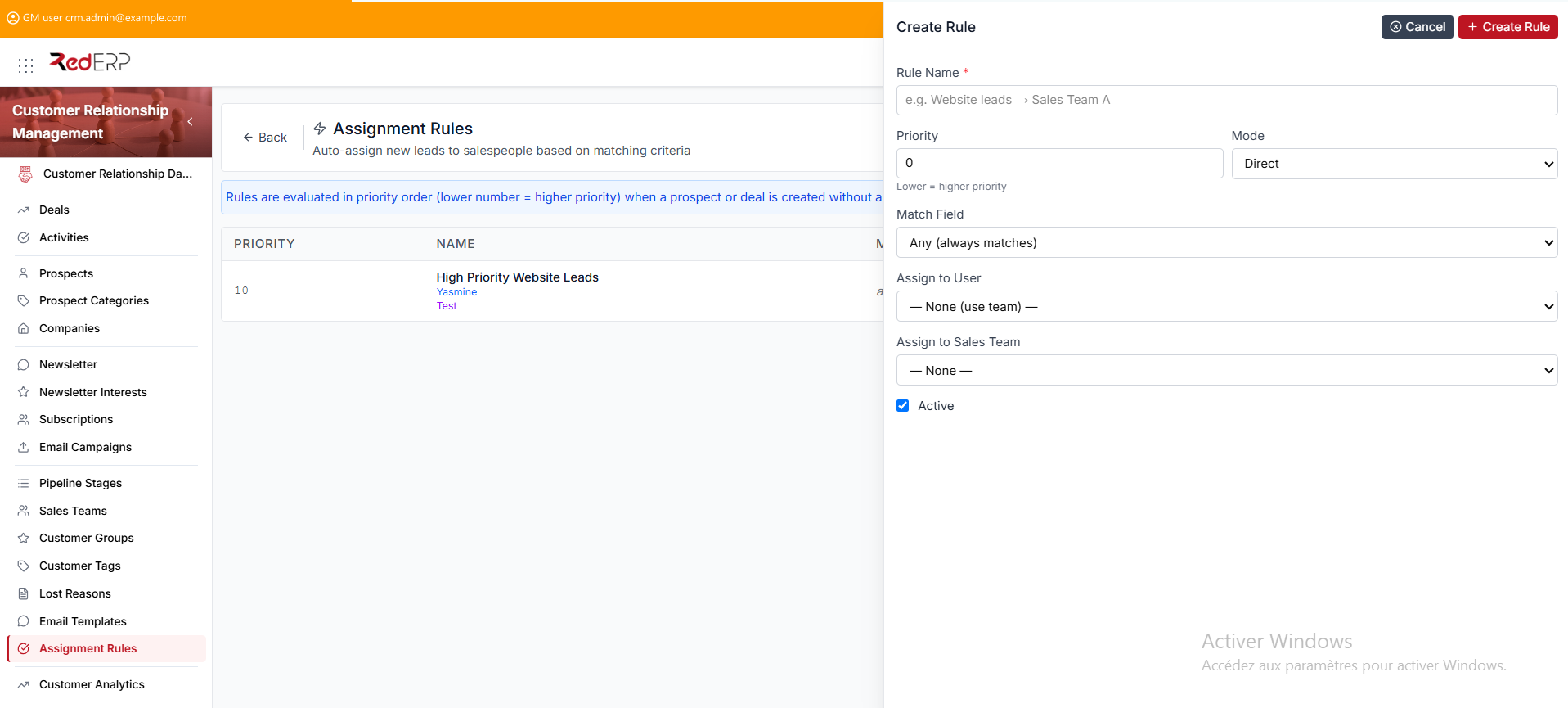
- Select Add Rule. The drawer title is Create Rule.
- Enter the required Rule Name. The placeholder is e.g. Website leads → Sales Team A.
- Set Priority. The default is 0. Under the field: Lower = higher priority.
- Set Mode to Direct or Round Robin.
- Choose Match Field: Any (always matches), Lead Source, or Pipeline Stage.
- When Match Field is Lead Source, set the required Match Value from the list (placeholder — Select lead source —). When it is Pipeline Stage, set the required Match Value from your stages (placeholder — Select pipeline stage —). Match Value is hidden when the field is Any (always matches).
- Choose Assign to User. The default is — None (use team) —.
- Choose Assign to Sales Team. The default is — None —.
- Leave Active checked, or clear it to create the rule inactive.
- Select Create Rule.
View, edit, or delete a rule
- Open CRM → Assignment Rules.
- Select View. The drawer title is Rule Details.
- Review Rule Name, Priority, Mode, Match, Assign to User, Assign to Sales Team, and Active.
- Select Edit. The drawer title is Edit Rule. Change the fields, then select Save Changes.
- Use Delete Rule in the Danger Zone only when the rule must be removed. Confirm in the Delete Rule dialog.
Good practice
- Put the most specific Match Field at the lowest Priority number so it runs first.
- Create the Sales Team before you use Round Robin.
- Clear Active instead of deleting a rule when you still need the history.