Pipeline Stages
Configure CRM sales stages, probability, won and lost flags, and drag to reorder.
Overview
Use Pipeline Stages to define the columns of the deal kanban. Deals and analytics read this list.
Pipeline Stages
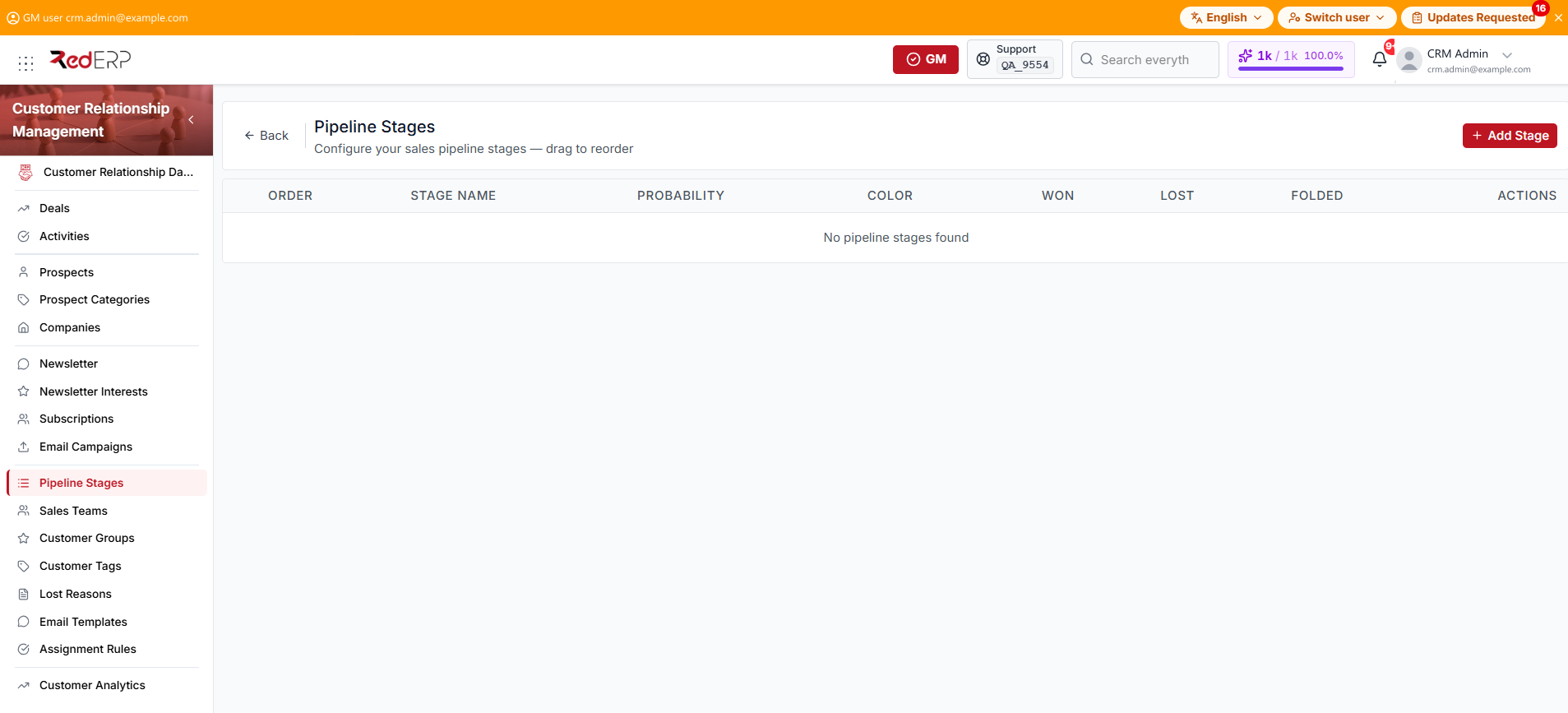
The columns are Order, Stage Name, Probability, Color, Won, Lost, Folded, and Actions. Won, Lost, and Folded show a check, or an em dash.
The row action is View. You can also select the stage name. Drag the handle to change display order. The new order is saved. If the list is empty, the page shows No pipeline stages found.
Create a stage
- Open CRM → Pipeline Stages.
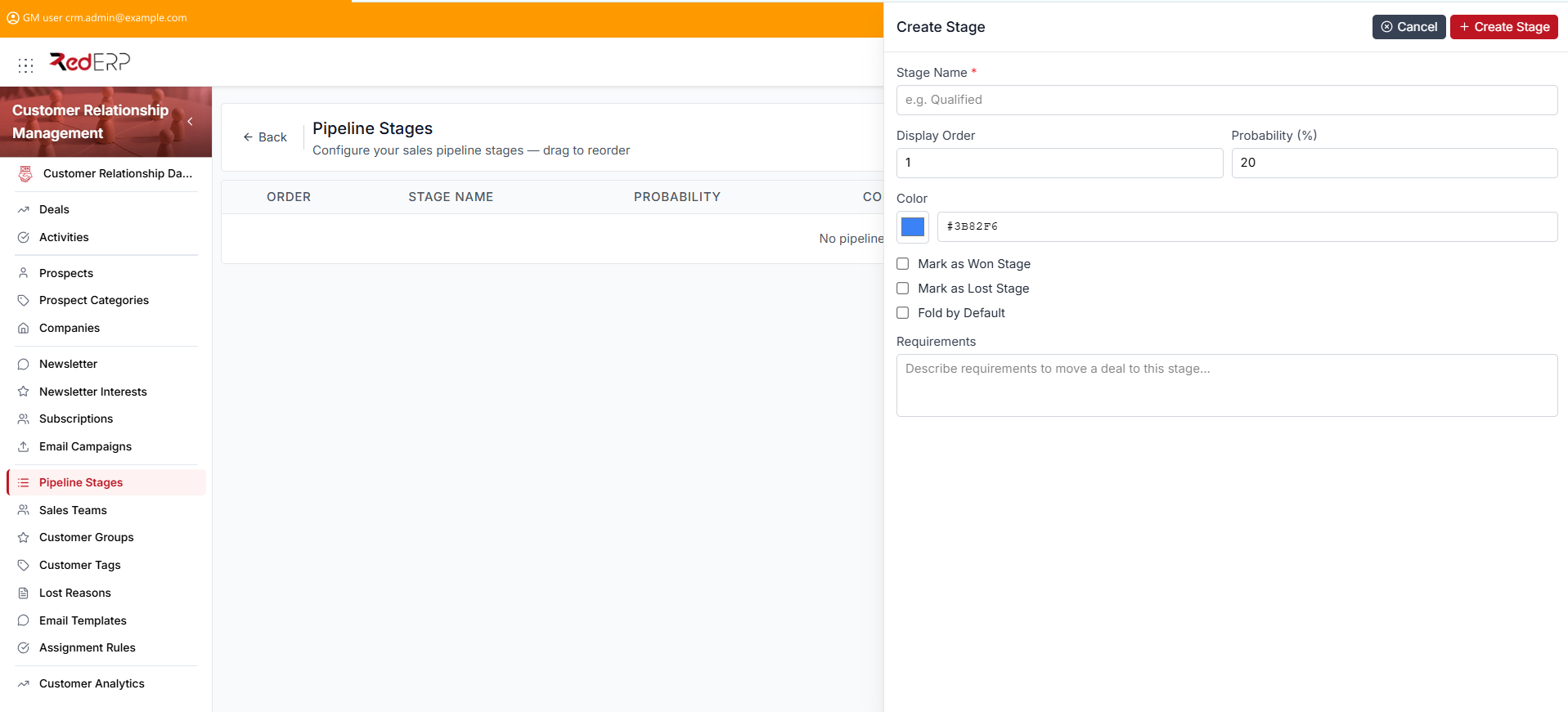
- Select Add Stage. The drawer title is Create Stage.
- Enter the required Stage Name.
- Set Display Order and Probability (%). On an empty list, display order starts at 1 and probability at 20.
- Set Color. The default is the blue swatch
#3B82F6. - Select Mark as Won Stage or Mark as Lost Stage only on the stages that mean a closed result. You cannot select both.
- Select Fold by Default if the column should start collapsed.
- Add Requirements if needed.
- Select Create Stage.
View, edit, or delete a stage
- Open CRM → Pipeline Stages.
- Select View. The drawer title is Stage Details.
- Review Stage Name, Display Order, Probability (%), Color, Mark as Won Stage, Mark as Lost Stage, Fold by Default, and Requirements.
- Select Edit. The drawer title is Edit Stage. Change the fields, then select Save Changes.
- Use Delete Stage in the Danger Zone only when the stage must be removed. Confirm in the Delete Stage dialog.
Good practice
- Mark exactly the stages that mean a closed win or a closed loss.
- Reorder stages before teams start using Kanban.