Employees & Departments
Create and maintain employees and departments in Human Resources.
Overview
Use Employees for people records and Departments for the teams they belong to.
Employees
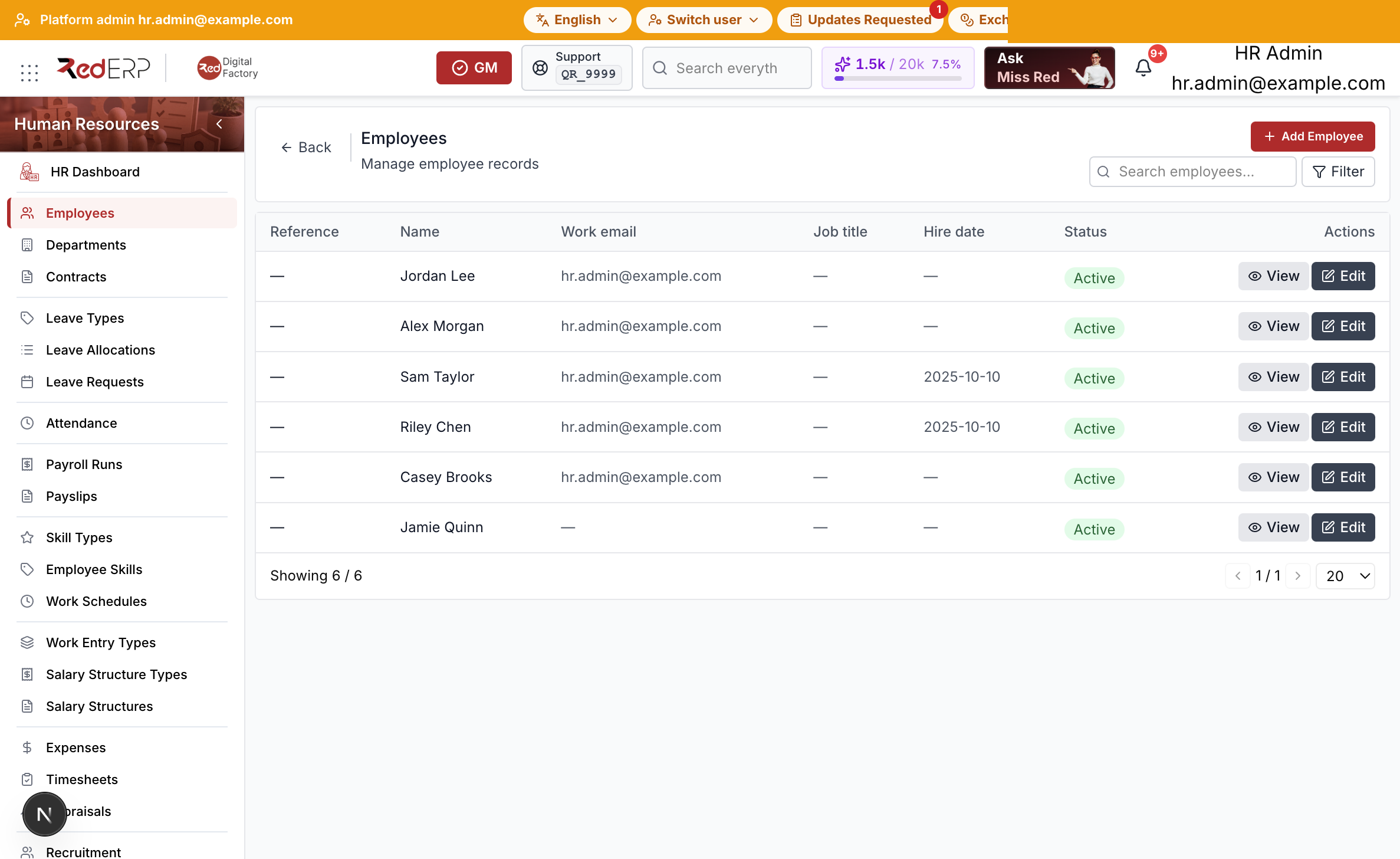
The columns are Reference, Name, Work email, Job title, Hire date, Status, and Actions. Status on the list shows Active. The create form Employment Status also offers Inactive, On Leave, and Terminated.
Row actions are View and Edit.
Add an employee
- Open Human Resources → Employees.
- Select Add Employee. A drawer opens: Add employee.
- Enter the required First Name and Last Name.
- Optionally set Work Email, Work Phone, Personal Phone, Job Title, Employment Type (Full Time, Part Time, Contract, Temporary, Intern, Consultant), Hire Date, and Employment Status (Active, Inactive, On Leave, Terminated).
- Select Save, or Cancel to close the drawer.
View or edit an employee
View opens the employee profile. Tabs are Overview, Contracts, Time Off, Attendance, Payslips, Skills, Documents, Expenses, Appraisals, and Timesheets.
Overview shows Work Information, Personal Information, and Emergency Contact. Archive Employee opens a drawer with Departure Reason, Departure Date, and Notes. Confirm with Confirm Archive. Status can also show Terminated or Archived.
Edit on the list opens the employee for changes.
Departments
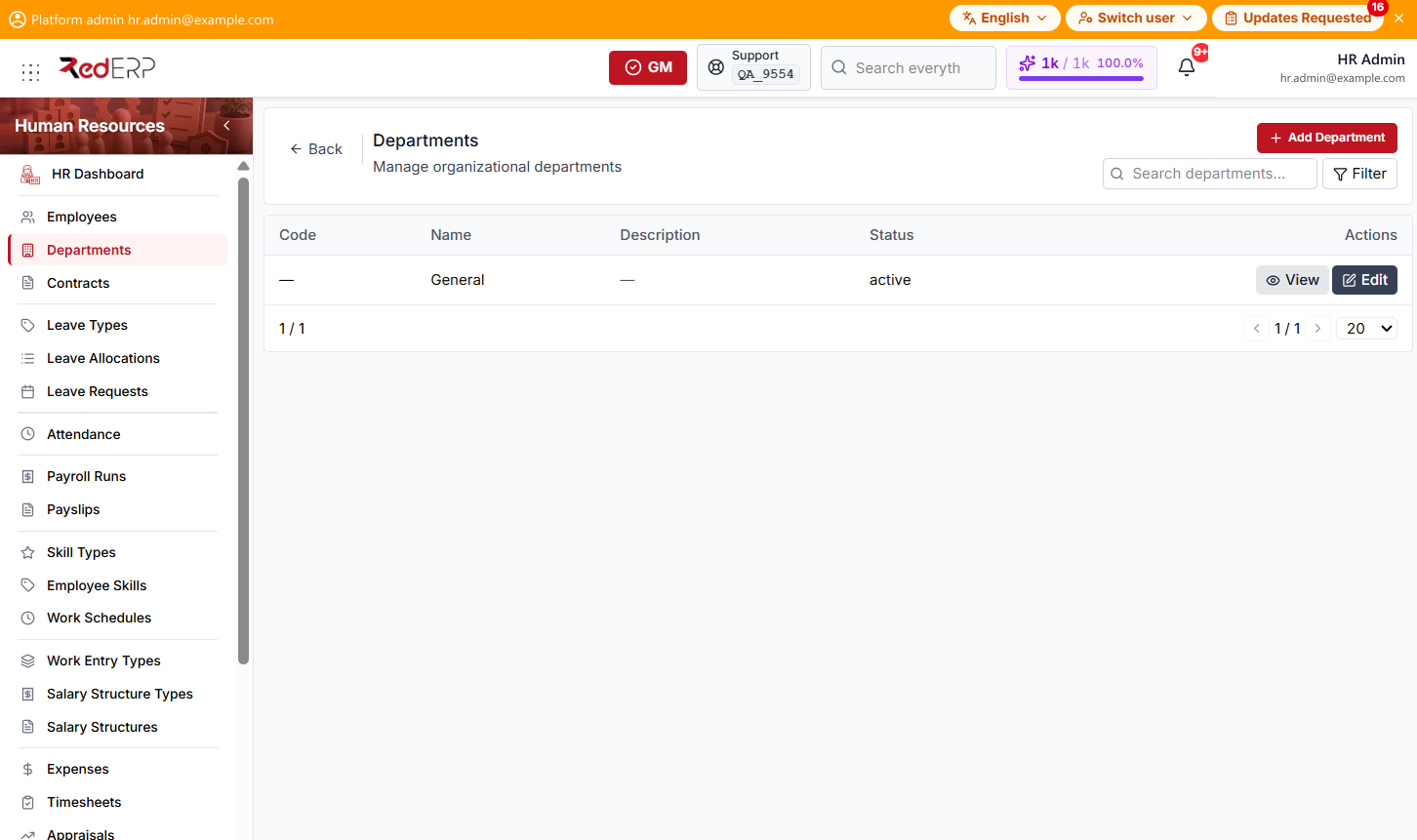
The columns are Code, Name, Description, Status, and Actions. Status on the list shows active. Row actions are View and Edit.
Add a department
- Open Human Resources → Departments.
- Select Add Department. A drawer opens: Add department.
- Enter the required Name. Optionally set Code and Description.
- Select Save, or Cancel to close the drawer.
View or edit a department
View opens the department. Edit on the list opens it for changes.