Leave & Attendance
Leave types, allocations, requests, and daily attendance.
Overview
Configure Leave Types, grant Leave Allocations, then record Leave Requests. Attendance is the daily check-in.
Leave Types
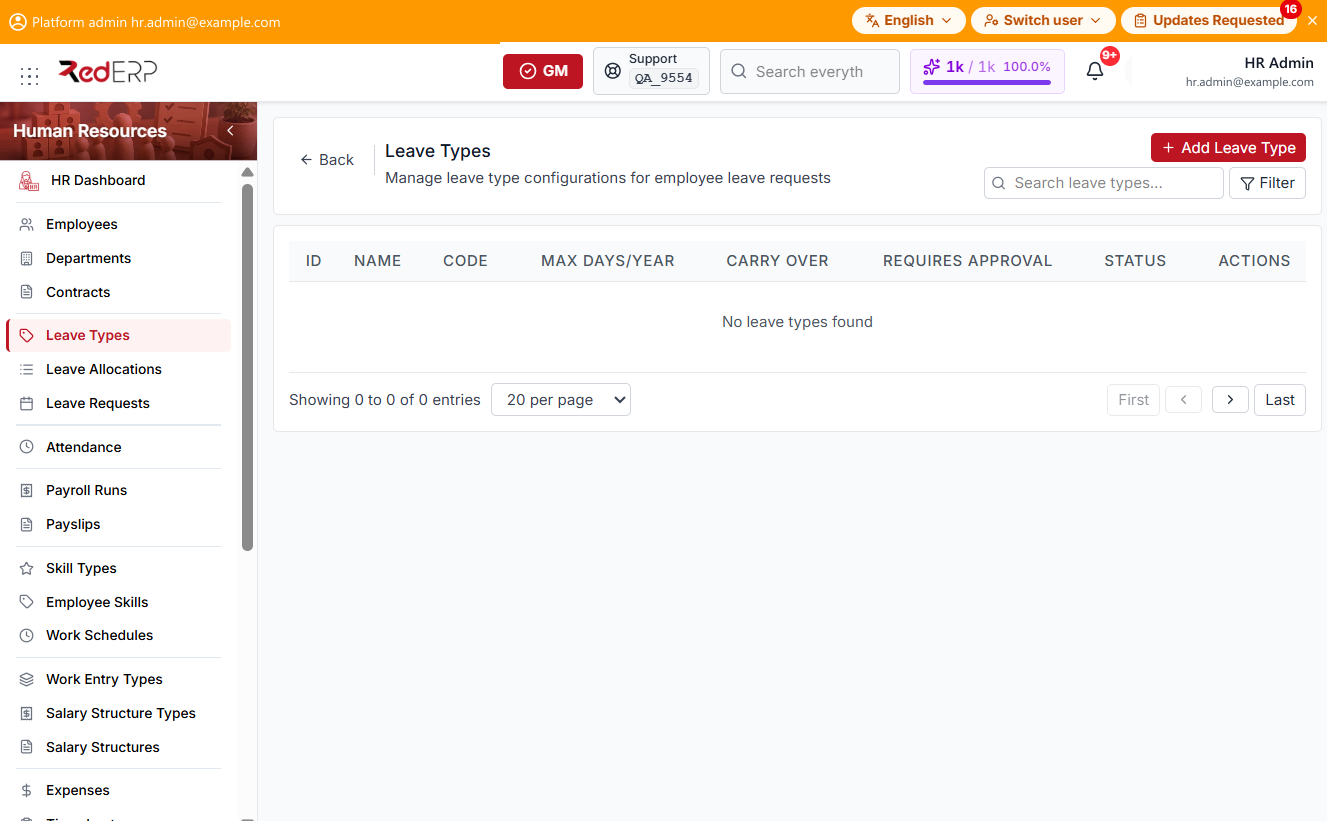
The columns are ID, Name, Code, Max Days/Year, Carry Over, Requires Approval, Status, and Actions. Use Search leave types.... Filters are Status (Active, Inactive) and Requires Approval (Yes, No).
Row actions are View, Edit, and Delete.
Add a leave type
- Open Human Resources → Leave Types.
- Select Add Leave Type.
- Enter the required Name.
- Optionally set Code, Color, Max Days Per Year, Carry Over, Requires Approval, and Status.
- Select Create Leave Type.
Leave Allocations
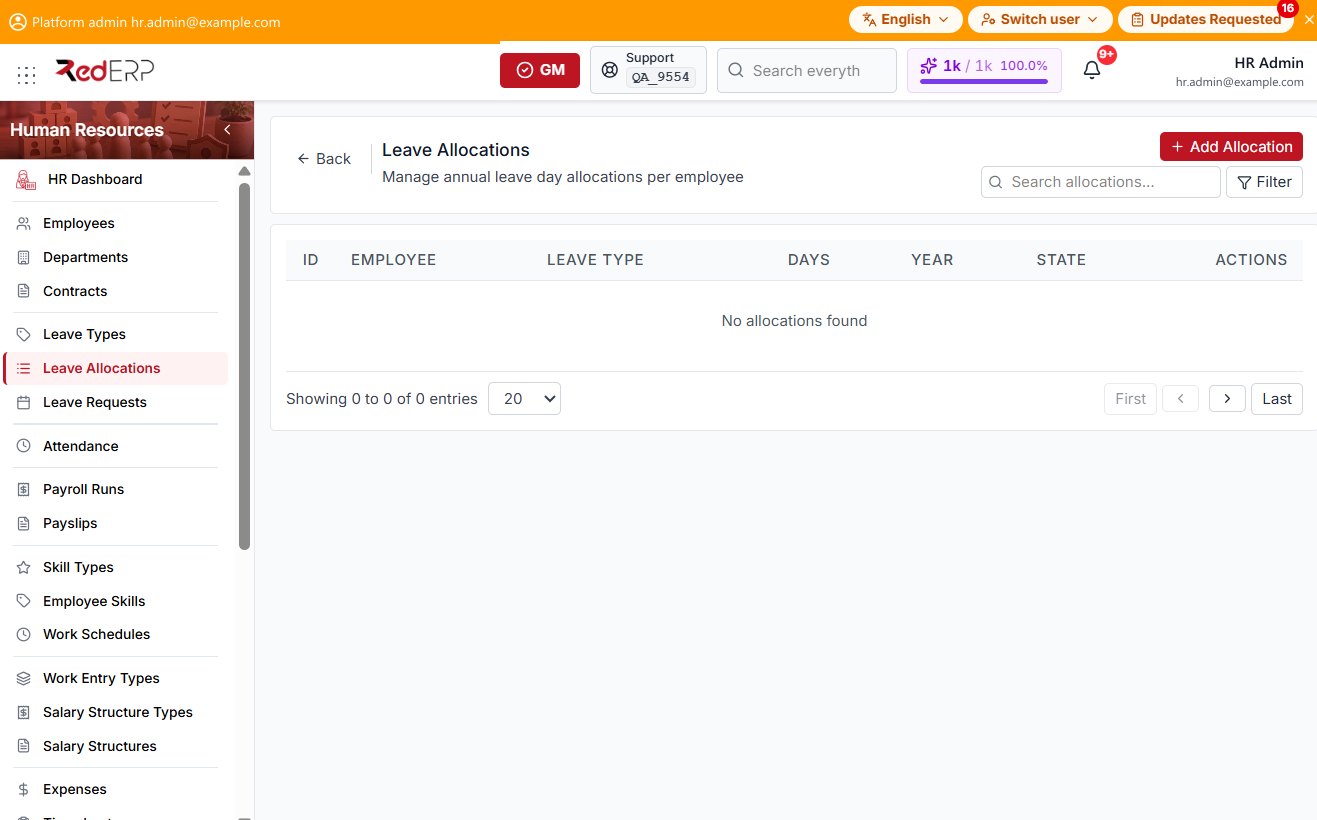
The columns are ID, Employee, Leave Type, Days, Year, State, Approved By, and Actions. Filters are State, Year, and Leave Type.
State is Draft, Confirmed, Approved, or Refused. Row actions are View, Edit, Approve, and Delete.
Add an allocation
- Open Human Resources → Leave Allocations.
- Select Add Allocation.
- Enter the required Employee, Leave Type, and Year.
- Optionally set Number of Days, State, and Notes.
- Select Create Allocation. Use Approve when the allocation must be approved.
Leave Requests
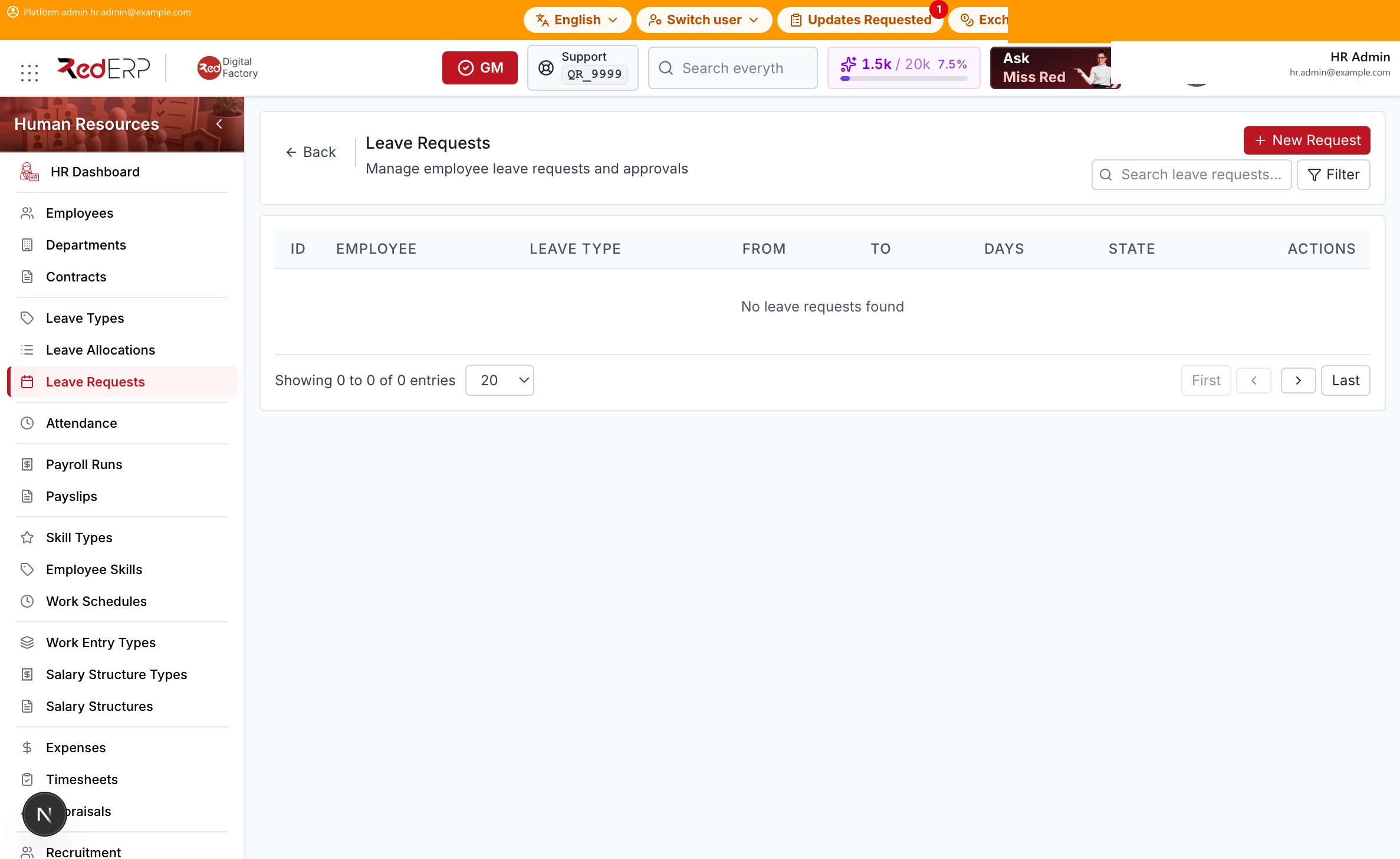
The columns are ID, Employee, Leave Type, From, To, Days, State, Reason, and Actions. Filters are State, Leave Type, From Date, and To Date.
State is Draft, Confirmed, Approved, Refused, or Cancelled. Row actions are View, Edit, Approve, Refuse, and Delete.
Add a request
- Open Human Resources → Leave Requests.
- Select New Request.
- Enter the required Employee, Leave Type, From Date, and To Date. Number of Days is calculated. Optionally enter Reason.
- Select Submit Request.
Refuse opens Refuse Leave Request. Enter Reason for Refusal, then Confirm Refusal.
Attendance
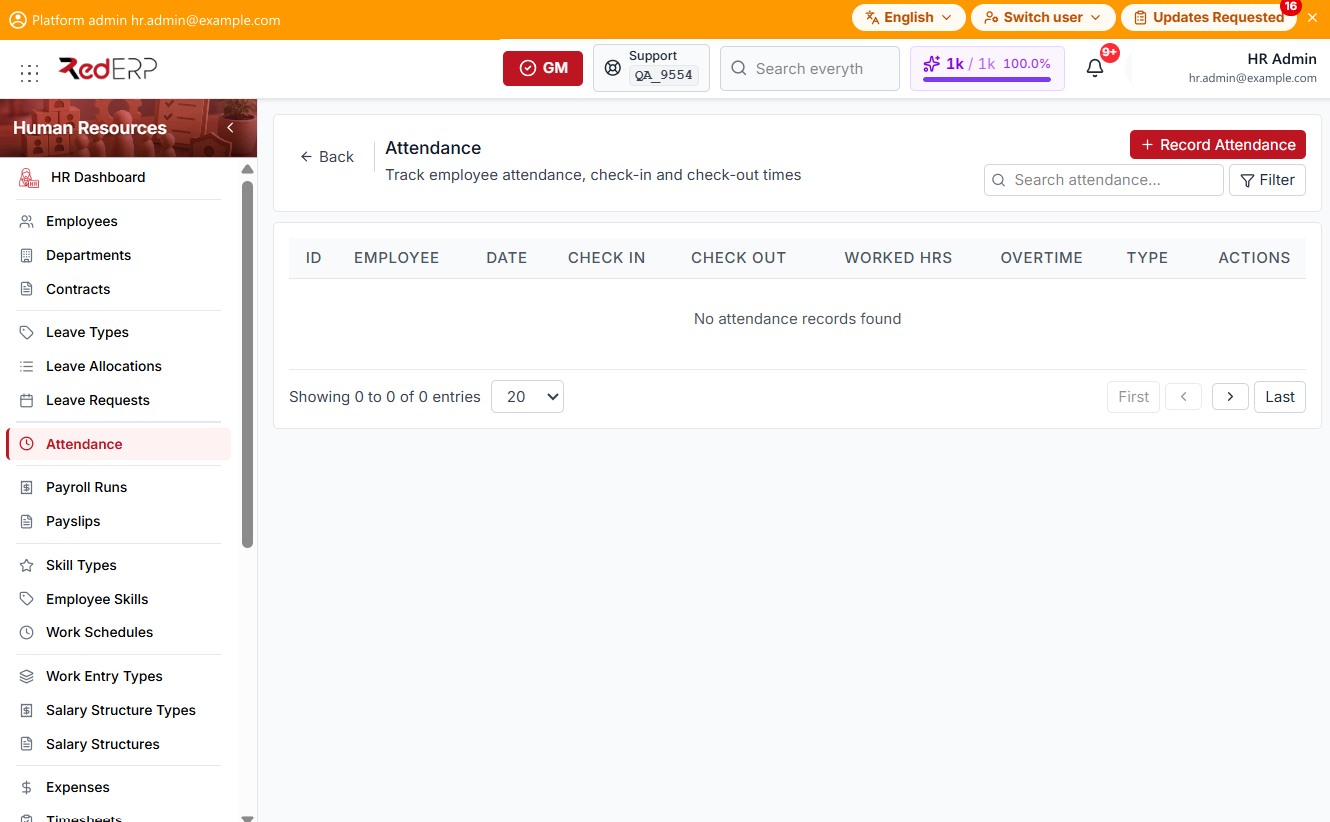
The columns are ID, Employee, Date, Check In, Check Out, Worked Hrs, Overtime, Type, and Actions. Use Search.... Filters are Type, From Date, To Date, and Employee.
Type is Office, Remote, or Overtime. Row actions are View, Edit, and Delete.
Record attendance
- Open Human Resources → Attendance.
- Select Record Attendance.
- Enter the required Employee and Attendance Date.
- Optionally set Check In, Check Out, Attendance Type, and Notes.
- Select Record Attendance.