Expenses & Timesheets
Employee expense claims and timesheet hours.
Overview
Expenses are individual claims. Timesheets log hours. Group several expenses on Expense Sheets.
Expenses
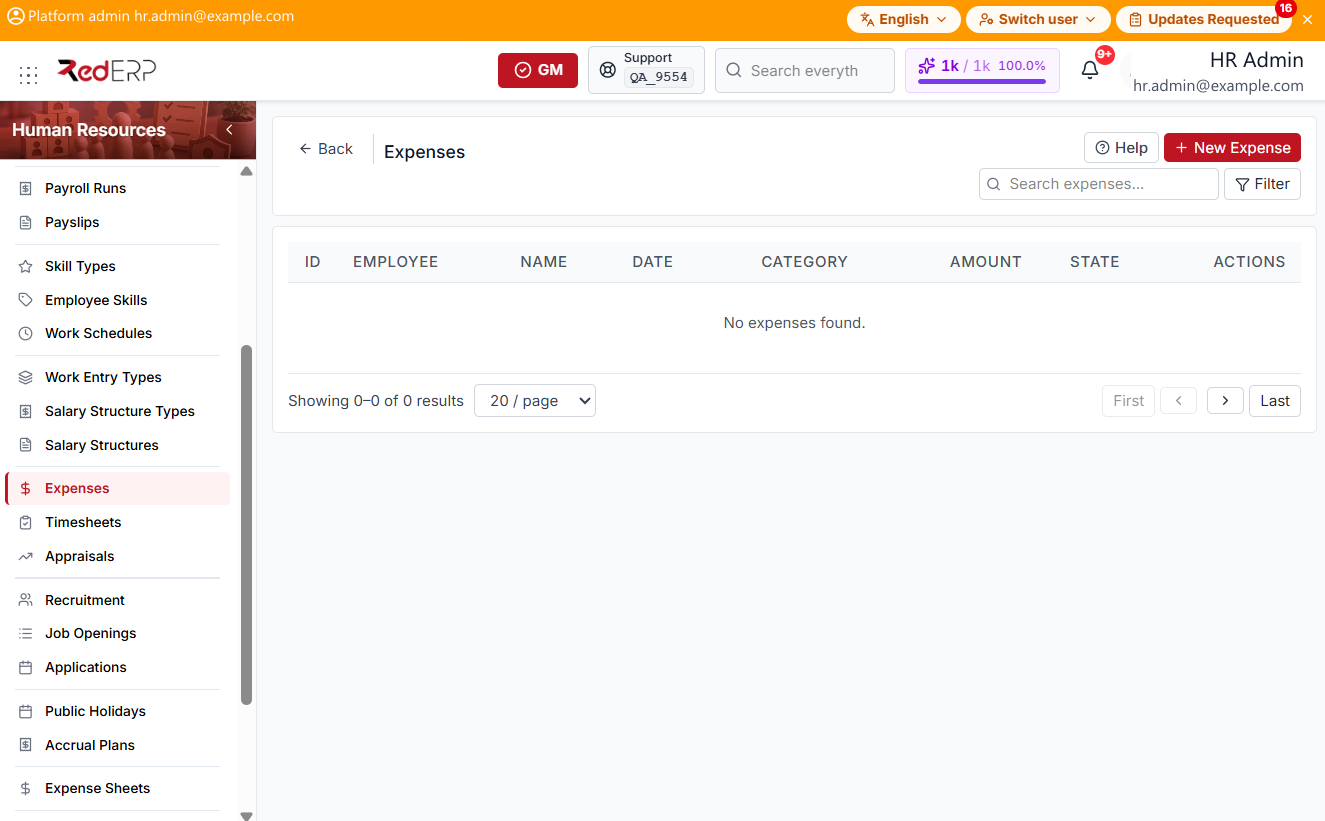
The columns are ID, Employee, Name, Date, Category, Amount, State, and Actions. Use Search expenses.... Select Filter to show Employee, State, Category, From, and To. Reset appears when a filter is set.
The header has Help and New Expense.
Category is Travel, Meals, Accommodation, Equipment, Communication, Training, or Other. State is Draft, Submitted, Approved, Refused, or Paid.
The Actions menu has View; Edit, Submit, and Delete on Draft; Approve and Refuse on Submitted; and Mark as Paid on Approved.
Add an expense
- Open Human Resources → Expenses.
- Select New Expense. A drawer opens: Create Expense.
- Enter the required Employee, Name, Date, Category, and Total Amount. Optionally set Receipt URL and Notes.
- Select Save, or Cancel to close the drawer.
- On a Draft expense, select Submit.
Refuse opens Refuse Expense. Enter the required Reason, then select Confirm Refusal, or Cancel.
Timesheets
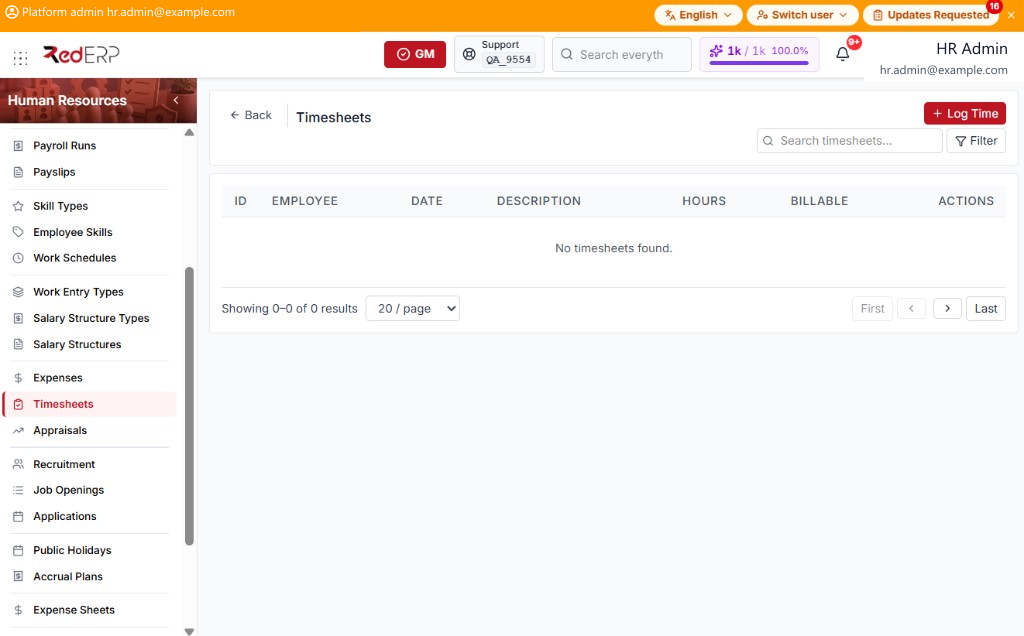
The columns are ID, Employee, Date, Description, Hours, Billable, and Actions. Use Search timesheets.... Select Filter to show Employee, Billable, Project ID, From, and To. Reset Filters appears when a filter is set.
When an Employee filter is set, a Summary shows Total Hours, Billable Hours, Internal Hours, and Total Entries.
Billable in the list is Billable or Internal. The Actions menu has View, Edit, and Delete.
Log time
- Open Human Resources → Timesheets.
- Select Log Time. A drawer opens: Log Time.
- Enter the required Employee, Date, and Hours. Optionally set Project ID, Description, Billable, and Notes.
- Select Save, or Cancel to close the drawer.