Payroll & Payslips
Payroll runs, compute, validate, and employee payslips.
Overview
A payroll run covers a period. Payslips lists employee slips. Open Payslips from the sidebar, or select View Payslips on a run.
Payroll Runs
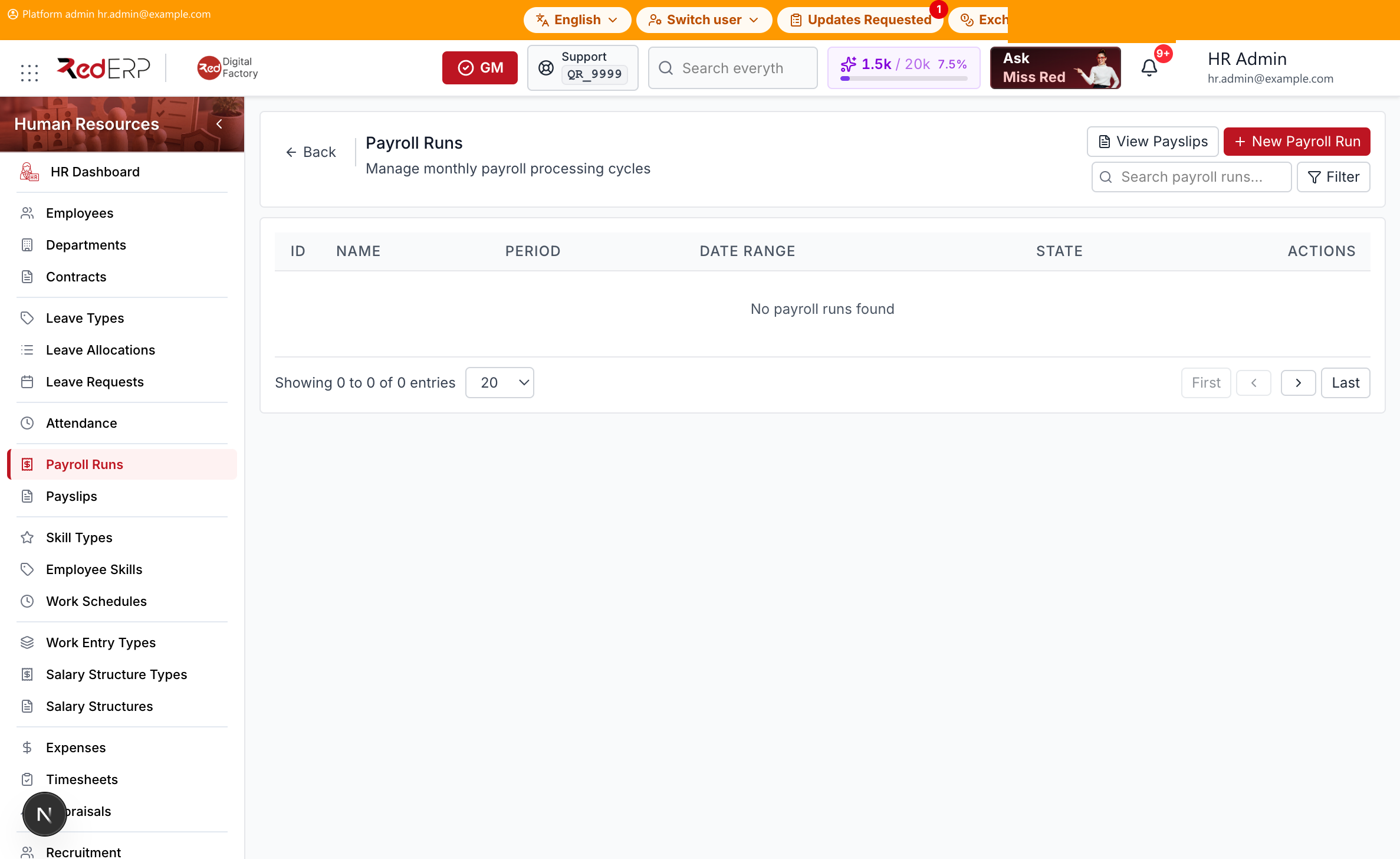
The columns are ID, Name, Period, Date Range, State, and Actions. Use Search payroll runs.... Select Filter to show State, Year, and Month. Reset appears when a filter is set.
State is Draft, Verified, Done, or Cancelled.
The header has View Payslips and New Payroll Run. The Actions menu has View; Edit and Compute on Draft; Validate on Verified; View Payslips; and Delete when the run is not Done.
On View Payroll Run, the drawer shows State transitions: Draft → Compute → Verified → Validate → Done.
Add and compute a run
- Open Human Resources → Payroll Runs.
- Select New Payroll Run. A drawer opens: New Payroll Run.
- Enter the required Name, Period Month, Period Year, Date From, and Date To. Optionally set Notes.
- Select Create Payroll Run, or Cancel to close the drawer.
- On a Draft run, select Compute.
- On a Verified run, select Validate to move it to Done.
Payslips
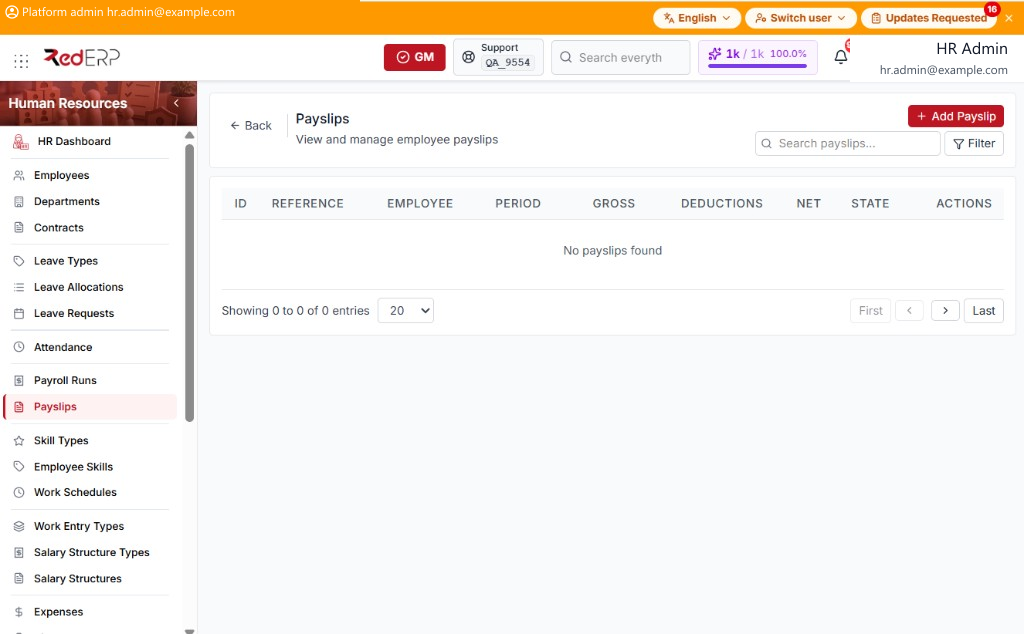
The columns are ID, Reference, Employee, Period, Gross, Deductions, Net, State, and Actions. Use Search payslips.... Select Filter to show State and Payroll Run. Reset appears when a filter is set.
State is Draft, Done, or Cancelled. Line categories are Basic Salary, Allowances, Deductions, and Other.
The Actions menu has View; Edit on Draft; and Delete when the slip is not Done.
Add a payslip
- Open Human Resources → Payslips, or select View Payslips from Payroll Runs.
- Select Add Payslip. A drawer opens: New Payslip.
- Enter the required Employee, Period From, and Period To. Optionally set Payroll Run, Gross Amount, Total Deductions, Net Amount, State, and Notes.
- Select Create Payslip, or Cancel to close the drawer.
View opens Payslip Details. It shows Gross Amount, Total Deductions, Net Amount, and Payslip Lines.