Customer Tags
Create color tags for CRM deals and prospects.
Overview
Use Customer Tags to label deals and prospects. Newsletter source tags on subscriptions come from signup forms and are separate.
Customer Tags
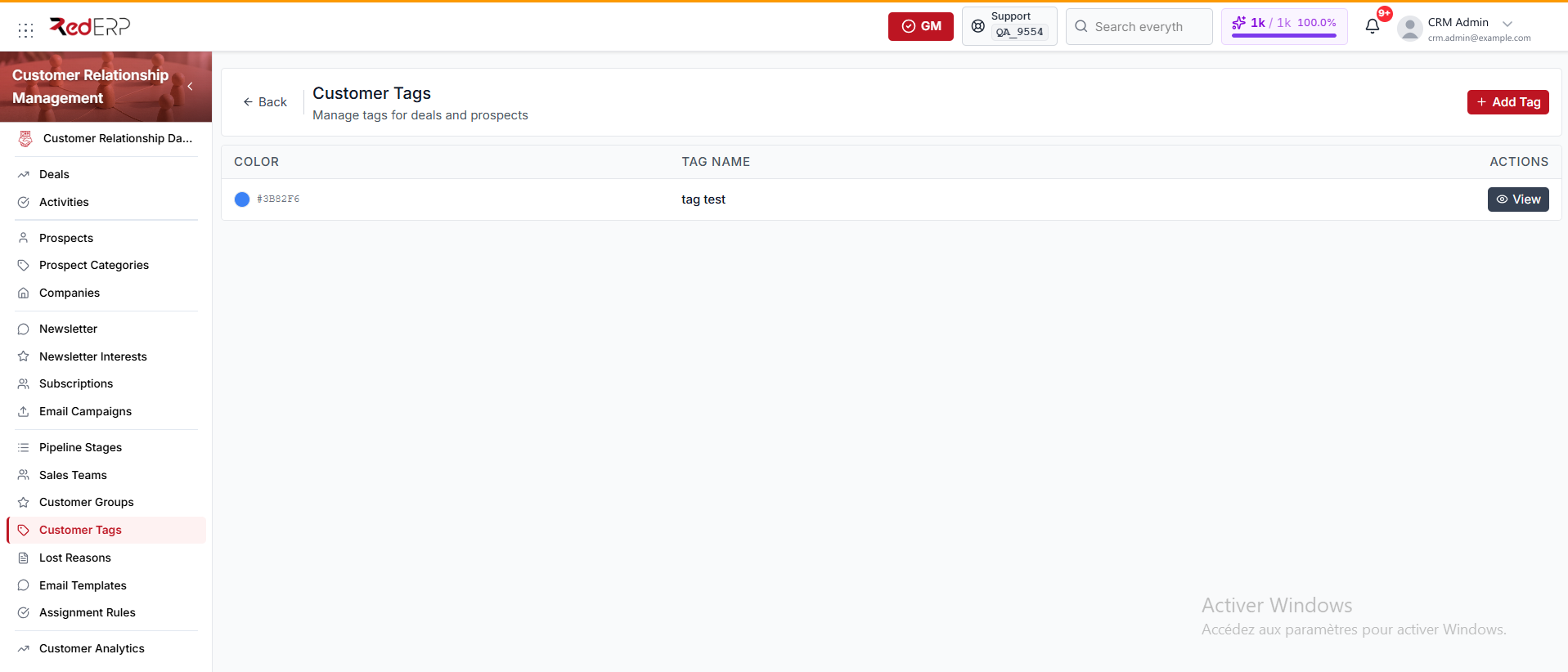
The columns are Color, Tag Name, and Actions. Color shows a swatch and the hex value.
The row action is View. You can also select the tag name.
Create a tag
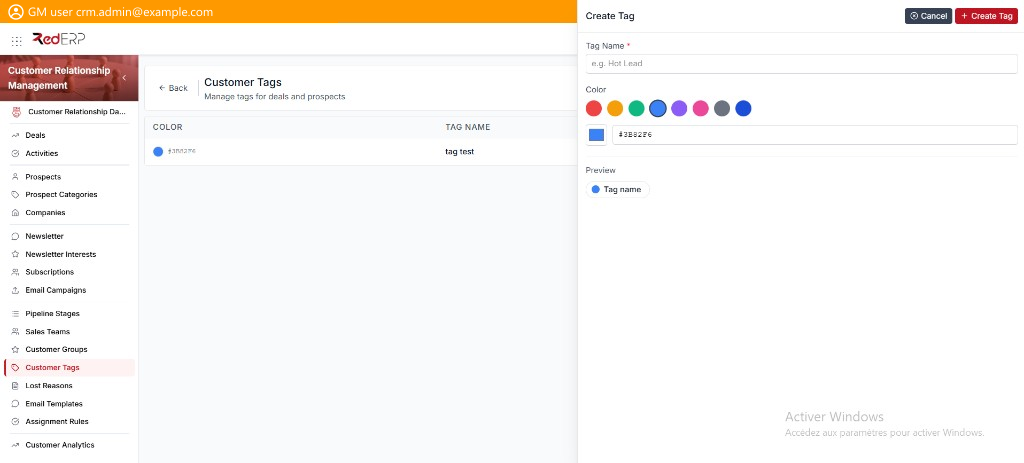
- Open CRM → Customer Tags.
- Select Add Tag. The drawer title is Create Tag.
- Enter the required Tag Name. The placeholder is e.g. Hot Lead.
- Set Color. Pick a preset swatch, or use the color picker and hex field. The default is
#3B82F6. - Check Preview. An empty name shows Tag name.
- Select Create Tag.
View, edit, or delete a tag
- Open CRM → Customer Tags.
- Select View. The drawer title is Tag Details.
- Review Tag Name, Color, and Preview.
- Select Edit. The drawer title is Edit Tag. Change the fields, then select Save Changes.
- Use Delete Tag in the Danger Zone only when the tag must be removed. Confirm in the Delete Tag dialog.
Good practice
- Use short, reusable names so filters stay useful.
- Do not mix these tags with newsletter source tags on signup forms.