About CRM
CRM in RedERP: the dashboard, prospects, companies, deals, activities, newsletters, assignment rules, and analytics.
Overview
The CRM module brings lead capture, the sales pipeline, follow-ups, newsletters, and performance reporting into one workspace.
Open CRM from the module launcher or the main sidebar, or go to rederp.ai/modules/crm. The first screen is the Customer Relationship Dashboard — Overview of prospects and newsletter performance. The path is /modules/crm.
How records connect
| Record | What it is | Next step |
|---|---|---|
| Prospect | A person you are qualifying | Convert to a deal, or log an activity |
| Company | The organization behind one or more contacts | Link from the prospect |
| Deal | A lead or opportunity in the CRM pipeline | Mark Won or Lost, send email, attach files |
| Activity | A planned or completed follow-up | Mark Done; a Won outcome on create can convert the prospect |
| Campaign | A newsletter send | Uses interests and subscriptions |
Converting a prospect creates a deal. Won revenue appears in CRM analytics; invoicing still happens in Sales & Invoicing.
Dashboard
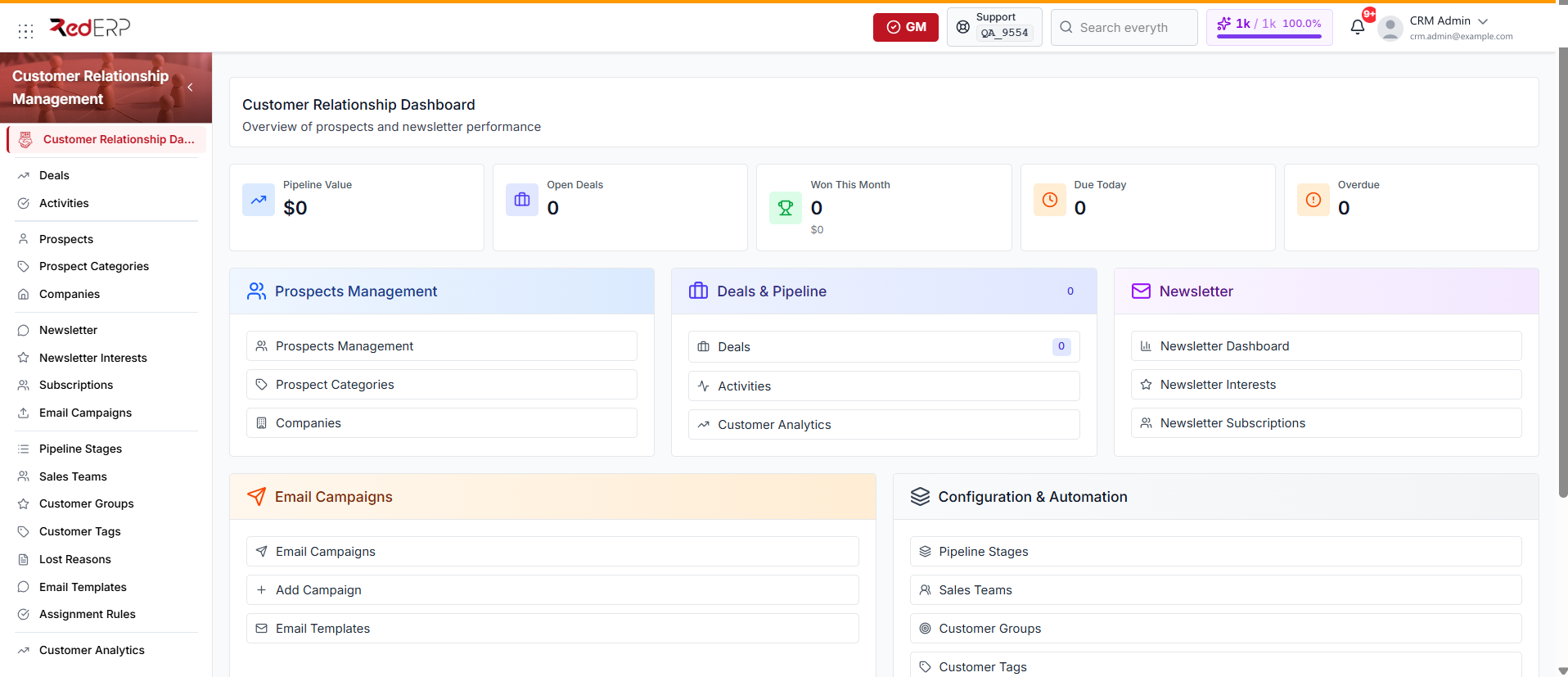
The KPI row shows:
- Pipeline Value — expected revenue of open deals
- Open Deals — deals still in the pipeline
- Won This Month — count, with won revenue underneath
- Due Today — activities due today
- Overdue — activities past their due date (the tile turns red when the count is above zero)
When data exists, Top Deals and Recent Activities appear below the tiles. Select View all to open the full lists.
Module cards
- Open CRM.
- Use Prospects Management to open Prospects, Prospect Categories, or Companies.
- Use Deals & Pipeline to open Deals, Activities, or Customer Analytics.
- Use Newsletter to open the Newsletter Dashboard, Newsletter Interests, or Newsletter Subscriptions.
- Use Email Campaigns to open all campaigns, add a campaign, or open Email Templates.
- Use Configuration & Automation to open Pipeline Stages, Sales Teams, Customer Groups, Customer Tags, Lost Reasons, or Assignment Rules.
Quick actions
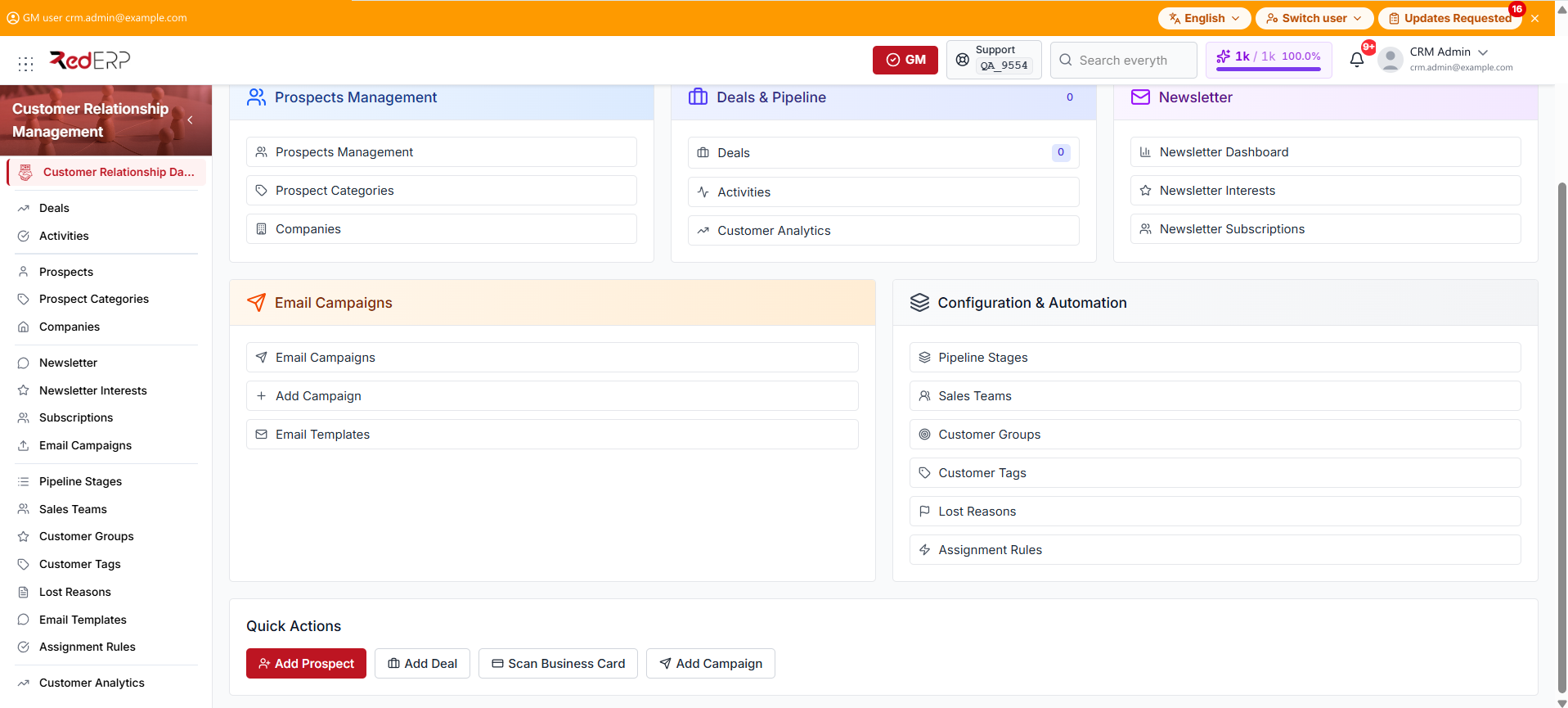
- Open CRM.
- Select Add Prospect to open Prospects with the create drawer (
?create=true). - Select Add Deal to open the deals list (not the create form).
- Select Scan Business Card to open Prospects with the scanner (
?scan=true). - Select Add Campaign to open campaigns with the create form (
?create=true).
Each scan uses AI tokens. The scanner reports remaining scans before it starts. See Prospects for the scan steps.
Treat overdue as a daily list: mark activities Done or change the due date. Configure pipeline stages and lost reasons before you rely on the deal cards. Use Scan Business Card from the dashboard only when scan quota remains.
Sidebar sections
| Menu item | Path | Purpose |
|---|---|---|
| Customer Relationship Dashboard | /modules/crm | Review KPIs, shortcuts, and quick actions |
| Deals | /modules/crm/deals | Manage leads and opportunities in list or kanban |
| Activities | /modules/crm/activities | Track overdue, today, and upcoming follow-ups |
| Prospects | /modules/crm/prospects | Capture, import, scan, convert, or mark leads lost |
| Prospect Categories | /modules/crm/prospect-categories | Classify prospects for scoring |
| Companies | /modules/crm/companies | Maintain organizations linked to prospects |
| Newsletter | /modules/crm/newsletter | Review subscriber and campaign totals |
| Newsletter Interests | /modules/crm/newsletter/interests | Define topics subscribers can choose |
| Subscriptions | /modules/crm/newsletter/subscriptions | Manage opt-in status and preferences |
| Email Campaigns | /modules/crm/newsletter/campaigns | Create, schedule, and send campaigns |
| Pipeline Stages | /modules/crm/pipeline-stages | Configure kanban stages and probabilities |
| Sales Teams | /modules/crm/sales-teams | Group owners and publish a scan link |
| Customer Groups | /modules/crm/customer-groups | Segment customers and optional discounts |
| Customer Tags | /modules/crm/tags | Color-tag deals and prospects |
| Lost Reasons | /modules/crm/lost-reasons | Reasons used when a deal or prospect is lost |
| Email Templates | /modules/crm/email-templates | Reusable deal email templates |
| Assignment Rules | /modules/crm/assignment-rules | Auto-assign new leads to a user or team |
| Customer Analytics | /modules/crm/analytics | Pipeline, forecast, win rate, and sources |
Signup forms live at /modules/crm/newsletter/forms and open from Subscriptions → Signup Forms, not from the sidebar.
Initial setup checklist
- Open Pipeline Stages and confirm the stages, probabilities, and won/lost flags.
- Add at least one Lost Reason.
- Create a Sales Team if more than one person owns leads.
- Add Assignment Rules if new leads should be routed automatically.
- Create Prospect Categories you will use for scoring.
- Add existing Companies and Prospects, or import a file / scan cards.
- Create Newsletter Interests, then a signup form if you collect opt-ins on a website.
- Add an Email Template before sending deal mail.
- Open Customer Analytics after a few closed deals and confirm the date range.
Important concepts
- Prospects and deals are different records. A prospect is a person you are qualifying. Converting creates a deal in the CRM pipeline, not a Client.
- Companies are organizations. Link them from the prospect; a card scan can create the company when the card includes one.
- Activities are follow-ups. Link each activity to a prospect or a deal. A Won outcome on create can convert the prospect.
- Won and Lost close the deal. Lost requires a lost reason. Invoicing still happens in Sales & Invoicing.
- Assignment rules run on create. They apply to manual add, import, and Scan Business Card.
- Newsletter subscriptions are opt-in records. Campaigns use interests, tags, and frequency. Do not mail unsubscribed addresses. Email Templates are for deal mail, not the newsletter campaign body.
- CRM analytics does not replace sales reports. Won revenue is a CRM indicator.